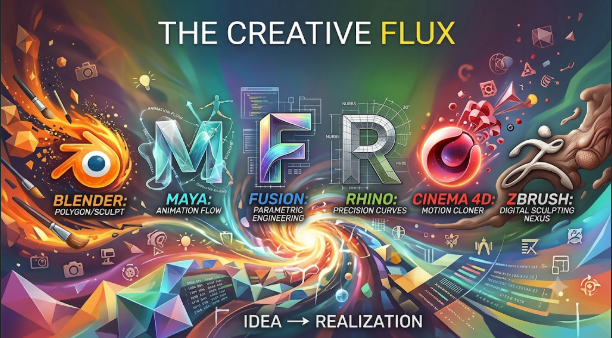
Creating a 3D model starts with an idea. But the software you choose shapes the entire process. Some tools help artists build characters and worlds. Others help engineers design accurate parts. Architects need different features from game developers.
That is why 3D modeling software does not have one universal winner. Each application follows a different approach to creating and editing shapes.
The most useful choice depends on what you want to make, how precise it must be, and where the finished model will go. Understanding these differences can save time, money, and extra work.
What Makes One 3D Modeling Tool Different From Another?
3D modeling tools let people create digital objects in three dimensions. These objects have width, height, and depth. You can shape them, change their details, and prepare them for other tasks.
However, not every tool creates geometry in the same way.
Some use polygons to build surfaces from connected points, edges, and faces. Others use curves and mathematical surfaces for accurate product design. Some tools let users sculpt digital shapes like clay.
These methods solve different problems.
The Main Ways 3D Modeling Software Works
Before comparing applications, understand the main modeling methods. This makes it easier to find software that fits your work.
1. Polygon Modeling
Polygon modeling uses points, edges, and faces to create objects. Artists can move these parts to change an object’s shape.
This method works well for game assets, characters, furniture, and digital environments. It also supports many animation and rendering workflows.
2. Digital Sculpting
Digital sculpting feels much like shaping clay. Artists use brushes to push, pull, smooth, and add details.
This method suits creatures, faces, characters, and organic objects. It also helps artists create fine surface details.
3. Parametric Modeling
Parametric modeling uses dimensions, rules, and design steps. You can change a value and update related parts.
This method works well for machines, tools, product parts, and mechanical designs. It also helps teams manage design changes.
4. Surface and NURBS Modeling
NURBS stands for Non-Uniform Rational B-Splines. It uses mathematical curves and surfaces to create smooth, precise shapes.
This method helps designers create cars, jewelry, product shells, and complex forms. It is useful when smooth surfaces and exact geometry matter.
3D Modeling Software Worth Considering
The following applications serve different creative and technical needs. They are not ranked by a universal score.
Blender: A Complete Creative Workspace
Blender is a free, open-source 3D creation suite. It brings many creative tasks into one application.
Its modeling tools support polygon editing, curves, sculpting, and procedural workflows. Artists can also create materials, animations, simulations, and final renders.
Blender is useful for independent creators and small studios. It can support projects from simple objects to detailed animated scenes.
What makes it different: Blender combines modeling with much of the wider 3D production process. This can reduce the need to move between several applications.
What to consider: Its wide range of tools takes time to learn. Beginners may find the interface overwhelming at first.
It is a strong starting point for people who want a capable tool without buying a commercial license.
Autodesk Maya: Built Around Characters and Animation
Autodesk Maya supports character modeling, environments, and digital production.
Its polygon and NURBS tools help artists create different types of geometry. Its wider toolset also includes rigging, animation, and visual effects.
Maya is particularly relevant to character artists and animation teams. Its tools support complex character and scene workflows.
What makes it different: Maya connects modeling with character rigging and animation. This matters when a model must move naturally in a finished production.
What to consider: Maya has a demanding learning curve. Its commercial licensing also requires budget planning.
Choose Maya when character production and animation matter as much as modeling.
Autodesk 3ds Max: Detailed Models and Visual Scenes
Autodesk 3ds Max focuses on 3D modeling, materials, lighting, and visualization.
Its polygon modeling tools help artists create objects and detailed environments. Its modifier stack also lets users adjust models through editable operations.
Architectural visualization is one important use case. Designers can build interiors, furniture, buildings, and presentation scenes.
What makes it different: The modifier-based workflow gives artists flexible ways to change geometry. This helps when a design needs many adjustments.
What to consider: Its advanced tools need practice. Users should also check hardware needs and licensing costs.
3ds Max is worth considering for architectural scenes and detailed visual assets.
ZBrush: Sculpting Models With Fine Details
FlippedNormals: Comprehensive ZBrush Workflow
ZBrush is a digital sculpting and painting application.
Artists use brushes to shape virtual clay. They can add skin details, wrinkles, scales, and other fine surface features.
It is useful for creature design, character art, collectibles, and detailed organic models. Its tools also support hard-surface modeling.
What makes it different: ZBrush focuses heavily on sculpting. Artists can concentrate on shape and surface detail without following a traditional CAD workflow.
What to consider: Its sculpting approach differs from standard polygon editing. Large, detailed models may also need extra preparation before animation or manufacturing.
Choose ZBrush when artistic detail matters more than precise mechanical dimensions.
Rhino: Precision and Creative Surface Design
Apply materials and Render — Iconic Fashion Pieces | RhinoArtisan
Rhino combines precise geometry with flexible freeform design.
It supports NURBS curves, surfaces, and solids. It also works with subdivision geometry, point clouds, and polygon meshes.
This makes Rhino useful for industrial design, jewelry, architecture, and product development. Designers can build smooth shapes while keeping control over dimensions.
What makes it different: Rhino handles both precise geometry and complex freeform shapes. Its Grasshopper visual programming environment also supports rule-based design.
What to consider: Rhino is not a full replacement for every mechanical CAD system. Users should check manufacturing and engineering needs before choosing it.
It is especially useful when surface quality and geometric control matter.
Autodesk Fusion: From Design Ideas to Manufactured Parts
Solidworks vs Fusion 360 | Software Comparison | Scan2CAD
Autodesk Fusion connects product design with engineering and manufacturing workflows.
Users can create sketches and turn them into 3D parts. Its parametric mode tracks design features through a timeline.
Fusion also supports direct modeling. This lets users change geometry without recording every operation.
What makes it different: Fusion connects 3D design with assemblies and manufacturing tools. This helps product designers move beyond visual models.
What to consider: Its advanced features depend on the selected plan. Teams should check file access, collaboration, and manufacturing requirements.
Fusion suits product designers, engineers, and makers who need practical models.
SketchUp: A Direct Way to Build 3D Spaces
SketchUp Download Free – 2026.1.880 | TechSpot
SketchUp offers a direct approach to 3D modeling.
Users draw lines and shapes, then turn them into 3D objects. They can also apply materials, textures, and styles.
Architects and interior designers often use this approach to explore spaces. It also helps users present building ideas to clients.
What makes it different: Its drawing-based workflow makes basic shape creation easy to understand. Users can quickly turn simple plans into visible models.
What to consider: Complex engineering and highly detailed organic sculpting may require other tools. Some advanced workflows also depend on extensions or paid plans.
SketchUp is a practical choice for architectural concepts and interior layouts.
FreeCAD: Open-Source Design for Real Objects
Izašao je FreeCAD 1.0 | 3D CAD blog
FreeCAD is a free, open-source parametric 3D modeler.
It focuses on objects with real dimensions. Users can build solid models and change their design features.
FreeCAD also supports technical drawings and exports for manufacturing. Its geometry tools use the Open CASCADE Technology engine.
What makes it different: FreeCAD offers a parametric engineering workflow without requiring a commercial software license.
What to consider: Its interface and workflows may take time to understand. Users should also check workbench compatibility and file exchange needs.
FreeCAD is worth exploring for students, hobbyists, and engineering users.
Comparing the Different Modeling Approaches
A product’s purpose often matters more than its number of features. This table shows where each application fits.
| Software | Main strength | Suitable work |
|---|---|---|
| Blender | Complete 3D creation | Animation, games, art |
| Maya | Character production | Film, games, animation |
| 3ds Max | Modeling and visualization | Architecture, environments |
| ZBrush | Digital sculpting | Creatures, characters |
| Rhino | Precise freeform surfaces | Jewelry, industrial design |
| Fusion | Parametric engineering | Product design, parts |
| SketchUp | Direct spatial modeling | Buildings, interiors |
| FreeCAD | Open-source parametric CAD | Engineering, 3D printing |
These applications can overlap. However, their main workflows remain different.
For example, Blender and Maya both support polygon modeling. Maya adds a strong focus on character production. Blender offers a broader all-in-one creative workspace.
Rhino and Fusion can both create product shapes. But Rhino focuses on flexible surface design. Fusion connects parametric design with engineering and manufacturing tasks.
How to Choose Software for Your Actual Work
A useful selection starts with the finished model. Think about what you need to do with it after creation.
For Game Development
Game assets need suitable geometry and textures. They must also work within a game engine’s technical limits.
Consider Blender or Maya for general modeling and production. ZBrush can help create detailed character sculpts.
Check these points before choosing:
- Can the software export your required file formats?
- Can you create clean polygon topology?
- Does your game engine support the exported assets?
- Can you prepare textures and UV maps?
- Can your computer handle the project?
A detailed model is not always a good game asset. It may need lower polygon counts and optimized textures.
For Architecture and Interior Design
Architectural models need accurate spaces and clear presentations. Designers must also manage rooms, furniture, walls, and materials.
SketchUp offers a direct way to create building concepts. 3ds Max helps create detailed visual scenes. Blender can also support architectural modeling and rendering.
Your choice should depend on the complete design process.
Consider drawing accuracy, available building information, rendering needs, and collaboration.
For Product Design and Engineering
Engineering models need correct dimensions and useful design records. A visually attractive model alone may not meet manufacturing needs.
Fusion and FreeCAD offer parametric workflows. Rhino is useful when product shapes need complex surfaces.
Before choosing, check:
- Dimensional accuracy
- Assembly design
- Drawing generation
- Manufacturing file exports
- Design revision history
- Compatibility with other engineering tools
Also check whether your manufacturing partner accepts the exported files.
For Character Art and Digital Sculpting
Character artists often need control over shape, anatomy, and fine details.
ZBrush offers a sculpting-focused environment. Blender combines sculpting with modeling and other creative tools. Maya helps connect character models with rigging and animation.
Your choice depends on whether sculpting, animation, or a complete production workflow matters most.
For Learning and Personal Projects
Beginners do not need expensive software right away.
Blender gives learners access to many 3D creation tools. FreeCAD offers an open-source route into parametric CAD. SketchUp provides a direct way to explore basic architectural shapes.
Start with small projects. Learn the basic tools before moving into complex workflows.
Technical Requirements You Should Check Before Installing
3D modeling can place heavy demands on a computer. The workload depends on the software and project size.
A simple object needs fewer resources than a detailed animated scene. Large textures, simulations, and high-polygon models need more processing power.
Processor and Memory
The processor handles many modeling operations. Memory helps the software manage large scenes and complex assets.
For small projects, a modest computer may be enough. Larger production work may need more memory and stronger hardware.
Graphics Card
The graphics card affects viewport performance and supported rendering workflows.
Check the software’s official hardware requirements. Also review support for your graphics card and operating system.
Do not buy a new computer based only on general recommendations. Match its specifications to your real projects.
Storage and Project Files
3D projects can include models, textures, materials, and reference images. These files can take up considerable storage space.
Use reliable storage and keep backups. Separate project files from temporary exports where practical.
This helps protect work and makes projects easier to manage.
Why File Compatibility Matters
A model may look perfect in one application but behave differently elsewhere. File compatibility can affect the entire production process.
Different applications use different formats. Some store editable design history. Others store surface geometry or polygon meshes.
Common formats include:
- OBJ: Used to exchange polygon geometry and related material information.
- STL: Commonly used for 3D printing.
- FBX: Used in many animation and digital content workflows.
- STEP: Used to exchange engineering and solid geometry.
- 3MF: Used to transfer 3D printing models and related information.
- GLB and glTF: Used to deliver 3D assets for web and real-time applications.
Not every format preserves every feature.
For example, exporting a parametric CAD model as a polygon mesh can remove its editable feature history. Similarly, an animation file may not preserve every material or rigging detail.
Always test a sample export before moving an entire project.
Common Mistakes When Selecting 3D Modeling Software
A poor software choice can create extra work. These mistakes often happen when users focus only on features.
Choosing Based on Popularity
Popular software may not match your needs. A character artist and a mechanical engineer have different requirements.
Choose based on the work you actually plan to complete.
Ignoring the Learning Curve
A large feature list does not mean an application is easy to learn.
Some tools require knowledge of geometry, topology, or technical drawing. Give yourself time to understand the workflow.
Forgetting the Final Output
Think about where the model will go.
Will you animate it? Print it? Manufacture it? Add it to a game? Show it to a client?
The answer changes which features matter.
Ignoring Long-Term Costs
Free software can reduce licensing costs. However, training, hardware, support, and maintenance still require time or money.
Commercial software may offer useful support and specialist features. Check the full cost before making a commitment.
Overlooking Collaboration
A tool that works for one person may not suit a large team.
Check file sharing, permissions, version control, and supported formats. These details become important when several people work on one project.
A Practical Way to Test Your Shortlisted Tools
Do not choose software after watching only a few promotional videos. Test it with a small project that matches your real needs.
You can follow this simple process:
- Choose a small object or design task.
- Create the same model in two shortlisted applications.
- Test the editing tools and workflow.
- Export the model into your required format.
- Open the exported file in its target application.
- Check the final quality and any missing details.
- Compare learning time and total costs.
For engineering, test a model with several dimensions and design changes. For animation, test a simple character or moving object.
For architecture, build a small room with furniture and materials. For 3D printing, check the exported model for errors.
This approach gives you practical evidence before making a larger commitment.
Questions to Ask Before Buying a 3D Modeling Tool
A short checklist can help prevent expensive mistakes.
Does the software support my operating system?
Check official platform support before installing or buying a license.
Can I use it for commercial projects?
Read the license terms carefully. Free access does not always mean unrestricted commercial use.
Can I export the formats my team needs?
Check both import and export support. Also test whether important model information survives the transfer.
Will my computer handle large projects?
Review hardware requirements and test realistic scenes.
Does it support the complete workflow?
Modeling may be only one part of your work. You may also need sculpting, animation, rendering, or manufacturing tools.
Can I get help when problems occur?
Look at official documentation, training resources, community forums, and commercial support options.
Frequently Asked Questions
Which 3D modeling software is best for beginners?
Blender, SketchUp, and FreeCAD are useful starting points. The right choice depends on the type of model you want to create.
Blender suits creative projects. SketchUp helps with basic spatial design. FreeCAD introduces parametric modeling.
Is free 3D modeling software good enough for professional work?
Yes, free software can support serious projects. Blender and FreeCAD offer extensive tools for different workflows.
However, professional work also depends on file compatibility, support, training, and project requirements.
What is the difference between 3D modeling and 3D sculpting?
3D modeling involves creating and editing digital geometry. It can use polygons, curves, and mathematical surfaces.
3D sculpting focuses on shaping objects with digital brushes. It feels more like working with physical clay.
Which software should I use for 3D printing?
Fusion, FreeCAD, Blender, and Rhino can all support parts of 3D printing workflows.
The right choice depends on design complexity and dimensional accuracy. You should also check the exported model for errors before printing.
Can I use one application for every 3D task?
Some applications cover many parts of 3D production. Blender is a good example.
However, specialist tools can offer better workflows for certain tasks. Engineering, sculpting, and character animation may need different approaches.
Make the Model First, Then Choose the Software
The right 3D modeling tool should support your actual work. It should not force you into an unsuitable process.
Blender offers a broad creative workspace. Maya supports character production. ZBrush focuses on digital sculpting. Fusion and FreeCAD support engineering design. Rhino handles precise freeform surfaces, while SketchUp helps users create architectural spaces.
Start with one clear project and test the software against it. Check its learning curve, export options, hardware needs, and full cost.
A good choice makes the work easier. More importantly, it helps you turn your ideas into models that serve their intended purpose.





Leave a Reply
You must be logged in to post a comment.