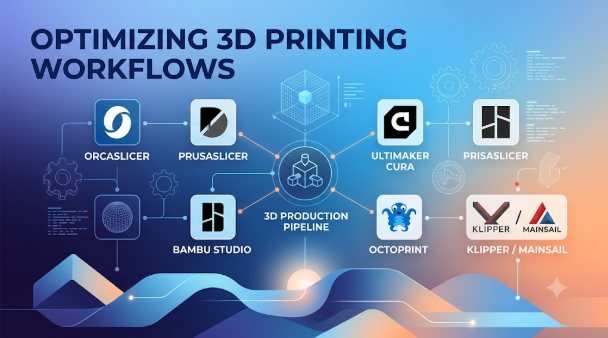
A 3D printer cannot turn every design file into a finished object. First, someone must prepare the model, check its shape, and create print instructions. Then the printer needs the right settings, material, and build plan.
This process involves more than pressing a print button. It may include model repair, support creation, slicing, printer control, and production tracking.
The software behind these steps can make a major difference. A hobbyist may need only one slicer. A busy print farm may need several connected tools. An industrial manufacturer may need a complete system for build preparation and production records.
The important point is simple: 3D printing workflow software is not one single type of application. It is a group of tools that help move a digital design towards a physical part.
What Does 3D Printing Workflow Software Actually Cover?
A typical 3D printing job passes through several stages. Each stage solves a different problem.
- Model preparation: Check the design, size, geometry, and file quality.
- Print preparation: Set the model’s position and create support structures.
- Slicing: Divide the model into thin layers and create printer instructions.
- Job transfer: Send the prepared job to a compatible printer.
- Print monitoring: Check progress, machine status, and possible errors.
- Production management: Organize jobs, machines, users, and production records.
Some applications cover several stages. Others focus on one specific task.
For example, a slicer creates machine instructions from a digital model. A printer management platform helps control connected machines. Industrial build preparation software handles more complex tasks, such as nesting, support generation, and build analysis.
These tools can work together, but they are not direct replacements for one another.
Understand the Three Main Layers of a Printing Workflow
Filament 3D printing: Guide for prototyping success
Layer 1: Prepare the Digital Model
The first stage checks whether a model is suitable for printing.
A design may contain holes, damaged surfaces, or unwanted geometry. Some parts may also need changes to their position or orientation.
Preparation software helps operators correct these problems. It can also help add supports and arrange several parts.
This stage matters because problems in the original file can affect the final object.
Layer 2: Create and Run the Print Job
The next stage converts the prepared model into printer instructions.
A slicer divides the model into layers. It also calculates movements, temperatures, speeds, and other settings.
The software then creates a file that a compatible printer can use. Depending on the system, users can transfer the file locally or send it through a network.
Layer 3: Manage the Production Process
A single printer may need only basic monitoring. A workshop with many machines has different needs.
Operators may need to assign jobs, check machine status, manage users, and track completed work.
Industrial teams may also need build records, traceability, and quality reports. These needs often require software beyond a standard slicer.
Software That Supports Different Parts of the Workflow
The following tools cover different printing needs. Some focus on desktop slicing, while others support specialist preparation or production management.
1. UltiMaker Cura: Flexible Slicing for Everyday Printing
3D Printing Slicer Software – How to Choose the Best | Obico
UltiMaker Cura is an open-source slicing application.
It converts 3D models into instructions for compatible printers. Users can choose print profiles or adjust individual settings.
Its custom mode offers extensive control over the slicing process. The software also supports plugins and material profiles through its marketplace.
Where it fits: Desktop FDM printing, model slicing, and print preparation.
Important consideration: Printer profiles matter. Users should check whether their machine has a suitable preset or needs custom configuration.
Cura makes sense when users want flexible slicing without buying a separate commercial slicer license.
2. PrusaSlicer: Detailed Control Over Print Preparation
STL to G-code: How to Convert Files for 3D Printing (Free Slicers & Online Tools)
PrusaSlicer is a free, open-source application from Prusa Research.
It supports model placement, support painting, slicing, and multi-material preparation. Its different interface modes help users move from basic settings to advanced controls.
It also supports several printer workflows beyond Prusa machines. Users can send files to compatible systems through supported connections.
One useful feature is its ability to split large models. It can also add alignment pins to help join printed sections.
Where it fits: Detailed FDM preparation, multi-material jobs, and flexible printer setups.
Important consideration: Some advanced settings require careful profile selection. Users should confirm compatibility before sending jobs to unfamiliar printers.
PrusaSlicer is particularly useful when users want control over the preparation process.
3. OrcaSlicer: Calibration and Fine Print Control
Orca Slicer vs. Bambu Studio: Detaillierte Überprüfung und Funktionen | Obico
OrcaSlicer is a free, open-source slicer for FDM printers.
Its main focus is detailed control and printer calibration. It includes tools for testing flow rate, temperature, retraction, and pressure advance.
These tests help users tune a printer and its filament settings. The application also offers controls for walls, seams, supports, and print speeds.
OrcaSlicer supports profiles for many printer brands. It also connects with supported Klipper, PrusaLink, and OctoPrint setups.
Where it fits: Printer tuning, detailed FDM slicing, and users who like adjusting print settings.
Important consideration: Its many controls can confuse beginners. Users should understand their printer before changing advanced values.
OrcaSlicer is worth considering when print calibration is a regular part of the workflow.
4. Bambu Studio: Connected Printing Within the Bambu Ecosystem
Sugar Skull multi color painted compatible by AcmeArt MakerWorld: Download Free 3D Models
Bambu Studio is Bambu Lab’s slicing application.
It supports project-based printing workflows, model arrangement, and G-code preview. Its design connects closely with Bambu Lab printers and supported accessories.
The application builds on PrusaSlicer and Slic3r. It also supports multiple build plates and multi-material workflows.
This connection can make job preparation and transfer more direct for compatible machines.
Where it fits: Bambu Lab printing, multi-plate projects, and connected desktop printing.
Important consideration: Its most integrated workflow centers on Bambu Lab hardware. Users with other printer brands should check the available compatibility before choosing it.
It makes the most sense when the printing environment already uses compatible Bambu equipment.
5. Formlabs PreForm: Guided Preparation for Resin and Powder-Based Printing
Dashboard: Monitor And Manage Your 3D Printers Online | Formlabs
Formlabs PreForm is a print preparation application for compatible Formlabs printers.
It helps users scale, orient, support, and arrange models. It also provides a guided workflow for preparing jobs.
Users can upload prepared prints to supported machines. The software can also work with multiple compatible printers.
This makes it different from general-purpose FDM slicers. Its workflow connects model preparation with specific Formlabs printing systems.
Where it fits: Formlabs resin and supported powder-based printing workflows.
Important consideration: PreForm is designed around compatible Formlabs hardware. It is not a universal slicer for every printer brand.
Its guided approach is useful when a team wants a consistent preparation process within that ecosystem.
6. OctoPrint: Remote Printer Control and Monitoring
Nocturne USB Camera for 3D Printers by Luke’s Laboratory
OctoPrint is free, open-source software for controlling and monitoring compatible 3D printers.
It provides a web interface for managing print jobs. Users can check printer status, view webcam feeds, and control connected machines.
Its plugin system also allows users to add more functions. This makes it useful for people who want to customize their printer setup.
However, OctoPrint does not replace a full slicer. Users still need suitable software to prepare printable files.
Where it fits: Remote control, monitoring, and small connected printer setups.
Important consideration: It requires suitable hardware and configuration. Users must also protect remote access and keep their systems maintained.
OctoPrint works well as a control layer alongside a separate slicing application.
7. Materialise Magics: Advanced Industrial Build Preparation
What’s New in Magics? | New Features and Updates | Materialise
Materialise Magics supports professional additive manufacturing preparation.
It offers tools for editing, repairing, and organizing 3D data. Users can also create supports, build lattices, and arrange parts within a printing platform.
Its advanced features support different additive manufacturing technologies. Some workflows also include simulation and build analysis.
This makes Magics different from a simple desktop slicer. It addresses complex preparation tasks in industrial production.
Where it fits: Industrial data preparation, build optimization, and complex additive manufacturing.
Important consideration: Its advanced modules and workflows require suitable training and budget planning. Hardware and operating system requirements also matter.
Magics is worth evaluating when manual preparation becomes difficult to manage across complex builds.
8. Materialise CO-AM: Connecting Industrial Production Activities
How to Integrate AM into Your Production | Materialise
Materialise CO-AM supports broader additive manufacturing operations.
Its purpose goes beyond preparing one model for one printer. It helps connect production data, build preparation, and manufacturing activities.
CO-AM Professional works with Magics and helps teams organize AM data. Its wider software ecosystem supports connected production processes.
This type of platform matters when several teams share jobs, machines, and production information.
Where it fits: Industrial production coordination, data management, and workflow automation.
Important consideration: It is not a replacement for a basic desktop slicer. Its value depends on the size and complexity of the production operation.
For a growing manufacturer, connected production data can become more important than adding another slicer.
Comparing the Software by Its Main Job
| Software | Main role | Typical environment | Key consideration |
|---|---|---|---|
| UltiMaker Cura | Slicing | FDM printing | Printer profiles |
| PrusaSlicer | Slicing and preparation | FDM and supported workflows | Advanced settings |
| OrcaSlicer | Slicing and calibration | FDM printing | Calibration knowledge |
| Bambu Studio | Slicing and connected printing | Bambu Lab systems | Hardware ecosystem |
| Formlabs PreForm | Guided print preparation | Formlabs systems | Printer compatibility |
| OctoPrint | Printer control and monitoring | Connected printers | Setup and maintenance |
| Materialise Magics | Industrial build preparation | Professional AM | Specialist training |
| Materialise CO-AM | Production data management | Industrial AM | Implementation needs |
These products do not compete in every area. A business may use several of them together.
For example, a team might prepare a model in Magics, manage production information through CO-AM, and use machine-specific software to run the actual build.
That is a more useful way to understand the market than looking for one application to handle everything.
How to Build a Workflow That Matches Your Printing Needs
The best software combination depends on your machines, materials, and production volume.
Individual Users and Hobbyists
A hobbyist usually needs a simple preparation and printing process.
A slicer can handle most basic tasks. Users can add monitoring software when remote control becomes useful.
A practical setup might include:
- Cura for flexible slicing.
- PrusaSlicer for detailed preparation.
- OctoPrint for compatible remote printer control.
There is no need to install every application. Start with the software supported by your printer.
Small Workshops and Design Studios
Small workshops often operate several printers. They may also receive designs from different customers.
Their main challenge is keeping print settings and job files organized.
Consider a workflow that includes:
- One main slicer for regular printing.
- A second preparation tool for special jobs.
- Printer monitoring for connected machines.
- A shared folder or job record system.
Keep printer profiles consistent. Record material and setting changes for repeat orders.
Schools and Shared Printing Labs
Schools and laboratories have different users working on shared machines.
They need clear printer access and safe operating procedures. They also need simple ways to track jobs.
A useful setup includes supported slicing software and a separate monitoring system. Staff should control who can change printer settings.
This reduces confusion when several people use the same equipment.
Industrial Manufacturers
Industrial operations need more than individual print files.
They may handle many parts, machines, materials, and production orders. They also need records that support repeatability and quality checks.
A more advanced workflow may include:
- Model validation and repair.
- Build preparation and part nesting.
- Machine-specific build processing.
- Production planning.
- Job and material records.
- Quality reporting and traceability.
Materialise Magics and CO-AM are relevant examples of software serving these wider needs.
However, implementation should start with clear production requirements. A large software platform is not automatically the right choice for every manufacturer.
The Difference Between a Slicer and Printer Management Software
This is one of the most important decisions when building a printing workflow.
A slicer prepares a model for printing. Printer management software helps control machines and jobs.
| Task | Slicer | Printer management |
|---|---|---|
| Convert models into layers | Yes | Usually no |
| Set print speeds | Yes | Usually no |
| Add supports | Yes | Usually no |
| Create printer instructions | Yes | No |
| Monitor print progress | Sometimes | Yes |
| Manage connected printers | Limited or conditional | Yes |
| Organize production jobs | Limited | Often |
Some applications combine parts of both workflows. However, users should not assume that every slicer offers full printer management.
For example, OctoPrint focuses on printer control. PrusaSlicer focuses on preparation and slicing. They can work together through supported connections.
Why File Formats Matter in a 3D Printing Workflow
File compatibility can affect every stage of production.
A design may look correct in one application but lose useful information after export. Some formats store surface geometry, while others support richer project information.
Here are common formats used in 3D printing:
| Format | Main purpose |
|---|---|
| STL | Basic 3D surface geometry |
| 3MF | 3D printing models and project information |
| OBJ | Polygon geometry and related material information |
| STEP | Engineering and CAD geometry |
| G-code | Machine instructions for compatible printers |
A few points deserve special attention.
STL files are widely used for transferring printable geometry. However, they do not preserve all the original design information.
3MF files can carry additional information, such as materials and print settings, depending on the software.
STEP files are useful when working with engineering designs. A compatible application may need to convert them before slicing.
G-code contains instructions for a specific machine or printer configuration. Never assume one printer can safely use another printer’s G-code.
Always test exported files before starting important production jobs.
Common Problems That Better Workflow Software Can Help Prevent
Software cannot prevent every printing problem. But the right tools can help users identify issues earlier.
1. Incorrect Model Orientation
Poor orientation can increase support needs and affect surface quality.
Use preparation tools to inspect different positions. Consider strength, support removal, and print time before selecting one.
2. Missing or Poor Support Structures
Some models contain overhangs that need support.
A slicer can generate supports automatically. However, manual support placement may give better control over difficult shapes.
Always inspect the support preview before printing.
3. Incorrect Printer Profiles
A printer profile contains settings for a particular machine.
Using an unsuitable profile can cause incorrect movements or poor results. Check nozzle size, build volume, firmware, and material settings.
4. Poor Job Organization
Unclear filenames and missing records can create confusion.
Use consistent names for models, materials, and print jobs. Keep important project files in organized folders.
5. Limited Production Visibility
A workshop with several machines needs clear status information.
Remote monitoring tools can help operators identify completed jobs and machines needing attention. Larger operations may need centralized production records.
How to Evaluate Software Before Choosing It
A product’s feature list does not tell the whole story. Test it against a real printing task.
Use the following process:
- Select a model that represents your usual work.
- Import it into the shortlisted software.
- Check model repair and orientation options.
- Create supports and prepare the build.
- Review slicing settings and previews.
- Export the printer-ready file.
- Transfer the job to a compatible machine.
- Review the finished part and record any problems.
For a production environment, test more than one job.
Include a simple part, a complex model, and a repeated production task. This helps reveal problems that may not appear during a single demonstration.
Also check whether the software supports your current machines and materials.
Questions to Ask Before Investing in Workflow Software
Before purchasing a commercial platform, ask vendors practical questions.
- Does the software support our exact printer models?
- Can it handle our printing materials?
- Does it support our required file formats?
- Can it work with our existing CAD applications?
- Does it support local or cloud-based workflows?
- Can several users access the same production data?
- Can we export job records when needed?
- What happens when a printer loses its network connection?
- Are advanced features included or sold separately?
- What training and technical support are available?
For industrial use, also ask about traceability, user permissions, data storage, and system integration.
These details can matter more than an impressive product demonstration.
Frequently Asked Questions
Is a 3D slicer the same as 3D printing workflow software?
No. A slicer is one part of the wider workflow.
It prepares models and creates printer instructions. Workflow software can also cover file validation, printer control, production planning, and monitoring.
Can I use free software for professional 3D printing?
Yes. Free applications can support many professional printing tasks.
Cura, PrusaSlicer, OrcaSlicer, Bambu Studio, and OctoPrint provide useful capabilities without a separate software license fee.
However, industrial operations may need additional commercial tools for specialized preparation and production management.
Which software should I use for resin printing?
Formlabs PreForm is designed for compatible Formlabs printers. Lychee Slicer is another specialist application worth evaluating for resin workflows.
Check printer support, material profiles, support generation, and export options before choosing.
Can one application manage several 3D printers?
Some applications support multiple connected printers. Their capabilities depend on the software and hardware ecosystem.
OctoPrint supports remote control of compatible printers. Formlabs Dashboard supports management of compatible Formlabs systems.
Industrial platforms may provide broader production coordination.
Do I need separate software for slicing and monitoring?
Not always. Some printing systems combine both capabilities.
However, separate tools can offer more flexibility. The right setup depends on your printer, network, and production needs.
What is the difference between build preparation and slicing?
Build preparation involves getting models ready for a printing process. It can include repair, orientation, supports, and part arrangement.
Slicing converts the prepared geometry into layers and machine instructions.
Industrial software may combine both stages in one environment.
Build a Workflow Around the Parts You Need to Produce
Good 3D printing software should solve a real production problem. It should not add more steps without providing useful benefits.
For basic printing, a capable slicer may be enough. For connected workshops, printer monitoring can improve daily operations. Industrial manufacturers may need advanced build preparation and production management.
Start by mapping your current process. Find where jobs slow down, where errors happen, and where teams lose information.
Then choose software that addresses those specific problems. Test it with real models and compatible printers before making a larger commitment.
A well-planned workflow connects design, preparation, printing, and production records. That connection is what turns separate 3D printing tasks into a reliable process.





Leave a Reply
You must be logged in to post a comment.