A score can sound perfect during rehearsal and still fail on the printed page. Notes may crowd together, instrument parts may become hard to read, and page turns may land at the wrong moment. Music notation software helps solve these problems, but different programs approach the work in very different ways.
Some tools focus on professional score engraving. Others make classroom work and shared editing easier. A few are built around handwritten input or specialist needs such as guitar tablature.
The important choice is not simply which program has the most features. It is which one fits the way you create, edit, hear, share, and publish music.
A music score is more than a collection of notes
Music notation software turns musical ideas into written scores. You can enter notes, set rhythms, add instruments, and arrange parts. The software then helps place those elements on readable pages.
Most programs also play back your work. This lets you hear an arrangement before musicians perform it.
However, playback and printed notation serve different purposes. A convincing playback does not guarantee a clear, professional score. Likewise, a beautiful score does not always produce realistic instrument sounds.
This difference matters when choosing a program. A songwriter may need quick chord charts. An orchestra composer may need detailed control over every part and page.
Understand the main types of notation software
The category includes several different approaches. Knowing them helps narrow your choices.
Professional score writing and engraving
Engraving means preparing notation for clear, polished printing. It includes note spacing, staff layout, symbols, page breaks, and other visual details.
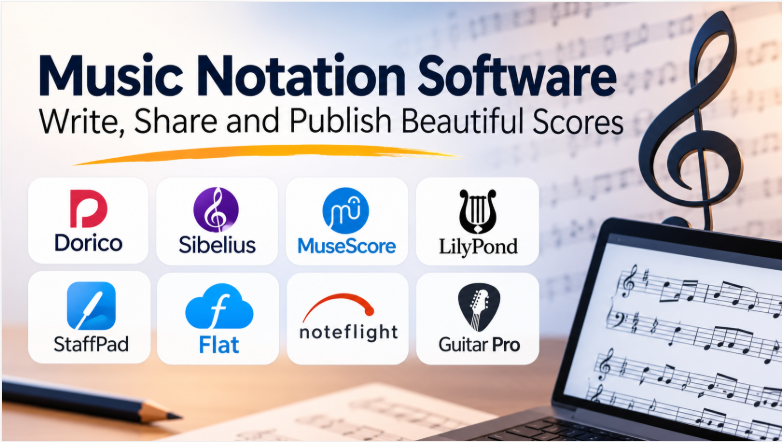
Programs such as Dorico and Sibelius support this kind of work. They suit composers, arrangers, publishers, and musicians who prepare complex scores.
General-purpose score creation
These programs help users write, edit, play, and print music. They often support common instruments, lyrics, chord symbols, and multiple staves.
MuseScore Studio is a strong example. It offers a broad set of notation features without a software purchase.
Browser-based notation and collaboration
Online tools let people create and share scores through a browser. They can be useful in classrooms, music groups, and remote projects.
Flat and Noteflight follow this approach. Their shared editing features can reduce the need to exchange separate score files.
Handwritten notation
Some composers prefer writing music with a pen rather than entering notes with a keyboard. Handwriting-focused tools turn that input into digital notation.
StaffPad is built around this workflow. It is especially relevant to composers who work with a compatible tablet and stylus.
Specialist notation and tablature
Not every musician works mainly with traditional staff notation. Guitarists and bass players may prefer tablature, which shows where to place their fingers.
Guitar Pro supports tablature alongside standard and rhythmic notation. It also includes playback and practice tools.
The software options worth examining
These products serve different needs. They are not all direct substitutes, so the right choice depends on the score you need to produce.
Dorico: detailed control over professional scores
Dorico is designed for composing, arranging, and preparing music for performance and publication. Its workflow separates tasks such as writing notes, editing notation, and adjusting page layout.
That separation can help when a project moves from rough composition to final engraving. You can work on musical content without treating every page adjustment as a separate editing task.
Dorico offers several editions:
- Dorico SE: A free edition for scores with up to eight players.
- Dorico Elements: A more capable option for students and home users.
- Dorico Pro: The full desktop edition, with advanced engraving and notation controls.
- Dorico for iPad: A mobile version with its own feature limits and optional subscription features.
The editions differ in important ways. For example, Dorico Pro offers deeper control over page layout, note spacing, custom notation, and engraving options. The lower editions automate more of these decisions.
Dorico also supports MusicXML and MIDI import and export. These formats help move scores between compatible notation programs and music production tools.
Its main consideration is the learning curve. Users who only need simple lead sheets may not need its deeper controls. Before buying, compare the exact edition against your instrument count and notation needs.
Sibelius: a mature workflow for composers and arrangers
Sibelius supports score creation, arranging, engraving, and part preparation. It is used across educational and professional music workflows.
One important feature is its handling of dynamic parts. A change to the main score can carry through to the related instrumental parts. This helps reduce repeated editing when an arrangement changes.
Its Magnetic Layout system helps prevent notation objects from overlapping. The software also offers playback, score sharing, and tools for detailed notation work.
Avid divides the desktop product into tiers:
- Sibelius First: A limited free starting point.
- Sibelius Artist: A paid edition for smaller scores and more advanced notation.
- Sibelius Ultimate: The full feature set, including advanced engraving and larger scores.
The limits matter. Avid’s comparison shows that Artist supports up to 24 staves, while Ultimate supports unlimited staves. Advanced part management and engraving controls also depend on the edition.
Sibelius is worth considering if you work with changing arrangements, many instrumental parts, or established score workflows. Check the feature comparison before choosing a plan, especially if you need advanced notation or video-related tools.
MuseScore Studio: broad notation features without a purchase
MuseScore Studio is free, open-source notation software. It runs on Windows, macOS, and Linux.
It provides a visual score editor. Users can enter notes, add instruments, create parts, and hear playback. It also supports MusicXML and MIDI, along with exports such as PDF and audio.
This makes it useful for students, teachers, composers, and musicians who need a capable score editor without a paid license.
Its open-source model is another important distinction. Users can access the source code and contribute to the project. The software also supports community-developed plugins.
There are trade-offs. Professional engraving workflows may require more manual adjustment than some users expect. Playback quality also depends on the sound library and settings being used.
MuseScore Studio is a sensible first choice if you want to explore notation before paying for specialist software. It can also support serious projects, provided its layout and playback tools meet your needs.
LilyPond: notation built around text and precision
LilyPond takes a different approach. Instead of relying mainly on a visual editor, it uses text-based music descriptions to generate printed notation.
You describe the music in LilyPond’s input language. The program then creates the score.
This approach can suit composers, engravers, and publishers who value precise, repeatable output. It is also useful when a score must be regenerated after changes without manually adjusting every page.
LilyPond is free software and supports a wide range of music. Its official documentation covers classical scores, vocal music, tablature, lead sheets, and complex notation.
The trade-off is clear: users must learn its text-based language. It may feel slow if you prefer entering notes directly on a visual staff.
Choose LilyPond when control and repeatable engraving matter more than a conventional editing interface. It is less suitable for someone who wants to start writing music immediately without learning a new notation language.
StaffPad: write music with a pen
StaffPad is designed around handwriting and touch input. Composers write notation with a compatible stylus, and the application converts their writing into digital music notation.
This can make the first stage of composition feel closer to writing on paper. You can also record or import audio, edit with touch, and hear the score played back.
StaffPad Reader adds a useful performance workflow. It can display individual parts on connected devices, with score changes appearing across the connected Readers.
The hardware requirement is important. StaffPad needs a compatible iPad with Apple Pencil or a Windows device that supports active pen and touch.
It is not the obvious choice for someone who prefers a mouse and keyboard. It also requires a compatible device, so check the supported hardware before purchasing.
StaffPad makes the most sense when handwriting is central to your creative process, not merely an occasional input method.
Flat: shared score editing in a browser
Flat is a cloud-based notation platform. It lets users create, edit, play, and share scores through a browser, with mobile apps also available.
Its standout feature is real-time collaboration. Multiple people can work on a score together, while version history helps users review or restore earlier changes.
This can be useful for teachers, students, ensembles, and remote writing teams. Instead of sending several versions of a file, collaborators can work from a shared score.
Flat supports MusicXML and MIDI workflows. Its export options include PDF and audio formats, with some features depending on the plan.
The browser-based model also brings a practical consideration: account access, internet availability, and subscription limits may affect how a group works. Flat documents an offline mode, but users should test it before relying on it for important sessions.
Flat is a strong candidate when collaboration matters as much as notation. For detailed professional engraving, compare its layout controls with desktop tools before committing.
Noteflight: online notation for learning and sharing
Noteflight provides an online editor for creating, playing, and sharing music. It is especially relevant to education and browser-based music work.
Students can create scores without installing a full desktop notation program. Teachers can use shared music resources and online score workflows.
Noteflight also connects notation with a large catalog of available music. This can help learners explore existing arrangements as well as create their own work.
The platform supports importing XML and MIDI files. Its export options include PDF and audio formats, although some options depend on the subscription plan.
One limitation is that browser-based editing may not suit every advanced engraving task. Users should also check which export options their plan includes.
Noteflight is worth considering when access, learning, and sharing matter more than deep control over every printed page.
Guitar Pro: tablature and instrument-focused writing
Guitar Pro is built around tablature and music notation for guitar-based workflows. It supports standard notation, tablature, and rhythmic notation.
Its playback tools help musicians study a part. You can slow music down, loop a section, mute tracks, and use a metronome or speed trainer.
These features make it useful for guitarists and bass players who learn, arrange, or share music through tabs. It also supports instruments such as drums, piano, and ukulele.
Guitar Pro imports and exports several formats, including MIDI and MusicXML. It also supports its own file formats and other tablature formats.
Its focus is also its main limitation. A composer preparing a large orchestral score may find a general-purpose notation program more suitable.
Choose Guitar Pro when tablature, instrument parts, and practice playback are central to the work.
How the main options differ
| Software | Main strength | Typical workflow | Important consideration |
|---|---|---|---|
| Dorico | Detailed notation and engraving | Desktop composition and publishing | Advanced controls take time to learn |
| Sibelius | Score and part preparation | Desktop composition and arranging | Feature limits vary by edition |
| MuseScore Studio | Broad free notation tools | Desktop score creation and playback | Some layout work may need manual adjustment |
| LilyPond | Text-based precision engraving | Code-like score creation | Requires learning its input language |
| StaffPad | Handwritten score input | Pen and touch composition | Requires compatible hardware |
| Flat | Shared online editing | Browser and mobile collaboration | Some features depend on the plan |
| Noteflight | Online score creation and learning | Browser-based notation | Advanced exports may require a paid plan |
| Guitar Pro | Tablature and practice playback | Guitar-focused composition and learning | Not aimed at every orchestral workflow |
The file format decision can matter more than the interface
A notation program is not just an editor. It also creates files that other musicians and applications may need to open.
Choosing a tool without checking its export formats can create problems later.
MusicXML carries notation between programs
MusicXML is designed to exchange written music between notation applications. It can preserve details such as notes, rhythms, instruments, and many notation markings.
It is usually a better choice than MIDI when you need to move a score between notation programs.
However, an imported score may not look exactly the same. Programs can interpret layout and engraving details differently. Always inspect the result after importing.
MIDI carries performance information
MIDI is useful when moving musical material into a digital audio workstation or sequencer.
It can carry note events, timing, and other performance data. But it does not preserve the printed appearance of a score.
A MIDI file may therefore sound useful while losing the visual layout you created in your notation program.
PDF preserves the page
PDF is a practical format for sharing and printing finished sheet music. It keeps the page appearance consistent across common PDF readers and printers.
But a PDF is not the same as an editable score file. If another musician needs to change notes or parts, send a suitable notation file as well.
Audio exports help people review the music
WAV and MP3 exports let collaborators hear a score without opening the notation application.
They are useful for checking musical ideas and sharing playback. But the result depends on the software’s sounds and playback interpretation.
A notation playback should not be treated as a final recording unless it meets the project’s sound requirements.
What to check before choosing a program
The right tool depends on the work you need to complete. These questions help turn a broad search into a practical shortlist.
1. What kind of music will you write?
A piano exercise has different needs from a full orchestra score.
Consider the instruments, number of staves, voices, and notation styles in your work. Check support for percussion, guitar tablature, lyrics, chord symbols, and unusual notation where needed.
Do not assume every edition supports the same features.
2. How much control do you need over printed pages?
Some programs handle much of the layout automatically. Others provide detailed control over spacing, fonts, symbols, and page design.
Automatic layout saves time during early composition. Fine control becomes more important when preparing parts for performers or publishing finished scores.
If you work with a publisher, ask about its preferred file formats and engraving requirements.
3. How will you enter notes?
Different input methods suit different musicians.
- A computer keyboard can support fast note entry.
- A MIDI keyboard can help when entering music by playing it.
- A mouse or touch screen can support visual editing.
- A stylus can suit handwritten composition.
- A text-based system can support repeatable, structured engraving.
Try the input method before committing. A feature-rich program may still feel slow if its note-entry process does not suit you.
4. Do you need realistic playback?
Playback helps composers check pitches, rhythms, and arrangements. But the sound depends on the included instruments and playback engine.
If playback quality matters, listen to examples from the actual software. Check whether it supports external virtual instruments or sound libraries when required.
Also confirm whether the software can export separate audio tracks or stems if your workflow needs them.
5. Will other people edit your scores?
Collaboration needs vary.
A teacher may need to share assignments with students. An arranger may need to send separate parts to performers. A composer may need a colleague to review a score.
Check whether the program supports shared editing, comments, version history, and individual part exports. Also confirm whether collaborators need paid accounts.
6. What hardware and operating systems do you use?
Check system requirements before purchasing. This is especially important for tablet-focused applications and large sound libraries.
For a shared project, check every team member’s device. A tool that works well on one computer may not suit the rest of the group.
Why switching notation software needs care
Changing programs can take more work than expected. The challenge is not only moving notes. It is preserving the score’s structure and appearance.
A MusicXML export can move much of the musical content. But some details may need attention after import.
These can include:
- Page breaks and system breaks
- Staff spacing and note spacing
- Fonts and text styles
- Custom symbols and playing techniques
- Instrument names and transpositions
- Rehearsal marks and part layouts
- Playback settings and sound assignments
A MIDI export may help move musical material into a production tool. But it is not a replacement for a full notation file.
Finale users should plan their transition carefully
Finale is an important example of why software status matters. MakeMusic ended Finale development and sales, and technical support has also ended.
Existing installations may continue to work, but future operating system changes can affect compatibility. New buyers should not treat Finale as an actively maintained option.
MakeMusic provides a Finale sunset FAQ with information about downloads, authorization, and the end of support.
Before moving a large archive, test a small group of representative scores in the new program. Include complex parts, unusual symbols, and pages with detailed layout work.
Do not assume that one successful import proves the entire archive will transfer cleanly.
A practical way to test your shortlist
A short trial project can reveal more than a long feature list.
Create the same small score in each program you are considering. Use a piece that reflects your real work.
Include:
- Several instruments
- Chords and multiple voices
- Dynamics and articulations
- Lyrics or chord symbols, if needed
- A passage with complex rhythms
- A separate part for one instrument
Then complete the same tasks in each application.
- Enter the notes using your preferred input method.
- Correct a few mistakes and change the arrangement.
- Check the full score and individual parts.
- Adjust the page layout.
- Play the score and review the sound.
- Export MusicXML, MIDI, and PDF where supported.
- Open the exported files in another compatible application.
- Check how much cleanup the imported score needs.
Pay attention to the time spent fixing layout and file-transfer problems. These tasks can matter more than the speed of entering the first few notes.
Common mistakes when buying notation software
Choosing by playback alone. Good playback does not guarantee professional printed notation. Review both the sound and the exported score.
Ignoring edition limits. A free or entry-level edition may restrict players, staves, symbols, or engraving controls. Check the exact limits before starting a large project.
Confusing MIDI with MusicXML. MIDI moves performance data. MusicXML is intended for exchanging notation. Choose the format that matches the job.
Assuming cloud access means full collaboration. Check editing permissions, account requirements, version history, and plan limits.
Buying specialist software for general work. A tablature editor may be ideal for guitar practice but less suitable for orchestral publishing.
Ignoring long-term file access. Keep editable source files and export standard formats. This gives you more options if your software changes.
Which direction makes sense for your work?
The strongest choice depends on the score you need to create.
- For detailed professional engraving: Compare Dorico Pro and Sibelius Ultimate. Focus on layout control, part preparation, and the notation features your work requires.
- For free desktop notation: Start with MuseScore Studio. It offers a wide range of score-writing features without a purchase.
- For text-based engraving: Consider LilyPond if you are comfortable learning its input language.
- For handwritten composition: Consider StaffPad if you already have compatible pen-enabled hardware.
- For group editing and classrooms: Compare Flat and Noteflight. Test their sharing and account features with the people who will use them.
- For guitar tablature and practice: Guitar Pro is the more focused option.
Before making a long-term choice, test one real score from your own work. Export it, reopen it, and inspect every part. The best notation software is the one that helps you create readable music and keeps your files usable beyond the first draft.


Leave a Reply
You must be logged in to post a comment.