Introduction
Screen recording software helps people capture activity on a computer or mobile screen. It can also record voice, system audio, webcam video, and other visual elements.
These tools support many daily tasks. Teachers use them to create lessons. Developers record bugs and software demos. Businesses create training videos and product guides. Remote teams share updates without scheduling meetings.
Choosing the right screen recorder depends on your workflow. Some tools focus on simple recording. Others offer advanced editing, audio controls, automation, and team sharing.
This guide explores ten popular screen recording tools. It covers their main features, advantages, limitations, and ideal uses.
Best for:
Screen recording software helps teachers, students, developers, gamers, trainers, content creators, support teams, and remote workers. It also supports businesses that create product demos, employee training, and technical guides.
Not ideal for:
These tools may be unnecessary for people who rarely record their screens. A built-in operating system recorder may be enough for simple, one-time captures. Teams handling sensitive information must also review privacy and access controls before sharing recordings.
Top 10 Screen Recording Software Tools
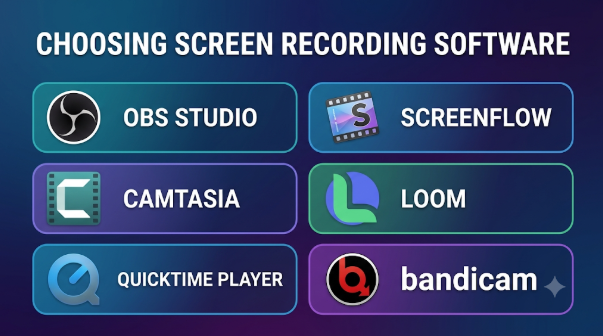
#1 — OBS Studio
Short description:
OBS Studio is a free, open-source application for screen recording and live streaming. It gives users detailed control over video sources, audio, scenes, and recording settings.
Its scene-based workflow makes it useful for complex demonstrations. Users can combine desktop screens, windows, webcams, images, text, and other sources.
Key features:
- Full-screen, window, and display capture.
- Scene and source management.
- Real-time audio and video mixing.
- Multiple audio tracks for editing.
- Custom transitions and recording settings.
- Plugin support and scripting options.
- Windows, macOS, and Linux support.
Pros:
- Free and open-source software.
- Offers detailed recording controls.
- Supports many types of video sources.
- Works well for recording and streaming.
- Has a large community and learning resources.
Cons:
- Beginners may find the interface complex.
- Setup requires some technical knowledge.
- It does not provide a complete tutorial editing workflow.
- Advanced recording may require a capable computer.
Security & compliance:
OBS Studio runs locally. Privacy depends on the recording setup, installed plugins, and destination used for sharing files.
Support & community:
OBS provides official documentation, community forums, and user guides. Its open-source community also shares plugins and tutorials.
#2 — Camtasia
Short description:
Camtasia combines screen recording with video editing. It helps users create polished tutorials, product demonstrations, and training videos.
Its timeline editor makes it easier to arrange recordings, voiceovers, images, and other media. Users can also add visual effects to explain steps more clearly.
Key features:
- Screen and webcam recording.
- Microphone and system audio capture.
- Multi-track video editing.
- Text, callouts, and annotations.
- Transitions and visual effects.
- Captioning and audio editing tools.
- Templates for instructional videos.
Pros:
- Combines recording and editing in one workflow.
- Useful for training and educational content.
- Offers tools for explaining screen actions.
- Helps create polished instructional videos.
- Reduces the need for a separate basic editor.
Cons:
- Requires a paid license for regular use.
- Advanced editing takes practice.
- Can demand more system resources.
- May offer more features than simple recording needs.
Security & compliance:
Camtasia supports desktop-based recording and editing. Organizations should review their selected storage, sharing, and account settings before handling confidential material.
Support & community:
TechSmith provides product documentation, tutorials, training resources, and customer support.
#3 — Loom
Short description:
Loom is a screen recording and video messaging platform. It helps people explain tasks through short videos instead of long messages or meetings.
Users can record their screen, camera, and microphone. The platform then makes sharing easier through hosted video links.
Key features:
- Screen and webcam recording.
- Microphone audio capture.
- Shareable video links.
- Video comments and reactions.
- Captions and transcripts.
- Team video libraries.
- Collaboration and viewer engagement features.
Pros:
- Simple recording and sharing workflow.
- Useful for remote teams.
- Makes software explanations easier.
- Supports asynchronous communication.
- Helps teams give visual feedback.
Cons:
- Depends on an online sharing workflow.
- Free-plan limits may restrict some users.
- Advanced editing is not its main strength.
- Cloud storage and access settings need attention.
Security & compliance:
Loom offers security and administration features that vary by plan. Businesses should check current access controls, retention settings, and available compliance documentation before adoption.
Support & community:
Loom provides help articles, product guidance, and support options. Its team features also support shared recording workflows.
#4 — ScreenFlow
Short description:
ScreenFlow is a screen recording and video editing application for macOS. It is popular with educators, creators, and professionals who produce software tutorials.
It combines screen capture with a multi-track editing timeline. Users can add camera footage, audio, text, and visual effects to their recordings.
Key features:
- High-quality screen recording.
- Screen, webcam, and microphone capture.
- Multi-track video editing.
- Text and annotation tools.
- Motion graphics and transitions.
- Audio editing and enhancements.
- Stock media resources.
Pros:
- Combines recording and editing.
- Designed for Mac-based workflows.
- Useful for detailed tutorials.
- Offers flexible timeline editing.
- Supports polished video production.
Cons:
- Designed for macOS users.
- Requires time to learn advanced editing.
- Paid licensing may not suit every budget.
- Complex projects need enough storage and processing power.
Security & compliance:
ScreenFlow supports a desktop recording workflow. Organizations should manage exported files and storage locations according to their own privacy policies.
Support & community:
The developer provides documentation, tutorials, and product support. Mac creators can also find community learning resources.
#5 — Snagit
Short description:
Snagit is a screen capture and visual documentation tool. It focuses on screenshots, annotations, and short screen recordings.
It is especially useful for support teams and technical writers. Users can capture an image, mark important details, and record a short video to explain a process.
Key features:
- Full-screen and selected-area capture.
- Scrolling screenshot capture.
- Screen video recording.
- Microphone and system audio options.
- Image annotation and markup.
- Cursor and click effects.
- Tools for creating visual guides.
Pros:
- Excellent for screenshots and visual instructions.
- Combines images with short recordings.
- Helps explain technical steps.
- Useful for customer support documentation.
- Easy to use for everyday capture tasks.
Cons:
- Not designed for advanced video production.
- Long tutorials may need another editor.
- Paid licensing adds to the cost.
- Some workflows may need extra editing tools.
Security & compliance:
Snagit supports local capture and file export. Teams should review sharing destinations and remove sensitive details before distributing images or videos.
Support & community:
TechSmith offers documentation, tutorials, training resources, and product support.
#6 — Bandicam
Short description:
Bandicam is a Windows-focused screen and game recording application. It provides separate recording modes for desktop activity, gameplay, and external video devices.
It suits users who want control over capture quality and recording settings. Its gameplay mode can capture games that use DirectX, OpenGL, and Vulkan.
Key features:
- Full-screen and selected-area recording.
- Game recording mode.
- External device capture.
- Webcam overlay support.
- Microphone recording.
- Real-time drawing tools.
- Video quality and frame-rate settings.
Pros:
- Offers separate desktop and game recording modes.
- Useful for gameplay capture.
- Supports webcam overlays.
- Provides flexible recording settings.
- Includes tools for drawing during recording.
Cons:
- Windows is its main desktop platform.
- The free version has recording restrictions.
- Advanced editing requires another application.
- Paid licensing may be needed for regular commercial use.
Security & compliance:
Bandicam mainly uses local recording. Users should download the application from its official source and protect recorded files before sharing them.
Support & community:
Bandicam provides product guides, help resources, and technical support.
#7 — ShareX
Short description:
ShareX is a free, open-source screen capture tool for Windows. It supports screenshots, screen recording, animated GIF capture, and automated sharing tasks.
Its main strength is workflow automation. Users can set hotkeys and choose what happens after a capture.
Key features:
- Full-screen and region capture.
- Screen recording and GIF capture.
- Screenshot annotation tools.
- Custom hotkeys.
- Automated after-capture actions.
- Multiple upload destinations.
- Customizable capture workflows.
Pros:
- Free and open-source.
- Offers many capture options.
- Supports useful automation.
- Helps create technical documentation.
- Can reduce repeated manual tasks.
Cons:
- Windows-focused application.
- Interface may feel complex at first.
- Not a full video editing suite.
- Upload settings need careful review.
Security & compliance:
ShareX can send files to configured destinations. Users should check upload settings before capturing private screens or confidential business information.
Support & community:
ShareX provides documentation, community discussions, and open-source project resources.
#8 — Movavi Screen Recorder
Short description:
Movavi Screen Recorder is a desktop capture application for tutorials, online meetings, webinars, and software demonstrations.
It focuses on accessible recording controls. Users can select a capture area, record audio, and make basic changes to the finished clip.
Key features:
- Full-screen and selected-area capture.
- Microphone and system audio recording.
- Webcam recording options.
- Scheduled recording features.
- Cursor and click display options.
- Basic trimming tools.
- Export options for recorded videos.
Pros:
- Suitable for everyday recording tasks.
- Offers a straightforward capture workflow.
- Useful for webinars and demonstrations.
- Supports audio and webcam recording.
- Provides basic editing options.
Cons:
- Some features depend on the selected plan.
- Trial exports may have restrictions.
- Advanced editing may require a separate product.
- Paid plans add ongoing software costs.
Security & compliance:
Users can save recordings locally. Businesses should review storage practices and avoid recording confidential information without permission.
Support & community:
Movavi provides product documentation, tutorials, and customer support resources.
#9 — ActivePresenter
Short description:
ActivePresenter combines screen recording with eLearning content creation. It is designed for educators, trainers, and teams that build interactive lessons.
Unlike a basic screen recorder, it supports more structured learning content. Users can create presentations, software simulations, quizzes, and instructional videos.
Key features:
- Screen and webcam recording.
- Video and audio editing.
- Interactive quizzes and questions.
- Software simulation tools.
- Slide-based lesson creation.
- Annotation and visual effects.
- eLearning content export options.
Pros:
- Useful for structured training content.
- Combines recording with course creation.
- Supports interactive learning activities.
- Offers editing and presentation tools.
- Helps create software training materials.
Cons:
- More complex than a basic screen recorder.
- Beginners may need time to learn its workflow.
- Some advanced features require a paid edition.
- May be excessive for short video messages.
Security & compliance:
ActivePresenter supports desktop-based content creation. Organizations should review their publishing and hosting methods before distributing training materials.
Support & community:
The product offers documentation, tutorials, and learning resources for course creators.
#10 — FlashBack
Short description:
FlashBack is a Windows screen recording application with video editing features. It helps users capture desktop activity, webcam footage, and audio.
It is useful for tutorials, demonstrations, and training videos. Its editing workflow helps users refine recordings before sharing them.
Key features:
- Full-screen and selected-area recording.
- Webcam and microphone capture.
- Desktop audio recording.
- Video trimming and editing.
- Text and annotation tools.
- Zoom and highlight effects.
- Export and sharing options.
Pros:
- Combines recording with editing tools.
- Useful for training videos.
- Supports webcam and audio capture.
- Helps improve recorded demonstrations.
- Offers a focused desktop workflow.
Cons:
- Primarily designed for Windows.
- Advanced editing may take practice.
- Some features depend on the edition.
- May not suit users who need advanced live production.
Security & compliance:
FlashBack supports local recording and export workflows. Teams should protect saved videos and review sharing permissions.
Support & community:
FlashBack provides product documentation, tutorials, and customer support resources.
Screen Recording Software Comparison Table
| Tool Name | Best For | Platform Support | Standout Feature | Licensing Model |
|---|---|---|---|---|
| OBS Studio | Advanced recording and streaming | Windows, macOS, Linux | Scene and audio control | Free and open-source |
| Camtasia | Training and tutorials | Windows, macOS | Built-in video editor | Paid plans |
| Loom | Team communication | Desktop and browser-based options | Hosted video sharing | Free and paid plans |
| ScreenFlow | Mac video tutorials | macOS | Multi-track editing | Paid license |
| Snagit | Screenshots and short videos | Windows, macOS | Visual capture and markup | Paid license |
| Bandicam | Gameplay and desktop capture | Windows | Dedicated game recording mode | Free and paid editions |
| ShareX | Technical capture workflows | Windows | Capture automation | Free and open-source |
| Movavi Screen Recorder | Webinars and desktop demos | Windows, macOS | Scheduled recording | Paid plans |
| ActivePresenter | eLearning and training | Windows, macOS | Interactive learning content | Free and paid editions |
| FlashBack | Desktop tutorials and demos | Windows | Recording with editing tools | Free and paid editions |
How to Evaluate Screen Recording Software
Choosing a screen recorder requires more than checking its feature list. The tool must fit your recording tasks, devices, budget, and sharing needs.
Consider these factors before making a decision:
| Evaluation Criteria | What to Check | Why It Matters |
|---|---|---|
| Recording features | Screen, window, region, webcam, and audio capture | Ensures the tool records what you need |
| Ease of use | Setup, controls, and recording workflow | Saves time during regular work |
| Editing capabilities | Trimming, captions, annotations, and effects | Reduces the need for extra software |
| Platform support | Windows, macOS, Linux, or browser | Prevents device compatibility problems |
| Performance | CPU and memory use during recording | Helps avoid lag and dropped frames |
| Export options | File formats, resolution, and quality | Supports your publishing needs |
| Privacy | Storage, access, and sharing controls | Protects private recordings |
| Cost | License type, plan limits, and extra charges | Helps control long-term spending |
| Support | Documentation, updates, and help resources | Makes troubleshooting easier |
Which Screen Recording Software Tool Is Right for You?
The right tool depends on your main recording task.
- For free advanced recording: OBS Studio offers detailed control without a paid license.
- For professional tutorials: Camtasia combines screen capture with video editing.
- For team communication: Loom supports quick recordings and online sharing.
- For Mac creators: ScreenFlow offers recording and editing in one application.
- For screenshots and short guides: Snagit combines image capture with video recording.
- For gameplay: Bandicam provides a dedicated game recording mode.
- For automated screenshots: ShareX offers flexible capture workflows.
- For webinars and demos: Movavi Screen Recorder supports common desktop recording tasks.
- For online training: ActivePresenter offers interactive learning content tools.
- For Windows tutorials: FlashBack combines screen capture with editing features.
Frequently Asked Questions (FAQs)
1. What is screen recording software used for?
Screen recording software captures activity on a computer or mobile screen. People use it for tutorials, training, gameplay, software demonstrations, and technical support.
2. Which screen recording software is free?
OBS Studio and ShareX are free, open-source options. Some other tools offer free editions or limited plans. Their restrictions vary.
3. Which screen recorder is suitable for beginners?
Loom and Snagit can suit simple recording tasks. Users who need detailed editing may prefer Camtasia or ScreenFlow.
4. Can screen recording software record audio?
Yes. Many tools support microphone and system audio. Check the settings before recording because audio support can vary by device and application.
5. Can I record my webcam and screen together?
Yes. Several tools support webcam overlays or separate camera footage. OBS Studio, Camtasia, Loom, and Bandicam are examples.
6. Is OBS Studio good for professional recording?
OBS Studio offers advanced capture and audio controls. It can support professional workflows, but users may need separate editing software.
7. Which software is suitable for online teaching?
Camtasia, ScreenPal, and ActivePresenter can support teaching workflows. ActivePresenter is useful when lessons need interactive quizzes and simulations.
8. Does screen recording software affect computer performance?
It can. Recording uses system resources, especially at high resolutions and frame rates. Test your setup before recording long sessions.
9. Is screen recording software safe for business use?
It can be suitable when configured correctly. Review privacy settings, storage locations, sharing permissions, and company policies before recording sensitive information.
10. Do I need video editing software with a screen recorder?
Not always. Simple recordings may only need trimming. Training videos and product demonstrations often benefit from captions, annotations, and timeline editing.
Conclusion
Screen recording software supports many types of work. Some tools focus on simple captures, while others support editing, teaching, automation, and team sharing.
OBS Studio and ShareX offer free, open-source choices. Camtasia and ScreenFlow support detailed video production. Loom helps teams share quick explanations. Snagit suits visual documentation, while ActivePresenter supports interactive training.
There is no single tool that fits every recording task. Compare the features, platform support, editing needs, privacy controls, and total cost before choosing. A short test recording can help you find the right fit for your daily workflow.



Leave a Reply
You must be logged in to post a comment.