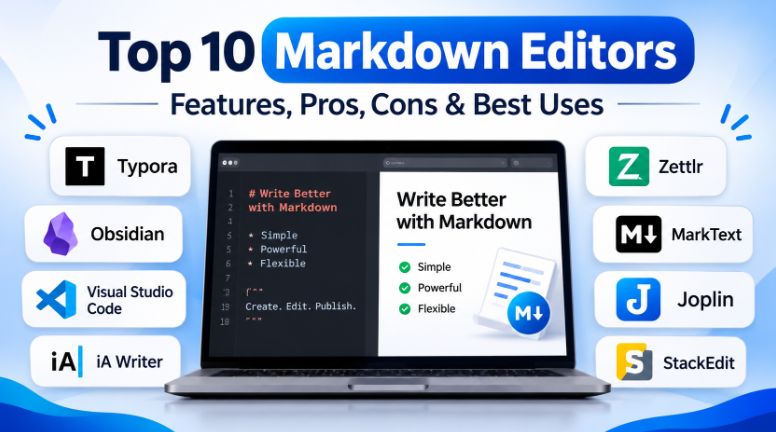
Markdown makes writing and formatting simple. It uses plain text symbols to create headings, lists, tables, links, and code blocks.
Writers use Markdown for blog posts, technical guides, research papers, and personal notes. Developers also use it to prepare README files and software documentation.
However, not every Markdown editor works the same way. Some show formatted text while you type. Others provide live previews, research tools, cloud storage, or advanced coding features.
Choosing the right editor can save time and make document management easier. This guide explores ten popular Markdown editors, their features, advantages, limitations, and best uses.
What Is a Markdown Editor?
A Markdown editor is an application for creating, editing, and formatting Markdown documents.
Markdown uses simple text symbols to describe document structure. For example:
#creates a main heading.**text**makes text bold.*text*makes text italic.-creates a bullet list.[Text](URL)creates a link.- Triple backticks create a code block.
Markdown files usually use the .md extension. They store content as plain text, so users can open them in many compatible applications.
People use Markdown editors for several tasks:
- Writing blog posts and website content.
- Creating software documentation.
- Preparing technical guides and tutorials.
- Managing research notes and references.
- Writing books, reports, and articles.
- Maintaining project instructions and README files.
- Organizing personal knowledge libraries.
Some editors focus on writing comfort. Others support coding, publishing, citations, and document management.
Top 10 Markdown Editors
1. Typora
Typora provides a visual Markdown writing experience. It displays formatted content directly inside the editing area.
Users do not need to keep switching between raw Markdown and a separate preview window. Headings, lists, tables, images, and other supported elements appear in their formatted form while writing.
Typora supports code blocks, mathematical expressions, diagrams, task lists, and document outlines. Its focus mode highlights the current sentence or paragraph. Typewriter mode keeps the active line near the center of the screen.
The editor also supports document export. Users can prepare files for formats such as PDF, HTML, and other supported document types.
Typora suits bloggers, authors, students, and technical writers who prefer a clean writing environment. However, it is a commercial application rather than a permanently free editor.
Key Features
- Inline Markdown rendering.
- Tables, images, lists, and code blocks.
- Mathematical expressions and diagrams.
- Focus mode and typewriter mode.
- Document outline and navigation.
- Multiple import and export options.
Pros
- Makes Markdown easy to read while editing.
- Provides a clean writing interface.
- Supports useful formatting features.
- Helps users navigate long documents.
- Offers several export options.
Cons
- Requires a paid license after the trial.
- Does not focus on team collaboration.
- Advanced conversion workflows may need extra software.
- Offers fewer knowledge-management features than Obsidian.
Best Uses: Blog writing, long articles, technical guides, essays, and formatted Markdown documents.
2. Obsidian
Obsidian combines Markdown editing with personal knowledge management. It helps users create notes and connect related information.
The application stores notes as Markdown files inside folders called vaults. Users can access these files outside Obsidian with other compatible editors.
Its main strength is linked-note management. Users can connect related documents through internal links. Backlinks show which other notes refer to the current document.
The graph view displays connections across a collection of notes. This can help researchers explore relationships between topics.
Obsidian also supports community plugins and themes. Users can extend the application with tools for tasks, calendars, writing, and other workflows.
The core application is free for personal use. Optional services such as Sync and Publish have separate costs.
Obsidian works well for researchers, students, writers, and people managing large note collections. However, users may need time to build a useful organization system.
Key Features
- Local Markdown file storage.
- Internal links and backlinks.
- Graph view for connected notes.
- Community plugins and themes.
- Templates and document organization.
- Optional synchronization and publishing services.
Pros
- Keeps notes in accessible Markdown files.
- Connects related information.
- Supports a large plugin ecosystem.
- Helps organize research and ideas.
- Offers flexible folder and tag systems.
Cons
- Requires setup for larger knowledge bases.
- Some workflows depend on plugins.
- Team collaboration is not its main focus.
- Sync and publishing services may add costs.
Best Uses: Personal knowledge management, research libraries, linked notes, study materials, and long-term documentation.
3. Visual Studio Code
Visual Studio Code is a code editor with built-in Markdown support. It is particularly useful for developers and technical writers.
Users can edit Markdown files in the source editor and open a rendered preview beside them. The preview updates as the document changes.
The editor also provides a document outline. It displays headings in a navigation panel, which helps users move through longer files.
Its extension ecosystem adds more writing tools. Users can install extensions for spelling checks, formatting, linting, and other Markdown workflows.
Visual Studio Code also supports Git integration. This helps teams track document changes and review updates through software repositories.
The main limitation is its broad development interface. Users who only want to write articles may find its panels and settings unnecessary.
Key Features
- Built-in Markdown editing and preview.
- Side-by-side document preview.
- Heading outline and navigation.
- Extensions for formatting and spelling.
- Git and source-control integration.
- Support for code blocks and technical documentation.
Pros
- Free to use.
- Works well with software repositories.
- Provides a useful Markdown preview.
- Supports many extensions.
- Handles code and documentation together.
Cons
- The interface may feel complex to beginners.
- Some writing features need extensions.
- Settings can require extra configuration.
- Not designed mainly for distraction-free writing.
Best Uses: Developer documentation, README files, API guides, project instructions, and technical writing.
4. iA Writer
iA Writer focuses on distraction-free writing. Its interface removes many controls that can interrupt long writing sessions.
The application supports Markdown syntax for headings, links, lists, and other document elements. Writers can use Focus Mode to highlight the current sentence or paragraph.
Its Style Check feature helps identify issues such as filler words, clichés, and repeated wording. This can support editing and revision.
iA Writer also provides document outlines, image support, and export options. Supported formats include HTML, PDF, and Word, although available features can vary by platform.
The editor suits people who spend most of their time writing prose. It is less suitable for users who need large note libraries, complex databases, or advanced team collaboration.
Key Features
- Distraction-free writing interface.
- Markdown-based formatting.
- Focus Mode.
- Style Check for writing feedback.
- Document outlines.
- Export options on supported platforms.
Pros
- Keeps attention on the written content.
- Offers useful writing review tools.
- Supports long-form documents.
- Provides a clean editing experience.
- Works across supported Apple and Windows platforms.
Cons
- Requires a paid purchase.
- Features vary across devices.
- Does not provide a large plugin ecosystem.
- Offers limited knowledge-management tools.
Best Uses: Essays, blog drafts, articles, reports, and focused long-form writing.
5. Zettlr
Zettlr is an open-source Markdown editor designed for academic and research writing.
It supports common Markdown elements such as headings, lists, tables, footnotes, and code blocks. It also provides tools for searching and organizing long documents.
Its citation workflow is an important feature. Zettlr can work with reference managers and bibliographic formats such as BibTeX and CSL JSON.
The application also works with Pandoc for document conversion. Pandoc helps users convert Markdown documents into formats such as PDF, Word, and HTML, depending on the installed tools and configuration.
Zettlr supports projects, tags, document statistics, and other research features. These tools help users manage related notes and sources.
It is useful for students, academics, and researchers. However, casual writers may not need its advanced citation and export options.
Key Features
- Markdown editing and document navigation.
- Citation and reference management workflows.
- Footnotes and academic writing support.
- Pandoc-based document conversion.
- Projects, tags, and search.
- Document statistics and organization.
Pros
- Free and open source.
- Supports academic writing workflows.
- Works with citation management tools.
- Provides document conversion options.
- Helps organize research projects.
Cons
- May feel complex for casual writers.
- Citation setup can require extra work.
- Export settings may need configuration.
- Some features depend on external software.
Best Uses: Academic papers, research reports, technical publications, and citation-heavy documents.
6. MarkText
MarkText is an open-source Markdown editor with a visual editing experience. It displays formatted content as users write.
The application supports CommonMark and GitHub Flavored Markdown. It also supports selected advanced features, including mathematical expressions and front matter.
Users can work with headings, tables, images, lists, and code blocks. The editor includes focus and typewriter modes for a cleaner writing experience.
MarkText also provides themes and document export options. Its source-code mode gives users direct access to Markdown syntax when needed.
Its main attraction is simple visual editing without a commercial license. However, users should review its current project maintenance and compatibility before choosing it for an important long-term workflow.
Key Features
- Real-time Markdown rendering.
- CommonMark and GitHub Flavored Markdown support.
- Mathematical expressions.
- Code blocks and syntax highlighting.
- Focus and typewriter modes.
- Themes and export options.
Pros
- Free and open source.
- Offers visual Markdown editing.
- Supports common Markdown features.
- Provides a simple writing interface.
- Includes useful display modes.
Cons
- Offers fewer advanced workflow features than larger editors.
- Does not focus on team collaboration.
- Some advanced functions may need extra setup.
- Users should check current maintenance activity.
Best Uses: Basic Markdown writing, blog drafts, personal documents, and users seeking an open-source visual editor.
7. Joplin
Joplin is an open-source note-taking application with Markdown support. It helps users organize notes, attachments, and information in notebooks.
Users can create notebooks for different subjects and organize notes with tags. Search tools help locate information across a growing collection.
Joplin supports offline access. Users can create and edit notes without an internet connection. They can synchronize their information later through supported services.
The application also supports end-to-end encryption for synchronized data. Users should configure synchronization and backups carefully before storing important information.
Joplin includes a web clipper for saving content from supported browsers. Plugins can add further features to the desktop application.
Joplin suits people who want Markdown-based notes with offline access. However, its main focus is note management rather than advanced document publishing.
Key Features
- Markdown-based note editing.
- Notebooks and tags.
- Offline note access.
- Synchronization through supported services.
- End-to-end encryption for synchronization.
- Browser clipping and plugins.
Pros
- Free and open-source application.
- Supports offline note editing.
- Provides notebooks and tags.
- Offers encrypted synchronization.
- Supports attachments and browser clipping.
Cons
- Focuses more on notes than long-form publishing.
- Synchronization needs proper setup.
- Some advanced features depend on plugins.
- Users should manage backups and sync settings.
Best Uses: Personal notes, research collections, study materials, and offline knowledge storage.
8. StackEdit
StackEdit is a browser-based Markdown editor. Users can write and preview documents without installing desktop software.
Its split-screen layout displays the Markdown source and rendered document together. Scroll synchronization helps keep both views aligned.
StackEdit supports Markdown formatting, mathematical expressions, and code highlighting. It also provides options for working with cloud storage and publishing workflows.
The browser-based design makes it convenient for quick writing tasks. Users can access the editor from supported browsers without setting up a desktop application.
StackEdit also offers offline editing through browser storage. However, users should understand where their documents are stored and how synchronization works.
It suits bloggers, students, and people who need quick online editing. Users managing important documents should maintain separate backups.
Key Features
- Browser-based Markdown editing.
- Split-screen live preview.
- Scroll synchronization.
- Code highlighting and mathematical expressions.
- Cloud storage connections.
- Offline editing support.
Pros
- Does not require desktop installation.
- Provides live document previews.
- Supports common Markdown features.
- Offers cloud storage options.
- Convenient for quick editing tasks.
Cons
- Depends on browser storage for some workflows.
- Cloud features require account connections.
- Users must manage backups carefully.
- May not suit complex desktop writing workflows.
Best Uses: Online article drafts, quick document editing, Markdown previews, and browser-based writing.
9. Dillinger
Dillinger is an online Markdown editor that helps users write, preview, and export documents through a browser.
Its interface provides a text editing area and a live preview. Writers can see how headings, lists, links, and other elements appear after formatting.
Dillinger supports cloud storage connections for managing documents. It also provides export options for Markdown, HTML, and PDF.
The browser-based approach makes it useful for people who want a simple editing tool without installing software.
However, users should check its current storage and integration options before depending on it for important documents. Cloud connections may require account permissions, and browser-based tools may not offer the same control as local desktop applications.
Dillinger works well for quick Markdown tasks. It is less suitable for large knowledge libraries or complex software documentation projects.
Key Features
- Online Markdown editor.
- Live document preview.
- Markdown, HTML, and PDF export.
- Cloud storage connections.
- Text editing and formatting tools.
- Browser-based access.
Pros
- Works through a web browser.
- Does not require a desktop installation.
- Offers live Markdown preview.
- Supports several export formats.
- Useful for short writing tasks.
Cons
- Depends on browser access.
- Offers fewer advanced features than desktop editors.
- Cloud connections need account permissions.
- Not designed for large knowledge libraries.
Best Uses: Quick Markdown editing, short articles, simple documents, and online previews.
10. Ghostwriter
Ghostwriter is an open-source Markdown editor focused on distraction-free writing.
Its interface provides a clean space for working on articles, reports, and long documents. Users can choose themes and use full-screen writing mode.
Ghostwriter includes a live HTML preview and document outline. These features help writers check formatting and navigate long files.
The application also supports different Markdown processors, including options for GitHub Flavored Markdown and Pandoc-based workflows when the required software is available.
This flexibility makes it useful for writers who want control over document rendering and conversion.
Ghostwriter suits bloggers, authors, students, and Linux users. However, it does not provide the large plugin ecosystem of Visual Studio Code or the connected-note features of Obsidian.
Key Features
- Open-source Markdown editing.
- Distraction-free writing mode.
- Live HTML preview.
- Document outline and navigation.
- Themes and customization.
- Support for different Markdown processors.
Pros
- Free and open source.
- Offers a clean writing environment.
- Supports live previews.
- Helps navigate long documents.
- Provides flexible Markdown processor options.
Cons
- Offers fewer integrations than developer editors.
- Does not focus on knowledge management.
- Not designed for complex team collaboration.
- Some conversion workflows need additional software.
Best Uses: Long-form writing, articles, reports, Markdown documents, and distraction-free desktop editing.
Comparison Table of the 10 Markdown Editors
The following table compares the editors by their main purpose, editing approach, and pricing model.
| Markdown Editor | Best For | Editing Approach | Main Strength | Pricing Model |
|---|---|---|---|---|
| Typora | Bloggers and authors | Inline visual editing | Formatted Markdown while writing | Paid license |
| Obsidian | Researchers and writers | Markdown notes with live preview | Backlinks and knowledge management | Free core app; optional paid services |
| Visual Studio Code | Developers | Source editor with preview | Git and extension support | Free |
| iA Writer | Professional writers | Minimal Markdown editor | Focus Mode and Style Check | Paid |
| Zettlr | Academic users | Research-focused Markdown editing | Citation and Pandoc workflows | Free and open source |
| MarkText | Everyday writers | Visual Markdown editing | Open-source live rendering | Free and open source |
| Joplin | Note management | Markdown-based notes | Offline access and synchronization | Free core app; optional paid services |
| StackEdit | Online writers | Browser-based split view | Live preview and cloud options | Free core access |
| Dillinger | Quick editing | Browser-based editing | Simple preview and export | Free core access |
| Ghostwriter | Long-form writers | Source editing with preview | Distraction-free writing | Free and open source |
How to Choose the Right Markdown Editor
The right editor depends on your writing style and document requirements. A blogger may need live preview and easy export. A developer may need Git support and code highlighting. A researcher may need citation tools.
Consider these factors before choosing.
1. Choose Your Preferred Editing Style
Markdown editors use different editing approaches.
Some display raw Markdown symbols. Others show formatted content while you type.
A source-focused editor gives you direct control over the text. A visual editor makes formatting easier to understand.
Choose the approach that feels comfortable for your daily work.
2. Check Markdown Format Support
Not every editor supports the same Markdown features.
CommonMark provides a standard foundation. GitHub Flavored Markdown adds features such as tables and task lists. Other tools support additional syntax for citations, footnotes, and mathematics.
Check the Markdown format used by your website or publishing platform. This can prevent formatting problems later.
3. Review Export Options
Think about where your documents will go.
You may need to export Markdown as HTML, PDF, or Word. Academic users may also need LaTeX or other publishing formats.
Some editors provide these options directly. Others depend on tools such as Pandoc.
Choose an editor that supports your actual publishing requirements.
4. Understand File Storage
Some editors store Markdown files in local folders. Others use application databases, browser storage, or cloud services.
Local files can make it easier to move between compatible editors. Cloud services can make synchronization more convenient.
Check how each application handles backups, attachments, and file recovery.
5. Check Device Compatibility
Make sure the editor supports your main devices.
Consider Windows, macOS, Linux, Android, and iOS based on your needs.
Also check whether important features work across all supported platforms. Some applications offer different tools on desktop and mobile.
6. Consider Collaboration Needs
A personal Markdown editor may not support shared editing.
If several people work on the same document, check sharing, comments, version history, and conflict handling.
Do not assume that cloud synchronization means real-time collaboration.
7. Review Cost and Maintenance
Some Markdown editors are free and open source. Others require a paid license or subscription.
Also consider the effort needed to manage plugins, updates, themes, and backups.
A simple editor may be enough for a small writing workflow. A larger project may need stronger organization and collaboration tools.
Common Markdown Editing Mistakes to Avoid
Markdown is simple, but small mistakes can create problems when moving documents between applications.
Avoid these common issues:
- Using unsupported syntax: Check which Markdown format your publishing platform accepts.
- Ignoring image paths: Keep image files organized with the document or use stable image locations.
- Skipping preview checks: Review tables, links, lists, and code blocks before publishing.
- Forgetting backups: Keep separate copies of important Markdown files.
- Installing too many plugins: Add extensions only when they solve a real problem.
- Mixing Markdown formats: Follow consistent formatting rules across a project.
- Relying only on cloud sync: Keep independent backups of important documents.
- Ignoring mobile support: Check how documents appear on smaller screens.
Questions and Answers About Markdown Editors
1. What is the best Markdown editor for beginners?
Typora and MarkText are useful choices for beginners who prefer visual editing. StackEdit is another option for browser-based writing. The right choice depends on whether you prefer a desktop application or an online editor.
2. Are Markdown editors free?
Some Markdown editors are free and open source. Examples include Zettlr, MarkText, Joplin, and Ghostwriter. Other tools, such as Typora and iA Writer, require payment. Some applications offer free core features with optional paid services.
3. Which Markdown editor is best for developers?
Visual Studio Code is a strong choice for developers. It combines Markdown editing with preview, Git support, and development extensions. It works well for README files and technical documentation.
4. Which Markdown editor is best for academic writing?
Zettlr is designed for research and academic writing. It supports citation workflows, footnotes, and document conversion. Researchers should check the required formats of their institution or publisher.
5. Can I use Markdown editors offline?
Yes. Many desktop editors support offline work with local files. Joplin also supports offline note editing. Browser-based editors may rely on local browser storage, so users should check their backup and synchronization options.
6. What is the difference between Markdown and a word processor?
Markdown uses plain text symbols to describe document formatting. A word processor usually provides visual formatting controls. Markdown files are often easier to move between compatible applications, while word processors offer more detailed page-layout tools.
7. Can Markdown editors export documents as PDF?
Many Markdown editors support PDF export. Typora, Zettlr, StackEdit, and Dillinger offer export workflows. Some applications may need extra software or browser printing.
8. Is Markdown suitable for writing blog posts?
Yes. Markdown works well for blog posts, tutorials, guides, and technical articles. It keeps the source content simple and readable. Check whether your publishing platform supports the Markdown features you use.
9. Can I edit the same Markdown file in different applications?
Yes. Most Markdown files are plain text. You can open them in different compatible editors. However, special extensions may not render the same way in every application.
10. Should I choose an online or desktop Markdown editor?
Choose an online editor for quick browser access and simple editing. Choose a desktop editor if you prefer local files, offline access, or a dedicated writing environment. Your privacy, backup, and collaboration needs should guide the decision.
Final Thoughts
Markdown editors serve different writing needs. Typora and MarkText make visual editing simple. Obsidian helps users connect ideas and manage notes. Visual Studio Code supports technical documentation and development workflows.
iA Writer offers a focused writing environment. Zettlr supports academic research. Joplin combines Markdown with offline note management. StackEdit and Dillinger provide browser-based editing, while Ghostwriter offers an open-source desktop writing experience.
Before choosing an editor, try it with a real document. Test its preview, export, file storage, and Markdown compatibility. Also check how it handles images, tables, and links.
The right Markdown editor should make writing easier without limiting your documents. Choose one that fits your workflow, keeps your content accessible, and helps you produce clean, well-formatted work.


Leave a Reply
You must be logged in to post a comment.