Managing a server involves far more than keeping it switched on. Administrators must install updates, control access, monitor health, manage software, and keep settings consistent.
These tasks become harder when servers run across different locations and operating systems. A small team may handle a few machines by hand. A larger environment needs repeatable processes and clear control.
Server management tools help teams handle this work. Some automate server configuration. Others focus on patching, provisioning, monitoring, or remote administration.
The important difference is their purpose. An automation tool does not always provide a visual server dashboard. A monitoring platform does not always manage software configuration. Choosing the right tool starts with understanding the work you need it to perform.
This guide compares ten server management tools across these different needs. It explains their strengths, limitations, and practical uses.
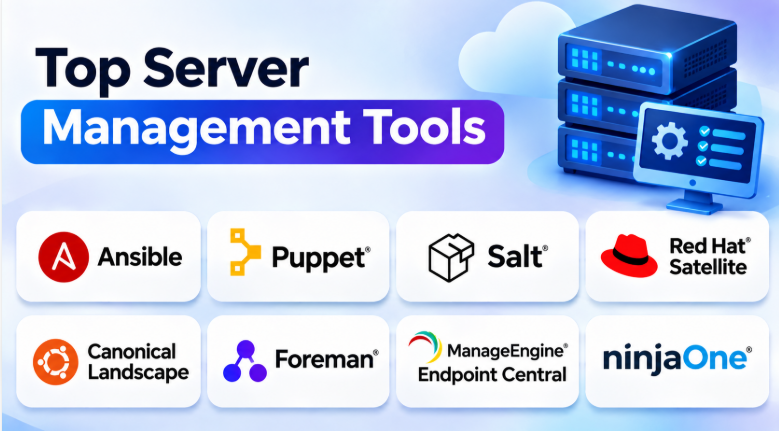
Top 10 Server Management Tools
1. Ansible Automation Platform
Ansible Automation Platform helps teams automate server configuration, software deployment, and routine IT operations. It uses readable YAML playbooks to describe tasks across groups of machines.
Ansible usually connects to Linux servers through SSH. It can manage Windows systems through supported connection methods. Its agentless approach means teams do not need to install a permanent Ansible agent on every managed server.
Ansible Automation Platform adds enterprise features around automation, including centralized control and workflow management. The community Ansible project remains a separate option for teams that want to build their own automation setup. Ansible Community Documentation+1
Key features
- YAML-based automation playbooks.
- Remote server configuration and software deployment.
- Inventory management for server groups.
- Reusable roles and collections.
- Task scheduling and automation workflows.
- Support for cloud and on-premises infrastructure.
Pros
- Does not require a permanent agent on managed Linux servers.
- Uses readable automation files.
- Works across different server environments.
- Supports repeatable deployments and maintenance tasks.
- Has a large collection and module ecosystem.
Cons
- Poorly written playbooks can cause widespread changes.
- Complex workflows need careful testing.
- Enterprise platform features require additional planning and licensing.
- Teams must manage credentials and automation permissions securely.
Best for: IT teams that want flexible automation for server setup, configuration, and routine operations.
2. Puppet
Puppet focuses on configuration management. It lets administrators describe the desired state of servers using infrastructure code.
For example, an administrator can define which packages must exist, which services must run, and which configuration files must contain specific settings. Puppet agents check their assigned configuration and correct differences when needed.
Puppet uses a primary-server and agent model. This makes it useful for environments where servers must stay consistent over time. 9.1.0+2
Key features
- Declarative configuration management.
- Agent-based configuration enforcement.
- Reusable modules and manifests.
- Configuration reporting.
- Desired-state management.
- Support for Linux and Windows environments.
Pros
- Helps prevent configuration drift.
- Keeps server settings consistent.
- Supports repeatable infrastructure changes.
- Provides detailed configuration modeling.
- Offers a large module ecosystem.
Cons
- Requires learning Puppet’s language and architecture.
- Primary servers and agents need maintenance.
- Initial setup can take time.
- May be excessive for a small server estate.
Best for: Organizations managing many servers that need consistent configurations and ongoing compliance with defined settings.
3. Salt
Salt is an open-source automation and remote execution framework. It combines configuration management, remote command execution, and orchestration.
Its remote execution system lets administrators run commands across selected servers. Salt States describe the required configuration of a system. Teams can use these states to install packages, create users, manage files, and control services.
Salt uses a master-minion model in common deployments. It also supports agentless SSH-based management through Salt SSH. Salt user guide+2
Key features
- Remote command execution.
- YAML-based configuration states.
- Event-driven automation.
- Server provisioning and orchestration.
- Targeting systems through collected machine data.
- Extensible execution and state modules.
Pros
- Combines remote execution and configuration management.
- Can manage many systems through centralized commands.
- Supports event-based automation.
- Provides reusable configuration states.
- Offers flexible targeting and orchestration.
Cons
- The master-minion model needs secure setup.
- Complex state files require testing.
- Teams need to understand Salt’s targeting and event systems.
- Large deployments need careful architecture and access controls.
Best for: Administrators who need remote execution and configuration automation across large server fleets.
4. Red Hat Satellite
Red Hat Satellite helps organizations manage Red Hat Enterprise Linux systems throughout their lifecycle.
It brings together content management, host provisioning, patch management, subscription management, and configuration tasks. Satellite Server acts as the central management point. Capsule Servers can distribute content and services closer to remote locations. Red Hat Documentation+2
This design is useful for organizations with many RHEL systems. It can help teams control which software content reaches development, testing, and production servers.
Key features
- RHEL host provisioning.
- Repository and content lifecycle management.
- Patch and update management.
- Subscription management.
- Host configuration and inventory.
- Capsule Servers for distributed environments.
Pros
- Designed for Red Hat infrastructure.
- Helps control software content across server groups.
- Supports distributed environments through Capsule Servers.
- Combines several RHEL administration tasks.
- Offers detailed host access controls.
Cons
- Its strongest fit is Red Hat-based infrastructure.
- Deployment requires planning and infrastructure resources.
- Administrators need Satellite-specific knowledge.
- Subscription and content lifecycle design can take time.
Best for: Enterprises managing large Red Hat Enterprise Linux environments.
5. Canonical Landscape
Canonical Landscape is a systems management tool for Ubuntu machines. It gives administrators a central portal to manage servers, cloud instances, desktops, and other Ubuntu systems.
Landscape uses a client-server model. The Landscape Client runs on managed machines and communicates with the central Landscape Server.
Administrators can manage software updates, deploy packages, run scripts, review system inventory, and apply security-related controls. Landscape is available as a SaaS service or as a self-hosted deployment. It is included with Ubuntu Pro. Ubuntu Pro documentation+2
Key features
- Centralized Ubuntu server management.
- Software and security update automation.
- Remote script execution.
- Package and repository management.
- Hardware and software inventory.
- Role-based access controls.
- Compliance and security reporting.
Pros
- Designed specifically for Ubuntu environments.
- Provides centralized administration.
- Supports self-hosted and SaaS deployment options.
- Helps manage security updates across many machines.
- Offers API access for automation.
Cons
- Focuses on Ubuntu systems.
- Managed machines need the Landscape Client.
- Some deployment models have different capabilities.
- Organizations should review Ubuntu Pro requirements.
Best for: Businesses and administrators managing multiple Ubuntu servers.
6. Foreman
Foreman is an open-source server lifecycle management platform. It helps administrators provision, configure, and monitor servers across physical, virtual, and cloud environments.
Foreman can work with configuration management tools such as Ansible, Puppet, Chef, and Salt. It provides a web interface, command-line tools, and a REST API.
Its main strength is bringing server provisioning and lifecycle information into one management system. theforeman.org+1
Key features
- Server provisioning and discovery.
- Host inventory and lifecycle management.
- Configuration management integration.
- Remote execution support.
- Monitoring and orchestration integrations.
- Web interface, CLI, and REST API.
Pros
- Open-source server management platform.
- Supports physical, virtual, and cloud infrastructure.
- Works with several configuration management systems.
- Provides centralized host information.
- Can support large and distributed environments.
Cons
- Setup and integration require technical skills.
- Some automation depends on connected tools.
- Administrators must maintain the Foreman platform.
- Its wide scope can create a learning curve.
Best for: Infrastructure teams that need open-source provisioning and lifecycle management across different server environments.
7. ManageEngine Endpoint Central
ManageEngine Endpoint Central is a unified endpoint management and security platform. It manages computers and servers through a central console.
Its server management features include patch deployment, remote maintenance, software distribution, configuration management, and system inventory. It supports Windows and Linux management, although exact features vary by operating system and edition. Unified Endpoint Management and Security+2
Endpoint Central is useful for IT departments that want server administration alongside desktop and endpoint management.
Key features
- Server patch management.
- Software deployment.
- Remote troubleshooting.
- Hardware and software inventory.
- Configuration management.
- Vulnerability assessment.
- Server lifecycle management.
Pros
- Combines endpoint and server administration.
- Offers centralized patch workflows.
- Supports multiple operating systems.
- Provides remote troubleshooting tools.
- Includes inventory and reporting features.
Cons
- Feature availability differs across operating systems.
- Advanced security functions may require specific editions.
- A broad feature set can make setup more involved.
- Teams should confirm support for their exact server applications.
Best for: IT departments managing servers, desktops, and other endpoints from one platform.
8. NinjaOne
NinjaOne is a cloud-based IT management platform with remote monitoring and management capabilities. It helps IT teams monitor devices, manage patches, run scripts, and troubleshoot systems remotely.
Its server patch management features include update policies, maintenance windows, patch status reports, and remediation workflows. These help administrators track which servers have installed updates and which need attention. NinjaOne+1
NinjaOne is particularly relevant to IT service providers and teams that manage distributed infrastructure.
Key features
- Remote monitoring and management.
- Server patch management.
- Automated maintenance policies.
- Remote access and troubleshooting.
- Script execution.
- Device inventory and reporting.
- Patch compliance visibility.
Pros
- Cloud-based management model.
- Supports remote administration.
- Helps coordinate server patching.
- Provides centralized monitoring and reporting.
- Useful for distributed IT environments.
Cons
- Requires an agent on managed systems.
- Depends on network connectivity to its cloud services.
- Feature support can vary with operating system and connection setup.
- Commercial pricing needs evaluation against server count and required features.
Best for: IT teams and managed service providers that need remote server monitoring, patching, and maintenance.
9. Cockpit
Cockpit is an open-source web interface for administering Linux servers. It gives administrators a graphical view of system activity and common management tasks.
Through its browser interface, administrators can inspect logs, manage storage, review network settings, monitor services, and work with containers when the required components are installed.
Cockpit uses the system’s existing APIs and tools. This means administrators can use the web interface and command line together. Cockpit Project+2
Key features
- Browser-based Linux administration.
- System and service monitoring.
- Storage and network management.
- Log inspection.
- User and account administration.
- Container management through supported components.
- Integration with existing Linux tools.
Pros
- Open-source and available without a commercial subscription.
- Provides a visual interface for Linux administration.
- Works alongside command-line tools.
- Useful for managing individual servers.
- Supports common administration tasks.
Cons
- Focuses on Linux systems.
- Does not replace full configuration automation.
- Administrators must secure browser access.
- Large server fleets may need additional central management tools.
Best for: Linux administrators who want a web interface for routine server tasks.
10. Webmin
Webmin is a web-based system administration tool for Unix-like servers. It provides modules for managing common server settings through a browser.
Administrators can use its modules for users, services, storage, networking, scheduled tasks, and supported server applications. Webmin includes many standard modules, with additional modules available from other developers. Webmin
Unlike Ansible or Puppet, Webmin focuses on direct administration through a graphical interface. It is useful when administrators want to change server settings without writing automation code for every task.
Key features
- Browser-based server administration.
- User and group management.
- Service and process controls.
- Network configuration.
- Storage and file system administration.
- Scheduled task management.
- Modular management interface.
Pros
- Offers a broad range of administration modules.
- Provides a graphical alternative to command-line tasks.
- Useful for individual Linux and Unix-like servers.
- Open-source and extensible.
- Can simplify routine administration work.
Cons
- Module support varies by server software.
- Direct manual changes can create configuration differences.
- It is not a full infrastructure automation platform.
- Web access needs careful security controls.
Best for: Administrators who want a browser-based interface for managing Linux and Unix-like servers.
Server Management Tools Comparison
| Tool | Main purpose | Operating focus | Main strength |
|---|---|---|---|
| Ansible Automation Platform | Automation and orchestration | Linux, Windows, cloud | Agentless automation workflows |
| Puppet | Configuration management | Linux and Windows | Enforcing desired server state |
| Salt | Remote execution and automation | Linux and other supported systems | Fast remote operations and states |
| Red Hat Satellite | Enterprise lifecycle management | Red Hat Enterprise Linux | RHEL content and patch control |
| Canonical Landscape | Systems management | Ubuntu | Centralized Ubuntu administration |
| Foreman | Provisioning and lifecycle management | Physical, virtual, cloud | Open-source server lifecycle control |
| ManageEngine Endpoint Central | Unified endpoint and server management | Windows, Linux, macOS and others | Patching and remote administration |
| NinjaOne | Remote monitoring and management | Supported Windows, Linux, and other endpoints | Cloud-based monitoring and patching |
| Cockpit | Web-based Linux administration | Linux | Visual server management |
| Webmin | Web-based system administration | Unix-like systems | Modular browser-based administration |
Which Server Management Tool Is Right for You?
The best choice depends on the type of work your administrators perform.
For server automation
Choose Ansible Automation Platform when you need to automate software installation, deployments, configuration, and maintenance tasks.
Choose Salt when remote command execution and event-based automation are also important.
For consistent server configurations
Choose Puppet when you need servers to maintain a defined configuration over time.
It is especially useful when many systems must follow the same rules.
For Red Hat environments
Choose Red Hat Satellite when your organization runs a large Red Hat Enterprise Linux environment. It helps manage software content, subscriptions, provisioning, and patching.
For Ubuntu environments
Choose Canonical Landscape when your team manages multiple Ubuntu machines. It provides a central place for updates, inventory, and security administration.
For mixed infrastructure
Choose Foreman when you need to provision and manage physical servers, virtual machines, and cloud systems.
Its integrations let teams connect their preferred configuration management tools.
For centralized IT and patch management
Consider ManageEngine Endpoint Central or NinjaOne when patching, remote maintenance, inventory, and monitoring are key requirements.
Compare their supported operating systems and exact server features before purchasing.
For direct Linux administration
Choose Cockpit or Webmin when administrators need a graphical interface for routine Linux tasks.
Neither replaces a full automation system for large-scale configuration management.
Common Server Management Mistakes to Avoid
1. Using One Tool for Every Task
A monitoring tool does not automatically manage server configuration. A configuration tool may not provide detailed performance monitoring.
Choose tools based on the work they actually perform. Integrate them where needed instead of expecting one product to handle every task.
2. Patching Every Server at Once
A faulty update can affect important applications. Avoid sending every patch to every production server immediately.
Use a staged process:
- Test updates on a small group.
- Check application compatibility.
- Schedule production maintenance.
- Monitor installation results.
- Keep a recovery plan ready.
3. Ignoring Configuration Drift
Configuration drift occurs when servers slowly become different from their approved settings.
This can cause inconsistent behavior and make troubleshooting harder.
Use configuration management tools to define and check the desired state.
4. Giving Administrators Too Much Access
A central management console can control many servers. Poor access settings can increase the impact of a compromised account.
Use separate roles, strong authentication, limited permissions, and audit records.
5. Forgetting Backup and Recovery
Server management software does not replace backups.
Protect application data, configuration files, databases, and important system settings. Test recovery rather than assuming backups will work.
6. Overlooking Licensing and Support Costs
Open-source software may avoid license fees, but it still needs setup and maintenance.
Commercial products may include support and centralized features. Check subscription limits, managed server counts, and additional service costs.
What to Check Before Selecting a Server Management Tool
Before choosing a platform, review these practical requirements:
- Operating system support: Does it support your exact Linux distributions and Windows Server versions?
- Server count: Can it manage your current fleet and expected growth?
- Deployment model: Is it self-hosted, cloud-based, or both?
- Automation: Can it repeat tasks without manual intervention?
- Patching: Can it test, schedule, and report updates?
- Monitoring: Can it track CPU, memory, storage, services, and alerts?
- Security: Does it support access controls, audit logs, and secure communication?
- Integration: Can it work with your existing scripts, APIs, and monitoring tools?
- Recovery: Can you restore settings and data after a failure?
- Cost: Have you included licenses, infrastructure, support, and staff time?
Do not select a tool based only on its feature list. Test it with the systems and tasks your team actually manages.
Final Thoughts
Server management tools help teams keep infrastructure stable, secure, and consistent. But different tools solve different problems.
Ansible, Puppet, and Salt focus on automation and configuration. Red Hat Satellite and Canonical Landscape provide operating-system-focused management. Foreman helps manage server lifecycles. ManageEngine Endpoint Central and NinjaOne support centralized IT operations. Cockpit and Webmin make direct server administration easier through a browser.
For many organizations, a combination works better than one product. A team might use Ansible for automation, a monitoring platform for alerts, and a separate patch management tool.
Start by listing your most time-consuming server tasks. Choose a tool that addresses those tasks, test it on a small group of systems, and confirm its security and recovery process before expanding it across your infrastructure.


Leave a Reply
You must be logged in to post a comment.