Introduction
Every computer, smartphone, and server needs an operating system. It helps the device run apps, manage files, connect to networks, and control hardware.
Different operating systems serve different needs. Some focus on personal computing, while others support business servers, mobile devices, or specialized systems. Windows offers wide software support. macOS works closely with Apple hardware. Linux gives users more control and flexibility. Android and iOS power most modern smartphones.
Choosing the right operating system can affect daily work, security, software access, and device performance. It can also affect long-term costs and technical support.
This guide explores ten widely used operating systems. It explains their main features, benefits, limitations, and common uses. You will also find a comparison table and practical tips for choosing the right platform.
What Is an Operating System?
An operating system is the main software that manages a computer or device. It connects the hardware with the applications people use.
For example, when you open a browser, the operating system helps the app use memory, storage, and network access. It also manages connected devices such as keyboards, printers, cameras, and displays.
An operating system performs several important tasks:
- Hardware Management: Controls the processor, memory, storage, and connected devices.
- Application Management: Helps software install, open, run, and close.
- File Management: Organizes files, folders, and storage space.
- Security Management: Supports user accounts, access rules, and system protection.
- Network Management: Helps devices connect to local networks and the internet.
- User Interface: Provides a graphical desktop, touch controls, or command-line tools.
- System Updates: Helps install fixes, security patches, and new features.
Operating systems come in different forms. Desktop systems run personal computers. Server systems support websites and business services. Mobile systems power phones and tablets. Embedded systems control devices such as routers and smart appliances.
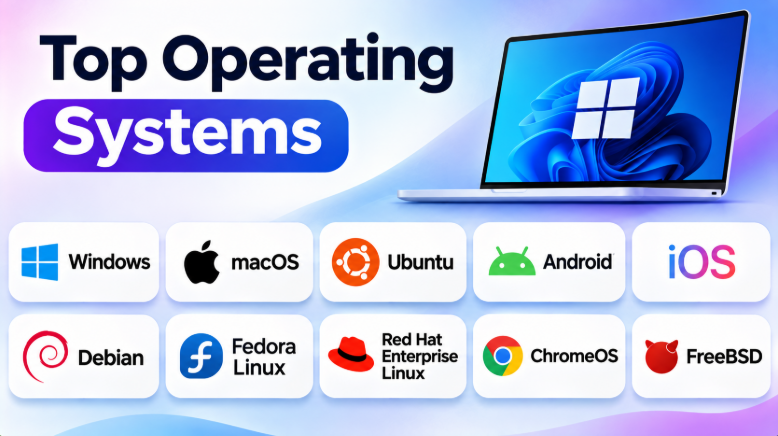
Top 10 Operating Systems
1. Microsoft Windows
Best for everyday computing, business software, and gaming
Microsoft Windows is one of the most widely used desktop operating systems. It runs on computers from many hardware makers. This gives users a large choice of laptops, desktops, and workstations.
Windows supports office applications, creative software, business tools, and PC games. It also offers features for managing files, connecting devices, and protecting user accounts. Windows 11 is the current main desktop product in this family.
Key Features:
- Graphical desktop and Start menu.
- Broad support for PC hardware and drivers.
- Large desktop application ecosystem.
- Built-in file and device management.
- Microsoft account and cloud service integration.
- Security features such as Windows Security.
- Support for gaming and professional applications.
- Multiple editions for home and business use.
Benefits:
- Supports a wide range of software.
- Works with computers from many brands.
- Offers broad printer and accessory support.
- Suitable for home, school, and office work.
- Provides many PC gaming options.
- Familiar to many users and IT teams.
Pros:
- Large application selection.
- Wide hardware compatibility.
- Strong support for business software.
- Suitable for gaming and creative work.
- Many learning resources are available.
Cons:
- Some editions require a paid license.
- Updates can interrupt work if poorly managed.
- Older computers may not meet newer requirements.
- Malware can target Windows users.
- Some advanced settings need technical knowledge.
Use Cases:
- Office work and business applications.
- Online learning and personal computing.
- PC gaming and streaming.
- Graphic design and video editing.
- Software development.
- Business desktop management.
Best For: Home users, students, office workers, gamers, and organizations that need broad software compatibility.
2. macOS
Best for Mac users, creative work, and Apple development
macOS is Apple’s desktop operating system for Mac computers. Apple designs both the software and the hardware. This allows the company to control how the system works with supported Mac devices.
macOS offers a clean desktop, built-in productivity tools, and close links with other Apple products. It is also important for developers who create apps for Apple’s platforms. Many creative professionals use Mac computers for design, music, and video work.
Key Features:
- Finder for file and folder management.
- Dock for quick app access.
- Spotlight search.
- Built-in backup support through Time Machine.
- iCloud integration.
- Security and privacy controls.
- Support for Apple’s development tools.
- Integration with supported iPhone and iPad features.
Benefits:
- Works closely with Apple hardware.
- Offers a consistent desktop experience.
- Includes useful built-in applications.
- Supports many professional creative tools.
- Provides a strong development environment for Apple apps.
- Connects with other Apple devices.
Pros:
- Clean and consistent interface.
- Good creative software support.
- Useful built-in security tools.
- Strong Apple ecosystem integration.
- Regular software maintenance from Apple.
Cons:
- Runs only on supported Apple computers.
- Mac hardware can cost more.
- Some Windows-only apps are unavailable.
- Hardware upgrades may be limited.
- Users have fewer device choices.
Use Cases:
- Video and audio production.
- Graphic and product design.
- Software development for Apple platforms.
- Office and personal work.
- Photo editing.
- Work across Apple devices.
Best For: Mac owners, creative professionals, developers, and users who prefer Apple’s connected device ecosystem.
3. Ubuntu
Best for Linux beginners, developers, and server use
Ubuntu is a popular Linux distribution developed by Canonical and its community. It offers desktop and server editions. Users can install it on personal computers, virtual machines, and many cloud platforms.
Ubuntu Desktop provides a graphical environment for everyday work. Ubuntu Server focuses on running applications and services. Its package tools help users install and update software. Long Term Support releases also give organizations a longer maintenance option.
Key Features:
- Free and open-source software.
- Desktop and server editions.
- GNOME desktop environment.
- APT package management.
- Long Term Support releases.
- Command-line administration tools.
- Broad cloud and developer ecosystem.
- Support for containers and virtual machines.
Benefits:
- No standard desktop license fee.
- Useful for learning Linux.
- Supports many development tools.
- Suitable for web and application servers.
- Offers strong community documentation.
- Provides different installation options.
Pros:
- Free to download and use.
- Large user community.
- Good developer support.
- Suitable for desktop and server tasks.
- Flexible software installation.
- Useful for cloud and container workloads.
Cons:
- Some commercial apps lack Linux versions.
- Certain hardware may need extra setup.
- New users may need command-line skills.
- Some games and specialist tools have limited support.
- Release choices require attention to support periods.
Use Cases:
- Web and application hosting.
- Software development.
- Cloud computing.
- Learning Linux commands.
- Desktop productivity.
- Container and virtualization environments.
Best For: Developers, students, Linux beginners, server administrators, and organizations that want an open-source platform.
4. Android
Best for mobile devices and flexible hardware choices
Android is a mobile operating system built around the Linux kernel. Google leads its development, while many device makers use it in their phones and tablets.
Android gives users a wide range of devices and price options. Manufacturers can add their own interfaces and features. This creates choice, but the experience can differ between brands and models.
Android also supports business device management. Organizations can apply work policies, manage applications, and control access on supported devices.
Key Features:
- Touch-based user interface.
- Google Play app ecosystem on supported devices.
- Home screen widgets.
- Notification controls.
- Multi-user features on selected devices.
- Device security and app permissions.
- Support for many hardware makers.
- Enterprise device management options.
Benefits:
- Available across many device types.
- Offers choices at different prices.
- Supports many mobile applications.
- Allows home screen customization.
- Works with a wide range of accessories.
- Supports business and personal use.
Pros:
- Large device selection.
- Flexible user experience.
- Wide app availability.
- Many hardware price ranges.
- Useful Google service integration.
Cons:
- Update schedules vary by manufacturer.
- Some devices receive limited support.
- Preinstalled apps can vary.
- Features differ between device models.
- App quality and privacy practices can vary.
Use Cases:
- Personal communication.
- Mobile gaming.
- Business applications.
- Online learning.
- Photography and video.
- Mobile payments and daily tasks.
Best For: People who want broad phone choices, flexible settings, and access to a large mobile app ecosystem.
5. iOS
Best for iPhone users and Apple’s mobile ecosystem
iOS is Apple’s mobile operating system for iPhone. Apple controls the hardware, software, and main app distribution process. This creates a consistent experience across supported iPhone models.
iOS focuses on app security, privacy controls, and smooth interaction with Apple services. It also connects with other Apple devices and services. Users who already own a Mac, iPad, or Apple Watch may value this integration.
Key Features:
- Touch-based home screen.
- App Store distribution.
- Face ID or Touch ID on supported devices.
- iCloud services.
- Privacy and app permission controls.
- Siri voice assistant.
- Apple service integration.
- Regular system security updates.
Benefits:
- Consistent experience across supported iPhones.
- Strong integration with Apple services.
- Clear app permission controls.
- Large selection of mobile apps.
- Useful privacy settings.
- Long-term software support on supported models.
Pros:
- Simple interface.
- Strong Apple device integration.
- Consistent software experience.
- Useful privacy controls.
- Large app ecosystem.
Cons:
- Limited choice of hardware makers.
- iPhones can be expensive.
- Customization is more restricted than Android.
- Some apps have limited file access.
- App distribution is more controlled.
Use Cases:
- Personal communication.
- Mobile photography.
- Business and productivity apps.
- Mobile banking and payments.
- Apple ecosystem workflows.
- Gaming and entertainment.
Best For: iPhone users, Apple customers, and people who prefer a consistent mobile experience.
6. Debian
Best for stable Linux systems and server environments
Debian is a free and open-source operating system. It has a large software collection and an active development community.
Debian supports desktop computers and servers. Users can choose from several desktop environments. Administrators can also install only the packages they need.
Its package management system helps users install and update software. Debian’s stable branch suits systems where predictable changes matter. Other branches serve users who want newer software and accept more change.
Key Features:
- Free and open-source software.
- APT package management.
- Large software repository.
- Multiple desktop environments.
- Desktop and server support.
- Community-based development.
- Support for different hardware architectures.
Benefits:
- Offers control over installed software.
- Supports long-running systems.
- Provides detailed documentation.
- Works across several hardware platforms.
- Can serve as a base for other distributions.
- Gives administrators package choices.
Pros:
- Free to use and modify.
- Large software collection.
- Strong documentation.
- Suitable for servers and desktops.
- Offers control over system components.
- Stable branch favors predictable maintenance.
Cons:
- Some software versions may be older.
- New users may need time to learn it.
- Hardware support can vary.
- Some tasks require manual setup.
- New software may take longer to reach stable releases.
Use Cases:
- Web and database servers.
- Desktop computing.
- Software development.
- Virtual machines.
- Network services.
- Custom Linux installations.
Best For: Linux users, server administrators, developers, and organizations that value open-source software and controlled updates.
7. Fedora Linux
Best for developers and users who want newer Linux technology
Fedora Linux offers modern open-source software and a clean desktop experience. Fedora Workstation uses the GNOME desktop by default.
Fedora also provides editions for servers, cloud systems, and connected devices. Developers can use its tools to build and test applications.
The Fedora community works with many open-source projects. This helps bring newer Linux technologies to users. Its faster release cycle may suit people who want recent software and can manage regular upgrades.
Key Features:
- Modern Linux desktop.
- GNOME desktop environment.
- Developer tools and packages.
- DNF package management.
- Server and cloud editions.
- Open-source development model.
- Support for container workflows.
- Regular software updates.
Benefits:
- Provides access to newer Linux software.
- Useful for software development.
- Offers different editions for varied workloads.
- Supports modern development tools.
- Has active community resources.
- Helps users explore new Linux technologies.
Pros:
- Modern software packages.
- Good developer environment.
- Free and open-source.
- Strong community participation.
- Useful for testing new technologies.
Cons:
- Shorter release support than some LTS options.
- Frequent upgrades need planning.
- Some commercial applications may be unavailable.
- Newer packages can require more troubleshooting.
- Hardware support can vary.
Use Cases:
- Software development.
- Linux learning and testing.
- Desktop productivity.
- Container development.
- Server and cloud workloads.
- Open-source project work.
Best For: Developers, Linux enthusiasts, and technical users who prefer newer open-source software.
8. Red Hat Enterprise Linux
Best for enterprise servers and supported business infrastructure
Red Hat Enterprise Linux (RHEL) is a commercial Linux operating system designed for business and enterprise environments. Organizations use it for servers, applications, cloud workloads, and supported workstations.
RHEL focuses on managed maintenance, enterprise support, and compatibility with business software. Its subscription model gives organizations access to defined support services and product resources.
It is often selected when application vendors or internal IT policies require a supported enterprise Linux platform. Buyers should review subscription terms and supported configurations before deployment.
Key Features:
- Enterprise Linux platform.
- Commercial support options.
- Package management with DNF.
- Security and system management tools.
- Server and cloud deployment support.
- Container and virtualization support.
- Enterprise application ecosystem.
- Defined product lifecycle policies.
Benefits:
- Offers vendor-backed support.
- Fits many enterprise workloads.
- Supports controlled maintenance planning.
- Works with enterprise management tools.
- Provides a consistent platform for business systems.
- Supports hybrid infrastructure needs.
Pros:
- Commercial support options.
- Enterprise-focused maintenance policies.
- Strong server ecosystem.
- Suitable for business-critical workloads.
- Useful for standardized infrastructure.
Cons:
- Subscription costs need budgeting.
- Some features depend on subscription terms.
- Administration requires Linux knowledge.
- Smaller teams may not need its full enterprise model.
- Migration can require application compatibility checks.
Use Cases:
- Enterprise application hosting.
- Database infrastructure.
- Hybrid cloud systems.
- Business servers.
- Container platforms.
- Standardized IT environments.
Best For: Large organizations, IT teams, and businesses that need commercial Linux support and planned system maintenance.
9. ChromeOS
Best for web-based work, education, and simple computing
ChromeOS powers Chromebook devices. It focuses on web applications, cloud services, and simple device management.
Users can work through the Chrome browser and supported applications. Compatible Chromebooks may also support Android applications and Linux development environments.
Schools and businesses often use ChromeOS because administrators can manage devices centrally. ChromeOS Flex can also help bring some older computers into a ChromeOS-style environment. However, it does not provide every feature found on a Chromebook.
Key Features:
- Chrome browser integration.
- Cloud-based workflows.
- Android application support on compatible devices.
- Automatic system updates.
- Central device management.
- Built-in security features.
- Linux development environment on supported devices.
- ChromeOS Flex support for compatible computers.
Benefits:
- Simple interface.
- Good for web-based work.
- Central device management options.
- Works well with Google services.
- Suitable for many education settings.
- Often works well on modest hardware.
Pros:
- Easy to learn.
- Useful for browser-based tasks.
- Supports managed device deployments.
- Automatic updates reduce manual work.
- Suitable for schools and shared devices.
Cons:
- Some desktop applications are unavailable.
- Offline work may have limits.
- Hardware support varies.
- Advanced tasks may need other systems.
- Some applications require internet access.
Use Cases:
- School and classroom computing.
- Web-based office work.
- Online learning.
- Shared computers.
- Basic business tasks.
- Managed device fleets.
Best For: Students, schools, remote teams, and users who mainly work online.
10. FreeBSD
Best for networking, storage, and advanced server use
FreeBSD is a Unix-like operating system with a strong focus on networking, performance, and storage. Administrators use it in server environments and systems that need reliable network services.
FreeBSD includes a complete operating system. It provides tools for system administration, software development, and networking.
Administrators can use its built-in tools to manage services and system settings. FreeBSD also supports ZFS, which provides advanced storage management features.
Key Features:
- Unix-like operating system.
- Strong networking support.
- ZFS storage support.
- Multi-user and multitasking features.
- System administration tools.
- Open-source development model.
- Ports and package management.
- Support for several hardware architectures.
Benefits:
- Offers strong networking tools.
- Provides advanced storage options.
- Gives administrators system control.
- Includes detailed documentation.
- Supports specialized server workloads.
- Uses a permissive open-source license.
Pros:
- Strong networking capabilities.
- Useful storage features.
- Detailed documentation.
- Flexible open-source license.
- Suitable for advanced server tasks.
- Offers control over system components.
Cons:
- Smaller desktop application ecosystem.
- Hardware support may vary.
- Beginners may face a learning curve.
- Some Linux software needs changes to run.
- Desktop support is less common than Windows or macOS.
Use Cases:
- Network services.
- Storage servers.
- Firewalls and appliances.
- Hosting infrastructure.
- Development and testing.
- Specialist Unix environments.
Best For: Server administrators, networking specialists, storage teams, and advanced Unix users.
Operating Systems Comparison Table
| Operating System | Main Device Type | License Model | Best For |
|---|---|---|---|
| Windows | PCs and laptops | Commercial | Everyday and business use |
| macOS | Mac computers | Apple proprietary | Creative work and Mac users |
| Ubuntu | PCs and servers | Open source | Developers and Linux users |
| Android | Phones and tablets | Open-source base with vendor components | Mobile device choice |
| iOS | iPhone | Apple proprietary | Apple mobile users |
| Debian | PCs and servers | Open source | Stable Linux environments |
| Fedora Linux | PCs and servers | Open source | Developers and modern Linux tools |
| Red Hat Enterprise Linux | Servers and workstations | Commercial subscription | Enterprise infrastructure |
| ChromeOS | Chromebooks | Google proprietary with open-source components | Web-based work and education |
| FreeBSD | Servers and specialist systems | Open source | Networking and storage |
Different Types of Operating Systems
Operating systems come in several forms. Each type supports a different kind of device or workload.
1. Desktop Operating Systems
Desktop operating systems run on personal computers and laptops. They support everyday applications, games, office work, and creative tasks.
Examples include Windows, macOS, Ubuntu, and Fedora Workstation.
2. Server Operating Systems
Server operating systems run services for users, websites, applications, and business systems. They focus on stability, security, networking, and remote administration.
Examples include Red Hat Enterprise Linux, Ubuntu Server, Debian, and FreeBSD.
3. Mobile Operating Systems
Mobile operating systems run smartphones and tablets. They manage touch controls, mobile applications, cameras, wireless networks, and battery use.
Examples include Android and iOS.
4. Embedded Operating Systems
Embedded operating systems run inside devices such as routers, smart appliances, vehicles, and industrial machines. They often support a small set of specific tasks.
Embedded Linux and real-time operating systems are common choices for these devices.
How to Choose the Right Operating System
Choosing an operating system depends on your device, work, software needs, and budget. A platform that works well for a home laptop may not suit a business server.
Consider these points before making a choice:
1. Check Software Compatibility
Start with the applications you need. Some business and creative tools support only selected operating systems.
Check software requirements before buying a computer or installing a new system. This can prevent costly compatibility problems later.
2. Review Hardware Requirements
Every operating system has hardware needs. Check the processor, memory, storage, graphics, and device support.
Older computers may not support every modern operating system. A system may also need extra drivers for Wi-Fi, sound, or other devices.
3. Consider Security and Updates
Security updates help protect devices from known problems. Check how the vendor or project handles system updates.
Also review user permissions, disk encryption, app controls, and account security. Business users should check device management and access policies.
4. Understand the Total Cost
Some operating systems are free to download. Others come with a computer or require a separate license.
The full cost may also include support, training, hardware upgrades, and maintenance. Businesses should consider these costs before choosing a platform.
5. Match the System to Your Skills
Some operating systems are easier for new users. Others offer more control but need technical knowledge.
Windows and macOS provide familiar graphical environments. Linux and FreeBSD can offer greater control for users who understand system administration.
6. Think About Your Main Workload
Choose a system based on what you plan to do.
- For office work, check application and printer support.
- For gaming, check game compatibility and graphics drivers.
- For development, review programming tools and terminal support.
- For servers, check application support and maintenance options.
- For mobile use, compare device support, app availability, and update policies.
Common Mistakes to Avoid When Choosing an Operating System
A poor operating system choice can create extra work and cost. Avoid these common mistakes:
- Choosing Only by Popularity: A popular system may not support your required applications.
- Ignoring Hardware Support: Always check whether the operating system supports your computer.
- Overlooking Updates: An unsupported system may create security risks.
- Ignoring Software Costs: Some applications need separate licenses.
- Choosing Too Much Complexity: A simple device may not need an advanced operating system.
- Skipping Testing: Test important apps and devices before a full migration.
- Confusing Linux Distributions: Linux distributions can differ in package tools, release policies, and support.
- Ignoring User Training: A new platform may require time and support for users.
Frequently Asked Questions About Operating Systems
1. What is the main purpose of an operating system?
An operating system manages a device’s hardware and software. It helps applications run and provides tools for files, memory, storage, security, and networks.
2. Which operating system is best for personal computers?
Windows and macOS are common choices for personal computers. Ubuntu and other Linux distributions can also work well. The best choice depends on your applications, hardware, and preferences.
3. Is Linux free to use?
Many Linux distributions are free and open source. Users can download, install, and modify them. Some organizations also offer paid support and enterprise services.
4. What is the difference between Windows and Linux?
Windows is a commercial operating system developed by Microsoft. Linux is an open-source kernel used by many distributions. Their software ecosystems, management tools, and licensing models differ.
5. Which operating system is best for servers?
Ubuntu Server, Debian, Red Hat Enterprise Linux, Windows Server, and FreeBSD all serve different server needs. Choose based on application support, administration skills, security needs, and support requirements.
6. Can one computer run more than one operating system?
Yes. A computer can run multiple operating systems through dual boot or virtualization. Dual boot lets users select a system during startup. Virtualization runs another operating system inside a virtual machine.
7. What is the difference between Android and iOS?
Android runs on phones and tablets from many manufacturers. iOS runs on Apple’s iPhone devices. Android offers more hardware choice, while iOS provides Apple’s controlled mobile environment.
8. What is an open-source operating system?
An open-source operating system makes its source code available under an open-source license. Users and developers can study, modify, and share it under that license’s terms. Linux distributions and FreeBSD are examples.
Final Thoughts
Operating systems support different devices, applications, and workloads. Windows suits users who need broad PC software support. macOS fits people who prefer Apple’s hardware and tools. Ubuntu, Debian, and Fedora offer different ways to use Linux. Android and iOS serve different mobile needs.
For servers, the choice should depend on application support, security maintenance, and administration skills. FreeBSD and enterprise Linux platforms can serve specialist infrastructure needs.
Before choosing, check software compatibility, hardware support, update policies, and total cost. A small test can also reveal problems before a full rollout. The right operating system is the one that supports your work and remains practical to maintain.


Leave a Reply
You must be logged in to post a comment.