A single missed software update can leave many computers open to attack. The risk grows when a business manages hundreds of devices. IT teams must also update servers, laptops, desktops, and third-party apps.
Manual patching takes time. It can also lead to missed updates and uneven security. Patch management tools help teams find missing updates, test patches, deploy them, and track results.
But every tool works in a different way. Some focus on Windows devices. Others support Windows, macOS, and Linux. Some also include remote monitoring, software deployment, or security features.
This guide compares ten patch management tools. It explains their features, pros, cons, and best uses. It also helps you choose a tool that fits your IT setup.
What Is Patch Management Software?
Patch management software helps IT teams manage software updates across devices and servers. A patch is an update that fixes a bug, closes a security gap, or improves software.
A patch management tool can help teams:
- Find missing software updates.
- Check device patch status.
- Deploy security and system updates.
- Update third-party applications.
- Schedule patch installation.
- Control device restarts.
- Track failed updates.
- Create patch reports.
- Reduce manual work.
Patch management is more than installing updates. Teams must also check whether patches work as expected.
A good process often follows these steps:
- Discover: Find devices and installed software.
- Assess: Identify missing and important patches.
- Test: Check updates on a small group of devices.
- Deploy: Install approved patches in stages.
- Verify: Confirm that updates installed correctly.
- Report: Review failures, delays, and patch status.
This process helps reduce risk. It also lowers the chance of a bad update disrupting many devices.
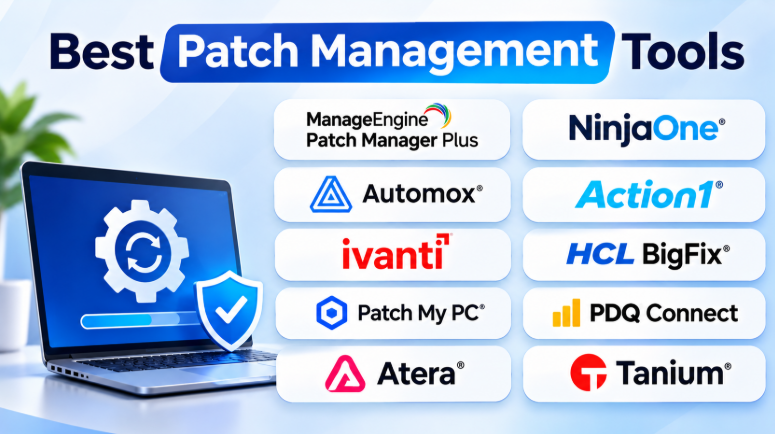
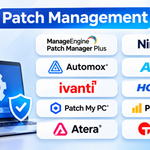
Top 10 Patch Management Tools
The following tools serve different IT needs. Some focus on patching alone. Others include wider endpoint management and remote support features.
1. ManageEngine Patch Manager Plus
Best for broad patch coverage
ManageEngine Patch Manager Plus helps businesses manage operating system and third-party application updates. It supports Windows, macOS, and Linux environments.
The platform can patch desktops, laptops, and servers. It also supports updates for many third-party applications. This can help teams manage more than just operating system updates.
Businesses can choose cloud or on-premises deployment. This gives IT teams more control over where they run the service.
Key features
- Automated operating system patching.
- Third-party application updates.
- Patch testing and approval options.
- Deployment scheduling.
- Patch compliance reports.
- Support for cloud and on-premises use.
Pros
- Supports several operating systems.
- Covers many third-party applications.
- Offers flexible deployment options.
- Provides patch status reports.
Cons
- Setup can take time.
- Advanced features need careful planning.
- Large environments may need skilled administrators.
Best use: Businesses that need broad patch coverage across desktops, servers, and third-party apps.
2. NinjaOne
Best for patching with RMM
NinjaOne combines patch management with remote monitoring and management (RMM). It helps IT teams manage devices from one cloud-based platform.
Its patching tools support operating system and third-party application updates. IT teams can create policies and manage updates across supported Windows, macOS, and Linux devices.
NinjaOne also includes remote access, device monitoring, and IT management features. This makes it useful when patching is only one part of the team’s daily work.
Key features
- Operating system patch management.
- Third-party application patching.
- Automated patch policies.
- Device monitoring and alerts.
- Remote access and support.
- Patch status reporting.
Pros
- Combines patching and remote management.
- Supports mixed operating system environments.
- Helps reduce manual IT tasks.
- Suits internal IT teams and service providers.
Cons
- May offer more features than patch-only teams need.
- Pricing usually requires a quote.
- Setup needs clear device and policy groups.
Best use: IT teams and managed service providers that want patching with wider remote management tools.
3. Automox
Best for cloud-based patching
Automox is a cloud-native endpoint management platform. It helps IT teams patch and manage devices across different locations.
The platform supports Windows, macOS, and Linux. Its cloud-based design can help teams manage remote devices without relying on a traditional office network.
Automox also offers policy-based automation. Teams can use policies to control updates and automate selected endpoint tasks.
Its cloud focus may not suit every company. Organizations with strict network or hosting rules should review its deployment requirements.
Key features
- Cross-platform patch management.
- Cloud-based device management.
- Automated patch policies.
- Third-party application updates.
- Endpoint configuration controls.
- Patch reporting and visibility.
Pros
- Useful for remote workforces.
- Supports major desktop operating systems.
- Helps automate repeat tasks.
- Reduces dependence on local patch servers.
Cons
- Cloud-only design may not suit every environment.
- Costs can grow with endpoint count.
- Teams should check app and Linux coverage.
Best use: Businesses with remote teams and mixed operating systems.
4. Action1
Best for small IT teams
Action1 provides cloud-based patch management for business endpoints. It helps teams find missing updates and deploy patches from a central console.
The platform supports Windows and offers patching for other supported operating systems. It also covers many third-party applications.
Action1 can help small IT teams manage devices without building a large patch server setup. Its free offering has made it an option for smaller environments, but buyers should confirm current endpoint limits and plan terms.
Key features
- Cloud-based patch management.
- Operating system updates.
- Third-party application patching.
- Automated deployment policies.
- Patch status reports.
- Remote endpoint management.
Pros
- Cloud-based management.
- Useful for smaller IT teams.
- Offers third-party app patching.
- Helps manage remote endpoints.
Cons
- Buyers must check current free-plan limits.
- Advanced needs may require a paid plan.
- Supported operating systems and apps need review.
Best use: Small businesses that need central patch management without a complex setup.
5. Ivanti Neurons for Patch Management
Best for enterprise patch control
Ivanti Neurons for Patch Management helps organizations manage updates across enterprise endpoints. It supports patching for operating systems and third-party applications.
Large companies often need more control over patch timing. They may need to test updates, approve them, and deploy them to selected groups.
Ivanti offers patch management as part of its wider endpoint management approach. This can help security and IT teams connect patch work with other endpoint tasks.
The full setup can be complex. Buyers should check the available modules, supported platforms, and licensing needs.
Key features
- Operating system patch management.
- Third-party application updates.
- Patch deployment policies.
- Patch status and reporting.
- Endpoint management integration.
- Controls for staged deployment.
Pros
- Suits enterprise patch workflows.
- Supports wider endpoint operations.
- Helps manage third-party updates.
- Offers policy-based controls.
Cons
- Setup may need specialist skills.
- Product packages can be complex.
- Pricing usually depends on business needs.
Best use: Large organizations that need detailed patch control across enterprise endpoints.
6. HCL BigFix
Best for large and complex environments
HCL BigFix is an endpoint management platform with patch management features. It helps large organizations manage updates across broad and varied device fleets.
BigFix supports patching across several operating systems. It can also help teams manage software, device settings, and endpoint compliance.
Its architecture suits large and distributed environments. However, planning and administration matter. Teams should understand its infrastructure needs before deployment.
Key features
- Operating system patch management.
- Endpoint inventory and visibility.
- Patch deployment and reporting.
- Configuration management.
- Compliance monitoring.
- Support for large endpoint environments.
Pros
- Designed for complex IT environments.
- Supports several operating systems.
- Combines patching with endpoint management.
- Offers detailed endpoint visibility.
Cons
- Setup can be demanding.
- Administration may need specialist skills.
- May be too complex for small businesses.
Best use: Large enterprises with many devices, servers, and different operating systems.
7. Patch My PC
Best for Microsoft endpoint environments
Patch My PC focuses on third-party application updates. It helps IT teams keep common business apps up to date.
It works with Microsoft endpoint management tools such as Microsoft Intune and Configuration Manager. This makes it useful for teams that already use Microsoft’s management systems.
Instead of replacing the existing endpoint platform, Patch My PC extends its app deployment and update options. Its main value is third-party application patching rather than full multi-platform patch management.
Key features
- Third-party application updates.
- Integration with Microsoft Intune.
- Configuration Manager support.
- Application deployment automation.
- Package and update management.
- Reporting for supported workflows.
Pros
- Fits Microsoft-based IT environments.
- Focuses on third-party app updates.
- Extends existing management tools.
- Helps reduce manual app packaging.
Cons
- Not a complete patch management platform for every operating system.
- Works best with a supported Microsoft setup.
- Buyers should check app catalog coverage.
Best use: Organizations that use Intune or Configuration Manager and need better third-party application patching.
8. PDQ Connect
Best for Windows-focused IT teams
PDQ Connect is a cloud-based endpoint management tool. It helps IT teams deploy software, manage devices, and handle patching tasks.
It is useful for teams that want to manage Windows devices without building a large on-premises system. It also supports macOS management.
PDQ focuses on practical endpoint work. Teams can use packages and deployment tools to install software and manage updates.
Organizations with large Linux fleets should consider another platform. PDQ Connect is not a general-purpose Linux patch management choice.
Key features
- Cloud-based endpoint management.
- Software deployment.
- Windows and macOS management.
- Patch and update workflows.
- Device inventory.
- Remote endpoint support.
Pros
- Useful for Windows-focused teams.
- Offers software deployment tools.
- Cloud-based management.
- Helps simplify routine endpoint tasks.
Cons
- Not designed for Linux-heavy environments.
- May not replace a full enterprise patch platform.
- Buyers should check exact OS and package support.
Best use: Small and mid-sized IT teams that mainly manage Windows and macOS devices.
9. Atera
Best for MSPs and small IT teams
Atera combines remote monitoring and management with IT service tools. Patch management is part of its wider platform.
It helps technicians monitor devices, manage updates, and provide remote support. This can be useful for managed service providers that handle many customer environments.
Atera uses a per-technician pricing approach for its core platform. This can suit teams that manage many devices with a small number of technicians. Buyers should compare the full plan and add-on costs.
Key features
- Operating system patch management.
- Third-party application updates.
- Remote monitoring and management.
- Remote access and support.
- IT service management tools.
- Device alerts and reports.
Pros
- Combines patching and remote support.
- Fits MSP workflows.
- Uses technician-based pricing.
- Offers wider IT service features.
Cons
- Patching is one part of a larger platform.
- Some advanced features may need add-ons.
- Teams should confirm Linux support for their needs.
Best use: MSPs and small IT teams that need patching with remote support and service tools.
10. Tanium Patch
Best for real-time enterprise endpoint visibility
Tanium Patch is part of the Tanium endpoint management platform. It helps organizations manage software updates across large endpoint environments.
Tanium focuses on endpoint visibility and control. Its platform can help teams understand device status and take action across many systems.
Patch management can work with its wider endpoint and security features. This may help large organizations connect patching with vulnerability and risk management work.
Tanium is built for enterprise needs. It may be more than smaller IT teams require.
Key features
- Enterprise patch management.
- Endpoint visibility.
- Patch deployment controls.
- Update status reporting.
- Integration with wider Tanium tools.
- Support for large endpoint environments.
Pros
- Fits large enterprise fleets.
- Connects patching with endpoint visibility.
- Supports wider security operations.
- Helps centralize endpoint tasks.
Cons
- Can require specialist administration.
- May be costly for smaller teams.
- Full value depends on the wider Tanium setup.
Best use: Large enterprises that need patching with broad endpoint visibility and security operations.
Patch Management Tools Comparison Table
| Tool | Best for | Main strength | Main consideration |
|---|---|---|---|
| ManageEngine Patch Manager Plus | Broad patch coverage | OS and third-party app updates | Setup and administration |
| NinjaOne | RMM and patching | Patching with remote management | Wider platform may be unnecessary |
| Automox | Remote workforces | Cloud-based cross-platform patching | Cloud deployment model |
| Action1 | Small IT teams | Cloud-based patch management | Plan and platform limits |
| Ivanti Neurons | Enterprise IT | Detailed patch policies | Setup and licensing |
| HCL BigFix | Large enterprises | Broad endpoint management | Deployment complexity |
| Patch My PC | Microsoft environments | Third-party app patching | Depends on Microsoft tools |
| PDQ Connect | Windows and macOS teams | Software deployment and endpoint control | Limited Linux focus |
| Atera | MSPs | Patching with remote support | Patching is part of a wider platform |
| Tanium Patch | Large security teams | Endpoint visibility and patch control | Enterprise-level complexity |
How to Choose the Right Patch Management Tool
The best tool depends on your devices, applications, team size, and security needs. Use these points to narrow your choices.
1. Check Your Operating Systems
Start with a list of every system you manage.
Include:
- Windows desktops and laptops.
- Windows servers.
- macOS devices.
- Linux servers and desktops.
- Virtual machines.
- Remote employee devices.
Check the exact operating system versions and Linux distributions. A vendor may support Linux but not every distribution or release.
2. Check Third-Party Application Support
Operating system updates are only part of patch management. Browsers, PDF tools, meeting apps, and other software also need updates.
Review the vendor’s app catalog. Check whether it supports the applications your staff use.
Do not compare catalog totals without checking how vendors count apps and versions. Their numbers may use different methods.
3. Choose Cloud or On-Premises Deployment
Cloud tools can help teams manage remote devices. They may also reduce the need to maintain local patch servers.
On-premises tools can suit companies with strict network or hosting rules. However, they need infrastructure and maintenance.
Choose a deployment model that fits your network, security, and support needs.
4. Review Testing and Approval Controls
A patch can sometimes cause software or device problems. This is why testing matters.
Look for features that let you:
- Test updates on selected devices.
- Approve or block patches.
- Deploy updates in stages.
- Delay updates when needed.
- Control restart times.
- Review failed installations.
These controls help reduce the impact of a bad update.
5. Check Reporting and Verification
A patch report should show more than a list of updates.
It should help you understand:
- Which devices need updates.
- Which patches installed successfully.
- Which installations failed.
- Which devices remain offline.
- Which updates need another attempt.
- Which systems need attention first.
Accurate reporting helps teams find gaps. It also helps them prove that patch work has taken place.
6. Review Automation and Integrations
Check whether the tool works with your existing endpoint and security systems.
Useful connections may include:
- Endpoint management platforms.
- Vulnerability scanners.
- IT service management tools.
- Identity services.
- Remote monitoring tools.
- Security information systems.
Also check whether the tool offers APIs or automation options. These can help teams connect patching with existing workflows.
7. Compare the Full Cost
Patch management costs depend on more than the base subscription.
Review these costs:
- Number of endpoints.
- Number of servers.
- Technician or user licenses.
- Third-party app modules.
- Cloud or on-premises infrastructure.
- Setup and migration.
- Support and training.
- Extra security features.
Ask vendors to price your actual device count and required features.
Common Patch Management Mistakes to Avoid
- Patching every device at once: Use test groups and staged deployment.
- Ignoring third-party apps: Keep browsers and business apps updated.
- Skipping failed patch checks: Review failed and offline devices.
- Ignoring restart needs: Plan reboot windows with users and service owners.
- Choosing by catalog size alone: Check support for your actual apps.
- Forgetting remote devices: Make sure laptops receive updates outside the office.
- Ignoring servers: Plan server updates around service needs.
- Not keeping records: Save patch reports and approval details.
- Buying too many features: Match the tool to your real IT needs.
Frequently Asked Questions
What is patch management software?
Patch management software helps IT teams find, test, install, and track software updates. It can manage operating systems and third-party applications.
Why is patch management important?
Patches can fix security gaps and software problems. Regular updates help reduce exposure to known weaknesses.
What is the difference between patch management and vulnerability management?
Patch management focuses on finding and installing updates. Vulnerability management finds and tracks security weaknesses across systems. The two processes often work together.
Can patch management tools update third-party applications?
Yes. Many tools support updates for browsers, office apps, and other software. App coverage varies by vendor.
Are cloud-based patch management tools better?
Cloud tools can help manage remote devices without local patch servers. On-premises tools may suit companies with specific hosting or network needs. The right choice depends on your environment.
Can patch management tools manage Linux servers?
Some tools support Linux servers. However, supported distributions and update types differ. Check the exact systems before buying.
How often should companies install patches?
Companies should follow the risk and urgency of each update. Critical security patches may need faster action. Other updates can follow planned testing and maintenance windows.
Is free patch management software available?
Some vendors offer free plans or limited editions. Check endpoint limits, feature restrictions, support terms, and commercial use conditions before choosing one.
Final Thoughts
Patch management is a key part of keeping business systems safe and stable. The right tool helps teams find missing updates, deploy patches, and confirm results.
ManageEngine Patch Manager Plus offers broad OS and app coverage. NinjaOne suits teams that need patching with RMM. Automox supports cloud-based management across remote devices. Patch My PC helps Microsoft-focused teams manage third-party apps. HCL BigFix and Tanium suit complex enterprise environments.
Before choosing, list your operating systems and business apps. Then test patch deployment, restart controls, reporting, and failed-update handling.
A useful patch management tool should do more than install updates. It should help your team know which devices are protected and which still need attention.


Leave a Reply
You must be logged in to post a comment.