Losing important data can stop a business in minutes. A failed server, damaged laptop, ransomware attack, or simple human error can cause serious trouble.
Backup software helps protect data before these problems occur. Recovery tools help bring files, applications, and systems back when something goes wrong.
But not every backup tool solves the same problem. Some focus on virtual machines and servers. Others protect cloud apps, business computers, or large enterprise systems.
This guide compares ten established backup and recovery tools. It explains their main uses, strengths, limits, and practical differences. It also helps you choose a solution that fits your systems and recovery needs.
What Are Backup and Recovery Tools?
Backup and recovery tools create safe copies of data. They help restore that data after loss, damage, or failure.
A backup can contain files, folders, databases, applications, or an entire system. The tool may store copies on local disks, network storage, cloud services, or dedicated backup appliances.
Recovery is the process of bringing that data back. Depending on the tool, you may restore one file, a full server, a virtual machine, or a complete business service.
These tools often support several backup methods:
- Full backup: Copies all selected data.
- Incremental backup: Copies changes made since the last backup.
- Differential backup: Copies changes made since the last full backup.
- Image-based backup: Captures a full system or disk image.
- Replication: Keeps another copy of a system or data set ready for recovery.
- Cloud backup: Stores backup copies in a cloud service.
A backup alone does not guarantee a successful recovery. Teams must test their backups and confirm that they can restore the data they need.
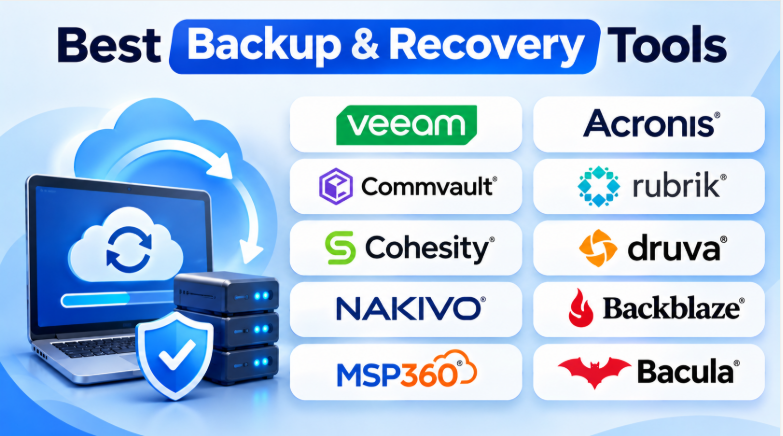
Top 10 Backup and Recovery Tools
The tools below serve different needs. Some suit complex enterprise systems. Others work well for smaller IT teams, cloud-first businesses, or technical users.
1. Veeam Data Platform
Veeam Data Platform provides backup, recovery, and data protection for mixed IT environments. It supports virtual, physical, cloud, and application workloads.
Its broad workload coverage makes it useful for organizations with more than one type of infrastructure. Teams can manage backup policies and recovery tasks across supported environments.
Key strengths
- Supports virtual, physical, cloud, and enterprise workloads.
- Offers backup and recovery management through a central platform.
- Supports recovery options for different data and system types.
- Includes tools for backup security and recovery checks.
- Fits hybrid IT environments.
Pros
- Broad workload support.
- Useful for complex backup needs.
- Offers flexible recovery options.
- Can support both local and cloud-based strategies.
Cons
- Setup may need skilled IT staff.
- Licensing and infrastructure costs need careful review.
- Large environments may need detailed policy planning.
Best use: Organizations that need broad backup coverage across virtual, physical, and cloud systems.
2. Acronis Cyber Protect
Acronis Cyber Protect combines data backup with endpoint protection features. It aims to help businesses protect devices and recover data from one platform.
This combination can appeal to small businesses and managed service providers. They may prefer fewer separate tools for device security and backup tasks.
The product includes backup and recovery features alongside security capabilities. Buyers should check which features their chosen plan includes.
Key strengths
- Combines backup with endpoint security features.
- Supports device and system recovery workflows.
- Offers centralized management options.
- Serves businesses and managed service providers.
- Includes protection features designed to address malware risks.
Pros
- Brings backup and security into one product family.
- Useful for service providers managing many clients.
- Supports several backup and recovery needs.
- Can reduce the need for separate management consoles.
Cons
- The combined feature set may be more than a small team needs.
- Plan details can affect available features.
- Buyers should review resource use and licensing carefully.
Best use: Small and midsize businesses or service providers seeking backup with added endpoint protection.
3. Commvault Cloud
Commvault Cloud focuses on data protection across complex business environments. It supports workloads across on-premises systems, cloud platforms, and software services.
Its broad approach suits organizations with many data sources and strict recovery needs. It also places strong attention on cyber recovery and data security.
Large IT teams may value its policy and governance options. However, they should plan for the work involved in setup and daily management.
Key strengths
- Protects data across varied IT environments.
- Supports enterprise backup and recovery workflows.
- Includes cyber recovery capabilities.
- Offers policy-based data protection management.
- Supports complex business requirements.
Pros
- Broad enterprise workload coverage.
- Useful for large and mixed environments.
- Offers detailed data protection controls.
- Supports security-focused recovery planning.
Cons
- May be complex for small IT teams.
- Setup and administration can require specialist skills.
- Buyers should assess licensing and deployment needs early.
Best use: Large organizations with varied workloads, complex policies, and demanding recovery requirements.
4. Rubrik Security Cloud
Rubrik Security Cloud focuses on data security and cyber resilience. Its approach connects backup, data protection, threat detection, and recovery planning.
This makes it relevant to organizations concerned about ransomware and other attacks. Teams can use its security-focused features to help identify risks and plan recovery.
Rubrik is not simply a file-copy tool. It is aimed at organizations that want data protection to form part of their wider security strategy.
Key strengths
- Focuses on cyber resilience and data protection.
- Supports recovery planning across business data.
- Offers security-focused data monitoring.
- Includes controls designed to protect backup copies.
- Supports cloud and enterprise environments.
Pros
- Strong focus on cyber recovery.
- Useful for security-led IT teams.
- Supports enterprise data protection needs.
- Connects backup planning with wider security work.
Cons
- May be too extensive for simple home or small-office backups.
- Buyers should check workload and platform support.
- Cost and deployment needs require careful review.
Best use: Organizations that place a high priority on ransomware resilience and secure data recovery.
5. Cohesity DataProtect
Cohesity DataProtect helps organizations protect data across different workloads and environments. It forms part of Cohesity’s wider data security and management platform.
The product is relevant to businesses that want to bring backup operations together. It can help teams manage protection across data centers, cloud systems, and supported applications.
Cohesity also brings together technology from its enterprise data protection business. Buyers should confirm the exact product, feature set, and support path they plan to use.
Key strengths
- Supports enterprise backup and recovery.
- Covers different workloads and storage environments.
- Offers centralized data protection management.
- Supports security and recovery workflows.
- Fits larger and mixed IT environments.
Pros
- Useful for broad enterprise data protection.
- Supports centralized management.
- Can help reduce separate backup workflows.
- Connects data protection with security capabilities.
Cons
- May require careful planning in large deployments.
- Product packaging can take time to assess.
- Existing environments may need migration planning.
Best use: Enterprises seeking a consolidated approach to backup and data protection.
6. Druva Data Security Cloud
Druva uses a cloud-based model for data protection. Its platform helps organizations protect endpoints, cloud workloads, and business applications.
A cloud-managed approach can reduce the need to run backup infrastructure at every location. This can help teams with remote users and distributed offices.
Druva is worth considering when an organization wants to reduce the burden of managing backup hardware. Buyers should still check supported workloads, storage terms, and recovery needs.
Key strengths
- Uses a cloud-managed data protection model.
- Supports endpoint and cloud data protection.
- Offers centralized policy management.
- Helps protect distributed environments.
- Supports recovery and data security workflows.
Pros
- Reduces the need for local backup infrastructure.
- Useful for remote and distributed teams.
- Offers centralized administration.
- Supports cloud-focused protection plans.
Cons
- Depends on network access for many operations.
- Large restores may need bandwidth planning.
- Buyers should review storage and retention costs.
Best use: Cloud-first organizations that want managed backup across remote users and supported business workloads.
7. NAKIVO Backup and Replication
NAKIVO Backup and Replication provides backup and recovery for virtual, physical, cloud, and supported business environments.
It is often considered by small and midsize businesses. It can also suit service providers that manage backup for several customers.
Its appeal lies in covering common backup tasks without requiring the same enterprise scope as some larger platforms. Buyers should check the exact support for their hypervisors, applications, and storage systems.
Key strengths
- Supports virtual and physical workload protection.
- Offers backup and replication features.
- Supports recovery for supported environments.
- Provides options for local and cloud-based storage.
- Serves businesses and managed service providers.
Pros
- Covers common business backup needs.
- Offers both backup and replication.
- Can fit smaller IT teams.
- Supports several deployment approaches.
Cons
- Workload support varies by platform.
- Advanced environments need compatibility checks.
- Buyers should compare edition limits before purchase.
Best use: Small and midsize businesses that need practical backup and replication for mixed systems.
8. Backblaze Business Backup
Backblaze Business Backup focuses on protecting business computers through cloud backup. It is designed to make off-site data protection easier to manage.
This approach can work well for teams that mainly need to protect user files and computer data. It is less suited to organizations that need deep application recovery or complex server orchestration.
Backblaze also offers cloud storage products for other backup designs. Buyers should distinguish computer backup from object storage when comparing plans.
Key strengths
- Provides cloud backup for business computers.
- Helps protect data outside the office.
- Offers a simple cloud-based backup approach.
- Supports business device protection.
- Provides separate cloud storage options for other workflows.
Pros
- Straightforward approach to computer backup.
- Useful for remote and office-based teams.
- Reduces the need to manage local backup servers.
- Can suit businesses with simple backup needs.
Cons
- Not a full replacement for enterprise disaster recovery.
- Large restores may take time.
- Buyers should check device, retention, and restore limits.
Best use: Small businesses that mainly need cloud backup for employee computers.
9. MSP360 Managed Backup
MSP360 Managed Backup helps businesses and managed service providers manage backup across different environments. It supports backup workflows that use cloud storage and local storage.
The platform is useful when teams want control over their backup storage choices. This can help service providers build backup plans around customer needs.
However, storage costs may come from the selected storage provider. Buyers should calculate the full cost of software, storage, data transfer, and support.
Key strengths
- Supports managed backup workflows.
- Works with supported cloud storage services.
- Offers centralized management for service providers.
- Supports different backup destinations.
- Helps manage backup across customer environments.
Pros
- Offers flexibility in storage choices.
- Useful for MSPs and IT service teams.
- Supports different customer environments.
- Can fit businesses that want control over storage.
Cons
- Storage costs depend on the chosen provider.
- Setup may require knowledge of cloud storage.
- Teams must manage storage and data transfer costs.
Best use: MSPs and IT teams that want flexible backup management across customer systems.
10. Bacula Enterprise
Bacula Enterprise is a backup and recovery platform for organizations that need control over their backup environment. It supports a range of enterprise workloads and storage setups.
Its flexible design can suit technical teams with specific infrastructure needs. It may also appeal to organizations that prefer greater control over deployment and configuration.
This flexibility comes with responsibility. Teams should have the skills to plan, configure, monitor, and test the system.
Key strengths
- Supports enterprise backup and recovery.
- Offers flexible deployment choices.
- Supports varied data and storage environments.
- Provides options for complex backup workflows.
- Suits teams that need control over configuration.
Pros
- Flexible for technical environments.
- Can support varied infrastructure needs.
- Offers control over backup design.
- Useful for organizations with experienced administrators.
Cons
- May need more technical setup.
- Administration can require specialist knowledge.
- Buyers should verify workload support and licensing.
Best use: Technical organizations that need flexible, self-managed backup and recovery.
Backup and Recovery Tools Compared
| Tool | Main focus | Suitable environment | Important consideration |
|---|---|---|---|
| Veeam Data Platform | Broad backup and recovery | Hybrid and virtual IT | Workload licensing and setup |
| Acronis Cyber Protect | Backup with endpoint protection | SMBs and MSPs | Plan-specific features |
| Commvault Cloud | Enterprise data protection | Large, mixed environments | Deployment complexity |
| Rubrik Security Cloud | Cyber resilience | Security-focused enterprises | Workload fit and cost |
| Cohesity DataProtect | Enterprise backup consolidation | Large IT environments | Product and migration planning |
| Druva Data Security Cloud | Cloud-managed protection | Distributed organizations | Network and storage costs |
| NAKIVO Backup and Replication | Backup and replication | SMBs and MSPs | Platform compatibility |
| Backblaze Business Backup | Computer cloud backup | Small businesses | Limited enterprise recovery scope |
| MSP360 Managed Backup | Flexible managed backup | MSPs and IT teams | Separate storage costs |
| Bacula Enterprise | Flexible enterprise backup | Technical IT teams | Administration skills |
These products do not all solve the same problem. A computer backup service should not be judged by the same needs as an enterprise recovery platform.
How to Choose the Right Backup and Recovery Tool
Start with the data and systems you cannot afford to lose. Then match the tool to your recovery needs.
1. List the Workloads You Need to Protect
Write down every important data source. Include:
- Employee laptops and desktops
- File servers and shared folders
- Virtual machines
- Databases and business applications
- Cloud infrastructure
- Email and collaboration services
- Websites and business systems
Check that the product supports each workload. Do not assume that support for one system means support for all its applications.
2. Define Your Recovery Time Objective
Recovery Time Objective (RTO) means how long a system can remain unavailable.
For example, a small internal file server may tolerate several hours of downtime. An online payment system may need much faster recovery.
Set an RTO for each important service. Then check whether the tool can meet it in a real recovery test.
3. Define Your Recovery Point Objective
Recovery Point Objective (RPO) means how much recent data your business can afford to lose.
An RPO of one hour means the business aims to lose no more than one hour of changes. A tighter RPO usually needs more frequent protection or replication.
Choose an RPO based on the value of the data. Do not pay for very frequent backups when the business does not need them.
4. Check Backup Storage and Isolation
Keep backup copies separate from the systems they protect. This helps reduce the risk of one incident damaging both the original data and its backups.
Look for options such as:
- Immutable backup storage
- Offline or isolated copies
- Separate backup accounts
- Encryption during transfer and storage
- Multi-factor authentication
- Role-based access controls
Immutability helps prevent changes to protected backup data during a set period. It does not replace access controls or recovery testing.
5. Test Real Recovery Tasks
A backup job that reports success does not prove that recovery will work.
Test different restore cases:
- Restore a single file.
- Restore a folder with permissions.
- Recover a database.
- Start a restored virtual machine.
- Recover a full system after a simulated failure.
Record how long each test takes. Also check whether users can access the restored data.
6. Calculate the Full Cost
The purchase price is only one part of backup costs.
Consider:
- Software licenses
- Cloud storage
- Data transfer and retrieval fees
- Backup appliances and disks
- Support plans
- Setup and migration work
- Staff time
- Long-term retention needs
A low-cost tool may become expensive when storage grows. A higher-priced platform may reduce management work, but only if its features match your needs.
Common Backup Mistakes to Avoid
Keeping every backup in one place: A fire, theft, or attack can affect both original data and backup copies. Keep copies in separate locations or failure domains.
Never testing restores: Backup success messages do not prove that files can be recovered. Run restore tests on a regular schedule.
Using the same admin account: If attackers gain access to the main account, they may also reach backups. Use separate accounts and strong access controls.
Ignoring retention rules: Short retention can remove useful recovery points. Excessive retention can increase storage costs. Set rules based on business and legal needs.
Forgetting cloud and SaaS data: Cloud providers do not always protect every customer action or data-loss event. Check what the service provider covers and what your organization must protect.
Choosing only by backup speed: A fast backup is useful, but recovery speed matters too. Test the full restore process.
Frequently Asked Questions
What is the difference between backup and disaster recovery?
Backup creates copies of data for later use. Disaster recovery focuses on restoring systems and services after a major failure.
A disaster recovery plan may use backups, replication, standby systems, and documented recovery steps.
Are cloud backups safer than local backups?
Cloud backups can protect data from local events such as theft or fire. But safety depends on account security, storage settings, access controls, and provider design.
A strong plan often combines local and off-site copies.
How often should a business back up its data?
It depends on how much data the business can afford to lose. Some systems need frequent backups. Others may need only daily copies.
Set the schedule based on each system’s RPO and business importance.
What does immutable backup mean?
An immutable backup cannot be changed or deleted during a defined protection period. This can help defend backup copies against ransomware and unauthorized changes.
It should work alongside secure accounts, access controls, and restore tests.
Is backup software enough to protect a business?
No. Backup software is one part of a wider data protection plan.
Businesses also need secure access, patching, monitoring, incident response, and tested recovery procedures.
The Right Backup Is the One You Can Restore
The best backup and recovery tool depends on the systems you run and the downtime you can accept. Veeam, Commvault, Rubrik, and Cohesity address broad enterprise needs. Acronis and NAKIVO can suit smaller IT teams. Druva and Backblaze offer cloud-focused approaches. MSP360 and Bacula Enterprise provide other options for managed and technical environments.
Do not choose a platform based on its feature list alone. Check workload support, storage costs, security controls, and recovery options. Run a pilot with real data and test the restore process.
A backup plan only earns trust when your team can recover what matters.


Leave a Reply
You must be logged in to post a comment.