A lost laptop, damaged server, or ransomware attack can stop a business. Cloud backup helps protect important files before these problems occur.
But not every backup tool protects the same data. Some focus on employee computers. Others protect servers, virtual machines, databases, and cloud applications.
The right choice depends on your systems and recovery needs. You should also consider storage costs, security, and how quickly you can restore data.
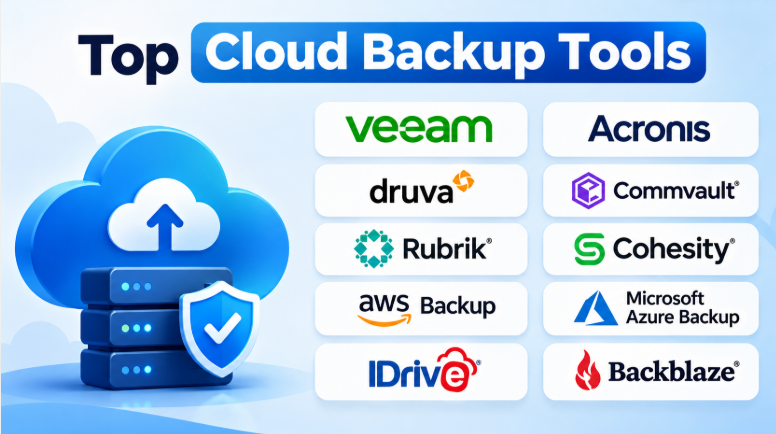
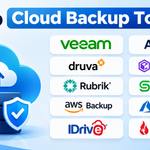
This guide compares ten cloud backup tools. It explains their main features, strengths, limitations, and best uses. It also helps you choose a tool that fits your business.
What Are Cloud Backup Tools?
Cloud backup tools copy important data to secure remote storage. They help users restore files after accidental deletion, hardware failure, cyberattacks, or system damage.
Businesses use these tools to protect:
- Computers: Employee laptops and desktop files.
- Servers: Business applications and server data.
- Virtual machines: Systems running on virtual platforms.
- Cloud workloads: Data stored in cloud services.
- Databases: Business records and application data.
- SaaS applications: Email, documents, chats, and customer records.
- Business files: Documents, images, videos, and shared folders.
Cloud backup is different from file syncing. Syncing copies changes between devices. It may also copy unwanted deletions.
Backup tools keep recovery points. These points let users restore earlier versions of their data.
Cloud backup also differs from disaster recovery. Backup protects data copies. Disaster recovery helps restore systems and services after a major outage.
Top 10 Cloud Backup Tools
The tools below serve different needs. Some work best for small businesses. Others support large companies with complex cloud systems.
1. Veeam Data Platform
Best for Hybrid IT Environments
Veeam Data Platform
Veeam Data Platform helps protect data across physical, virtual, and cloud environments. It suits businesses that run systems in both local data centers and cloud services.
The platform offers backup, recovery, replication, and monitoring features. IT teams can use it to manage different workloads through a central system.
Veeam also offers Veeam Data Cloud. This is a separate service that provides managed backup for supported cloud and SaaS workloads.
Key Features
- Backup and recovery for supported workloads.
- Virtual machine protection.
- Physical server backup.
- Cloud workload protection.
- Replication and recovery options.
- Centralized management.
- Backup monitoring and reporting.
- Support for different storage targets.
Pros
- Supports hybrid IT environments.
- Offers broad workload protection.
- Gives IT teams control over backup policies.
- Supports several recovery methods.
- Provides software and managed service options.
Cons
- Setup can need skilled administrators.
- Large deployments need careful planning.
- Licensing can be complex.
- Some features depend on the selected edition.
Best Use: Businesses that need one backup platform for servers, virtual machines, and cloud workloads.
2. Acronis Cyber Protect Cloud
Best for Backup and Cybersecurity
Acronis Cyber Protect Cloud
Acronis Cyber Protect Cloud combines backup with security and endpoint protection. It is designed mainly for managed service providers and business IT teams.
The platform supports physical, virtual, and cloud workloads. It also offers protection for supported SaaS services.
Its combined approach helps service providers manage backup and security tasks from one platform. This can reduce the need for separate tools.
However, buyers should review the exact service modules they need. Not every feature comes with every package.
Key Features
- Backup for physical and virtual systems.
- Cloud workload protection.
- Microsoft 365 backup options.
- Endpoint security features.
- Anti-malware protection.
- Centralized management.
- Multi-tenant administration.
- Disaster recovery options.
Pros
- Combines backup and security features.
- Supports service provider workflows.
- Covers several workload types.
- Offers centralized administration.
- Helps manage multiple customer environments.
Cons
- The wide feature set can add complexity.
- Costs depend on selected services.
- Setup needs clear policy planning.
- Buyers must check workload compatibility.
Best Use: Managed service providers and businesses that want backup and endpoint security together.
3. Druva Data Security Cloud
Best for Cloud-First Organizations
Druva Data Security Cloud
Druva uses a cloud-based model for data protection. Businesses can manage backup without building the same backup infrastructure used by traditional systems.
It protects supported endpoints, SaaS applications, and cloud workloads. This makes it useful for companies with remote teams and cloud-based operations.
Druva also connects backup with data governance and cyber recovery. Its service model can reduce infrastructure work for internal IT teams.
However, buyers should check the supported applications and recovery options. Different data sources may have different backup and restore features.
Key Features
- Cloud-based backup management.
- Endpoint protection.
- Microsoft 365 backup.
- Google Workspace protection.
- Salesforce data protection.
- Cloud workload backup.
- Data governance features.
- Recovery and reporting tools.
Pros
- Reduces local backup infrastructure needs.
- Supports several business data sources.
- Offers centralized administration.
- Fits cloud-first organizations.
- Connects backup with data security.
Cons
- Depends on supported integrations.
- Offers less control over backup infrastructure.
- Subscription costs need careful review.
- Recovery options differ by workload.
Best Use: Organizations that want managed cloud backup for endpoints, SaaS applications, and cloud workloads.
4. Commvault Cloud
Best for Large Enterprise Environments
Commvault Cloud
Commvault Cloud protects data across cloud, on-premises, and SaaS environments. It suits large businesses with many systems and complex recovery needs.
The platform supports different workloads, including virtual machines, databases, applications, and files. This helps IT teams manage protection across varied environments.
Commvault also offers isolated recovery capabilities through its Cleanroom approach. These environments help teams prepare and test recovery plans away from production systems.
Its broad feature set can support complex operations. However, setup and daily management may need experienced administrators.
Key Features
- Cloud and on-premises backup.
- Virtual machine protection.
- Database and application backup.
- SaaS data protection.
- Immutable storage options.
- Centralized policy management.
- Isolated recovery environments.
- Data monitoring and reporting.
Pros
- Supports many workload types.
- Fits complex enterprise systems.
- Offers recovery planning tools.
- Supports hybrid infrastructure.
- Connects backup with cyber recovery.
Cons
- Setup can be complex.
- Needs careful architecture planning.
- Licensing requires detailed review.
- Some features depend on workload and service.
Best Use: Large organizations that need centralized backup across cloud, data center, and SaaS systems.
5. Rubrik Security Cloud
Best for Ransomware Recovery
Rubrik Security Cloud
Rubrik Security Cloud focuses on data protection and cyber resilience. It helps organizations protect important data and prepare for cyber incidents.
The platform supports cloud, SaaS, and enterprise workloads. It combines backup management with security features that help teams understand data risks.
Its approach is useful when businesses need to consider ransomware and malicious changes. Backup copies can support recovery, but teams must also protect access to those copies.
Rubrik offers immutable data protection options. Buyers should confirm how these controls work with their chosen storage and workloads.
Key Features
- Enterprise backup and recovery.
- Cloud workload protection.
- SaaS data protection.
- Immutable backup options.
- Data security insights.
- Threat detection capabilities.
- Centralized policy management.
- Recovery workflows.
Pros
- Connects backup with cyber resilience.
- Focuses on ransomware recovery needs.
- Supports enterprise workloads.
- Offers centralized data protection.
- Helps teams review data risks.
Cons
- May be too complex for small businesses.
- Enterprise deployment needs planning.
- Costs require a workload review.
- Recovery processes need regular testing.
Best Use: Enterprises that want backup protection as part of a wider cybersecurity and recovery plan.
6. Cohesity DataProtect
Best for Centralized Enterprise Backup
Cohesity DataProtect
Cohesity DataProtect helps organizations manage backup across different workloads. It supports businesses that want to reduce the number of separate backup systems they operate.
The platform covers virtual, physical, cloud, and SaaS environments. It also supports data protection policies and recovery workflows.
Cohesity is relevant to companies with large data centers and mixed infrastructure. Its platform approach can help teams manage backup operations from a shared system.
However, buyers should check the exact workload support and storage design. They should also review how the product fits their existing infrastructure.
Key Features
- Backup for virtual and physical systems.
- Cloud workload protection.
- SaaS data protection options.
- Centralized backup policies.
- Data recovery tools.
- Data management features.
- Immutable backup options.
- Monitoring and reporting.
Pros
- Supports varied enterprise workloads.
- Helps centralize backup operations.
- Fits hybrid environments.
- Offers data protection and recovery features.
- Can reduce separate backup systems.
Cons
- Large deployments need planning.
- Some features depend on product configuration.
- Storage needs can affect total cost.
- Migration from older systems may take time.
Best Use: Enterprises that want centralized backup across physical, virtual, cloud, and SaaS workloads.
7. AWS Backup
Best for AWS Workloads
AWS Backup
AWS Backup is a managed service for protecting supported AWS resources. It helps teams create backup plans and manage recovery points from one place.
Administrators can set schedules and retention rules. They can also use backup policies across supported AWS accounts.
The service offers features such as backup vaults, encryption, and cross-Region copies for supported resources. Vault Lock can help protect backup copies from unwanted changes.
AWS Backup fits naturally into AWS environments. Businesses that use several cloud providers may need another platform for wider coverage.
Key Features
- Centralized backup plans.
- Automated backup schedules.
- Retention policies.
- Backup vaults.
- Cross-account backup management.
- Cross-Region copies for supported resources.
- Encryption support.
- Vault Lock protection.
Pros
- Integrates with AWS services.
- Reduces the need for separate backup software.
- Supports automated backup policies.
- Offers account and Region protection options.
- Provides centralized backup management.
Cons
- Focuses mainly on AWS resources.
- Support differs by resource and Region.
- Storage and restore charges need review.
- Multi-cloud protection may need another tool.
Best Use: Businesses that run most of their workloads on AWS and want native backup management.
8. Microsoft Azure Backup
Best for Microsoft Azure Environments
Azure Backup
Azure Backup is Microsoft’s managed backup service for Azure and supported hybrid workloads. It uses Recovery Services vaults and Backup vaults to manage recovery points.
Teams can set backup schedules and retention policies. Depending on the workload, they can restore files, disks, databases, or complete systems.
Azure Backup also offers security controls such as soft delete and role-based access. Some supported workloads and configurations offer additional protection for backup data.
It is a natural option for Microsoft-focused organizations. However, businesses with mixed cloud environments should review their wider backup needs.
Key Features
- Azure virtual machine backup.
- SQL Server backup options.
- Azure Files protection.
- Backup for supported hybrid workloads.
- Retention management.
- Recovery Services vaults.
- Backup monitoring.
- Restore and recovery tools.
Pros
- Integrates with Azure services.
- Offers managed backup operations.
- Supports hybrid workloads.
- Provides retention controls.
- Fits Microsoft-based environments.
Cons
- Focuses on Azure and supported workloads.
- Features differ by workload.
- Storage and recovery costs need review.
- Multi-cloud protection may require another product.
Best Use: Businesses that use Azure and need managed backup for cloud and supported hybrid systems.
9. IDrive Online and SaaS Backup
Best for Small Businesses and Multiple Devices
IDrive
IDrive offers cloud backup for computers, mobile devices, and selected business workloads. It suits users who want to protect several devices through one account.
The service supports file and folder backup. It also offers system image backup and backup options for supported servers.
IDrive provides separate services for business and SaaS protection. Buyers should check the plan carefully because device limits, storage, and supported applications can differ.
Its wider device support makes it useful for small teams. Large enterprises may need more advanced policy and recovery controls.
Key Features
- Computer backup.
- File and folder protection.
- Mobile device backup.
- Server backup options.
- System image backup.
- File versioning.
- Remote access and recovery.
- Business backup plans.
Pros
- Supports multiple device types.
- Suitable for small teams.
- Offers file and system backup options.
- Provides remote data access.
- Has business-focused plans.
Cons
- Storage limits depend on the plan.
- Large backups can take time.
- Advanced enterprise controls may be limited.
- Buyers should review device and user limits.
Best Use: Small businesses and teams that need cloud backup for several computers and supported devices.
10. Backblaze Business Backup
Best for Simple Computer Backup
Backblaze Business Backup
Backblaze Business Backup focuses on protecting employee computers. It offers a simple way to back up files from supported Windows and macOS devices.
The service is useful for small businesses that want automatic computer backup. It can reduce the need for employees to manage manual file copies.
Backblaze also offers B2 Cloud Storage. This is a separate object storage service that developers and IT teams can use with compatible backup tools.
Buyers should not confuse the two products. Business Backup focuses on computer protection, while B2 provides cloud storage for wider workflows.
Key Features
- Automatic computer backup.
- Windows and macOS support.
- File version history options.
- Centralized business administration.
- Remote file recovery.
- Backup reporting.
- Separate B2 Cloud Storage service.
Pros
- Simple computer backup approach.
- Reduces manual backup work.
- Useful for employee devices.
- Offers centralized business management.
- Provides a separate cloud storage service.
Cons
- Focuses mainly on computers.
- Does not replace a full enterprise backup platform.
- Server and application needs may require other tools.
- Recovery needs should be tested before rollout.
Best Use: Small businesses that need straightforward cloud backup for employee computers.
Comparison Table of the Top 10 Cloud Backup Tools
| Tool | Main Strength | Best For | Main Consideration |
|---|---|---|---|
| Veeam Data Platform | Hybrid workload protection | Enterprise and hybrid IT | Needs skilled setup |
| Acronis Cyber Protect Cloud | Backup with security | MSPs and business IT teams | Features depend on service modules |
| Druva Data Security Cloud | SaaS-based backup | Cloud-first organizations | Workload coverage varies |
| Commvault Cloud | Broad enterprise protection | Complex IT environments | Needs careful administration |
| Rubrik Security Cloud | Security-focused recovery | Ransomware-conscious enterprises | Enterprise-focused deployment |
| Cohesity DataProtect | Centralized backup | Hybrid enterprise workloads | Migration and storage planning |
| AWS Backup | Native AWS backup | AWS-based businesses | Limited to supported resources |
| Azure Backup | Native Azure backup | Microsoft-focused businesses | Workload support varies |
| IDrive | Multi-device backup | Small businesses | Plan limits need review |
| Backblaze Business Backup | Automatic computer backup | Employee computers | Not a full enterprise backup platform |
How to Choose the Right Cloud Backup Tool
The best tool depends on the data you need to protect. Review these points before selecting a service.
1. Identify Your Data Sources
Start by listing the systems your business uses.
Include:
- Employee computers.
- Business servers.
- Virtual machines.
- Cloud databases.
- Shared folders.
- Email and collaboration apps.
- Customer records.
- Business applications.
Choose a tool that supports your actual workloads. Do not assume that one product protects every system.
2. Check Backup Frequency
Backup frequency decides how much recent data you could lose.
Some tools support scheduled backups. Others offer more frequent or continuous protection for selected workloads.
Choose a schedule based on how often your data changes. Important business systems may need more frequent backups than old documents.
3. Review Recovery Options
A backup is useful only when you can restore it.
Check whether the tool supports:
- Individual file recovery.
- Folder restoration.
- Database recovery.
- Full server recovery.
- Virtual machine recovery.
- Point-in-time restoration.
- Recovery to another location.
Test these options before using the service for critical business data.
4. Check Storage and Retention
Storage needs can grow over time. A business should understand how much data it creates and how long it must keep backups.
Review these details:
- Included storage.
- Retention periods.
- File version limits.
- Archive storage options.
- Data deletion rules.
- Storage growth costs.
A low starting price may not remain low as your data grows.
5. Look for Immutable Backups
Immutable backups cannot be changed or deleted during a defined protection period.
This can help protect recovery copies from ransomware and compromised accounts.
Check how immutability works. Also review who can change policies and whether backup administrators use separate access controls.
6. Review Security Controls
Cloud backups can contain sensitive business information. Security needs careful attention.
Look for:
- Encryption during transfer.
- Encryption at rest.
- Multi-factor authentication.
- Role-based access.
- Audit logs.
- Separate backup accounts.
- Immutable storage options.
- Data location choices.
Also check the provider’s responsibility for security. A secure service still needs safe account settings and access management.
7. Compare Cloud and Hybrid Options
Cloud backup stores copies in remote infrastructure. Hybrid backup combines cloud storage with local backup systems.
Cloud backup can reduce hardware work. Hybrid backup may offer more control over local recovery and storage.
Choose the approach that fits your network, budget, and recovery targets.
8. Calculate the Full Cost
Do not compare products by subscription price alone.
Review:
- Storage fees.
- User or device licenses.
- Protected workload costs.
- Data retrieval charges.
- Data transfer costs.
- Long-term retention.
- Support plans.
- Setup and migration work.
Also check whether the service charges for restoring large amounts of data.
Common Cloud Backup Mistakes to Avoid
Treating backup as disaster recovery: Backup keeps data copies. Disaster recovery restores services and systems. Plan for both when needed.
Backing up only employee files: Servers, databases, and SaaS apps may also contain important data. Build a complete protection list.
Ignoring restore tests: A successful backup does not prove that recovery will work. Test important restore tasks regularly.
Keeping backups in one account: A compromised account can put production data and backups at risk. Use separate access controls and protected copies.
Choosing storage without checking retrieval fees: Some services charge for data recovery or transfer. Estimate these costs before buying.
Using weak access controls: Attackers may target backup accounts. Use multi-factor authentication and limit administrator access.
Setting unclear retention rules: Old backups can increase costs. Define how long each data type needs protection.
Ignoring recovery time: A large restore can take hours or days. Test how long important systems need to return to service.
Frequently Asked Questions
1. What are cloud backup tools?
Cloud backup tools copy data to remote storage. They help users restore files and systems after loss, damage, or cyberattacks.
2. Which cloud backup tool is best for businesses?
Veeam, Druva, Commvault, Rubrik, and Cohesity support different business needs. The right choice depends on workload coverage and recovery requirements.
3. Is cloud backup better than local backup?
Cloud backup protects data outside the local site. Local backup can support faster recovery in some cases. Many businesses use both.
4. What is immutable cloud backup?
Immutable backup protects stored recovery copies from changes or deletion during a set period. It can help defend against ransomware.
5. Can cloud backup protect Microsoft 365?
Yes. Several platforms offer Microsoft 365 backup. Check support for Exchange, SharePoint, OneDrive, Teams, and other required services.
6. Is AWS Backup only for AWS?
AWS Backup mainly protects supported AWS resources. It also supports selected integrations, but it is not a general backup platform for every cloud provider.
7. How often should businesses back up data?
It depends on how much data the business can afford to lose. Important systems may need frequent backups. Less active files may need fewer backup runs.
8. How can I test a cloud backup?
Restore sample files and test full recovery workflows. Check file quality, access permissions, recovery time, and audit records.
9. Does cloud backup protect against ransomware?
It can help restore data after ransomware attacks. Protection depends on backup isolation, immutability, access controls, and clean recovery points.
10. What is the difference between cloud backup and cloud storage?
Cloud storage keeps files online for access and sharing. Cloud backup creates protected copies that users can restore after data loss.
Final Thoughts
Cloud backup tools help businesses protect important data and prepare for unexpected problems. But the right platform depends on the systems you use and the way you plan to recover them.
Veeam, Commvault, Rubrik, and Cohesity suit complex business environments. Druva offers a SaaS-based approach. Acronis combines backup with security features.
AWS Backup and Azure Backup fit their own cloud ecosystems. IDrive and Backblaze offer simpler options for smaller teams and computer protection.


Leave a Reply
You must be logged in to post a comment.