Moving files to a remote server should not put passwords or private data at risk. Developers upload website files, system admins manage server folders, and businesses exchange documents with hosting providers. Each task needs a client that supports the right transfer method.
Secure file transfer clients make these connections easier to manage. They let users browse remote folders, upload files, download data, and resume interrupted transfers.
But SFTP and FTPS are not the same protocol. Some clients support both, while others focus on SSH-based transfers or add cloud storage connections. This guide compares ten useful clients and explains where each one fits.
What Are Secure File Transfer Clients?
Secure file transfer clients are desktop or command-line applications. They connect a local computer to a remote server and move files between them.
They help users manage remote folders without logging in through a server console. Most offer file browsing, upload queues, downloads, and saved connection profiles.
The main protocols include:
- SFTP: Transfers files through SSH. It encrypts commands, login details, and file data.
- FTPS: Adds TLS encryption to the traditional FTP protocol.
- SCP: Copies files through SSH. It is useful for simple file copy tasks.
- FTP: Transfers files without built-in encryption. Avoid it for sensitive data.
SFTP and FTPS are different protocols. An SFTP server does not automatically support FTPS. Check the server’s supported protocol before choosing a client.
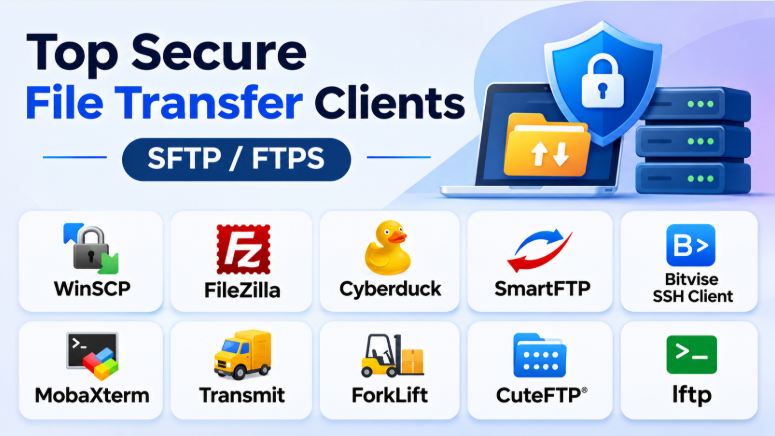
Top 10 Secure File Transfer Clients
1. WinSCP
Best for Windows users who need flexible file transfer and automation.
WinSCP is a free, open-source file transfer client for Windows. It supports SFTP, FTPS, FTP, SCP, WebDAV, and Amazon S3.
Its two interface styles help users manage local and remote files. The Commander interface displays two panels. The Explorer interface follows a familiar Windows file browsing layout.
WinSCP also supports scripting and command-line operations. Its .NET assembly helps developers automate file transfer tasks in Windows environments. Users can also synchronize local and remote folders.
Key Features
- Supports SFTP, FTPS, FTP, SCP, WebDAV, and S3.
- Offers Commander and Explorer interfaces.
- Provides scripting and command-line support.
- Supports directory synchronization.
- Includes an integrated text editor.
- Supports password and public-key authentication.
- Can protect stored session details with a master password.
Pros
- Free and open source.
- Supports several useful transfer protocols.
- Offers strong automation options.
- Works well with Windows workflows.
- Provides detailed connection settings.
Cons
- Designed for Windows rather than macOS or Linux.
- The large number of settings may confuse new users.
- Some advanced workflows require scripting knowledge.
Best Uses
WinSCP is a strong choice for Windows users, developers, and system administrators. It works well for website uploads, server maintenance, and repeat file transfer tasks.
2. FileZilla Client
Best for simple, cross-platform file transfers.
FileZilla Client is a widely used FTP client. It supports FTP, FTPS, and SFTP across Windows, macOS, and Linux.
Its two-panel interface shows local and remote files together. Users can drag files between panels and monitor transfers through a queue.
The Site Manager stores server connection details. Transfer settings help users manage speed limits, retries, and connection behavior.
FileZilla is useful for website owners and developers who need a straightforward client. Its familiar layout also makes it a practical starting point for basic server file management.
Key Features
- Supports FTP, FTPS, and SFTP.
- Works across major desktop operating systems.
- Provides a Site Manager for saved connections.
- Supports drag-and-drop file transfers.
- Offers transfer queues and speed limits.
- Can resume interrupted transfers.
- Provides directory comparison and filtering.
Pros
- Free and open-source client.
- Works on Windows, macOS, and Linux.
- Easy to use for common transfer tasks.
- Supports three common transfer protocols.
- Provides useful connection and transfer controls.
Cons
- The interface may feel dated to some users.
- Advanced automation needs may require other tools.
- Users must check installer options and download from the official project.
Best Uses
FileZilla suits website owners, students, and developers. It is useful for uploading website files and managing remote folders across different operating systems.
3. Cyberduck
Best for users who work with servers and cloud storage.
Cyberduck is a file transfer client for Windows and macOS. It supports SFTP, FTP with TLS, WebDAV, and several cloud storage services.
Its broad connection support makes it different from a basic FTP client. Users can work with remote servers and cloud storage through one interface.
Cyberduck supports public-key authentication and SSH agent integration for SFTP. It can also resume interrupted transfers, synchronize folders, and copy files between supported servers.
Its connection profiles help users connect to different storage providers. The application also integrates with system keychains to manage stored credentials.
Key Features
- Supports SFTP and FTP over TLS.
- Connects to WebDAV servers.
- Supports Amazon S3 and other cloud storage services.
- Offers public-key authentication.
- Supports interrupted transfer recovery.
- Provides folder synchronization.
- Integrates with system credential storage.
Pros
- Supports many server and cloud connections.
- Works on Windows and macOS.
- Offers useful SFTP authentication options.
- Supports remote-to-remote file copying.
- Provides an open-source application.
Cons
- Some cloud features need separate provider setup.
- The interface may feel less familiar to traditional FTP users.
- It is not designed as a complete MFT platform.
Best Uses
Cyberduck is useful for developers, web teams, and cloud storage users. It suits people who manage both remote servers and cloud-based files.
4. SmartFTP
Best for advanced Windows file transfer and synchronization.
SmartFTP is a Windows client that supports FTP, FTPS, SFTP, and WebDAV. Depending on the edition, it also connects to cloud services such as Amazon S3, Google Drive, and OneDrive.
Its feature set goes beyond basic uploads and downloads. It includes folder synchronization, transfer scheduling, remote editing, and file comparison.
SmartFTP also supports transfer integrity checks through available server extensions. Its automatic reconnect and resume options can help with unstable connections.
The edition structure matters. Some cloud storage connections and advanced features require higher editions. Buyers should compare the plans before choosing.
Key Features
- Supports FTP, FTPS, SFTP, and WebDAV.
- Offers cloud storage connections in selected editions.
- Provides file and folder synchronization.
- Supports transfer scheduling.
- Includes an integrated editor.
- Offers automatic reconnect and resume.
- Supports proxy connections and multiple transfers.
Pros
- Offers many advanced transfer controls.
- Supports several secure protocols.
- Provides synchronization and scheduling.
- Includes useful file comparison features.
- Supports password manager integrations.
Cons
- Available for Windows rather than macOS or Linux.
- Some features depend on the selected edition.
- The interface may take time to learn.
Best Uses
SmartFTP suits Windows professionals who manage many remote folders. It can help web developers, administrators, and teams that need scheduled file transfers.
5. Bitvise SSH Client
Best for Windows users who need SFTP and SSH tools together.
Bitvise SSH Client combines secure file transfer with remote terminal access. It provides a graphical SFTP client and command-line transfer tools.
The application supports SSH-based authentication methods. These include password and public-key authentication. It also offers SSH tunneling and port forwarding.
Its SFTP features include recursive transfers, automatic resume, and directory mirroring. The SFTP drive feature can expose a remote directory as a drive for Windows applications.
Bitvise is not a general FTPS client. It focuses on SSH, SFTP, and SCP workflows. This makes it a better fit when the remote server provides SSH access.
Key Features
- Provides graphical SFTP transfers.
- Includes a command-line SFTP client.
- Supports SSH terminal access.
- Offers public-key authentication.
- Supports recursive transfers and resume.
- Provides SSH tunneling and port forwarding.
- Can map remote SFTP storage as a drive.
Pros
- Free for personal and business use.
- Combines SFTP and terminal access.
- Offers useful SSH management features.
- Supports command-line automation.
- Provides advanced authentication options.
Cons
- Designed for Windows.
- Does not provide general FTPS client support.
- Some advanced SSH features need technical knowledge.
Best Uses
Bitvise is suitable for Windows administrators and developers. It works well when file transfers and remote SSH access are part of the same task.
6. MobaXterm
Best for system administrators who need terminal and file access together.
MobaXterm combines remote terminal sessions with network tools. Its SSH sessions can open a graphical SFTP browser alongside the terminal.
This setup helps administrators work with remote servers without switching between separate applications. Users can browse remote folders and move files while keeping the SSH session open.
MobaXterm also supports other remote access methods, including RDP, VNC, and FTP. Its wider feature set makes it more than a dedicated file transfer client.
The free Home edition and paid Professional edition have different limits and capabilities. Teams should check the edition details before using it across an organization.
Key Features
- Provides a graphical SFTP browser.
- Connects through SSH.
- Supports FTP sessions.
- Combines terminal and remote file access.
- Offers saved session management.
- Includes remote administration tools.
- Supports file movement through the SSH browser.
Pros
- Combines several remote access tools.
- Provides SFTP browsing beside the terminal.
- Useful for server administration.
- Reduces the need to switch applications.
- Offers a free edition.
Cons
- Windows-focused application.
- The large feature set may overwhelm basic users.
- Some features and limits depend on the edition.
Best Uses
MobaXterm suits system administrators, developers, and network engineers. It is especially useful when users need SSH terminal access and file management together.
7. Transmit
Best for Mac users who manage several server and cloud connections.
Transmit is a file transfer client for macOS. It supports SFTP, FTP, WebDAV, and Amazon S3, along with several cloud storage services.
Its dual-pane interface helps users move files between local folders and remote servers. It also offers remote-to-remote transfer and folder synchronization.
Transmit includes tools for managing SSH keys. It can also open remote directories in a terminal when the server supports SSH.
Its polished macOS interface makes it a specialist choice for Apple users. However, it is not a Windows or Linux client.
Key Features
- Supports SFTP and FTP.
- Provides TLS support for FTP connections.
- Connects to WebDAV and Amazon S3.
- Supports selected cloud storage services.
- Offers remote-to-remote file transfer.
- Provides folder synchronization.
- Includes SSH key management features.
Pros
- Designed specifically for macOS.
- Offers a clear dual-pane interface.
- Supports many server and cloud connections.
- Provides useful synchronization features.
- Integrates with macOS workflows.
Cons
- Limited to macOS.
- It is a paid application.
- Some cloud connections may require extra setup.
Best Uses
Transmit suits Mac developers, designers, and website managers. It is useful for people who work with several remote servers and cloud storage services.
8. ForkLift
Best for Mac users who need file management and remote transfers together.
ForkLift combines a dual-pane file manager with remote file transfer features. It supports SFTP, FTP, WebDAV, and several cloud storage connections.
Its two-pane design helps users compare and move files between locations. Users can also connect to multiple servers and copy files between them.
ForkLift offers folder synchronization and remote editing. Its activity and log views help users follow file operations and review their results.
The application also supports local file management, archives, and terminal integration. This makes it useful for people who want one tool for both local and remote file work.
Key Features
- Supports SFTP, FTP, and WebDAV.
- Connects to selected cloud storage services.
- Provides a dual-pane file manager.
- Offers folder comparison and synchronization.
- Supports remote file editing.
- Provides transfer activity and logs.
- Includes terminal and archive tools.
Pros
- Combines file management and remote transfers.
- Offers useful folder comparison tools.
- Supports several remote connection types.
- Provides clear transfer activity views.
- Works well with macOS workflows.
Cons
- Available for macOS only.
- It is a paid application.
- Some users may not need its wider file manager features.
Best Uses
ForkLift suits Mac users who manage local and remote files every day. It is useful for developers, designers, and professionals who need file comparison and synchronization.
9. CuteFTP
Best for Windows users who need traditional FTP client features.
CuteFTP is a Windows file transfer client from Globalscape. It supports FTP, FTPS, SFTP, and HTTPS-based file transfers.
The application offers a transfer engine for scheduled and scripted tasks. Users can also manage multiple remote sites and work with local and remote files.
CuteFTP includes an integrated editor and tools for file synchronization. It can help users maintain websites and move files between remote locations.
CuteFTP is a client application, not a full enterprise MFT platform. Organizations with complex partner workflows should compare it with Globalscape’s separate enterprise transfer products.
Key Features
- Supports FTP, FTPS, and SFTP.
- Provides scheduled transfer tasks.
- Offers scripting and automation options.
- Includes an integrated file editor.
- Supports file synchronization.
- Provides site management tools.
- Supports OpenPGP file encryption.
Pros
- Offers several secure transfer methods.
- Provides automation options.
- Useful for website maintenance.
- Includes file editing features.
- Supports multiple remote site connections.
Cons
- Designed for Windows.
- It is a commercial product.
- Its interface may feel less modern than newer clients.
- It is not a replacement for enterprise MFT.
Best Uses
CuteFTP suits Windows users who manage websites and remote files. It can help users who need traditional FTP features with additional automation options.
10. lftp
Best for Linux and command-line users who automate file transfers.
lftp is a command-line file transfer program. It supports FTP, FTPS, SFTP, HTTP, HTTPS, and other connection methods, depending on its build.
Its main strength is automation. Users can run commands, queue jobs, transfer multiple files, and mirror directory structures.
The mirror feature can copy a remote directory to a local machine. It can also upload local directories to remote servers. This is useful for website publishing and repeat backup tasks.
lftp does not provide a graphical file browser. Users need to understand command-line operations and configuration.
Key Features
- Supports FTP, FTPS, and SFTP.
- Provides command-line file transfers.
- Offers directory mirroring.
- Supports background transfer jobs.
- Can resume interrupted downloads.
- Supports parallel transfers.
- Allows scripts and scheduled workflows.
Pros
- Free and open source.
- Useful for automation.
- Supports several transfer protocols.
- Offers powerful directory mirroring.
- Works well in Linux-based workflows.
Cons
- No graphical user interface.
- Requires command-line knowledge.
- Some protocol support depends on build configuration.
- Less suitable for users who prefer visual file management.
Best Uses
lftp suits Linux administrators, developers, and technical users. It is useful for automated website publishing, scheduled downloads, and directory synchronization.
Comparison Table: Secure File Transfer Clients
| Client | Supported Secure Protocols | Operating System | Main Strength |
|---|---|---|---|
| WinSCP | SFTP, FTPS | Windows | Scripting and file management |
| FileZilla Client | SFTP, FTPS | Windows, macOS, Linux | Simple cross-platform transfers |
| Cyberduck | SFTP, FTPS | Windows, macOS | Server and cloud connections |
| SmartFTP | SFTP, FTPS | Windows | Advanced transfer and sync tools |
| Bitvise SSH Client | SFTP, SCP | Windows | SSH and remote terminal access |
| MobaXterm | SFTP | Windows | Terminal and file browser together |
| Transmit | SFTP, FTPS | macOS | Mac-focused server and cloud transfers |
| ForkLift | SFTP | macOS | Dual-pane file management |
| CuteFTP | SFTP, FTPS | Windows | Traditional FTP and automation |
| lftp | SFTP, FTPS | Linux and Unix-like systems | Command-line transfer automation |
Protocol support can depend on the application version and server configuration. Always check the selected edition and connection method before deployment.
Which Secure File Transfer Client Should You Choose?
Different users need different tools. Your operating system, server protocol, and daily tasks should guide the choice.
For Windows Users
WinSCP is a strong choice for general file transfer and automation. FileZilla is useful for simple transfers across different systems.
SmartFTP may suit users who need advanced synchronization and scheduling. Bitvise is useful when SSH terminal access is also important.
For macOS Users
Transmit and ForkLift offer strong file management features for Mac users. Cyberduck is another option when cloud storage connections matter.
Choose based on the servers and storage services you use most often.
For Linux Users
lftp is useful for command-line transfers and automation. FileZilla and Cyberduck provide graphical options.
The right choice depends on whether you prefer a visual interface or terminal-based control.
For Website Developers
WinSCP, FileZilla, SmartFTP, and CuteFTP can help developers upload website files. They support remote folder browsing and common website maintenance tasks.
For repeated uploads, check synchronization and scripting features.
For System Administrators
Bitvise and MobaXterm suit administrators who work with SSH. WinSCP is useful when they need a separate file manager and automation options.
lftp can help with scheduled transfers on Linux servers.
For Cloud Storage Users
Cyberduck and Transmit support several cloud storage services. SmartFTP also offers cloud connections in selected editions.
Check the exact provider and account support before choosing a client.
SFTP vs FTPS: What Is the Difference?
SFTP and FTPS both protect file transfers, but they use different security systems.
| Feature | SFTP | FTPS |
|---|---|---|
| Full Name | SSH File Transfer Protocol | FTP over TLS |
| Security Method | SSH | TLS certificates |
| Connection Model | Uses an SSH connection | Uses FTP control and data connections |
| Default Port | Commonly 22 | Commonly 21 for explicit FTPS |
| Authentication | Passwords, SSH keys, and other SSH methods | Passwords and optional client certificates |
| Firewall Setup | Usually simpler | May need passive data ports |
| Server Requirement | SSH server with SFTP support | FTP server with TLS support |
SFTP often works well for modern server administration. FTPS is useful when a business already uses an FTP service with TLS support.
Neither protocol is automatically available on every server. Ask the server administrator which one to use.
Important Features to Check Before Choosing a Client
A good file transfer client should match your server and work style. Check these features before installing or buying one.
Protocol Support
Confirm that the client supports your server’s protocol. Do not assume SFTP and FTPS mean the same thing.
Also check whether the application supports the connection mode your server requires. FTPS may use explicit or implicit TLS.
Authentication Options
Look for support for the authentication method your server uses. Common options include passwords, SSH keys, and client certificates.
SSH key support is useful for SFTP connections. Certificate support matters for some FTPS environments.
Transfer Resume
A network problem can interrupt a large file transfer. Resume support helps continue an incomplete transfer.
Check whether the server also supports the required resume operation.
File Synchronization
Synchronization helps compare local and remote folders. It can upload new files and update changed files.
Review how the client handles deleted files. A one-way sync and a two-way sync can produce very different results.
Transfer Queue
A transfer queue helps manage several uploads and downloads. It can also make large file jobs easier to follow.
Look for retry options and clear error messages.
Security Settings
Check how the client verifies server identity. For SFTP, review SSH host key verification. For FTPS, check TLS certificate validation.
Never ignore a security warning simply to complete a connection.
Automation
Some clients support scripts, command-line commands, or scheduled transfers. These features can save time for repeat tasks.
Choose a tool that matches your technical skills and automation needs.
Common Mistakes to Avoid
A secure client cannot protect files if users configure it incorrectly. Avoid these common mistakes.
- Using plain FTP for private data: FTP does not encrypt login details or file contents.
- Ignoring host key warnings: An unexpected SSH host key change needs investigation.
- Accepting invalid certificates: Check certificate warnings before trusting a server.
- Saving passwords carelessly: Protect saved sessions and use a trusted password manager.
- Deleting remote files by mistake: Review synchronization and mirror settings before running them.
- Choosing the wrong protocol: Confirm whether the server supports SFTP or FTPS.
- Using outdated software: Install updates from the official project or vendor.
- Ignoring transfer errors: Check logs and confirm that the destination received the complete file.
Frequently Asked Questions
What is the best free SFTP client?
WinSCP is a useful free SFTP client for Windows. FileZilla offers a free option for Windows, macOS, and Linux. Cyberduck is another choice for users who need server and cloud connections.
Is SFTP safer than FTPS?
Both can protect file transfers when configured correctly. SFTP uses SSH, while FTPS uses TLS. The better option depends on server support, security settings, and network requirements.
Can I use an SFTP client for FTPS?
Not every SFTP client supports FTPS. Check the protocol list before installing an application. WinSCP, FileZilla, Cyberduck, and SmartFTP support both SFTP and FTPS.
Do I need an FTP server to use an SFTP client?
You need a server that supports the protocol used by your client. An SFTP client needs an SFTP service over SSH. An FTPS client needs an FTP server with TLS support.
Are secure file transfer clients free?
Some clients are free and open source. Others offer paid editions or commercial licenses. Check the license and feature limits before using a client at work.
Can these clients transfer large files?
Many clients support large file transfers and interrupted transfer recovery. Actual limits depend on the client, server, storage, and network connection.
Final Thoughts
Secure file transfer clients help users manage remote files without relying on unencrypted connections. The right application depends on your operating system, server protocol, and need for automation.
WinSCP and FileZilla are useful choices for everyday file transfers. Cyberduck works well with servers and cloud storage. SmartFTP offers advanced Windows features, while Bitvise and MobaXterm combine file access with SSH tools.
Mac users can consider Transmit or ForkLift. CuteFTP serves traditional FTP workflows, while lftp suits command-line automation.
Before choosing, confirm the server protocol and authentication method. Test a small upload and download first. Check certificate or host key warnings, then verify the transferred files. A suitable client should make file management simple without weakening connection security.


Leave a Reply
You must be logged in to post a comment.