Remote desktop tools let you access and control another computer from a distance. You can use them to work from home, fix computer problems, or help someone with a technical issue.
Some tools focus on personal access. Others help IT teams support many devices. A few also offer self-hosting or high-quality screen streaming.
The right choice depends on your devices, work needs, security rules, and budget. This guide compares ten useful options and explains where each one fits.
What Are Remote Desktop Tools?
Remote desktop tools connect two computers through a network or the internet. They let one person view and control another computer’s screen.
For example, you can use a laptop at home to access your office computer. You can open files, run apps, and use the remote desktop as if you were sitting in front of it.
These tools support several common tasks:
- Remote work: Access your office computer from another location.
- IT support: Help users fix computer problems from a distance.
- Device management: Connect to computers that do not have someone sitting nearby.
- File access: Move files between connected devices when supported.
- Technical work: Use software that runs on a more powerful remote computer.
Remote desktop tools do not all work in the same way. Some use a vendor’s cloud service to connect devices. Others use direct network connections or self-hosted servers. Some provide a full remote desktop, while others focus on short support sessions.
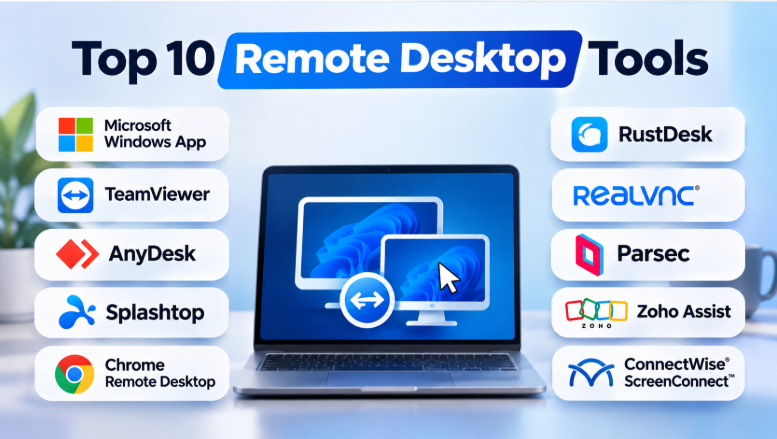
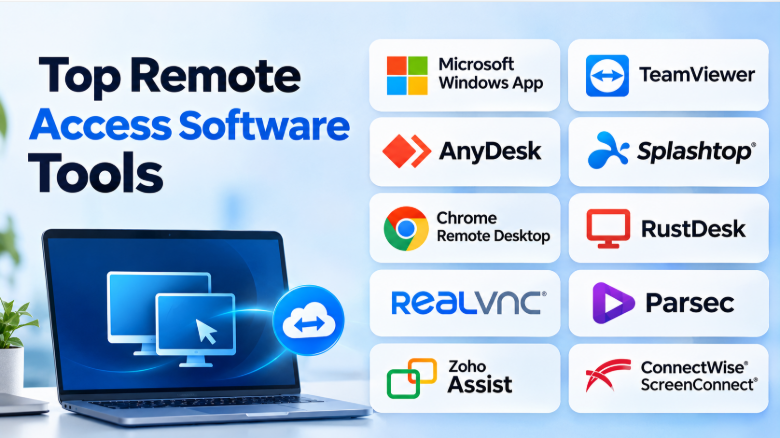
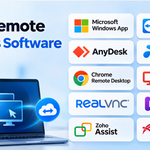
Top 10 Remote Desktop Tools
1. Microsoft Windows App and Remote Desktop
Best for: Microsoft-based work environments
Strong Microsoft integration
Microsoft offers remote desktop access through several related products and services. Windows App acts as a client for supported remote resources. These can include Windows 365, Azure Virtual Desktop, and Remote Desktop Services.
Windows Remote Desktop also lets users connect to supported Windows computers. The host computer and its Windows edition must meet the required conditions.
Key features
- Connects to supported Windows desktops and cloud resources.
- Supports remote work across compatible devices.
- Works with Microsoft’s desktop and cloud environment.
- Supports multiple monitors in supported setups.
- Uses Microsoft’s identity and access options when configured.
Pros
- Fits well into Microsoft-based workplaces.
- Supports both local and cloud desktop workflows.
- Reduces the need to install a separate remote-control platform.
Cons
- Setup can be complex for new users.
- Some features depend on the remote desktop service.
- Windows host editions and licensing can limit access.
Best uses
Choose this option if your workplace already uses Microsoft desktop services. It is also useful when staff need access to managed Windows desktops.
2. TeamViewer Remote
Best for: Remote support and business access
Broad support features
TeamViewer Remote supports remote access and technical support across many device types. It helps people connect to computers and assist users from different locations.
Support teams can use it for attended sessions. They can also set up unattended access to approved devices. This makes it useful for both quick support and ongoing device access.
Key features
- Remote control across supported platforms.
- Attended and unattended access.
- File transfer during supported sessions.
- Multi-monitor support.
- Business administration and device management options.
- Mobile device support through supported plans and add-ons.
Pros
- Offers a broad remote support feature set.
- Works across many common device types.
- Fits both small teams and larger IT operations.
Cons
- Business licensing can become costly.
- Some features depend on the selected plan.
- Users must manage access permissions carefully.
Best uses
TeamViewer suits IT teams that support users across different locations. It also works well for businesses that need one platform for several remote support tasks.
3. AnyDesk
Best for: Lightweight remote access
AnyDesk focuses on remote desktop connections with a lightweight client. Its remote session technology aims to keep screen control responsive, even when network conditions vary.
Users can connect to their own devices or provide remote support. Businesses can also manage devices and permissions through suitable plans.
Key features
- Remote desktop control.
- Unattended access options.
- File transfer.
- Multi-monitor support.
- Address book and device management features.
- Cross-platform support.
Pros
- Lightweight application.
- Simple connection workflow.
- Useful for quick support sessions.
- Offers business features for managed access.
Cons
- Business use requires the right licence.
- Some management features need higher plans.
- Users must protect access credentials and connection permissions.
Best uses
AnyDesk is worth considering for small teams and users who want direct remote control. It can also suit support staff who need a simple way to connect to remote computers.
4. Splashtop
Best for: Remote work and high-quality desktop access
Splashtop provides remote computer access for individuals, businesses, and IT support teams. Its products cover different needs, from accessing a work computer to supporting users across an organization.
The platform places strong emphasis on remote screen performance. This can matter when users work with video, design apps, or other visual tools.
Key features
- Remote access to supported computers.
- Remote support options for IT teams.
- File transfer.
- Multi-monitor support in supported plans.
- Remote printing in supported plans.
- Security and administration controls for business use.
Pros
- Offers products for different remote access needs.
- Useful for remote work and visual tasks.
- Provides separate options for IT support.
- Supports common desktop platforms.
Cons
- Features differ across product plans.
- Business support features may need another licence.
- Buyers must check device and user limits.
Best uses
Splashtop is a good option to evaluate when staff need regular access to office computers. It is also worth considering for support teams and creative workers.
5. Chrome Remote Desktop
Best for: Simple personal remote access
Chrome Remote Desktop offers a simple way to connect to another computer. Users can set up remote access through a browser and use supported mobile apps.
It is useful when someone wants to reach a personal computer without buying a large support platform. Its simple design also makes it easier for occasional users.
Key features
- Remote access through a web browser.
- Remote access to configured computers.
- Support for common desktop operating systems.
- Mobile access through supported apps.
- Simple setup for personal use.
Pros
- Free to use.
- Easy to set up for basic access.
- Useful for personal computers.
- Does not require a complex business platform.
Cons
- Limited business administration features.
- Not designed for advanced help desk workflows.
- Lacks many central device management controls.
Best uses
Choose Chrome Remote Desktop for basic personal access. It can help you reach your home computer while travelling or working elsewhere.
6. RustDesk
Best for: Open-source and self-hosted remote access
Open-source option
RustDesk is an open-source remote desktop tool. It offers a practical option for people who want more control over their remote access setup.
Users can connect through the public service or set up their own server. Self-hosting gives an organization more control, but it also creates extra work.
Key features
- Remote desktop control.
- File transfer.
- Clipboard sharing.
- Unattended access options.
- Cross-platform clients.
- Self-hosted server options.
Pros
- Open-source client.
- Offers self-hosting options.
- Useful for users who want more control.
- Can reduce dependence on a vendor-hosted connection service.
Cons
- Self-hosting needs technical skills.
- The organization must secure and maintain its server.
- Some advanced server features may require a paid edition.
Best uses
RustDesk suits technical users, developers, and organizations that prefer self-hosted tools. It is especially worth reviewing when control over connection infrastructure matters.
7. RealVNC Connect
Best for: VNC-based remote access
RealVNC Connect provides remote access through Virtual Network Computing (VNC). VNC is a technology that lets one computer display and control another computer’s screen.
The product can support different devices and operating systems. It is useful for teams that already work with VNC or need remote access across a mixed device environment.
Key features
- Remote screen sharing and control.
- Cloud and direct connection options, depending on setup.
- Support for multiple operating systems.
- Device management features.
- Security and access controls that vary by plan.
Pros
- Built around an established remote access technology.
- Supports varied device environments.
- Offers options for personal and business use.
- Can fit technical and operational workflows.
Cons
- Some features depend on the chosen plan.
- VNC setup may need network knowledge.
- Buyers should check device limits and connection methods.
Best uses
RealVNC Connect is useful for IT teams managing different types of computers. It can also suit technical environments that already use VNC-based access.
8. Parsec
Best for: Low-latency creative and interactive work
Parsec focuses on fast remote desktop streaming. It is designed for tasks where screen response and image quality matter.
Creative teams can use it to access powerful computers from another location. It can also support collaborative workflows where users need to interact with demanding visual applications.
Key features
- Low-latency screen streaming.
- High-quality image delivery.
- Remote keyboard and mouse control.
- Multi-user collaboration options in supported plans.
- Support for creative and interactive workflows.
Pros
- Focuses on responsive screen control.
- Useful for graphics-heavy work.
- Can help users access powerful remote machines.
- Supports collaborative workflows.
Cons
- Performance depends on network quality.
- Host hardware affects the experience.
- It is not a full replacement for business help desk software.
- Commercial use requires checking the applicable plan.
Best uses
Parsec is worth considering for video work, design, animation, and game development. It suits users who need to interact with a powerful computer from another location.
9. Zoho Assist
Best for: Help desks and customer support teams
Zoho Assist is a cloud-based remote support platform. It helps technicians connect to user devices and solve technical problems.
It supports attended and unattended access. The platform also offers integrations with help desk and business tools, which can help teams manage support work.
Key features
- Remote support sessions.
- Unattended computer access.
- Browser-based technician access.
- File transfer.
- Session recording in supported plans.
- Help desk integrations.
- Multi-monitor support.
Pros
- Designed for support workflows.
- Offers a free plan with limits.
- Connects with several help desk tools.
- Supports both attended and unattended sessions.
Cons
- Features vary by plan.
- Advanced tools may require a higher subscription.
- It may offer more than a personal user needs.
Best uses
Zoho Assist suits small businesses, IT support teams, and help desks. It is useful when technicians need to support users and manage remote sessions.
10. ConnectWise ScreenConnect
Best for: Managed service providers and IT technicians
ConnectWise ScreenConnect focuses on remote support and technician workflows. It helps IT teams connect to client devices, troubleshoot issues, and manage support sessions.
It is especially relevant to managed service providers (MSPs). These providers support computer systems for several customers.
Key features
- Remote support sessions.
- Unattended remote access.
- File transfer and remote tools.
- Technician and session management.
- Customization options.
- Integrations with ConnectWise products and other workflows.
Pros
- Built for professional support teams.
- Supports technician-focused workflows.
- Useful for managing many customer sessions.
- Offers customization and integration options.
Cons
- Can be complex for personal users.
- Setup and administration need planning.
- Costs and features depend on the selected licence.
Best uses
ScreenConnect is a strong option to evaluate for MSPs and IT service teams. It can help technicians support several customer environments from one platform.
Remote Desktop Tools Comparison
| Tool | Main strength | Best for | Main consideration |
|---|---|---|---|
| Microsoft Windows App and Remote Desktop | Microsoft desktop access | Microsoft environments | Host and service requirements |
| TeamViewer Remote | Broad remote support | IT teams and businesses | Licence and feature costs |
| AnyDesk | Lightweight remote control | Small teams and personal access | Commercial licence needs |
| Splashtop | Remote work and screen access | Remote workers and IT support | Product and plan differences |
| Chrome Remote Desktop | Simple free access | Personal use | Limited business controls |
| RustDesk | Open-source and self-hosting | Technical users | Server maintenance |
| RealVNC Connect | VNC-based access | Mixed-device environments | Setup and plan limits |
| Parsec | Responsive screen streaming | Creative professionals | Network and hardware needs |
| Zoho Assist | Cloud-based support | Help desks and small businesses | Plan-based features |
| ConnectWise ScreenConnect | Technician workflows | MSPs and IT teams | Administration and licensing |
Important Features to Check Before Choosing Remote Desktop Software
A remote desktop tool should match the way you work. A simple personal connection needs fewer controls than a business support platform.
Check these points before choosing a tool.
1. Security and Encryption
Remote desktop software gives users access to another computer. That access can expose files and business systems if someone misuses it.
Look for encrypted connections and clear security controls. Also check how the vendor handles updates and account protection.
2. Multi-Factor Authentication
Multi-factor authentication adds another check during sign-in. It can help protect accounts even when someone steals a password.
Choose a tool that supports strong login protection. Also check whether administrators can enforce it for all users.
3. Unattended Access
Unattended access lets you connect without someone sitting at the remote computer. This is useful for office PCs, servers, and managed devices.
Check how the tool stores access credentials. Use strong passwords and limit access to approved people.
4. File Transfer
Some tools let users move files during a remote session. This can help support teams share logs, updates, and documents.
Check whether file transfer can be restricted. This matters when users handle private or business data.
5. Multi-Monitor Support
Many office computers use more than one screen. Remote desktop software should handle these screens in a way that suits your work.
Check whether the tool can show all monitors or switch between them. Also test how it handles different screen sizes.
6. Device and Platform Support
Check both the device you control and the device you use to connect. Some tools support many operating systems, while others focus on specific environments.
Confirm support for Windows, macOS, Linux, Android, or iOS as needed. Do not assume every feature works on every platform.
7. Performance and Network Needs
Remote desktop performance depends on more than the software. Internet speed, delay, host hardware, and screen quality all matter.
Test the tool on the network your team will use. Pay special attention to video, design, and other visual tasks.
8. Administration and Access Control
Business teams need control over who can connect to each device. Look for user roles, device groups, session records, and access policies.
These features become more important as the number of users grows. They can also help teams review remote activity.
9. Deployment and Maintenance
Cloud tools may reduce server work. Self-hosted tools can offer more control but require staff to manage the infrastructure.
Consider who will install updates and review security settings. Also plan how you will remove access when staff leave.
10. Pricing and Licensing
Remote desktop tools use different pricing models. Some charge per user, technician, device, or connection.
Compare the full cost, not just the starting price. Check device limits, session limits, business-use rules, and paid add-ons.
How to Choose the Right Remote Desktop Tool
Start with the job you need to do. Then compare the tools that fit that job.
- Choose Microsoft Windows App and Remote Desktop for Microsoft desktop and cloud environments.
- Choose TeamViewer for broad remote access and support.
- Choose AnyDesk for lightweight remote connections.
- Choose Splashtop for remote work and support.
- Choose Chrome Remote Desktop for simple personal access.
- Choose RustDesk for open-source and self-hosted setups.
- Choose RealVNC Connect for VNC-based access.
- Choose Parsec for responsive creative work.
- Choose Zoho Assist for cloud-based help desk sessions.
- Choose ConnectWise ScreenConnect for MSP and technician workflows.
Before buying, test your preferred tool with real devices. Check its speed, security, and platform support. Make sure the licence covers your intended use.
Common Uses of Remote Desktop Software
Remote desktop tools help people work and provide support from different locations.
Remote Work
Employees can access office computers while working from home. This can help them use apps and files that stay on company devices.
IT Support
Technicians can connect to user computers and fix common problems. They can also guide users through steps on the remote screen.
Server Management
IT teams can access servers without visiting the server room. They can check settings and perform approved maintenance tasks.
Education and Training
Teachers and trainers can show software steps on a remote computer. Students can also access lab systems when their institution allows it.
Creative Work
Designers and editors can connect to powerful computers from lighter devices. This can help them use demanding software without moving large project files.
Benefits and Challenges of Remote Desktop Tools
Remote access can make work easier, but it also needs careful setup.
Benefits
- Access computers from different locations.
- Help users without travelling.
- Use powerful office computers remotely.
- Support teams across several locations.
- Reduce delays in some support tasks.
- Keep work on approved remote devices.
Challenges
- Poor networks can slow down sessions.
- Weak passwords can expose remote systems.
- Some tools need paid plans for business use.
- Self-hosted systems need ongoing care.
- Users may face platform or device limits.
- Remote sessions can create privacy risks.
Security Best Practices for Remote Desktop Access
Remote access should follow the same care as other ways into your network.
Use these basic steps:
- Turn on multi-factor authentication where available.
- Give access only to approved users.
- Use strong, unique passwords.
- Keep remote desktop software updated.
- Disable access when a device no longer needs it.
- Review account and session activity.
- Avoid exposing remote desktop ports directly to the public internet.
- Use a VPN or secure gateway when your setup requires it.
- Train staff to reject unexpected access requests.
- Test your recovery plan before a serious problem occurs.
For business use, connect remote access to your wider security policy. A good tool cannot protect a system if users share passwords or ignore access rules.
Frequently Asked Questions
What is a remote desktop tool?
A remote desktop tool lets you view and control another computer over a network. It helps people work remotely and support devices from a distance.
Which remote desktop tool is free?
Chrome Remote Desktop offers free personal remote access. RustDesk also offers an open-source option. Some commercial providers offer limited free plans or personal-use licences.
Is remote desktop software safe?
It can be safe when users configure it well. Use strong passwords, multi-factor authentication, access limits, and regular updates.
Can I access my computer from a mobile phone?
Yes. Several tools offer mobile apps for remote access. Check the supported features for your phone and the computer you want to control.
What is the difference between remote desktop and remote support?
Remote desktop usually focuses on accessing another computer. Remote support adds tools for technicians who help users solve problems. Some products support both tasks.
Do remote desktop tools need a fast internet connection?
A stable connection is important. Basic office work may need less bandwidth than video or design work. Network delay can also affect how responsive the remote screen feels.
Can I use remote desktop software for business?
Yes, many tools offer business plans and administration features. Check the licence terms before using a personal plan for paid work.
Choose a Tool That Matches Your Access Needs
Remote desktop software can support personal access, remote work, and professional IT support. But the tools serve different needs.
A personal user may need only a simple connection. A help desk may need session records, user controls, and unattended access. A technical team may prefer a self-hosted setup.
Start with your real workflow. Test the tool with your devices and network. Then check its security controls and full licence terms before you roll it out.


Leave a Reply
You must be logged in to post a comment.