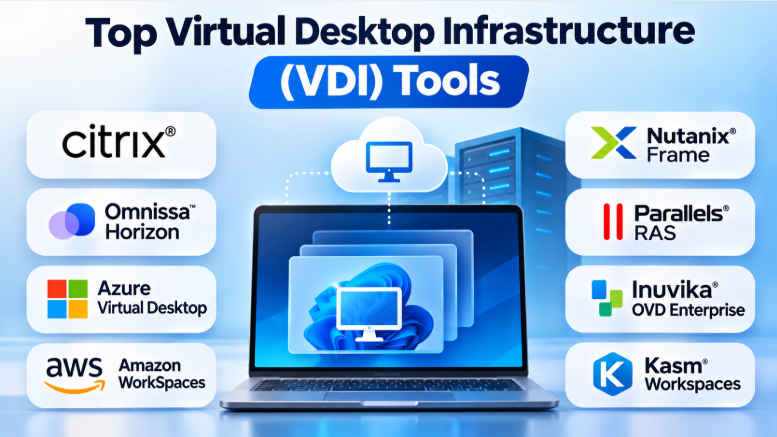
Virtual Desktop Infrastructure (VDI) lets people use a desktop hosted on a central server or cloud platform. Staff can access their work desktops from laptops, thin clients, and other supported devices.
VDI helps businesses manage desktops from one place. It can also support remote work, protect business data, and provide access to specialist applications.
However, VDI is not one simple product. Some platforms run on company-owned servers. Others use public cloud services. Some deliver full virtual desktops, while others focus on publishing individual apps.
This guide compares ten VDI platforms and explains their main features, benefits, limits, and best uses.
What Is Virtual Desktop Infrastructure?
VDI hosts desktop operating systems inside virtual machines. A virtual machine is a software-based computer that runs on physical server hardware.
Users connect to these desktops over a network. They can use their work apps and files without running the full desktop on their own device.
VDI commonly supports two desktop types:
- Persistent desktops: Each user gets a desktop that keeps personal settings and changes between sessions.
- Non-persistent desktops: Users receive a standard desktop that resets or refreshes after use.
VDI platforms may also deliver individual applications. This can reduce the need to provide a full desktop when staff only need a few business apps.
Top 10 VDI Tools
1. Citrix DaaS
Best for: Large businesses with complex desktop needs
Citrix DaaS delivers virtual desktops and applications from cloud or on-premises resources. It helps IT teams manage access across different locations and infrastructure types.
Its HDX technology supports the delivery of remote desktops and apps. Citrix can connect workloads hosted on major public clouds and supported on-premises platforms. citrix.com+1
Key features
- Virtual desktop and application delivery.
- Support for hybrid and multi-cloud environments.
- HDX remote display technology.
- Centralized access and policy controls.
- Support for Windows and Linux workloads in supported configurations.
- Options for published applications and full desktops.
Pros
- Supports complex enterprise environments.
- Offers flexible workload placement.
- Can deliver apps without a full desktop.
- Provides a broad set of administration controls.
Cons
- Setup can require skilled administrators.
- Licensing and infrastructure costs need careful planning.
- More features can mean more management work.
Best uses
Citrix DaaS suits large organizations with many users and varied workloads. It is worth considering when a business needs a mix of cloud and on-premises desktop delivery.
2. Omnissa Horizon
Best for: Enterprise VDI and hybrid desktop environments
Omnissa Horizon, formerly VMware Horizon, provides virtual desktop and application delivery. It is used in organizations that need to manage desktops across data centers and supported cloud environments.
Horizon uses Blast Extreme for remote display. Its wider ecosystem can include application delivery and user environment management tools.
Key features
- Virtual Windows and Linux desktop delivery in supported configurations.
- Published application delivery.
- Blast Extreme display protocol.
- Persistent and non-persistent desktop options.
- Integration with enterprise identity and management systems.
- Support for on-premises and hybrid deployments.
Pros
- Suitable for established enterprise VDI environments.
- Supports different desktop delivery models.
- Offers tools for application and user environment management.
- Can fit organizations with existing virtualization infrastructure.
Cons
- Requires careful infrastructure planning.
- Licensing and deployment choices can be complex.
- Administration may need specialist skills.
Best uses
Omnissa Horizon is worth evaluating for organizations with established VDI environments. It can also suit businesses that want control over desktop infrastructure and deployment choices.
3. Azure Virtual Desktop
Best for: Organizations using Microsoft Azure
Azure Virtual Desktop is Microsoft’s cloud-based desktop and application virtualization service. It runs on Azure and lets organizations deliver Windows desktops and applications to users.
A key difference is its support for Windows multi-session. This allows multiple users to share a Windows session host, where the operating system and configuration support it.
Key features
- Personal and pooled virtual desktops.
- Windows multi-session support.
- RemoteApp application delivery.
- Integration with Azure services.
- Centralized session and host management.
- Support for autoscaling through Azure capabilities.
Pros
- Fits Microsoft-focused environments.
- Supports pooled desktops and personal desktops.
- Can help reduce the number of virtual machines needed.
- Connects with the wider Azure ecosystem.
Cons
- Customers still manage many desktop components.
- Azure usage costs can vary with demand.
- Deployment needs knowledge of identity, networking, and Azure resources.
Best uses
Azure Virtual Desktop suits businesses already using Azure and Microsoft services. It is especially useful when teams need pooled Windows desktops or published applications.
4. Amazon WorkSpaces
Best for: Businesses using Amazon Web Services
Amazon WorkSpaces provides managed cloud desktops through AWS. Organizations can give users a desktop without building and maintaining the full VDI platform themselves.
WorkSpaces offers different desktop options and billing models. The available choices depend on the service type, region, operating system, and configuration.
Key features
- Managed cloud desktop delivery.
- Windows and Linux options in supported configurations.
- Persistent desktop options.
- Monthly and usage-based billing choices.
- Access through supported desktop clients and browsers.
- Integration with AWS services and identity options.
Pros
- Reduces the need to manage physical VDI servers.
- Fits organizations already using AWS.
- Offers different desktop sizes and usage models.
- Can support distributed teams.
Cons
- Costs depend on desktop size and usage.
- Cloud network access is essential.
- AWS knowledge helps with setup and cost control.
Best uses
Amazon WorkSpaces is a practical option for businesses that already use AWS. It can suit teams that want managed desktops without operating their own VDI infrastructure.
5. Nutanix Frame
Best for: Browser-based desktop and application access
Nutanix Frame delivers virtual desktops and applications through a browser-based experience. It can run workloads on supported public cloud and Nutanix infrastructure.
This approach can reduce the need for users to install a full desktop client. It is worth considering when people use different endpoint devices.
Key features
- Browser-based desktop access.
- Application delivery.
- Support for Windows and Linux workloads in supported setups.
- Cloud and on-premises deployment choices.
- Centralized session management.
- Options for graphics-intensive workloads.
Pros
- Browser access can simplify endpoint setup.
- Supports different infrastructure choices.
- Can deliver both apps and desktops.
- Useful for distributed users.
Cons
- Workload and cloud costs need planning.
- Specialized apps and peripherals need testing.
- Some deployments may require additional infrastructure knowledge.
Best uses
Nutanix Frame suits organizations that want browser-based desktop access. It is also worth reviewing for training, education, and teams using different endpoint devices.
6. Parallels RAS
Best for: Small and midsize businesses and application delivery
Parallels Remote Application Server (RAS) provides virtual desktop and application delivery. It can publish Windows applications and desktops from on-premises or cloud infrastructure.
The platform offers a centralized management console. This can help IT teams manage delivery without combining several separate administration tools.
Key features
- Published application delivery.
- Virtual desktop access.
- Support for hybrid deployment models.
- Centralized administration.
- Application and desktop access from supported devices.
- Integration with supported virtualization and cloud environments.
Pros
- Supports both apps and full desktops.
- Offers a single management approach.
- Can suit mid-sized deployments.
- Provides deployment flexibility.
Cons
- Setup still needs planning and technical skills.
- High availability requires careful design.
- Licensing and infrastructure costs depend on deployment.
Best uses
Parallels RAS suits businesses that need application publishing and virtual desktops in one platform. It can be useful when a full enterprise VDI stack feels too complex.
7. Inuvika OVD Enterprise
Best for: Organizations with Windows and Linux application needs
Inuvika OVD Enterprise provides virtual application and desktop delivery. It can support Windows and Linux applications from centralized infrastructure.
Its approach is useful for organizations that need to provide access to business applications without giving every user a separate physical workstation.
Key features
- Virtual application delivery.
- Virtual desktop access.
- Support for Windows and Linux application environments.
- Centralized administration.
- Browser and client access options.
- Deployment on supported cloud and on-premises infrastructure.
Pros
- Supports mixed application environments.
- Offers an alternative to larger VDI platforms.
- Can fit organizations with Linux application needs.
- Provides centralized delivery and control.
Cons
- Buyers should validate application compatibility.
- Smaller ecosystems may mean fewer third-party resources.
- Deployment and support requirements need review.
Best uses
Inuvika OVD Enterprise is worth considering when a business needs centralized access to both Windows and Linux applications. It may also suit organizations comparing alternatives to larger VDI vendors.
8. Kasm Workspaces
Best for: Browser-based isolated workspaces
Kasm Workspaces provides browser-based workspaces using container technology. It can deliver isolated browser sessions, applications, and desktop environments.
Kasm is not identical to traditional VM-based VDI. Its container-based design makes it especially relevant for temporary workspaces and controlled browser access.
Key features
- Browser-based workspace access.
- Containerized sessions.
- Isolated browser environments.
- Application and desktop delivery options.
- Self-hosted deployment.
- Centralized workspace management.
Pros
- Supports isolated user sessions.
- Useful for temporary workspaces.
- Offers self-hosted deployment.
- Can support secure browsing workflows.
Cons
- Container workspaces differ from full virtual machines.
- Some desktop applications may need a traditional VDI design.
- Infrastructure and security policies need careful setup.
Best uses
Kasm Workspaces suits organizations that need isolated browser sessions or temporary desktop environments. It is also useful for technical teams and controlled access workflows.
9. Workspot Enterprise VDI Platform
Best for: Cloud-based enterprise desktop delivery
Workspot provides cloud desktop services for businesses. It focuses on delivering managed virtual desktops across supported cloud environments.
Its platform is aimed at organizations that want to move desktop workloads away from traditional data center infrastructure. The deployment model and cloud support should be checked against each organization’s needs.
Key features
- Cloud-hosted virtual desktops.
- Centralized desktop management.
- Support for enterprise user groups.
- Desktop performance monitoring and experience insights.
- Cloud deployment options.
- Tools for managing desktop environments.
Pros
- Designed for enterprise desktop delivery.
- Can reduce the need to operate a traditional VDI stack.
- Supports cloud-based desktop strategies.
- Offers visibility into user experience.
Cons
- Enterprise pricing may require a vendor quote.
- Cloud design and network planning remain important.
- Buyers should confirm regional availability and workload support.
Best uses
Workspot is worth evaluating for organizations planning a cloud desktop strategy. It can suit distributed teams that need managed virtual desktops across locations.
10. UDS Enterprise
Best for: Flexible desktop virtualization and self-managed deployments
UDS Enterprise is a connection broker for virtual desktops and applications. A connection broker assigns users to available desktops or services.
It can work with supported hypervisors and virtualization platforms. This makes it relevant to organizations that want to manage desktop delivery across their own infrastructure.
Key features
- Virtual desktop connection brokering.
- Application and desktop delivery.
- Support for multiple virtualization platforms.
- Centralized user access management.
- Integration with identity services.
- Deployment options for private and hybrid environments.
Pros
- Offers flexibility across supported virtualization platforms.
- Can fit self-managed infrastructure.
- Provides centralized connection management.
- Useful for organizations with existing virtualization investments.
Cons
- Requires infrastructure and integration planning.
- Buyers must check compatibility with their hypervisor.
- Support and licensing terms need direct review.
Best uses
UDS Enterprise suits organizations that want to manage their own virtual desktop infrastructure. It is worth reviewing when flexibility across virtualization platforms matters.
VDI Tools Comparison
| Tool | Main use | Deployment approach | Main advantage | Important consideration |
|---|---|---|---|---|
| Citrix DaaS | Enterprise desktops and apps | Cloud, hybrid, on-premises resources | Broad delivery flexibility | More administration |
| Omnissa Horizon | Enterprise VDI | On-premises and supported cloud models | Established VDI ecosystem | Infrastructure planning |
| Azure Virtual Desktop | Microsoft cloud desktops | Azure | Windows multi-session | Azure management skills |
| Amazon WorkSpaces | Managed cloud desktops | AWS | Managed desktop service | AWS usage costs |
| Nutanix Frame | Browser-based desktops | Cloud and supported on-premises infrastructure | Browser access | Workload compatibility |
| Parallels RAS | Apps and desktops | Hybrid and cloud | Centralized management | Deployment design |
| Inuvika OVD Enterprise | Windows and Linux app delivery | Cloud and on-premises | Mixed application support | Compatibility checks |
| Kasm Workspaces | Isolated browser and desktop sessions | Self-hosted | Containerized workspaces | Not identical to VM-based VDI |
| Workspot | Cloud enterprise desktops | Cloud | Managed cloud desktop approach | Regional and workload checks |
| UDS Enterprise | Desktop connection brokering | Self-managed and hybrid | Virtualization flexibility | Hypervisor compatibility |
Important Features to Check Before Choosing VDI Software
A VDI platform must fit your users, applications, and infrastructure. A long feature list does not guarantee a good desktop experience.
Review these areas before making a decision.
1. Persistent and Non-Persistent Desktops
Persistent desktops keep user settings and changes. They suit people who need a personal work environment.
Non-persistent desktops return to a standard state. They can suit call centers, training rooms, and shared workstations.
Choose the model based on how users work. Some organizations need both types.
2. Display Protocol and User Experience
A display protocol sends screen updates from the hosted desktop to the user’s device. It also sends keyboard and mouse actions back.
Network delay can make a desktop feel slow. Poor display settings can also affect video and image quality.
Test real work tasks before choosing a platform. Include video calls, large files, and graphics-heavy apps.
3. GPU Support
Some workloads need a graphics processing unit (GPU). This includes 3D design, video editing, and engineering software.
GPU-backed virtual desktops can support these tasks. But they may need special hardware, licenses, and configuration.
Check the software vendor’s hardware requirements. Also test the apps your users need.
4. Application Compatibility
Not every desktop application works well in a virtual environment. Some apps need special drivers, hardware access, or local devices.
Test business-critical software before migration. Include printers, scanners, USB devices, and specialist tools.
5. Identity and Access Control
VDI platforms need a clear way to manage user access. Many organizations connect them to an identity provider.
Check support for multi-factor authentication and role-based access. Also review how the platform handles user sessions and access from unmanaged devices.
6. Profile and User Data Management
A desktop profile stores user settings and preferences. It may also include application settings and other personal data.
Poor profile design can slow sign-in and cause data loss. Check how the platform stores, backs up, and restores user profiles.
7. Monitoring and Administration
IT teams need to see desktop health and user experience. Useful monitoring can show CPU use, memory pressure, session problems, and connection issues.
Check whether the platform offers built-in monitoring. Also review its integration with your existing IT tools.
8. Backup and Disaster Recovery
A virtual desktop still depends on storage and infrastructure. A server failure can affect many users at once.
Plan how to back up desktop images, profiles, and important data. Test recovery steps before users depend on the service.
VDI vs DaaS vs Cloud PCs: What Is the Difference?
These terms often appear together, but they describe different delivery models.
| Model | What it means | Who manages the infrastructure? | Common use |
|---|---|---|---|
| Traditional VDI | Desktops run as virtual machines on managed infrastructure | Usually the organization or its service provider | Private data centers and hybrid environments |
| Desktop as a Service (DaaS) | A provider delivers hosted desktops as a service | Shared between provider and customer | Cloud-based desktop delivery |
| Cloud PC | A personal cloud-hosted desktop assigned to a user | Mainly the cloud provider, with customer management tasks | One user needing a persistent cloud computer |
| Remote desktop support | A person connects to an existing physical or virtual computer | The device owner or IT team | Troubleshooting and remote assistance |
Windows 365, for example, provides personal Cloud PCs. It is related to the virtual desktop market, but it is not the same operating model as a traditional pooled VDI deployment.
Azure Virtual Desktop provides a more flexible desktop and application delivery platform. It supports personal and pooled desktop models.
The right model depends on the level of control your organization needs. It also depends on whether you want to manage infrastructure or consume a hosted service.
Benefits of Virtual Desktop Infrastructure
VDI can solve several desktop management problems. Its value depends on the design and the way employees use their desktops.
Centralized Desktop Management
IT teams can manage desktop images from a central location. This can make updates and standard software deployment easier.
Support for Remote Work
Users can access hosted desktops from supported devices. This can help staff work from home or different office locations.
Better Control of Business Data
Organizations can keep important files and applications in managed environments. This can reduce the need to store work data on personal devices.
However, VDI does not automatically prevent data leaks. Access rules, endpoint controls, and monitoring still matter.
Flexible Desktop Provisioning
Administrators can create desktops from standard images. This can help organizations add users or replace damaged environments.
Support for Specialist Workloads
Some platforms support GPU-backed desktops. These can provide remote access to demanding business applications.
Challenges and Limitations of VDI
VDI can improve control, but it also creates new responsibilities.
- High setup costs: Servers, storage, networking, and software licenses can require large investments.
- Network dependence: Poor connections can reduce desktop performance.
- Storage demands: User profiles and desktop images need suitable storage capacity.
- Licensing complexity: Desktop operating systems and applications may have separate licensing rules.
- Technical skills: Administrators need knowledge of virtualization, networking, and identity systems.
- Performance planning: CPU, memory, and GPU resources must match real workloads.
- Single points of failure: Poorly designed infrastructure can affect many users at once.
A business should compare the full operating cost with its current desktop model. Include hardware, cloud usage, licenses, support, backups, and staff time.
How to Choose the Right VDI Platform
Start with the work your users need to perform. Then select a platform that supports those tasks without adding needless complexity.
- For complex enterprise environments: Consider Citrix DaaS or Omnissa Horizon.
- For Microsoft-focused organizations: Evaluate Azure Virtual Desktop.
- For AWS environments: Consider Amazon WorkSpaces.
- For browser-based desktop access: Review Nutanix Frame.
- For application publishing and mid-sized deployments: Consider Parallels RAS.
- For Windows and Linux application delivery: Evaluate Inuvika OVD Enterprise.
- For isolated browser sessions: Review Kasm Workspaces.
- For managed cloud desktop delivery: Consider Workspot.
- For self-managed virtualization environments: Evaluate UDS Enterprise.
Do not select a platform based only on its desktop features. Check its deployment model and management needs.
Common VDI Implementation Mistakes
A VDI project can fail even when the software is capable. Poor planning often creates the biggest problems.
Moving Every User to the Same Desktop
Different users have different needs. A finance employee may need office apps, while a designer may need GPU resources.
Group users by workload. Create desktop sizes that match those groups.
Ignoring Network Performance
A desktop may run well in a test room but perform poorly for remote staff. Network delay and packet loss can affect the user experience.
Test connections from the locations where employees will work. Include home networks and branch offices.
Underestimating Storage
Desktop images, profiles, and user data all need storage. Heavy sign-in activity can also create sudden demand.
Estimate storage needs before deployment. Include growth and backup capacity.
Overlooking Software Licensing
A virtual desktop does not remove software licensing rules. Operating systems and business apps may have special virtual use terms.
Review every license before migration. Ask vendors to confirm unclear requirements in writing.
Skipping a Pilot
A large rollout makes problems harder to fix. A small pilot can reveal issues before they affect the whole company.
Start with users from different departments. Test their actual applications and daily tasks.
Frequently Asked Questions
What is VDI software?
VDI software helps organizations create, manage, and deliver virtual desktops. Users connect to desktops that run on centralized servers or cloud infrastructure.
What is the difference between VDI and remote desktop software?
VDI creates and manages hosted desktop environments. Remote desktop software often connects users to existing computers. Some products support both types of access.
Is VDI suitable for small businesses?
Yes, but it depends on the number of users and their needs. A managed cloud desktop service may be easier than building a private VDI environment.
Can VDI run Linux desktops?
Yes. Some platforms support Linux desktops and applications. Support varies by product, operating system, and deployment model.
Does VDI require a fast internet connection?
VDI needs a stable network connection. The required bandwidth depends on screen size, display quality, applications, and user activity.
Is VDI more secure than a normal desktop?
Not automatically. VDI can centralize data and access controls, but poor configuration can still expose systems. Security depends on identity, network design, endpoint policies, and administration.
Can VDI support graphic design and engineering software?
Some platforms support GPU-backed virtual desktops. Check application compatibility, graphics hardware, licensing, and network performance before deployment.
Is DaaS the same as VDI?
No. VDI describes a desktop virtualization approach. DaaS describes a service model in which a provider delivers hosted desktops.
Make the Desktop Model Fit the Work
VDI can help organizations centralize desktop management and support flexible work. But it is not always the cheapest or simplest choice.
A company with existing server infrastructure may prefer a self-managed platform. A Microsoft-focused business may find Azure Virtual Desktop a natural fit. An AWS customer may prefer Amazon WorkSpaces. A team that needs isolated browser sessions may find Kasm more suitable.
Before choosing, run a pilot with real users and applications. Measure sign-in time, screen response, resource use, and support effort. Then compare the full cost with your current desktop setup.
The best VDI platform is the one that delivers a reliable work environment without creating more complexity than your organization can manage.


Leave a Reply
You must be logged in to post a comment.