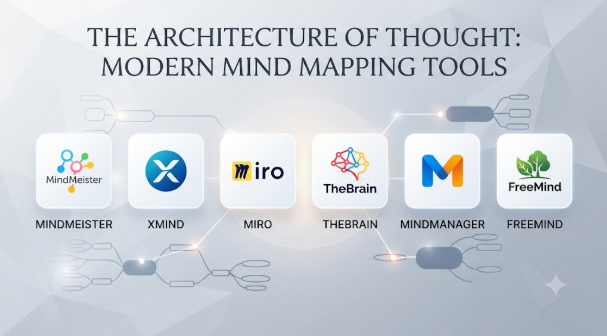
Mind mapping tools help turn scattered thoughts into clear, connected ideas. Students use them to plan lessons and assignments. Businesses use them to explore strategies, organize projects, and solve problems. Creative teams use them to develop concepts before moving into detailed work.
However, mind mapping software does more than draw branches around a central idea. Some tools focus on personal thinking and note-taking. Others support team brainstorming, presentations, task planning, and business workflows.
This guide compares 10 mind mapping tools across their main features, advantages, limitations, and practical uses. It also explains which type of user should consider each option.
What Is Mind Mapping Software?
Mind mapping software helps users arrange information around a central topic. Related ideas appear as branches, and smaller details connect to those branches.
For example, a business planning map might begin with a central topic called “New Product Launch.” Its main branches could include market research, product design, development, marketing, and customer support.
Each branch can contain smaller ideas, notes, links, tasks, and supporting details. This structure makes complex topics easier to explore and understand.
Common uses include:
- Brainstorming and creative thinking
- Project planning and task organization
- Study notes and exam preparation
- Business strategy and decision-making
- Research and knowledge organization
- Meeting notes and team workshops
- Content planning and writing
- Process analysis and problem-solving
Mind maps are not always the right format. A flowchart works better for step-by-step processes. A task board works better for tracking work. A mind map is most useful when people need to explore ideas and understand how they connect.
Top 10 Mind Mapping Tools
1. Xmind
Best for: Structured mind maps, study planning, and presentations
Xmind is a mind mapping application for organizing ideas, research, and complex information. It supports several diagram structures, so users can choose a layout that fits the subject.
Beyond standard mind maps, Xmind supports structures such as tree charts, logic charts, timelines, and fishbone diagrams. This makes it useful for both brainstorming and structured analysis.
Its presentation features help users turn map content into a visual explanation. Export options also support sharing maps in formats such as PDF, images, and other document-friendly formats, depending on the plan.
Key Features
- Traditional mind maps and tree charts
- Logic charts and fishbone diagrams
- Timeline and project planning layouts
- Notes, labels, and attachments
- Presentation mode
- Import and export options
- Desktop, web, and mobile applications
- AI-assisted features in supported plans
Pros
- Offers several useful diagram layouts.
- Works well for study and research planning.
- Helps turn maps into presentations.
- Supports different export formats.
- Suitable for both personal and professional use.
Cons
- Some advanced features require a paid plan.
- Large maps can become difficult to manage.
- Team collaboration may not match specialist online platforms.
- New users may need time to explore its different layouts.
Best Uses
Xmind suits students, researchers, writers, consultants, and professionals who need clear visual structures. It is a strong option for study notes, project outlines, strategic thinking, and presentations.
2. MindManager
Best for: Business planning and project management
MindManager connects mind mapping with business planning and project information. It is designed for users who need more than a simple brainstorming canvas.
Users can add tasks, resources, notes, links, and other details to map topics. They can also view information through different formats, including outlines and project-oriented views.
Its integration with Microsoft applications can help organizations connect visual planning with existing business workflows. This makes it relevant to teams that already use Microsoft tools for communication and project work.
Key Features
- Mind maps and business diagrams
- Task and resource information
- Project planning views
- Gantt chart capabilities
- Topic relationships and labels
- Notes, links, and attachments
- Microsoft ecosystem integrations
- Export and sharing options
Pros
- Connects visual planning with project information.
- Supports complex business maps.
- Offers several ways to view information.
- Fits many Microsoft-based workflows.
- Useful for structured business planning.
Cons
- Can feel complex for basic brainstorming.
- Commercial licensing may be costly for some users.
- Advanced features need training.
- Some capabilities vary across platforms and plans.
Best Uses
MindManager is suitable for project managers, business analysts, consultants, and enterprise teams. It works well for project planning, process analysis, business strategy, and managing complex information.
3. MindMeister
Best for: Online brainstorming and team collaboration
MindMeister focuses on creating and sharing mind maps online. Its browser-based approach makes it useful for teams that want to work on shared ideas without relying on one person’s desktop application.
Users can build maps, add notes, organize branches, and invite others to collaborate. The platform also supports presentation workflows and connects with the wider Meister product ecosystem.
Its main strength is shared visual thinking. Teams can use it to collect ideas, organize meeting discussions, and create a common view of a problem.
Key Features
- Browser-based mind mapping
- Shared maps and collaboration
- Notes, links, and attachments
- Comments and discussion
- Presentation mode
- Templates and map styling
- Mobile applications
- Integrations with other work tools
Pros
- Easy to access through a browser.
- Supports collaborative brainstorming.
- Useful for remote and distributed teams.
- Helps organize meeting ideas.
- Offers presentation features.
Cons
- Free-plan map limits may affect regular users.
- Advanced features require paid plans.
- Offline work is not its main strength.
- Large maps need careful organization.
Best Uses
MindMeister suits remote teams, educators, students, and business groups. It is useful for workshops, meeting notes, brainstorming, and shared planning.
4. Mindomo
Best for: Education, offline mapping, and project planning
Mindomo combines mind mapping with concept mapping, outlining, and planning features. It supports different workflows across education and professional environments.
One useful distinction is its support for desktop applications and offline work. Users can create and edit maps locally, then sync their work when they reconnect, depending on their setup.
Mindomo also offers education-focused features. Teachers can use it for assignments and classroom activities, while students can organize research and study material.
Key Features
- Mind maps and concept maps
- Outline and presentation views
- Desktop and mobile applications
- Offline editing in supported applications
- Real-time collaboration
- Education and classroom features
- Task and project planning
- Import and export options
Pros
- Supports several visual learning formats.
- Useful for teachers and students.
- Offers offline workflows.
- Combines mapping with planning features.
- Supports different device types.
Cons
- Some advanced features require paid plans.
- Its many options may take time to learn.
- Collaboration features vary by plan.
- Users should test imports before moving large map collections.
Best Uses
Mindomo works well for schools, universities, researchers, and professionals. It is useful for lesson planning, study notes, concept mapping, research, and project organization.
5. Ayoa
Best for: Connecting brainstorming with task management
Ayoa combines mind mapping with task boards and other planning features. Its approach connects idea development with the work needed to make those ideas happen.
Users can brainstorm in a mind map and then organize work through task-oriented views. This can help teams move from early concepts to assigned activities.
Ayoa also offers whiteboard and collaboration features. Its wider workspace makes it relevant to teams that want several visual planning methods in one application.
Key Features
- Visual mind maps
- Task boards and work planning
- Whiteboard tools
- Collaboration and comments
- Templates
- Calendar and scheduling features
- AI-assisted tools in supported plans
- Mobile and web access
Pros
- Connects ideas with task planning.
- Supports different visual workflows.
- Useful for group brainstorming.
- Helps organize follow-up work.
- Offers a combined planning environment.
Cons
- The wider feature set may feel complex.
- Some features depend on subscription plans.
- It may overlap with existing project tools.
- Users should compare its task features with their current workflow.
Best Uses
Ayoa suits creative teams, project groups, business planners, and people who want to turn brainstorming into action. It is useful for campaign planning, team projects, and idea management.
6. Freeplane
Best for: Free, open-source, and local mind mapping
Freeplane is a free and open-source application for mind mapping and information organization. It is designed for users who prefer desktop software and want control over their files.
It supports detailed maps, links, notes, formatting, and other ways to organize information. Its export options also help users move content into different formats.
Freeplane does not work like a hosted collaboration platform by default. Teams that need live shared editing must plan for additional tools or file-sharing arrangements.
Key Features
- Open-source mind mapping
- Local desktop workflow
- Detailed map customization
- Notes, links, and relationships
- Scripting and extensions
- Multiple export formats
- Cross-platform support
- File-based information storage
Pros
- Free to use.
- Open-source and customizable.
- Suitable for detailed information maps.
- Supports local file management.
- Does not require a paid cloud workspace.
Cons
- The interface may feel less modern.
- Beginners may need time to learn it.
- Live collaboration is not its main purpose.
- Users manage their own backups and file sharing.
Best Uses
Freeplane suits students, researchers, technical users, and people who prefer open-source software. It is useful for personal knowledge management, research planning, and complex offline maps.
7. SimpleMind
Best for: Personal mind maps across devices
SimpleMind focuses on personal mind mapping across desktop and mobile devices. Its interface supports flexible map layouts and a range of ways to organize ideas.
Users can create maps, add notes, use images, and customize their visual structure. Depending on the platform and setup, files can be stored locally or synchronized through supported cloud storage services.
This file-based approach can suit people who want control over their maps. However, synchronizing files through cloud storage should not be confused with real-time collaboration.
Key Features
- Flexible mind map layouts
- Notes and images
- Map styling and customization
- Desktop and mobile applications
- Local file storage
- Supported cloud storage synchronization
- Export and sharing options
- Personal organization features
Pros
- Useful across supported devices.
- Supports personal mapping workflows.
- Offers flexible map layouts.
- Provides local storage options.
- Does not require a team workspace for basic use.
Cons
- Some platform versions require separate licenses.
- Live collaboration is not its central strength.
- Cloud sync depends on the selected storage setup.
- Advanced features vary across platforms.
Best Uses
SimpleMind is suitable for students, individual professionals, and personal knowledge management. It works well for planning, study notes, travel ideas, and organizing personal projects.
8. Coggle
Best for: Simple online mind maps and quick collaboration
Coggle is a browser-based tool for creating mind maps and flowcharts. It focuses on making visual diagrams easy to create and share.
Users can add branches, notes, images, and links. Its collaborative features allow people to work together on diagrams and review changes.
Coggle is useful when a team needs a simple online mapping tool without a large set of business planning features.
Key Features
- Online mind map creation
- Flowchart diagrams
- Real-time collaboration
- Comments and image support
- Change history
- Sharing and export options
- Browser-based access
- Private and public diagram options
Pros
- Simple to start using.
- Supports live collaboration.
- Useful for quick brainstorming.
- Combines mind maps and flowcharts.
- Works through a web browser.
Cons
- Free-plan private diagram limits may be restrictive.
- Advanced business controls are limited compared with enterprise platforms.
- Large maps can become visually crowded.
- Public sharing settings need attention.
Best Uses
Coggle suits students, teachers, small teams, and individuals. It is useful for quick brainstorming, lesson planning, process diagrams, and simple project outlines.
9. EdrawMind
Best for: Multiple diagram types and document exports
EdrawMind combines mind mapping with other diagram and presentation workflows. It offers templates and layouts for users who need to organize information in different visual forms.
Its export options are useful when maps need to become documents, presentations, or images. The application also supports outline views and features for adding information to map topics.
This makes it a practical option for users who regularly share their work with people who may not use the same software.
Key Features
- Mind maps and outline views
- Templates and diagram layouts
- Notes, links, and attachments
- Presentation tools
- Collaboration features
- Import and export options
- Desktop and online access
- AI-assisted features in supported plans
Pros
- Offers several diagram layouts.
- Useful for document and presentation workflows.
- Provides a broad template selection.
- Supports different operating environments.
- Suitable for education and business use.
Cons
- Some features require a paid subscription.
- The number of options may feel overwhelming.
- Export access can vary by plan.
- Users should check desktop and online feature differences.
Best Uses
EdrawMind suits trainers, students, business professionals, and consultants. It is useful for training materials, research maps, presentations, and business planning.
10. MindNode
Best for: Apple users and personal visual thinking
MindNode is a mind mapping and outlining application designed for Apple’s ecosystem. It helps users capture ideas and organize them into visual structures.
Its combination of mind maps and outlines is useful for people who move between brainstorming and writing. Users can develop a visual map, then work with a more linear outline of the same information.
Its Apple-focused approach makes device compatibility an important buying consideration.
Key Features
- Visual mind maps
- Outline mode
- Notes and tags
- Themes and visual customization
- Focus and organization tools
- Apple ecosystem integration
- Export and sharing options
- Apple Intelligence features in supported environments
Pros
- Fits naturally into Apple workflows.
- Combines maps with outlines.
- Useful for personal idea development.
- Offers a clean visual workspace.
- Supports structured writing and planning.
Cons
- Not designed for Windows or Linux users.
- Some advanced features require a subscription.
- Enterprise collaboration is not its main focus.
- Its value depends on using compatible Apple devices.
Best Uses
MindNode suits Mac, iPhone, and iPad users. It is useful for personal planning, writing outlines, study notes, and organizing creative ideas.
Comparison of the Top 10 Mind Mapping Tools
| Software | Best For | Main Strength | Main Limitation | Pricing Approach |
|---|---|---|---|---|
| Xmind | Study and structured mapping | Multiple map layouts and presentations | Advanced features may require payment | Free and paid plans |
| MindManager | Business planning | Maps connected with project information | More complex workflow | Commercial licensing |
| MindMeister | Online collaboration | Shared browser-based maps | Free-plan limits | Free and paid plans |
| Mindomo | Education and offline work | Mapping, outlining, and planning | Features vary by plan | Free and paid plans |
| Ayoa | Ideas and task management | Combines maps with task workflows | May overlap with other tools | Free and paid plans |
| Freeplane | Open-source mapping | Local control and customization | Limited built-in team collaboration | Free and open source |
| SimpleMind | Personal mapping | Cross-device personal workflows | Sync is not live co-editing | Free and paid options |
| Coggle | Quick online diagrams | Simple collaborative mapping | Limited advanced business controls | Free and paid plans |
| EdrawMind | Diagram and document workflows | Multiple layouts and exports | Some features require payment | Free and paid plans |
| MindNode | Apple users | Maps and outlines in Apple workflows | Apple-focused platform support | Free and paid options |
Pricing, licensing, and feature access can change. Check the current plan details and platform requirements before purchasing.
Which Mind Mapping Tool Is Right for You?
The right choice depends on what you want to do with your ideas. A student creating revision notes has different needs from a business team planning a complex project.
For Beginners
Xmind, Coggle, and SimpleMind are worth considering.
Xmind offers different map layouts. Coggle provides a straightforward browser-based workflow. SimpleMind focuses on personal mapping across supported devices.
Start with a small map before exploring advanced features.
For Students and Teachers
Mindomo, Xmind, and EdrawMind are useful options.
Mindomo offers education-focused workflows. Xmind supports structured study maps and different diagram layouts. EdrawMind can help prepare visual learning materials and presentations.
Check whether your school or college provides access to paid software.
For Business Teams
MindManager and MindMeister are worth evaluating.
MindManager supports business planning and project information. MindMeister focuses on shared online mapping.
Choose based on whether your team needs detailed project workflows or mainly wants to collaborate on ideas.
For Remote Teams
MindMeister, Coggle, and Ayoa offer collaborative workflows.
Compare live editing, guest access, comments, and permissions. A tool that supports shared maps may still lack the administration your organization needs.
For Open-Source Users
Freeplane is the clearest choice in this list.
It provides a local, open-source approach to mind mapping. It is suitable for users who value file control and customization.
However, organizations should plan separately for shared editing, backups, and support.
For Apple Users
MindNode is a natural option to evaluate.
Its map and outline workflows suit people who already use Apple devices. SimpleMind is another option for users who want personal maps across different supported platforms.
Free vs Paid Mind Mapping Software
Free mind mapping tools can be enough for personal projects and basic study work. They help users learn the mapping process without an immediate subscription.
Paid plans become more relevant when users need advanced collaboration, exports, storage, administration, or business features.
| Area | Free Plans | Paid Plans |
|---|---|---|
| Map limits | May restrict the number of maps | Usually allow more maps |
| Collaboration | Basic or limited sharing | More team features |
| Templates | Selected templates | Larger template collections |
| Export | May restrict formats or options | Often provide more export choices |
| Storage | May have smaller limits | May offer more storage |
| Administration | Basic controls | Advanced team controls |
| Support | Standard help resources | May include additional support |
Before paying, identify the feature that solves a real problem. A personal user may not need enterprise administration. A business team may need more than unlimited map creation.
Common Mistakes When Choosing Mind Mapping Software
1. Choosing Based Only on Design
A good-looking map does not guarantee a useful workflow. Check whether the tool supports your required export formats, sharing options, and map structures.
2. Ignoring Collaboration Needs
Some tools focus on personal work. Others support live editing and team administration.
If several people will work on the same map, test collaboration before buying.
3. Confusing Cloud Sync with Live Collaboration
Cloud synchronization keeps files available across devices. It does not always allow several people to edit one map at the same time.
Check the product’s actual collaboration model.
4. Forgetting About Data Portability
Your maps may become important records. Check whether you can export them in editable formats.
Also test whether exported files preserve notes, links, attachments, and branch relationships.
5. Using Mind Maps for Every Task
Mind maps are useful for exploring ideas. They are not always the best way to track deadlines or manage structured records.
Use a project board for task progress. Use a spreadsheet or database for structured data. Choose the format that fits the work.
Final Thoughts
Mind mapping software helps people turn complex thoughts into organized visual structures. But the best tool depends on how those maps will be used.
Xmind is useful for structured maps and presentations. MindManager supports business planning. MindMeister and Coggle focus on online collaboration. Mindomo combines mapping with education and offline workflows. Ayoa connects ideas with tasks. Freeplane offers open-source control. SimpleMind supports personal mapping across devices. EdrawMind provides several diagram and export options. MindNode fits Apple-based workflows.
Before choosing, create the same sample map in two or three shortlisted tools. Test editing, sharing, exports, and device support.
The right choice should make ideas easier to understand, easier to share, and easier to turn into useful work.



Leave a Reply
You must be logged in to post a comment.