A scanned invoice, a photograph of a receipt, and a 200-page archive create very different document-processing problems. All three may need OCR, but they do not need the same software.
Some tools turn scanned PDFs into searchable files. Others extract invoice numbers, dates, tables, and customer details. Enterprise capture platforms go further by collecting documents, classifying them, checking extracted information, and sending it into business applications.
This difference matters when selecting OCR and document capture software. A simple OCR application may be enough for a small office. A finance department processing thousands of invoices may need document classification, validation, approval workflows, and ERP integration.
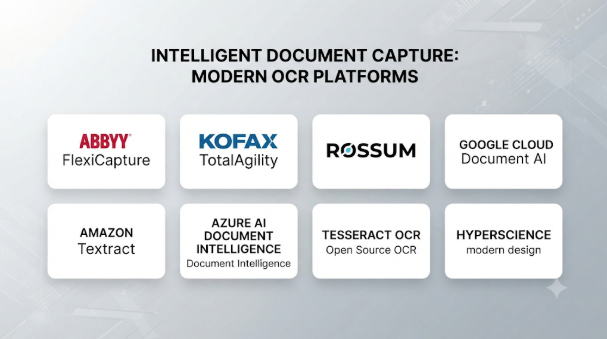
This guide compares 10 established OCR and document capture tools. It covers desktop applications, cloud document processing services, enterprise platforms, and open-source engines.
What Is OCR and Document Capture Software?
Optical Character Recognition (OCR) converts text inside images and scanned documents into machine-readable text.
For example, a scanned paper invoice looks like an image to a computer. OCR identifies the printed words and converts them into text that users can search, copy, edit, or process.
Document capture software handles a wider process. It collects documents from scanners, email, folders, websites, and other sources. It may also classify documents, extract important fields, validate information, and send results to business systems.
These technologies often work together, but they solve different problems.
| Technology | Main Purpose | Example Output |
|---|---|---|
| OCR | Recognizes text in images | Searchable or editable text |
| Document capture | Collects and prepares documents | Digitized files |
| Intelligent document processing | Classifies documents and extracts information | Structured fields and tables |
| Document workflow automation | Routes information through business processes | Approved records or system updates |
A company that only needs searchable PDF files may not need an enterprise capture platform. An organization processing invoices, applications, and customer records may need a complete document workflow.
Top 10 OCR and Document Capture Software Tools
The following products represent different approaches to document recognition and capture. They are grouped by practical capability rather than presented as a universal performance ranking.
1. ABBYY FineReader PDF
Desktop-focused document productivity application with OCR capabilities. It helps users convert scanned documents into searchable and editable files.
Its OCR technology is useful when users need to work with existing PDFs and paper documents. It can recognize text, preserve document structure, and support PDF editing and conversion workflows.
FineReader PDF is different from ABBYY Vantage. FineReader focuses on individual document productivity, while Vantage targets larger automated document-processing workflows.
Key features
- OCR for scanned PDFs and image-based documents.
- Conversion of scanned documents into editable formats.
- PDF editing and document comparison capabilities.
- Searchable PDF creation.
- Support for multiple recognition languages.
- Tools for working with document layouts and formatting.
Pros
- Suitable for regular office document work.
- Combines OCR with PDF editing features.
- Useful for converting scanned documents into editable files.
- Does not require users to build an OCR application.
Cons
- Desktop document workflows are not the same as enterprise capture automation.
- Advanced business routing and custom extraction workflows may require another platform.
- Commercial licensing may not suit occasional users.
Best uses
- Converting scanned contracts into editable documents.
- Making office archives searchable.
- Extracting text from scanned reports.
- Comparing and editing document content.
- Digitizing paper-based business records.
ABBYY FineReader PDF is worth considering when people need a practical desktop application for OCR and PDF work rather than a developer API or enterprise capture system.
2. Adobe Acrobat Pro
Combines PDF editing, document management, and OCR in one application.
Its Recognize Text feature converts scanned PDF pages into searchable text. Users can then search, select, copy, and work with recognized content.
The main advantage is its connection to the wider PDF workflow. People who already use Acrobat for editing, signing, reviewing, and sharing documents may not need a separate OCR application for routine tasks.
However, Acrobat’s OCR should not be confused with a complete intelligent document processing platform. Extracting invoice fields and automatically sending them into an ERP system requires additional tools or integration work.
Key features
- OCR for scanned PDF documents.
- Searchable PDF creation.
- PDF editing and conversion.
- Document commenting and review.
- PDF form and signature workflows.
- Integration with Adobe’s document services.
Pros
- Combines OCR with widely used PDF tools.
- Useful for everyday business documents.
- Supports a familiar PDF-based workflow.
- Helps users avoid switching between separate applications.
Cons
- A paid subscription is required for many Pro capabilities.
- Complex data extraction needs additional software.
- Large automated document workflows may require APIs or enterprise platforms.
Best uses
- Searching scanned PDF files.
- Editing documents created from paper scans.
- Preparing contracts and reports.
- Reviewing and sharing business PDFs.
- Converting scanned pages into usable documents.
Adobe Acrobat Pro makes sense when OCR is one part of a wider PDF workflow. It is less suitable when the main requirement is automatic extraction from thousands of transactional documents.
3. Tungsten OmniPage
OCR and document conversion product associated with Tungsten Automation’s document productivity portfolio.
OmniPage focuses on converting paper documents and image files into editable digital formats. It is relevant to users who need more than a basic text extraction tool but do not necessarily need a large enterprise capture installation.
Its document conversion approach is useful for preserving layout and formatting when moving content from scans into editable files. The exact conversion options and available features depend on the product edition.
Tungsten also offers enterprise capture products. Those products address broader document intake and processing operations, so buyers should distinguish OmniPage from the company’s enterprise capture offerings.
Key features
- OCR for scanned documents and images.
- Conversion into editable document formats.
- Support for document layout recognition.
- Batch document conversion capabilities.
- Tools for improving document processing workflows.
Pros
- Focuses on document conversion and recognition.
- Useful for processing groups of scanned files.
- Helps reduce manual retyping.
- Offers a different option from general-purpose PDF editors.
Cons
- It is not a complete intelligent document processing platform.
- Enterprise workflow automation may require separate products.
- Buyers should confirm current edition availability and supported operating systems.
Best uses
- Converting paper records into editable files.
- Digitizing office documents.
- Processing batches of scanned pages.
- Extracting text from image-based documents.
- Preparing documents for further editing.
OmniPage is worth evaluating when document conversion is the main task. Organizations needing complex classification, approvals, and system integration should examine enterprise capture products separately.
4. Microsoft Azure AI Document Intelligence
Cloud service for extracting text, layout information, and structured data from documents.
It goes beyond basic OCR. Its models can identify text, tables, selection marks, and key-value pairs. Microsoft also provides prebuilt models for document types such as invoices and receipts, along with options for custom extraction.
Developers can connect the service to applications through REST APIs and supported SDKs. This makes it useful for organizations building their own document-processing systems.
The service does not automatically provide every part of a business workflow. Teams may still need to build document intake, human review, validation rules, storage, and application integration.
Key features
- OCR and text recognition.
- Layout and table extraction.
- Prebuilt document models.
- Custom document extraction.
- Document classification capabilities.
- REST APIs and software development kits.
Pros
- Offers more than plain text recognition.
- Useful for custom application development.
- Supports structured document extraction.
- Fits naturally into Azure-based architectures.
Cons
- Requires cloud integration and technical setup.
- Usage-based costs need to be considered.
- Model selection affects the output and capabilities.
- Human review and business workflows may need separate components.
Best uses
- Extracting fields from invoices and receipts.
- Processing business forms.
- Building document automation applications.
- Capturing information from scanned records.
- Connecting document data to Microsoft-based systems.
Azure AI Document Intelligence is a strong candidate for developers who need structured document extraction through a cloud API.
5. Google Cloud Document AI
Provides document-processing services through specialized processors.
Different processors address different document tasks. For example, Form Parser can identify text, tables, key-value pairs, and selection marks. Other processors focus on document types such as invoices and expenses. Custom extraction options help teams work with organization-specific fields.
This processor-based design is useful when a company has several document categories. It can select processing capabilities based on the document’s purpose rather than treating every file as a simple image.
However, processor availability and regional support can vary. Buyers should verify that the required processor is available in their intended region.
Key features
- OCR and document text extraction.
- Form and table parsing.
- Prebuilt document processors.
- Custom extraction capabilities.
- Document classification options.
- Integration with Google Cloud services.
Pros
- Provides specialized processing for different document types.
- Supports structured information extraction.
- Offers APIs for application integration.
- Useful for cloud-based document workflows.
Cons
- Requires familiarity with Google Cloud services.
- Different processors have different capabilities and limits.
- Custom document types may require additional setup.
- Cloud usage and storage costs need planning.
Best uses
- Extracting information from forms.
- Processing invoices and expense records.
- Building document-processing applications.
- Classifying incoming business documents.
- Connecting extracted data to Google Cloud applications.
Google Cloud Document AI is particularly relevant when teams need specialized document processors rather than only general-purpose OCR.
6. Amazon Textract
AWS service that extracts text and structured information from documents.
It can recognize printed text and analyze document elements such as tables, forms, selection marks, and signatures. Its queries feature allows applications to request specific information from a document.
Textract returns structured responses that developers can use in other applications. For example, an invoice-processing application can use extracted fields to prepare a record for review.
Textract is not a complete document management or capture interface. Developers must design the surrounding workflow, including file intake, storage, validation, exception handling, and downstream integration.
Key features
- Printed text recognition.
- Form and key-value extraction.
- Table analysis.
- Queries for targeted information.
- Invoice and receipt analysis.
- Integration with AWS application services.
Pros
- Provides structured output for applications.
- Supports more than basic OCR.
- Fits into AWS-based systems.
- Offers separate operations for different document tasks.
Cons
- Requires AWS knowledge and application development.
- Usage costs depend on the operations and document volume.
- It does not provide a complete business review workflow by itself.
- Buyers must check document and feature limitations.
Best uses
- Processing invoices and receipts.
- Extracting data from forms.
- Analyzing tables in scanned documents.
- Building OCR into AWS applications.
- Automating document intake for cloud services.
Amazon Textract is a practical option when an organization already uses AWS or wants to build document analysis into an AWS application.
7. Rossum
Focuses on intelligent document processing for transactional documents.
Its platform is designed for workflows involving invoices, purchase orders, bills of lading, and related business documents. It combines document extraction with validation and human review.
This is an important distinction. A company processing supplier invoices does not simply need to read text. It needs to identify the supplier, invoice number, totals, tax values, and line items, then check whether the extracted information is correct.
Rossum focuses on this business problem rather than providing only a general OCR engine.
Key features
- Document classification and data extraction.
- Invoice and transactional document processing.
- Human review and validation workflows.
- Document intake through supported channels.
- Data export and integration capabilities.
- Automation for document-based business processes.
Pros
- Focuses on transactional document workflows.
- Combines extraction with human validation.
- Useful for supplier and finance operations.
- Addresses tasks beyond basic OCR.
Cons
- Less suitable for users who only need searchable PDFs.
- Complex workflows may require integration planning.
- Buyers should test extraction against their own supplier documents.
- Commercial pricing and available capabilities need confirmation.
Best uses
- Accounts payable automation.
- Supplier invoice processing.
- Purchase order data extraction.
- Logistics and transactional documents.
- Finance teams handling documents from multiple suppliers.
Rossum deserves attention when the goal is to automate transactional document work, not simply convert images into text.
8. Nanonets
Provides OCR, document extraction, and workflow automation capabilities.
Its platform targets business documents such as invoices, receipts, forms, and other records. It combines extraction with workflow features that can help route documents, request review, and export information to other applications.
Nanonets also provides APIs for developers who want to connect document processing to their own systems. This makes it relevant to businesses that want a managed platform rather than building an OCR pipeline from individual components.
The available capabilities depend on the product and plan. Buyers should confirm which extraction models, workflow actions, and integrations are included in their proposed subscription.
Key features
- OCR and document data extraction.
- Invoice and receipt processing.
- Custom document workflows.
- Human review and correction.
- API-based document processing.
- Export and integration options.
Pros
- Combines extraction with workflow automation.
- Useful for business document processing.
- Offers options for both business users and developers.
- Can reduce the need to build every component internally.
Cons
- Not necessary for simple PDF text recognition.
- Custom workflows may need configuration.
- Pricing and usage limits require careful review.
- Extraction quality should be tested on real documents.
Best uses
- Automating invoice processing.
- Extracting data from receipts.
- Processing business forms.
- Building document workflows.
- Connecting extracted data to other applications.
Nanonets is worth considering when a business needs OCR and workflow automation within one managed platform.
9. Tesseract OCR
Open-source OCR engine maintained by the Tesseract project.
It recognizes printed text from images and supports multiple languages through trained-data files. Developers can use it through the command line or connect it to applications.
Tesseract is different from commercial document capture products. It provides the recognition engine, but it does not supply a complete business interface for collecting documents, reviewing extracted fields, approving records, and routing information.
Developers can combine it with image-processing libraries, PDF tools, databases, and custom applications. This offers flexibility but also creates engineering responsibilities.
Key features
- Open-source OCR engine.
- Recognition of printed text.
- Multiple language models.
- Command-line processing.
- Integration into custom applications.
- Output formats that support further document processing.
Pros
- No commercial OCR license is required.
- Can run on local infrastructure.
- Suitable for custom development.
- Has an established open-source ecosystem.
- Gives developers control over processing workflows.
Cons
- Requires technical setup and maintenance.
- Recognition quality depends on document and image conditions.
- Complex layouts may need additional processing.
- Does not provide built-in enterprise capture workflows.
Best uses
- Custom OCR applications.
- Local document recognition.
- Searchable document archives.
- Research and digitization projects.
- Budget-conscious development work.
Tesseract is a sensible choice when developers need a flexible OCR engine and can build the surrounding document-processing system.
10. PaddleOCR
An open-source OCR toolkit built around the PaddlePaddle deep-learning ecosystem.
It provides tools for text detection and recognition. Its broader document-processing components also address layout analysis, table recognition, and document understanding tasks.
This makes PaddleOCR more than a basic text recognition library. Developers can use its components to build pipelines for documents with different layouts and structures.
However, it is a development toolkit rather than a ready-made enterprise capture platform. Teams must select suitable models, configure processing, manage dependencies, and build the application workflow.
Key features
- Text detection and recognition.
- Document layout analysis.
- Table recognition capabilities.
- Document-processing models.
- Developer-oriented tools and examples.
- Open-source model and application ecosystem.
Pros
- Open-source and customizable.
- Suitable for research and application development.
- Offers components beyond basic text recognition.
- Can be integrated into custom processing pipelines.
- Gives developers more control over model selection.
Cons
- Requires technical knowledge to deploy and maintain.
- Model selection and configuration can take time.
- Performance depends on hardware and workload.
- Does not provide a complete business capture interface.
Best uses
- Building custom OCR applications.
- Processing complex document layouts.
- Research and experimentation.
- Table and document structure extraction.
- Self-managed document-processing pipelines.
PaddleOCR is a strong option for development teams that want greater control over OCR models and document-processing components.
Comparison Table: Top 10 OCR and Document Capture Tools
| Tool | Best For | Main Strength | Deployment Approach | Main Limitation |
|---|---|---|---|---|
| ABBYY FineReader PDF | Office and PDF OCR | OCR with PDF editing | Desktop application | Not a full enterprise capture platform |
| Adobe Acrobat Pro | PDF workflows | OCR with PDF editing and review | Desktop and cloud services | Advanced extraction needs additional tools |
| Tungsten OmniPage | Document conversion | OCR and editable document output | Desktop product options | Limited compared with full capture platforms |
| Azure AI Document Intelligence | Application developers | Prebuilt and custom extraction models | Cloud API | Requires integration work |
| Google Cloud Document AI | Structured document processing | Specialized document processors | Cloud API | Processor availability varies |
| Amazon Textract | AWS applications | Forms, tables, and document analysis | Cloud API | Requires a surrounding application workflow |
| Rossum | Transactional documents | Extraction and human validation | Managed platform | Focused on business document workflows |
| Nanonets | Business automation | OCR with workflow features | Managed platform and APIs | Plan and workflow capabilities need checking |
| Tesseract OCR | Custom OCR development | Open-source text recognition | Local or self-managed | Requires engineering work |
| PaddleOCR | Advanced OCR development | Recognition and document analysis components | Self-managed or integrated deployment | Requires technical setup |
The products are not direct replacements for one another. Desktop OCR tools focus on individual documents, cloud APIs provide extraction building blocks, and business platforms handle larger workflows.
Which OCR Software Is Best for Different Users?
The right product depends on the documents you process and what you need to do with the extracted information.
For Beginners and Office Users: Adobe Acrobat Pro and ABBYY FineReader PDF
These applications are suitable for people who regularly work with PDFs and scanned documents.
Choose Acrobat when PDF editing, reviewing, and signing are also important. Consider FineReader when OCR and document conversion are central to the task.
For Businesses Processing Large Document Volumes: ABBYY and Tungsten
Enterprise capture platforms deserve consideration when documents arrive from multiple channels and need classification, extraction, and routing.
Evaluate the complete workflow, including scanner support, review operations, system integrations, and administration.
For Microsoft-Based Development Teams: Azure AI Document Intelligence
Azure AI Document Intelligence is useful when developers need OCR and structured extraction through APIs.
It is particularly relevant to applications built around Microsoft cloud services.
For Google Cloud Applications: Google Cloud Document AI
Google Document AI is worth considering when the workflow needs specialized processors for forms, invoices, and other document types.
Check regional availability and processor requirements before choosing it.
For AWS Developers: Amazon Textract
Textract fits applications that already use AWS services.
It provides document analysis capabilities, while developers build the surrounding storage, validation, and business logic.
For Finance and Accounts Payable Teams: Rossum and Nanonets
These platforms are relevant when the goal is to process invoices and other transactional documents.
Compare their extraction performance, review workflows, ERP connections, and total operating costs using real supplier documents.
For Developers Who Need Free OCR: Tesseract and PaddleOCR
Tesseract is a practical starting point for text recognition. PaddleOCR offers a broader toolkit for teams exploring document layout and recognition models.
Both require technical resources to build and maintain a complete solution.
Important Features to Check Before Buying OCR Software
A product may advertise OCR, AI extraction, and automation. Those labels do not tell you whether it can handle your actual documents.
Use the following criteria when comparing products.
1. Language and Script Support
Check the languages used in your documents. Do not rely only on the total number of languages advertised.
For Indian organizations, test English, Hindi, and the regional languages that appear in daily records. Also test documents containing more than one script.
2. Recognition of Tables and Forms
Text recognition alone may not preserve the relationships between fields.
If you process invoices, applications, or financial forms, check whether the software can identify tables, labels, values, and checkboxes correctly.
3. Handwriting Recognition
Handwritten text is harder to recognize than clean printed text.
If your documents contain handwritten names, amounts, or notes, test those fields separately. Confirm support for the required language and handwriting style.
4. Batch Processing
Organizations handling large archives need batch processing.
Check file limits, page limits, processing queues, and how the system handles failed documents. A tool designed for one file at a time may not suit a large digitization project.
5. Human Review and Validation
Important documents should not become trusted business records without suitable checks.
Look for confidence indicators, correction interfaces, approval steps, and audit records. Consider whether reviewers can correct one field without reprocessing the entire document.
6. API and Integration Support
Developers should check available APIs, SDKs, webhooks, and export formats.
Business teams should confirm connections to their accounting, ERP, CRM, and document management systems.
7. Deployment and Data Control
Some products operate as desktop applications, while others process documents through cloud services or self-managed infrastructure.
Review storage locations, access controls, retention settings, and data-processing terms. Organizations with sensitive documents should involve their security and privacy teams.
8. Total Cost
The purchase price is only one part of the cost.
Consider:
- Subscription or license fees.
- API usage and page-processing charges.
- Storage and infrastructure.
- Integration development.
- Human review and correction.
- Model configuration and maintenance.
- Training and technical support.
A free OCR engine may still require significant engineering effort. A commercial service may reduce development work but introduce ongoing usage charges.
Common OCR and Document Capture Mistakes
Choosing Basic OCR for a Complex Business Process
Basic OCR reads text. It may not identify which value belongs to which invoice field.
If your workflow needs structured data, evaluate extraction and validation capabilities.
Testing Only Clean Documents
Real documents may contain faded text, unusual fonts, skewed pages, stamps, and handwriting.
Use a representative document collection during evaluation. Include difficult examples rather than relying on polished vendor samples.
Ignoring Manual Review
An OCR system can return incorrect values with confidence.
Measure how many documents need human correction and how much time reviewers spend on them. This can change the economics of an automation project.
Forgetting Downstream Integration
Extracted information must reach the application where people use it.
Test the complete connection to your business system. Confirm that field names, formats, and error handling match the receiving application.
Assuming Every Cloud Region Supports Every Feature
Cloud services may offer different processors or capabilities across regions.
Check the exact service, model, and region before designing a production workflow.
Treating Open Source as Maintenance-Free
Open-source software can reduce licensing costs, but it still needs infrastructure, updates, monitoring, and technical ownership.
Include these responsibilities when comparing it with commercial platforms.
How to Test OCR Software Before Making a Decision
A controlled pilot is more useful than choosing software based on a feature list.
Use the same document samples for every shortlisted product. Include invoices, forms, letters, tables, scanned PDFs, and image files that reflect your real workload.
Then follow these steps:
- Define the required output. Decide whether you need searchable text, editable files, structured fields, or complete document workflows.
- Prepare sample documents. Include different layouts, languages, scan qualities, and document types.
- Process the same samples. Keep the test set consistent across shortlisted products.
- Check the extracted information. Compare recognized values against manually verified records.
- Measure correction work. Record how many fields need human review.
- Test integrations. Send extracted information into a test business application.
- Check failure handling. Test unreadable pages, missing fields, duplicate files, and unsupported formats.
- Calculate total cost. Include licenses, API usage, storage, infrastructure, review work, and maintenance.
Do not judge a product only by how many pages it processes per minute. Correct extraction and reliable delivery matter more than speed alone.
Frequently Asked Questions
What is the difference between OCR and document capture?
OCR recognizes text inside images and scanned files. Document capture collects documents from different sources and prepares them for processing.
Capture platforms may also classify documents, extract information, and route results into business applications.
Which OCR software is free?
Tesseract OCR and PaddleOCR are open-source options. OCRmyPDF is another useful open-source tool for making scanned PDFs searchable.
These tools can reduce licensing costs, but they require technical setup and maintenance.
Can OCR software read handwritten documents?
Some OCR products support handwriting recognition, but results depend on the language, writing style, document quality, and selected model.
Test handwriting separately from printed text before choosing a platform.
Can OCR extract tables from PDFs?
Yes. Several document-processing platforms can identify tables and return structured rows and columns.
Examples include Azure AI Document Intelligence, Google Cloud Document AI, and Amazon Textract. Results should be checked against actual documents because complex layouts can still cause extraction errors.
Is OCR software safe for confidential documents?
It depends on the product’s deployment model, security controls, data retention, and contractual terms.
Review where documents are processed and stored. Check access controls, deletion options, audit records, and the responsibilities of the service provider.
Can OCR convert scanned PDFs into Word documents?
Yes. Desktop applications such as ABBYY FineReader PDF and Adobe Acrobat Pro provide workflows for converting scanned documents into editable formats.
Formatting may need correction after conversion, especially when the source contains complex tables or columns.
Choosing the Right OCR and Document Capture Tool
The best OCR product depends on the work that happens after text recognition.
For everyday PDF tasks, ABBYY FineReader PDF and Adobe Acrobat Pro provide practical desktop workflows. Tungsten OmniPage is worth examining for document conversion. Azure AI Document Intelligence, Google Cloud Document AI, and Amazon Textract provide cloud-based extraction for developers. Rossum and Nanonets focus more directly on transactional document automation. Tesseract and PaddleOCR offer flexible open-source alternatives for technical teams.
Before selecting a platform, define the output you need. Then test real documents, measure extraction errors, review integration requirements, and calculate the cost of human correction.
A good document capture system should do more than recognize words. It should turn incoming documents into accurate, usable information without creating unnecessary work for the people who depend on it.



Leave a Reply
You must be logged in to post a comment.