Intoduction
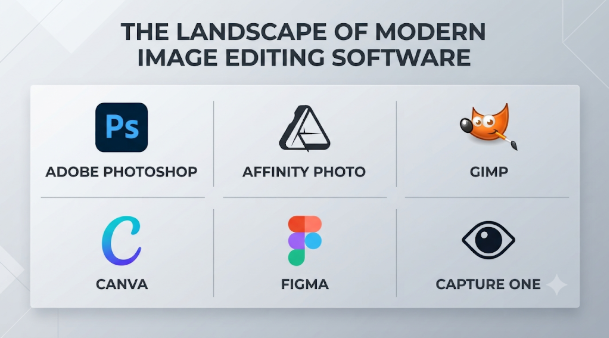
Image editing software plays an important role in photography, graphic design, digital marketing, and content creation. These applications help users improve photographs, remove backgrounds, create graphics, retouch images, and prepare professional visual content.
However, not every image editor serves the same purpose. Some applications focus on professional photo manipulation, while others specialize in RAW photography, digital painting, or quick online designs.
For example, a professional photographer may need advanced color correction and RAW processing. A graphic designer may need layers, masks, and detailed object editing. A social media creator may prefer ready-made templates and simple editing controls.
Choosing suitable software depends on your work, experience, budget, hardware, and required image quality.
This article explores 10 notable image editing software tools. It covers their features, benefits, limitations, pros, cons, and practical applications. It also compares their main capabilities to help readers find an appropriate editing solution.
What Is Image Editing Software?
Image editing software is an application used to modify, improve, and create digital images. It helps users change image colors, remove unwanted objects, adjust brightness, resize pictures, and combine multiple visual elements.
Some applications provide simple editing controls. Others offer advanced tools for professional photography, graphic design, and digital artwork.
For example, a photographer can use image editing software to correct exposure and improve colors. A designer can combine several photographs to create an advertising banner.
Most image editing applications support one or more of these activities:
- Photo Retouching: Removing unwanted marks, correcting skin tones, and improving image details.
- Color Correction: Adjusting brightness, contrast, exposure, saturation, and white balance.
- Background Editing: Removing, replacing, or modifying image backgrounds.
- Image Compositing: Combining multiple pictures and graphic elements into one composition.
- RAW Processing: Developing photographs captured in camera RAW formats.
- Graphic Design: Creating banners, posters, thumbnails, advertisements, and social media graphics.
- Digital Painting: Drawing, painting, and creating digital illustrations.
- Image Management: Organizing, searching, rating, and managing large photo collections.
The right application depends on which of these activities matters most to your workflow.
Top 10 Image Editing Software Tools
1. Adobe Photoshop
CATEGORY: PROFESSIONAL IMAGE EDITING
Adobe Photoshop is a professional image editing application developed by Adobe. It is widely used for photo retouching, graphic design, digital artwork, and image compositing.
Photoshop gives users detailed control over individual image elements. Its layer-based workflow allows designers to combine pictures, adjust selected areas, and create complex visual compositions.
It also includes AI-assisted editing tools. Generative Fill and object removal can help speed up certain creative tasks.
Key Features:
- Layer-Based Editing: Create separate layers for photographs, text, shapes, and adjustments. This makes complex designs easier to manage.
- Advanced Retouching: Use healing, cloning, and related tools to repair photographs and remove unwanted details.
- Masking Tools: Select specific image areas and apply changes without affecting the entire photograph.
- Generative Fill: Create or modify selected image areas using text instructions.
- Color Correction: Adjust exposure, contrast, curves, levels, and color balance.
- Smart Objects: Preserve source content when applying many transformations and effects.
- Graphic Design: Create posters, website graphics, advertisements, and promotional images.
- File Compatibility: Work with PSD, PSB, JPEG, PNG, TIFF, and other supported formats.
Benefits:
- Provides extensive control over image editing.
- Supports complex professional compositions.
- Offers a large collection of creative tools.
- Works with many professional design workflows.
- Supports AI-assisted editing.
- Provides extensive learning resources.
Pros:
- Powerful retouching and compositing tools.
- Flexible layer and mask controls.
- Suitable for professional creative projects.
- Broad compatibility with creative workflows.
- Strong integration with other Adobe applications.
Cons:
- Requires a paid subscription for normal commercial use.
- Advanced tools take time to learn.
- Large projects can demand substantial computer resources.
- Some AI features depend on online services and plan limits.
Use Cases:
- Professional photo retouching.
- Product image editing.
- Advertising and promotional graphics.
- Website banners and thumbnails.
- Background replacement.
- Digital artwork and image compositing.
Best For:
- Professional photographers.
- Graphic designers.
- Advertising agencies.
- Digital artists.
- Marketing teams.
- Creative professionals.
2. Affinity
CATEGORY: PROFESSIONAL CREATIVE AND IMAGE EDITING
Affinity is a professional creative application from Canva. It brings photo editing, vector design, and page layout into one desktop environment.
Its Pixel Studio provides tools for editing photographs and creating layered compositions. Users can also switch to vector and layout tools within the same application.
This combined approach makes Affinity useful for designers who work with photographs, illustrations, and publishing projects.
An important difference is its pricing model. The current core application is free and requires a Canva account. Some Canva AI features require a qualifying premium plan.
Key Features:
- Pixel Editing: Edit photographs, remove unwanted details, and create layered compositions.
- RAW Development: Process supported camera RAW files before completing other edits.
- Vector Design: Create illustrations, shapes, icons, and other scalable graphics.
- Page Layout: Arrange text, images, and graphic elements in publication designs.
- Non-Destructive Editing: Use editable adjustments and filters to preserve flexibility.
- Workspace Customization: Arrange tools and panels around different creative tasks.
- File Support: Import and export several professional design formats, including PSD and PDF.
- Canva Integration: Send completed projects into Canva for further design and collaboration.
Benefits:
- Combines several creative disciplines.
- Offers professional image editing without a required subscription.
- Supports flexible workspace arrangements.
- Helps reduce switching between creative applications.
- Provides useful tools for independent designers.
Pros:
- Free core application.
- Includes pixel, vector, and layout tools.
- Supports layered creative projects.
- Offers customizable workspaces.
- Supports professional design workflows.
Cons:
- Requires a Canva account.
- Available desktop platforms should be checked before installation.
- Some Canva AI tools require a premium plan.
- Existing Adobe projects may need compatibility checks.
- Its combined interface may take time to learn.
Use Cases:
- Professional photo editing.
- Brand identity design.
- Digital illustrations.
- Marketing materials.
- Brochures and publications.
- Product image compositions.
Best For:
- Freelance designers.
- Creative agencies.
- Small design studios.
- Students.
- Professional content creators.
- Users seeking an alternative to subscription-based creative software.
3. GIMP
CATEGORY: FREE AND OPEN-SOURCE IMAGE EDITING
GIMP, or GNU Image Manipulation Program, is a free and open-source image editing application.
It provides tools for photo retouching, image composition, digital artwork, and graphic creation.
GIMP is particularly useful for people who want extensive editing controls without purchasing a commercial license.
Its open-source nature also allows developers to study, modify, and extend the application.
GIMP supports plugins and scripting. This makes it useful for users who want to automate certain editing tasks.
Key Features:
- Layer Management: Organize photographs, text, and other visual elements into separate layers.
- Image Retouching: Repair photographs using painting, cloning, and healing tools.
- Selection Tools: Select specific objects and areas for targeted editing.
- Color Management: Adjust image colors and work with supported color profiles.
- Plugin Support: Add extra functions through compatible extensions.
- Scripting: Automate selected image editing operations.
- Graphic Creation: Create illustrations, icons, and visual assets.
- File Compatibility: Support common formats such as JPEG, PNG, TIFF, and PSD, with format-specific limitations.
Benefits:
- Available without a commercial license.
- Supports several desktop operating systems.
- Provides extensive manual editing controls.
- Offers customization through plugins.
- Supports creative and technical workflows.
Pros:
- Free and open-source software.
- Supports Windows, macOS, and Linux.
- Includes layers, masks, and selection tools.
- Supports scripting and automation.
- Has an active development community.
Cons:
- Its interface can feel unfamiliar to beginners.
- Some professional workflows require additional plugins.
- PSD compatibility is not perfect.
- It does not replace a dedicated RAW photo management system.
- Advanced tasks may require extra learning.
Use Cases:
- Photo retouching.
- Background removal.
- Image restoration.
- Poster creation.
- Digital graphics.
- Image format conversion.
- Repetitive image processing.
Best For:
- Students.
- Open-source enthusiasts.
- Freelance designers.
- Linux users.
- Independent photographers.
- Users seeking free image editing software.
4. Photopea
CATEGORY: ONLINE IMAGE EDITING
Photopea is a browser-based image editor that supports raster and vector graphics.
It provides a familiar editing environment for users who have worked with Photoshop or similar applications.
One of its main strengths is its ability to open and edit PSD files directly in a browser.
Users can work with layers, masks, selections, text, and other common design elements without installing a large desktop application.
Photopea also processes opened files locally on the device, according to its documentation. This means ordinary editing does not require uploading the image to its servers.
Key Features:
- PSD Editing: Open and edit supported Photoshop documents.
- Layer Controls: Organize images, text, and graphic elements separately.
- Masking: Control which parts of an image remain visible.
- Vector Editing: Work with supported vector graphics.
- Browser Access: Open the editor through a compatible web browser.
- Image Adjustments: Change colors, brightness, contrast, and other properties.
- File Export: Export images in common formats.
- Local Processing: Edit opened files on your device.
Benefits:
- Does not require a traditional desktop installation.
- Supports several popular design formats.
- Provides useful editing controls through a browser.
- Helps users access projects from different computers.
- Offers a practical option for occasional PSD editing.
Pros:
- Browser-based access.
- Supports layered PSD documents.
- Includes raster and vector editing.
- Works across supported desktop and mobile browsers.
- Offers free access.
Cons:
- Complex projects can use substantial browser memory.
- The interface may feel crowded to beginners.
- Free access includes advertising.
- Advanced workflows may be less comfortable than desktop editing.
- Users must manage their own file backups.
Use Cases:
- Editing PSD documents.
- Creating website graphics.
- Preparing social media images.
- Resizing photographs.
- Editing illustrations.
- Making quick design changes.
Best For:
- Students.
- Freelancers.
- Remote workers.
- Occasional image editors.
- Users without powerful desktop software.
- People who frequently work with PSD files.
5. Adobe Lightroom Classic
CATEGORY: PROFESSIONAL PHOTO MANAGEMENT AND RAW EDITING
Adobe Lightroom Classic is designed for photographers who need to organize and edit large photo collections.
Unlike Photoshop, Lightroom Classic focuses on photographic workflows rather than complex pixel-level compositions.
It provides tools for RAW development, color correction, photo organization, and batch editing.
Its catalog system helps photographers manage images across folders, collections, and external storage devices.
Another important feature is non-destructive editing. Users can adjust photographs without directly changing their original image files.
Key Features:
- RAW Processing: Develop camera RAW photographs with detailed exposure and color controls.
- Photo Catalog: Organize large collections using folders, collections, ratings, and keywords.
- Batch Editing: Apply similar adjustments to multiple photographs.
- Masking: Edit selected subjects, skies, backgrounds, and other image areas.
- Lens Correction: Correct supported lens-related distortions and image problems.
- Noise Reduction: Improve photographs captured in low-light conditions.
- Presets: Save and reuse editing settings.
- Photo Export: Prepare photographs for websites, printing, and other delivery needs.
Benefits:
- Helps manage large photography collections.
- Provides detailed RAW editing tools.
- Reduces repeated editing work.
- Supports consistent photo adjustments.
- Connects with Photoshop for more advanced manipulation.
Pros:
- Strong photo organization capabilities.
- Non-destructive editing workflow.
- Useful batch processing.
- Detailed color and exposure controls.
- Suitable for professional photography.
Cons:
- Requires a paid subscription.
- Catalog management needs proper organization.
- Does not offer Photoshop’s full compositing capabilities.
- Large collections require storage planning.
- New users may need time to understand its workflow.
Use Cases:
- Wedding photography.
- Portrait photography.
- Travel photography.
- Landscape photography.
- Event photography.
- Large photo collection management.
- Professional RAW development.
Best For:
- Professional photographers.
- Wedding studios.
- Photography businesses.
- Photo editors.
- Content production teams.
- Users managing large image libraries.
6. Capture One Pro
CATEGORY: PROFESSIONAL STUDIO PHOTOGRAPHY
Capture One Pro is professional photo editing software designed for photographers who need detailed image control and organized studio workflows.
It is particularly relevant to commercial, fashion, portrait, and product photography.
One of its important strengths is tethered shooting. This lets photographers connect supported cameras directly to a computer and view photographs during a shoot.
Studio teams can review images as they are captured. They can also apply adjustments and organize files during the session.
Capture One also provides detailed color editing and RAW processing tools.
Key Features:
- RAW Processing: Develop supported camera RAW files with detailed image controls.
- Color Editor: Adjust specific color ranges using hue, saturation, and lightness controls.
- Tethered Shooting: Capture photographs directly into a connected computer.
- Live View: Preview supported camera views during studio sessions.
- Layer-Based Adjustments: Apply local edits through layers and masks.
- Photo Organization: Manage images through supported catalogs and sessions.
- Workspace Customization: Arrange panels and shortcuts around studio requirements.
- Camera Support: Provides compatibility with a wide range of supported cameras.
Benefits:
- Supports professional studio workflows.
- Offers detailed color control.
- Helps photographers review images during shoots.
- Supports organized commercial photography projects.
- Provides customizable editing environments.
Pros:
- Strong tethered shooting workflow.
- Detailed color adjustment tools.
- Professional RAW processing.
- Customizable interface.
- Useful for commercial photography.
Cons:
- Commercial licensing creates ongoing or upfront costs.
- Some advanced controls require experience.
- Camera compatibility must be checked.
- May be excessive for casual photo editing.
- Teams need to understand its session and catalog workflows.
Use Cases:
- Fashion photography.
- Product photography.
- Portrait studios.
- Commercial photography.
- Tethered camera sessions.
- Professional color grading.
Best For:
- Commercial photographers.
- Fashion photographers.
- Photography studios.
- Product photography teams.
- Professional image editors.
7. DxO PhotoLab
CATEGORY: ADVANCED RAW PROCESSING
DxO PhotoLab is photography software focused on RAW processing, image quality, and optical corrections.
Its main distinction is its camera and lens correction workflow.
The software uses DxO optical modules to apply corrections based on supported camera and lens combinations.
It also includes DeepPRIME noise reduction technology. This uses machine learning to reduce image noise while recovering detail during RAW processing.
These capabilities make PhotoLab interesting for photographers who regularly work with difficult lighting conditions.
For example, a wildlife photographer may capture images at high ISO settings. DxO’s processing tools can help reduce visible noise while preserving important details.
Key Features:
- RAW Development: Process supported RAW files with detailed image adjustments.
- DeepPRIME: Reduce noise and recover detail using machine-learning-based processing.
- Optical Corrections: Correct supported lens distortion, vignetting, and chromatic aberration.
- Lens Sharpness Optimization: Apply corrections based on supported camera and lens combinations.
- Local Adjustments: Edit selected areas using masks and adjustment tools.
- Color Management: Control image color and prepare photographs for different outputs.
- Perspective Correction: Adjust selected geometric distortions.
- Photo Organization: Use its PhotoLibrary tools to browse and manage images.
Benefits:
- Focuses on image quality and RAW development.
- Provides specialized optical corrections.
- Helps improve photographs taken in low light.
- Offers detailed local adjustments.
- Supports professional photography workflows.
Pros:
- Advanced RAW processing.
- Specialized lens correction tools.
- Powerful noise reduction options.
- Detailed image adjustment controls.
- Useful for demanding photography conditions.
Cons:
- Requires a paid license.
- Some features depend on supported camera and lens combinations.
- Not designed for extensive graphic composition.
- Advanced processing can demand capable hardware.
- Photographers may still need another application for layered designs.
Use Cases:
- Wildlife photography.
- Night photography.
- Landscape photography.
- High-ISO image processing.
- Lens correction.
- Professional RAW development.
Best For:
- Professional photographers.
- Landscape photographers.
- Wildlife photographers.
- Camera enthusiasts.
- Users who prioritize RAW image quality.
8. darktable
CATEGORY: OPEN-SOURCE RAW PHOTOGRAPHY
darktable is an open-source photography workflow application and RAW developer.
It provides tools for organizing digital photographs and developing camera RAW files.
Its interface uses two main work areas. The lighttable helps users browse and organize photographs. The darkroom provides image processing and adjustment tools.
One of its most important features is non-destructive editing. The application stores editing instructions separately rather than changing the original image.
darktable also supports color management and GPU-accelerated processing through compatible OpenCL hardware.
Key Features:
- RAW Development: Process camera RAW files with detailed adjustments.
- Photo Organization: Manage photographs using tags, ratings, and metadata.
- Non-Destructive Editing: Preserve original images during the editing process.
- Color Management: Work with supported ICC color profiles.
- GPU Acceleration: Use supported graphics hardware for selected processing operations.
- Batch Processing: Apply editing settings across multiple photographs.
- Tethered Shooting: Connect supported cameras for studio workflows.
- Export Options: Prepare photographs in formats such as JPEG, PNG, and TIFF.
Benefits:
- Provides a complete open-source photography workflow.
- Supports large photo collections.
- Offers detailed RAW processing.
- Avoids mandatory commercial subscriptions.
- Preserves original image files.
Pros:
- Free and open-source software.
- Supports Windows, macOS, and Linux.
- Provides non-destructive editing.
- Includes advanced color management.
- Offers useful photo organization tools.
Cons:
- Its interface can challenge beginners.
- Advanced processing modules require practice.
- Not designed for complex layer-based graphic composition.
- Camera support should be checked before use.
- Its workflow differs from Lightroom Classic.
Use Cases:
- RAW photo development.
- Landscape photography.
- Travel photography.
- Large photo collections.
- Batch image processing.
- Color-managed photography.
Best For:
- Open-source photographers.
- Linux users.
- Photography students.
- Independent photographers.
- Users seeking a free RAW editor.
9. Canva
CATEGORY: ONLINE DESIGN AND PHOTO EDITING
Canva is an online design platform with built-in photo editing capabilities.
Unlike traditional pixel editors, Canva focuses on creating finished visual content through templates, layouts, and design elements.
Users can edit photographs and place them into posters, presentations, advertisements, and social media graphics.
Its drag-and-drop interface makes it accessible to people without advanced graphic design experience.
Canva also provides background removal and AI-assisted creative tools. Availability can depend on the selected plan and feature.
Key Features:
- Photo Adjustments: Change brightness, contrast, saturation, and other image properties.
- Background Removal: Remove image backgrounds using supported tools.
- Design Templates: Create social media graphics, posters, banners, and presentations.
- Text Editing: Add headlines, captions, and promotional messages.
- Image Effects: Apply available filters and visual adjustments.
- Brand Controls: Organize brand colors, fonts, and other design assets through supported plans.
- Team Collaboration: Share designs and work with other users.
- Cloud Access: Manage projects through supported web and mobile applications.
Benefits:
- Makes everyday graphic creation easier.
- Reduces the need for advanced editing knowledge.
- Combines photographs with ready-made layouts.
- Supports collaborative design workflows.
- Helps create content for different platforms.
Pros:
- Easy-to-understand interface.
- Large template collection.
- Supports team collaboration.
- Works across supported devices.
- Provides a useful free plan.
Cons:
- Advanced features may require payment.
- Offers less pixel-level control than Photoshop.
- Some assets and templates have usage restrictions.
- Complex photo manipulation may require another editor.
- Cloud-based workflows depend on service availability.
Use Cases:
- Social media posts.
- Marketing banners.
- YouTube thumbnails.
- Business presentations.
- Promotional graphics.
- Product advertisements.
- Simple photo editing.
Best For:
- Social media managers.
- Small businesses.
- Marketing teams.
- Students.
- Content creators.
- Users without advanced design experience.
10. Krita
CATEGORY: DIGITAL PAINTING AND ILLUSTRATION
Krita is a free and open-source digital painting application.
It is designed mainly for artists who create illustrations, concept art, comics, and digital paintings.
Unlike traditional photography editors, Krita focuses on drawing tools and artistic workflows.
Its brush engine gives artists control over brush shapes, textures, opacity, and other painting settings.
Krita also supports layers, masks, color management, and animation features.
This makes it useful for people who create images from scratch rather than only modifying existing photographs.
Key Features:
- Brush Engine: Create digital artwork using customizable brushes.
- Layer Management: Organize sketches, colors, effects, and other artwork elements.
- Drawing Assistants: Use guides to help create perspective and structured artwork.
- Color Management: Work with supported color profiles and color spaces.
- Animation Tools: Create frame-based animations.
- Comic Creation: Use tools designed for comic and illustration workflows.
- Resource Management: Organize brushes, patterns, and other creative resources.
- File Support: Work with formats such as KRA, PNG, TIFF, and PSD, with compatibility limits.
Benefits:
- Provides specialized digital painting tools.
- Offers a free creative environment.
- Supports detailed brush customization.
- Helps artists create complex illustrations.
- Provides tools for comics and animation.
Pros:
- Free and open-source.
- Supports Windows, macOS, and Linux.
- Extensive brush customization.
- Useful layer and mask controls.
- Strong digital illustration workflow.
Cons:
- Not designed primarily for RAW photography.
- Photographic management tools are limited.
- Beginners may need time to understand the brush engine.
- Some PSD features may not transfer perfectly.
- Complex artwork can require substantial memory.
Use Cases:
- Digital painting.
- Character illustration.
- Comic creation.
- Concept art.
- Background artwork.
- Texture creation.
- Frame-based animation.
Best For:
- Digital artists.
- Illustrators.
- Comic creators.
- Concept artists.
- Art students.
- Independent creative professionals.
Comparison of the Top 10 Image Editing Software Tools
The following table highlights the main differences between these applications.
| Software | Primary Use | Platform | Pricing Model | Best Use |
|---|---|---|---|---|
| Adobe Photoshop | Advanced image manipulation | Windows, macOS, web, mobile | Paid subscription | Professional editing |
| Affinity | Photo editing and graphic design | Windows, macOS | Free core application | Professional creative work |
| GIMP | Image manipulation | Windows, macOS, Linux | Free and open source | Free desktop editing |
| Photopea | Browser-based editing | Web browser | Free and optional Premium | PSD editing |
| Lightroom Classic | RAW editing and photo management | Windows, macOS | Paid subscription | Photography workflows |
| Capture One Pro | Studio photography | Windows, macOS | Subscription or perpetual license options | Commercial photography |
| DxO PhotoLab | RAW processing | Windows, macOS | Paid license | Noise reduction and lens correction |
| darktable | RAW processing and organization | Windows, macOS, Linux | Free and open source | Open-source photography |
| Canva | Graphic design and photo editing | Web, desktop, mobile | Free and paid plans | Marketing graphics |
| Krita | Digital painting | Windows, macOS, Linux | Free and open source | Illustration and artwork |
Pricing, available features, and platform support can vary by plan and product edition. Check the official websites before purchasing.
How to Choose the Right Image Editing Software
Choosing an image editor becomes easier when you understand your main requirements.
A photographer, designer, student, and marketing professional may need completely different tools.
Consider these important factors before making a decision.
1. Identify Your Main Editing Requirements
Start by listing the tasks you perform regularly.
For example:
- For professional retouching, consider Photoshop or Affinity.
- For RAW photography, consider Lightroom Classic, Capture One, or darktable.
- For free image manipulation, consider GIMP.
- For browser-based editing, consider Photopea.
- For marketing graphics, consider Canva.
- For digital painting, consider Krita.
Avoid purchasing software simply because it has many features.
Choose an application that supports your everyday work.
2. Check Your Budget and Licensing Needs
Image editing applications use different pricing models.
Some require monthly or annual subscriptions. Others offer perpetual licenses or free access.
Consider these differences:
Subscription Software: Applications such as Photoshop and Lightroom use subscription plans. Check renewal costs and included services.
Free and Open-Source Software: GIMP, darktable, and Krita provide free software under open-source licenses.
Free Commercial Applications: Affinity offers its current core application without a required subscription. Canva also provides a free plan with certain limitations.
Freemium Software: Some applications provide basic tools for free but charge for additional features.
Calculate the long-term cost before choosing a paid application.
3. Check Operating System Compatibility
Not every image editor works on every computer.
Before installing software, check whether it supports your operating system.
Consider these common requirements:
- Windows compatibility.
- macOS compatibility.
- Linux support.
- Browser-based access.
- Mobile and tablet support.
- Supported camera RAW formats.
For example, GIMP and darktable support Linux workflows. Photopea provides browser access. Paint.NET is primarily designed for Windows.
4. Understand the Hardware Requirements
Large photographs and complex editing projects can demand considerable computer resources.
Check the application’s official system requirements.
Pay attention to:
- RAM capacity.
- Processor performance.
- Graphics hardware.
- Available storage.
- Display resolution.
- Supported graphics acceleration.
A computer that handles basic photo editing may struggle with large layered documents.
5. Examine File Format Compatibility
File compatibility is important when sharing work with clients or other designers.
Check whether your selected application supports the formats you use.
Common image formats include:
- JPEG: Common for photographs and websites.
- PNG: Useful for images with transparency.
- TIFF: Often used in professional image workflows.
- PSD: Adobe Photoshop’s layered document format.
- RAW: Camera image data used in photography workflows.
- SVG: Scalable vector graphics.
- PDF: Common for sharing and printing designs.
Opening a file does not guarantee that every layer, effect, or editable element will remain intact.
Test important documents before changing software.
6. Consider Privacy and File Storage
Image editing can involve personal photographs, business assets, and confidential client projects.
Understand where your files are processed and stored.
Check:
- Whether editing happens locally or in the cloud.
- Whether files are uploaded to external servers.
- How cloud storage works.
- Who can access shared projects.
- How account permissions are managed.
- Whether AI features send image data to external services.
This is especially important for commercial photographers and organizations handling private images.
Common Applications of Image Editing Software
Image editing software supports many industries and creative activities.
Its usefulness extends beyond changing photographs.
Photography and Photo Retouching
Photographers use editing applications to improve lighting, adjust colors, remove distractions, and prepare images for delivery.
Lightroom Classic, Capture One, and DxO PhotoLab support specialized photography workflows.
Graphic Design and Advertising
Designers create advertisements, banners, posters, and promotional materials.
Photoshop and Affinity provide detailed creative controls for these projects.
E-Commerce and Product Photography
Online stores need clear product photographs.
Image editors help businesses remove unwanted backgrounds, improve product colors, and prepare images for online catalogs.
Photoshop, Affinity, and Canva can support different parts of this process.
Social Media Content Creation
Social media teams create thumbnails, promotional graphics, and branded posts.
Canva helps users combine photographs, text, and templates without requiring advanced editing skills.
Digital Art and Illustration
Artists create characters, illustrations, concept art, and digital paintings.
Krita provides specialized painting tools for these activities.
GIMP and Affinity also support certain illustration workflows.
Website and UI Design
Designers prepare visual assets for websites and applications.
Image editors help create icons, banners, photographs, and interface graphics.
Affinity, Photoshop, GIMP, and Photopea can support these tasks.
Frequently Asked Questions About Image Editing Software
1. Which image editing software is best for beginners?
Canva, Photopea, and Paint.NET are useful starting points.
Canva is suitable for template-based designs. Photopea offers familiar editing controls through a browser. Paint.NET provides straightforward desktop editing for Windows users.
2. Which image editing software is best for professional photographers?
Lightroom Classic and Capture One Pro are strong options for professional photography workflows.
Both support RAW editing and photo management. Capture One also offers specialized tethered shooting tools.
The right choice depends on camera compatibility and studio requirements.
3. What is the best free image editing software?
GIMP is a strong free and open-source option for general image manipulation.
Affinity offers a different option with its free core creative application. darktable and Krita serve specialized photography and illustration workflows.
4. Is Photoshop better than GIMP?
Photoshop offers a different commercial ecosystem, advanced creative tools, and extensive professional integrations.
GIMP provides free, open-source image manipulation with customizable features.
Photoshop may suit teams that depend on Adobe workflows. GIMP can suit users who want capable desktop editing without subscription costs.
5. Can I edit images without installing software?
Yes. Browser-based applications such as Photopea provide image editing without a traditional desktop installation.
Canva also provides online editing and design tools.
Your browser and computer resources can affect performance.
6. What is the difference between Photoshop and Lightroom?
Photoshop focuses on detailed image manipulation, retouching, and creative compositions.
Lightroom focuses on photo organization, RAW development, and consistent adjustments across image collections.
Many photographers use both applications for different stages of their work.
7. Which image editor is suitable for RAW photographs?
Lightroom Classic, Capture One, DxO PhotoLab, and darktable support RAW photography workflows.
Your camera model matters because RAW format support can vary between applications.
Always check camera compatibility before choosing an editor.
8. Is open-source image editing software suitable for commercial projects?
Yes. Applications such as GIMP, darktable, and Krita can support commercial creative work.
However, users should understand the applicable software licenses and any separate restrictions involving plugins, fonts, images, or other assets.
Final Thoughts
Image editing software serves many different creative and professional needs. The best choice depends on the type of images you create and how you work with them.
Photoshop and Affinity offer extensive creative editing controls. GIMP provides an open-source alternative. Photopea supports browser-based editing, while Canva makes everyday design easier.
For photography, Lightroom Classic, Capture One, DxO PhotoLab, and darktable offer specialized workflows. Krita is a strong choice for digital painting and illustration.
Before selecting an application, compare its features, cost, hardware needs, file compatibility, and learning requirements.
If possible, test your own photographs and design files before committing. This simple step can reveal important limitations and compatibility problems.
Ultimately, the right image editing software should match your creative goals, support your preferred workflow, and help you produce high-quality visual content without unnecessary cost or complexity.



Leave a Reply
You must be logged in to post a comment.