Introduction
RAW photos capture more detail than normal image files. They give photographers more control over color, light, and sharpness.
But RAW files need special software. These tools help you edit photos without losing key details.
Some tools are easy for beginners. Others offer advanced controls for professional work.
In this guide, we will explore the top 10 RAW photo processing tools. You will learn their features, benefits, pros, cons, and best uses.
What Are RAW Photo Processing Tools?
RAW photo processing tools help edit photos taken in RAW format. A RAW file stores image data from the camera sensor.
It keeps more detail than a JPEG file. This gives you more control during editing.
You can use these tools to:
- Fix bright and dark areas.
- Change colors and white balance.
- Improve sharpness and detail.
- Reduce image noise.
- Adjust contrast and exposure.
- Save photos in JPEG, TIFF, or other formats.
Now, let us look at the top 10 tools.
Top 10 RAW Photo Processing Tools
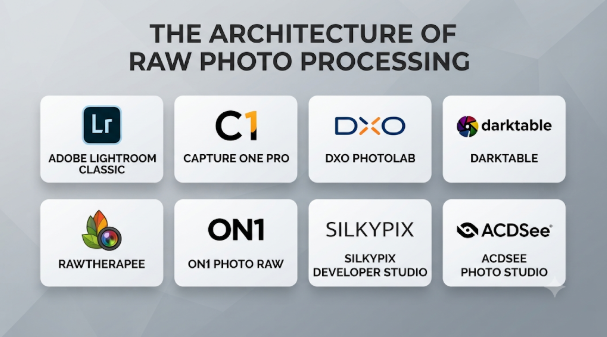
1. Adobe Lightroom Classic
Adobe Lightroom Classic is a popular photo editing tool. It helps photographers edit and manage large photo collections.
It offers many tools for RAW image processing. You can also sort photos into folders and collections.
Key Features
- RAW photo editing.
- Color and light correction.
- Noise reduction and sharpening.
- Photo catalog management.
- Batch editing.
- Presets for quick edits.
Benefits
Lightroom Classic makes photo editing simple and organized. It also helps manage thousands of images.
Pros
- Easy photo organization.
- Many editing controls.
- Useful batch editing tools.
- Good workflow for photographers.
Cons
- It requires a paid plan.
- New users may need time to learn it.
- It uses many system resources with large catalogs.
Best Uses
- Wedding photography.
- Portrait editing.
- Travel photography.
- Large photo collections.
Best For: Photographers who need editing and photo management in one place.
2. Capture One Pro
Capture One Pro is a powerful RAW photo editing tool. It gives users strong control over color and image detail.
Many studio photographers use it for professional photo work. It also supports tethered shooting with supported cameras.
Key Features
- RAW image processing.
- Advanced color editing.
- Layer-based adjustments.
- Tethered camera shooting.
- Custom workspaces.
- Detail and exposure controls.
Benefits
Capture One Pro offers detailed color control. It also helps photographers work faster during studio shoots.
Pros
- Strong color tools.
- Good tethered shooting support.
- Custom editing workspace.
- Advanced image controls.
Cons
- It can feel complex to beginners.
- It may cost more than simple editing tools.
- Some features need practice.
Best Uses
- Studio photography.
- Fashion photography.
- Product photography.
- Commercial photo editing.
Best For: Professional photographers who need detailed color control.
3. DxO PhotoLab
DxO PhotoLab focuses on image quality. It offers tools for noise reduction, lens correction, and RAW processing.
It can improve photos taken in low light. It also helps fix common lens problems.
Key Features
- RAW photo processing.
- AI-based noise reduction.
- Lens correction tools.
- Optical adjustments.
- Local editing controls.
- Color and exposure correction.
Benefits
DxO PhotoLab helps improve image detail. Its noise reduction tools can also help with high-ISO photos.
Pros
- Strong noise reduction.
- Good lens correction.
- Detailed RAW editing.
- Useful optical tools.
Cons
- Some advanced tools need practice.
- Full features may require a paid version.
- It may need a powerful computer.
Best Uses
- Wildlife photography.
- Night photography.
- Landscape photography.
- High-ISO image editing.
Best For: Photographers who want clean and detailed images.
4. ON1 Photo RAW
ON1 Photo RAW combines RAW editing and photo effects. It also offers tools for layers and photo organization.
Users can edit photos without switching between many programs. It supports a wide range of editing tasks.
Key Features
- RAW image editing.
- AI-powered editing tools.
- Layers and masking.
- Noise reduction.
- Photo effects and presets.
- Photo browsing and organization.
Benefits
ON1 Photo RAW brings many editing tools together. It can help users complete different tasks in one workflow.
Pros
- Many tools in one program.
- Useful layers and masks.
- Built-in photo effects.
- Flexible editing options.
Cons
- The interface may feel crowded.
- Some tools need practice.
- Performance can depend on hardware.
Best Uses
- Creative photo editing.
- Portrait editing.
- Landscape photography.
- Photo effects and retouching.
Best For: Users who want RAW editing with creative tools.
5. Luminar Neo
Luminar Neo focuses on simple and creative photo editing. It uses AI tools to help users improve images.
You can change skies, improve portraits, and adjust lighting. It also offers normal RAW editing controls.
Key Features
- RAW photo editing.
- AI-based editing tools.
- Portrait improvements.
- Sky replacement.
- Color and light adjustments.
- Creative photo effects.
Benefits
Luminar Neo helps users make quick edits. Its tools can save time on common photo changes.
Pros
- Easy-to-use interface.
- Helpful AI tools.
- Creative editing options.
- Useful portrait features.
Cons
- Some features may need extra payment.
- AI edits may need manual changes.
- Large projects can affect performance.
Best Uses
- Portrait photography.
- Travel photos.
- Social media images.
- Creative photo projects.
Best For: Beginners and creators who want quick, creative edits.
6. darktable
darktable is a free and open-source RAW photo editor. It gives users many tools for detailed image editing.
It also offers photo organization features. Users can edit RAW files without paying for a license.
Key Features
- RAW image processing.
- Non-destructive editing.
- Color correction.
- Exposure controls.
- Noise reduction.
- Photo library management.
Benefits
darktable gives users strong editing tools at no cost. It also supports a flexible editing workflow.
Pros
- Free to use.
- Open-source software.
- Non-destructive editing.
- Many advanced controls.
Cons
- Beginners may find it difficult.
- The interface takes time to learn.
- Some workflows need practice.
Best Uses
- Landscape photography.
- RAW photo editing.
- Learning advanced editing.
- Budget-friendly photo workflows.
Best For: Users who want a free tool with advanced controls.
7. RawTherapee
RawTherapee is another free and open-source RAW photo editor. It offers detailed controls for image quality.
It supports color correction, sharpening, and noise reduction. It also gives users control over many processing steps.
Key Features
- RAW image processing.
- Exposure and color controls.
- Noise reduction.
- Sharpening tools.
- Lens correction.
- Batch processing.
Benefits
RawTherapee gives users detailed control over RAW files. It is useful for people who enjoy manual editing.
Pros
- Free and open-source.
- Many image controls.
- Good detail adjustments.
- Supports batch processing.
Cons
- The interface may confuse beginners.
- Editing can take time.
- It offers fewer simple workflow features.
Best Uses
- Landscape photography.
- Detailed RAW editing.
- Manual image correction.
- Budget-friendly editing.
Best For: Photographers who want detailed manual control without a paid license.
8. Adobe Camera Raw
Adobe Camera Raw helps users process RAW files. It works with supported Adobe photo editing programs.
It offers controls for exposure, color, sharpness, and detail. Users can also make local changes to selected areas.
Key Features
- RAW file processing.
- White balance correction.
- Exposure adjustments.
- Noise reduction.
- Lens corrections.
- Masking and local edits.
Benefits
Adobe Camera Raw gives users a direct way to process RAW files. It also works well with common Adobe editing workflows.
Pros
- Strong RAW editing tools.
- Useful masking options.
- Good Adobe workflow support.
- Regular software improvements.
Cons
- It may require a paid Adobe plan.
- New users may need practice.
- It does not offer full photo catalog management.
Best Uses
- Professional photo editing.
- Portrait retouching.
- Landscape editing.
- Detailed image correction.
Best For: Users who already work with Adobe photo editing software.
9. Canon Digital Photo Professional
Canon Digital Photo Professional is a photo editing tool for Canon users. It helps process RAW files from supported Canon cameras.
It offers color, brightness, and sharpness controls. It also supports lens correction for compatible equipment.
Key Features
- Canon RAW file processing.
- White balance adjustments.
- Picture Style settings.
- Lens correction.
- Brightness and color controls.
- Batch processing.
Benefits
The software works with supported Canon camera files. It helps users adjust photos while keeping control over image quality.
Pros
- Useful for Canon camera owners.
- Supports Canon RAW formats.
- Offers basic and advanced controls.
- Helps with batch processing.
Cons
- Best suited to Canon users.
- Some tools may feel limited.
- The workflow may take time to learn.
Best Uses
- Canon camera photo editing.
- Portrait photography.
- Landscape photography.
- Basic RAW processing.
Best For: Canon users who want a camera-focused RAW editor.
10. Nikon NX Studio
Nikon NX Studio is a photo editing and management tool. It helps users work with supported Nikon images and RAW files.
It offers color, exposure, and picture control settings. It also helps users review and organize photos.
Key Features
- Nikon RAW image processing.
- Exposure and color adjustments.
- Picture Control settings.
- Photo browsing.
- Basic editing tools.
- Export options.
Benefits
NX Studio offers a simple workflow for Nikon users. It also supports camera-based picture settings.
Pros
- Designed for Nikon workflows.
- Useful RAW processing tools.
- Photo browsing features.
- No separate editing subscription is needed for the software.
Cons
- Best suited to Nikon users.
- It has fewer creative tools than some rivals.
- The interface may take time to learn.
Best Uses
- Nikon RAW editing.
- Nature photography.
- Portrait photography.
- Photo review and organization.
Best For: Nikon users who want a simple camera-focused editing tool.
Comparison of the Top 10 RAW Photo Processing Tools
| Tool | Best For | Main Strength | Cost Type |
|---|---|---|---|
| Adobe Lightroom Classic | Photo libraries | Editing and organization | Paid |
| Capture One Pro | Studio work | Color control | Paid |
| DxO PhotoLab | Image quality | Noise reduction | Paid |
| ON1 Photo RAW | Creative editing | All-in-one tools | Paid |
| Luminar Neo | Quick creative edits | AI editing | Paid |
| darktable | Free RAW editing | Advanced controls | Free |
| RawTherapee | Manual editing | Detailed adjustments | Free |
| Adobe Camera Raw | Adobe workflows | RAW processing | Paid plan access |
| Canon DPP | Canon users | Camera support | Free |
| Nikon NX Studio | Nikon users | Camera support | Free |
Features and payment terms can change. Check each tool’s current edition before choosing.
How to Choose the Best RAW Photo Processing Tool
The best tool depends on your camera and editing needs. Think about these points before making a choice.
1. Check Camera Support
First, check if the software supports your camera. Some tools work better with certain camera brands.
2. Look at Editing Features
Choose a tool with the features you need. These may include color correction, noise reduction, and masking.
3. Check Ease of Use
Beginners should choose simple software. Advanced users may prefer tools with more controls.
4. Review Computer Requirements
RAW files can be large. Make sure your computer can run the software smoothly.
5. Compare Costs
Some tools are free. Others need a one-time payment or subscription.
6. Check Export Options
Make sure the tool can save images in formats you need. Common formats include JPEG and TIFF.
7. Try Before You Buy
Use a free version or trial when available. This helps you test the editing process before paying.
Best RAW Photo Processing Tools for Different Users
| User Type | Suggested Tool | Why It Fits |
|---|---|---|
| Beginners | Luminar Neo | Simple creative tools |
| Professional photographers | Capture One Pro | Detailed color control |
| Wedding photographers | Lightroom Classic | Photo organization |
| Landscape photographers | DxO PhotoLab | Image detail tools |
| Budget users | darktable | Free editing features |
| Manual editors | RawTherapee | Detailed adjustments |
| Canon users | Canon DPP | Canon camera support |
| Nikon users | Nikon NX Studio | Nikon camera support |
| Adobe users | Adobe Camera Raw | Adobe workflow |
| Creative editors | ON1 Photo RAW | Layers and effects |
Common Mistakes to Avoid During RAW Photo Editing
RAW editing gives you more control. But some mistakes can make photos look unnatural.
Avoid these common problems:
- Too much sharpening: It can create rough edges.
- Strong noise reduction: It can remove fine details.
- Wrong white balance: It can make colors look strange.
- High saturation: It can make colors look fake.
- Heavy contrast: It can hide details in shadows.
- Poor export settings: They can reduce image quality.
- Editing the original file: Keep a backup before major changes.
Make small changes and review the result. This helps you keep photos natural.
Frequently Asked Questions
1. What is RAW photo processing software?
RAW photo processing software helps edit files from a camera sensor. It lets users adjust color, light, sharpness, and detail.
2. Which RAW photo editor is best for beginners?
Luminar Neo and Lightroom Classic can suit beginners. The best choice depends on your editing needs and budget.
3. Are there free RAW photo processing tools?
Yes. darktable and RawTherapee are free and open-source tools. Canon DPP and Nikon NX Studio also serve their camera users.
4. Is RAW better than JPEG?
RAW files keep more image data. This gives you more editing control than JPEG files.
But RAW files are larger. They also need special software for processing.
5. Can I edit RAW photos on a normal computer?
Yes, if your computer meets the software requirements. More memory and a good processor can help with large files.
6. Can RAW photo editors reduce noise?
Yes. Many RAW editors include noise reduction tools. These tools help improve photos taken in low light.
7. Do RAW editors change the original photo?
Many RAW editors use non-destructive editing. This means they save your changes without changing the original RAW file.
8. Which tool is best for professional photography?
Capture One Pro and Lightroom Classic are strong options. Professional needs vary by camera, workflow, and editing style.
9. Can I convert RAW files into JPEG?
Yes. Most RAW editors can export images as JPEG files. You can also use TIFF or other supported formats.
10. Should I choose free or paid RAW software?
Choose free software if you need basic or advanced editing without extra cost. Paid software may offer a workflow or features that better match your work.
Final Thoughts
RAW photo processing tools help photographers improve image quality. They also give users more control over color and light.
Lightroom Classic suits photo libraries and daily editing. Capture One Pro offers strong color tools for studio work.
DxO PhotoLab helps improve image detail. darktable and RawTherapee offer free editing options.
Canon and Nikon users can also try their camera brands’ software. Compare the tools and choose one that fits your needs.
The right software can make photo editing easier. Start with your camera, budget, and editing goals.




Leave a Reply
You must be logged in to post a comment.