A team can store thousands of files in the cloud and still struggle to find the right document. Files may sit in different folders. Team members may share old copies. Important work may stay locked on one person’s computer.
Cloud file storage tools help solve these problems. They let users store, access, sync, and share files online. Many also support team collaboration, file versions, and access controls.
However, these tools do more than provide online space. Some focus on simple file storage. Others offer advanced business controls, secure sharing, or self-hosted storage.
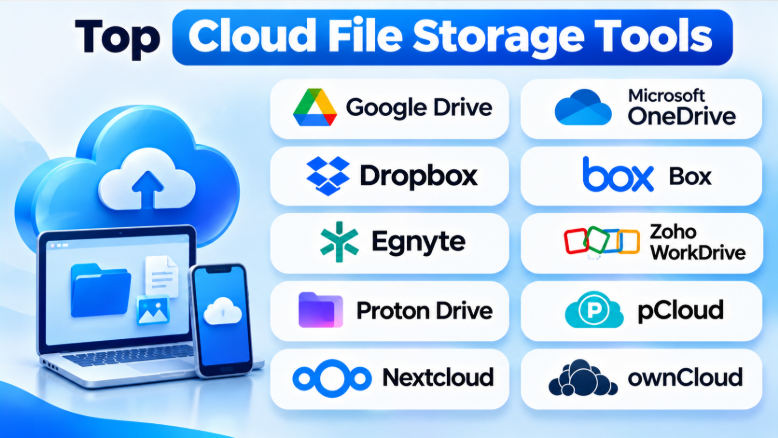
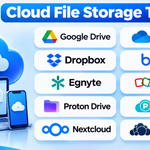
This guide explores ten useful cloud file storage tools. It compares their features, strengths, limits, and best uses. It also explains what to check before choosing a service.
What Is Cloud File Storage?
Cloud file storage lets users save files on remote servers instead of relying only on local devices. Users can access those files through a web browser, desktop app, or mobile app.
The service stores files in an online account or shared workspace. Users can then download, edit, sync, or share them.
Common uses include:
- Storing documents, photos, and videos
- Sharing files with clients and team members
- Working on documents across devices
- Keeping project files in one shared place
- Accessing files while away from the office
- Managing file versions and access rights
- Moving files between computers and cloud accounts
Many services also support real-time teamwork. For example, several people can edit the same document without sending separate copies.
Cloud File Storage Is Not the Same as Cloud Backup
These two services solve different problems.
Cloud file storage helps people access and share files. Cloud backup creates copies that users can restore after data loss.
A synced folder may copy an accidental deletion across devices. This means file sync alone cannot replace a proper backup plan.
Businesses should understand this difference before moving important data online.
Top 10 Cloud File Storage Tools
The tools below serve different users and work styles. Some fit personal storage and everyday teamwork. Others provide stronger business controls or let organizations host their own storage systems.
1. Google Drive
Google Drive is a popular cloud file storage service for individuals, schools, and businesses. It connects closely with Google Docs, Sheets, Slides, Gmail, and other Google services.
Users can upload files, organize folders, and share content with others. Teams can also use shared drives to keep business files under team ownership.
This makes Google Drive useful for groups that already work with Google Workspace.
Key features
- Online file storage and folder management
- File sharing with viewer, commenter, and editor permissions
- Real-time collaboration through Google Docs, Sheets, and Slides
- Shared drives for team-owned files
- Desktop and mobile access
- File search and activity information
- Integration with Google Workspace services
Pros
- Works closely with Google productivity apps.
- Makes document collaboration simple.
- Supports access controls for shared files.
- Offers access across different devices.
- Provides shared drives for supported business plans.
Cons
- Advanced business controls depend on the Workspace plan.
- Shared files can become difficult to manage without clear rules.
- Organizations may need extra tools for complex content workflows.
- Storage limits depend on the account or plan.
Best use: Individuals, students, schools, and teams that use Google Workspace.
2. Microsoft OneDrive
Microsoft OneDrive provides cloud file storage and synchronization across devices. It works closely with Windows and Microsoft 365 applications.
Users can store files online and open them from computers, phones, and browsers. They can also share documents and work with others through Microsoft Office apps.
OneDrive works especially well for personal work files. For shared business content, Microsoft recommends using SharePoint team sites. This distinction helps teams manage shared ownership more clearly.
Key features
- Cloud file storage and synchronization
- Files On-Demand to save local disk space
- File sharing and permission controls
- Version history and file recovery options
- Integration with Word, Excel, and PowerPoint
- Desktop and mobile applications
- Connection with SharePoint and Microsoft Teams
Pros
- Fits naturally into Windows workflows.
- Works closely with Microsoft 365 apps.
- Supports access across devices.
- Offers useful file recovery features.
- SharePoint supports shared team workspaces.
Cons
- Advanced features depend on the Microsoft 365 plan.
- Sync issues can occur with large or complex folder structures.
- Business file ownership needs proper planning.
- Teams may need SharePoint for wider collaboration.
Best use: Windows users, Microsoft 365 customers, and businesses that use Office applications.
3. Dropbox
Dropbox focuses on file storage, synchronization, and sharing. It helps users keep files available across computers, phones, and web browsers.
Its desktop experience is useful for people who work with files in many applications. Users can keep files in Dropbox folders and sync changes across devices.
Dropbox also offers business tools. These include team folders, administrator controls, file recovery, and secure sharing features on supported plans.
Key features
- Cloud file storage and synchronization
- File sharing through links
- Desktop and mobile applications
- File version history and recovery
- Team folders and administration tools
- Large file transfer options
- Integration with selected business applications
Pros
- Provides a familiar file synchronization workflow.
- Works across major desktop and mobile platforms.
- Supports sharing with external users.
- Offers business controls for team accounts.
- Fits workflows that involve many file types.
Cons
- Free storage is limited.
- Larger teams may need paid plans.
- Advanced controls require suitable business plans.
- Teams should review storage and recovery limits before choosing.
Best use: Freelancers, creative teams, remote workers, and businesses that share files across different devices.
4. Box
Box is a cloud content management platform for businesses. It goes beyond basic file storage by adding document workflows, content governance, and secure collaboration.
Teams can store files, share them with external partners, and manage access through administrative controls. Box also offers tools for electronic signatures and workflow automation.
Its metadata features help organizations classify and find business content. This can be useful when teams manage contracts, project documents, and other structured business records.
Key features
- Cloud file storage and sharing
- Team collaboration and document editing
- Metadata-based file organization
- File access and permission controls
- Workflow automation through Box tools
- Electronic signatures
- Content retention and governance features
- Integration with business applications
Pros
- Offers more than simple online file storage.
- Supports business content workflows.
- Provides detailed access and governance controls.
- Helps teams organize large document collections.
- Supports collaboration with external partners.
Cons
- Some advanced features require higher plans.
- The platform may be more than individuals need.
- Administrators must plan permissions and content policies.
- Costs can grow with users and additional services.
Best use: Businesses that need secure document sharing, content management, and workflow controls.
5. Egnyte
Egnyte focuses on secure content collaboration for businesses. It helps teams manage files across cloud and existing storage environments.
Its tools support shared workspaces, external collaboration, and file access controls. Egnyte also focuses on large files and industry workflows.
This makes it relevant to teams working with design files, engineering documents, and other complex project content. Its desktop experience can provide access to cloud files through familiar file management workflows.
Key features
- Cloud file storage and team collaboration
- Secure external file sharing
- File locking for supported workflows
- Desktop access to cloud content
- Integration with Microsoft 365 and Google Workspace
- File governance and access controls
- Support for large project files
- Workflow automation options
Pros
- Supports complex business file workflows.
- Helps teams share content with external partners.
- Offers tools for managing large files.
- Connects with common productivity applications.
- Provides controls for business content.
Cons
- May be costly for small teams with simple needs.
- Advanced governance features depend on the plan.
- Setup requires careful permission planning.
- Buyers should test their specific file workflows.
Best use: Construction, engineering, architecture, and other businesses that manage large project files.
6. Zoho WorkDrive
Zoho WorkDrive is a cloud file storage and collaboration service for teams. It gives businesses a shared space to store, organize, and work on documents.
Its Team Folders help keep business content in shared locations. Administrators can control access and manage users without relying on individual file owners.
WorkDrive also connects with Zoho Writer, Sheet, and Show. This makes it useful for businesses already using Zoho applications.
Key features
- Team Folders and personal folders
- File sharing with access permissions
- Desktop and mobile synchronization
- Integration with Zoho Office apps
- File version history
- File previews and content search
- User and device management
- Activity reports and administrative controls
Pros
- Connects with the wider Zoho ecosystem.
- Provides shared storage for teams.
- Offers useful administrative controls.
- Supports collaboration and file previews.
- Has plans for different team sizes.
Cons
- Its full value depends on the team’s workflow.
- Some advanced controls require higher plans.
- Teams outside the Zoho ecosystem may need extra integrations.
- Storage and upload limits vary by plan.
Best use: Small and midsize businesses that use Zoho products for daily work.
7. Proton Drive
Proton Drive focuses on private cloud file storage. It uses end-to-end encryption to protect file content.
End-to-end encryption means files are encrypted before they reach the service. The provider cannot read the protected file content in the normal service workflow.
Users can store files and folders, access them across supported devices, and share them through secure links. This makes Proton Drive worth considering when privacy matters more than advanced business workflows.
Key features
- End-to-end encrypted file storage
- Secure file and folder sharing
- Web and mobile access
- Desktop applications
- File organization and synchronization
- Password-protected sharing options
- Integration with the wider Proton account ecosystem
Pros
- Places strong emphasis on file privacy.
- Uses end-to-end encryption.
- Supports secure sharing.
- Offers access across supported devices.
- Fits users who value privacy-focused services.
Cons
- Collaboration features differ from larger office platforms.
- Some workflows may need separate productivity apps.
- Storage limits depend on the chosen plan.
- Encrypted file sharing may not suit every business process.
Best use: Privacy-focused individuals, professionals, and small teams.
8. pCloud
pCloud provides online file storage, synchronization, and sharing. It offers a virtual drive feature that lets users access cloud files without storing every file locally.
This can help people who have limited disk space. Users can also select folders for synchronization when they need local copies.
pCloud is useful for personal storage and media collections. Users should review its encryption options separately because its optional client-side encryption service is not the same as standard cloud storage.
Key features
- Cloud file storage
- pCloud Drive virtual drive
- Desktop and mobile applications
- File synchronization
- File sharing through links
- Media previews and playback
- Optional client-side encryption through pCloud Encryption
Pros
- Virtual drive access can save local disk space.
- Supports file synchronization across devices.
- Provides simple file sharing.
- Offers tools for media storage and access.
- Has options for personal storage needs.
Cons
- Optional encryption may require a separate purchase.
- Some business collaboration features are limited compared with enterprise platforms.
- Users must understand the difference between Drive and Sync.
- Long-term plans need careful review before purchase.
Best use: Individuals, freelancers, and users who store large personal files or media collections.
9. Nextcloud Files
Nextcloud Files is an open-source file sync and sharing platform. Organizations can install it on their own infrastructure or use a supported hosting provider.
This gives teams more control over where their files are stored. It also lets administrators connect different storage systems and configure access policies.
Nextcloud offers desktop and mobile clients. It can also connect with office tools and other collaboration services.
However, self-hosting brings extra work. Organizations must manage servers, updates, security, storage, and backups.
Key features
- Self-hosted cloud file storage
- File synchronization and sharing
- Desktop and mobile applications
- User and group permissions
- File versioning and recovery
- Office collaboration integrations
- External storage connections
- File access controls and security policies
Pros
- Offers control over hosting and storage.
- Provides an open-source platform.
- Supports different storage backends.
- Can connect with wider collaboration tools.
- Helps organizations manage their own file environment.
Cons
- Self-hosting requires technical skills.
- Administrators must maintain the server.
- Performance depends on infrastructure and configuration.
- Some advanced features require additional setup or services.
Best use: Organizations that want self-hosted file storage and control over their data environment.
10. ownCloud
ownCloud is an open-source file synchronization and sharing platform. It helps organizations provide cloud file access through infrastructure they manage or choose.
Its products include ownCloud Infinite Scale and ownCloud Classic. Infinite Scale uses a cloud-native, microservices-based design. It supports deployment options such as containers and Kubernetes.
This makes ownCloud relevant to organizations with technical teams and specific control needs. It is not simply a ready-made personal cloud drive. Administrators must plan deployment, storage, security, and ongoing support.
Key features
- File synchronization and sharing
- Self-hosted deployment options
- Desktop and mobile applications
- Web-based file access
- User and group management
- File sharing and collaboration
- Integration through supported interfaces
- Enterprise deployment and support options
Pros
- Gives organizations control over their file platform.
- Offers open-source components.
- Supports self-managed infrastructure.
- Provides desktop and mobile access.
- Has options for enterprise deployments.
Cons
- Requires infrastructure and administration skills.
- Maintenance remains the organization’s responsibility in self-hosted setups.
- Available features differ between product editions.
- Teams must plan storage, updates, and recovery.
Best use: Businesses and technical teams that need self-hosted file synchronization and sharing.
Cloud File Storage Tools Comparison
The following table highlights the main purpose of each platform. It does not rank products by performance or security.
| Tool | Main Focus | Deployment | Best Use |
|---|---|---|---|
| Google Drive | File storage and document collaboration | Cloud | Google Workspace users |
| Microsoft OneDrive | File storage and Microsoft 365 integration | Cloud | Windows and Office users |
| Dropbox | File synchronization and sharing | Cloud | Remote and creative teams |
| Box | Business content management | Cloud | Enterprise document workflows |
| Egnyte | Secure business content collaboration | Cloud and hybrid options | Large project files |
| Zoho WorkDrive | Team file storage and collaboration | Cloud | Zoho users and small businesses |
| Proton Drive | Privacy-focused file storage | Cloud | Privacy-conscious users |
| pCloud | Personal storage and file synchronization | Cloud | Personal files and media |
| Nextcloud Files | Open-source file sync and sharing | Self-hosted or hosted | Organizations wanting data control |
| ownCloud | File synchronization and collaboration | Self-hosted or hosted | Technical and enterprise teams |
How to Choose the Right Cloud File Storage Tool
The right service depends on how you use files. Start with your daily workflow and then compare the tools.
For Personal File Storage
Google Drive, OneDrive, Dropbox, and pCloud are useful starting points.
Consider how much space you need. Also check mobile access, desktop sync, sharing limits, and file recovery.
If privacy is your main concern, Proton Drive is worth evaluating.
For Team Collaboration
Google Drive and OneDrive work well with their related office applications. Dropbox offers a familiar file synchronization workflow.
Zoho WorkDrive may suit teams that already use Zoho. Box can be useful when document workflows and governance matter.
For Large Business Files
Egnyte deserves attention from teams that work with large project files. Its file collaboration and locking features can help with workflows where file conflicts matter.
Test the exact applications and file sizes your team uses. A service that works well for office documents may not fit every engineering or media workflow.
For Stronger Business Controls
Box and Egnyte offer business-focused content management features. Microsoft 365 and Google Workspace also provide administrative controls through their business plans.
Check access policies, audit information, external sharing rules, retention, and data location options.
For Self-Hosted Storage
Nextcloud Files and ownCloud are worth comparing when your organization wants more control over hosting.
Self-hosting does not remove responsibility. Your team must maintain servers, apply security updates, monitor capacity, and protect the stored files.
Important Features to Check Before Buying
A storage service may look simple at first. But several details can affect daily work.
1. File Synchronization
Synchronization keeps files updated across devices. Check how the service handles conflicts and offline changes.
Also review selective sync and online-only file options. These features can save local disk space.
2. Sharing Permissions
Check whether you can share files with specific people. Look for controls such as view-only access, password protection, link expiry, and download restrictions.
Business users should also review external sharing policies.
3. Version History and Recovery
Version history lets users restore earlier file copies. Deleted-file recovery can also help after accidental removal.
Check how long the service keeps old versions. Limits may depend on the plan.
4. Encryption and Privacy
Check encryption during transfer and while files are stored. If end-to-end encryption matters, confirm which files and features it covers.
Also review account recovery. Some encryption models make it harder to recover files if you lose access to your account or keys.
5. Storage and File Size Limits
Compare total storage with the maximum size of each upload. A service may offer enough total space but restrict individual file uploads.
This matters when teams store videos, design files, or large project folders.
6. Data Location and Compliance
Businesses may need files stored in a particular country or region. Check the provider’s data location options and contract terms.
Do not assume that a service meets every legal or industry requirement. Verify the exact plan and configuration.
Common Cloud File Storage Mistakes to Avoid
Using Sync as Your Only Backup
Sync keeps files updated across devices. It can also sync unwanted changes or deletions.
Keep a separate backup copy of important files. Test file recovery before you need it.
Sharing Files Without Reviewing Permissions
A public link may expose a file beyond its intended audience. Use specific-user sharing when possible.
Review old links and remove access when a project ends.
Ignoring Storage Growth
Teams often upload files without tracking storage use. This can lead to unexpected upgrades or extra costs.
Set storage rules and review usage from time to time.
Choosing a Service Without Testing Sync
A desktop sync app may behave differently with large folders or many small files.
Test common tasks before moving all your data. Include offline editing and file conflict handling.
Forgetting Account Ownership
A business file should not depend on one employee’s personal account.
Use team-owned folders or shared workspaces. Set clear rules for access when employees leave.
Frequently Asked Questions
What is the main purpose of cloud file storage?
Cloud file storage lets users save files online. They can access, share, and sync those files across supported devices.
Which cloud file storage tool is best for businesses?
The right choice depends on the workflow. Google Drive and OneDrive suit teams using their office ecosystems. Box and Egnyte offer business-focused content controls. Zoho WorkDrive fits teams using Zoho applications.
Is cloud file storage safe?
It can be safe when users and providers apply suitable security controls. Look for encryption, strong account protection, access permissions, and recovery options.
Users must also protect their passwords and review sharing links.
What is the difference between cloud storage and file synchronization?
Cloud storage keeps files on remote servers. File synchronization keeps selected files updated across devices and locations.
Many services offer both features, but they are not the same thing.
Can I use cloud file storage without an internet connection?
Some desktop apps let users mark files for offline access. Users can then work on local copies without a connection.
Changes usually sync after the device reconnects. Online-only files may not open until internet access returns.
Are self-hosted cloud storage tools free?
Nextcloud and ownCloud offer open-source options. However, self-hosting still has costs.
You may need servers, storage, network access, maintenance, and technical support. Free software does not mean a free service.
Choose Storage That Fits Your Daily Workflow
The right cloud file storage tool should make files easier to access, share, and manage. It should also fit the way your team works.
Google Drive and OneDrive suit teams that rely on office applications. Dropbox supports flexible file synchronization. Box and Egnyte offer stronger business content workflows. Proton Drive focuses on private file storage, while Nextcloud and ownCloud give organizations more control over hosting.
Before choosing, test file uploads, synchronization, sharing, and recovery. Review storage limits and long-term costs as well. A good storage service should make everyday work easier without creating new problems around access, ownership, or security.


Leave a Reply
You must be logged in to post a comment.