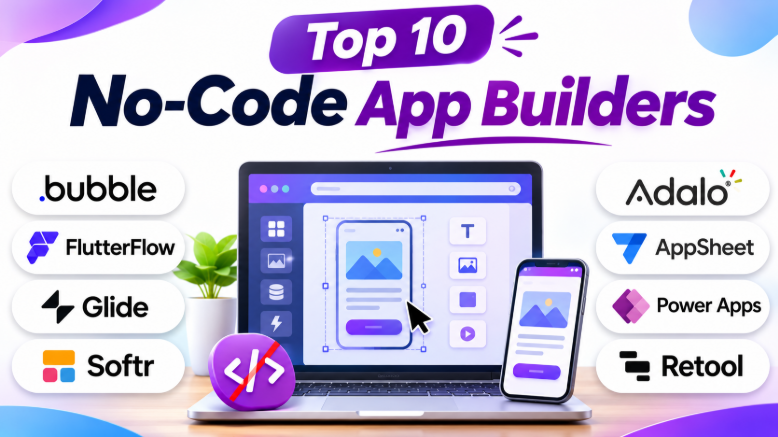
Introduction
No-code app builders help people create applications without writing traditional programming code. These platforms use visual editors, drag-and-drop components, databases, workflows, and integrations to simplify application development.
They have become useful for startups, small businesses, freelancers, entrepreneurs, and enterprise teams. People can use them to create business applications, mobile apps, customer portals, dashboards, marketplaces, booking systems, and SaaS products.
Traditional application development often requires frontend developers, backend developers, database engineers, and deployment specialists. No-code platforms reduce many of these requirements by providing ready-made development tools in one environment.
However, every no-code platform has different strengths. Some focus on web applications and complex workflows. Others help businesses create internal tools using spreadsheets and databases. Some platforms specialize in mobile applications, while others provide enterprise integrations and business automation.
Choosing the right no-code app builder is important. A simple platform may be suitable for a small business application but may not support a complex SaaS product. A mobile app builder may be useful for smartphone users but may not provide advanced web application capabilities.
The right choice depends on your application requirements, technical skills, budget, database needs, integrations, scalability, and publishing goals.
This blog explores the top 10 no-code app builders. It explains their key features, benefits, pros, cons, use cases, and best users. You will also find comparison tables, selection guidance, common mistakes, and frequently asked questions.
What Is a No-Code App Builder?
A no-code app builder is a software platform that allows users to create applications through visual tools instead of writing traditional programming code.
These platforms help users design application screens, manage data, create workflows, connect services, and publish applications.
For example, a business can create an employee management application. The application may include employee profiles, login accounts, attendance records, forms, dashboards, and approval workflows.
Users can create these features through visual editors and configuration tools.
No-code app builders can support different application types, including:
- Business Applications: Creating applications for employee management, operations, inventory, and business workflows.
- Mobile Applications: Building applications for smartphones and tablets.
- Customer Portals: Creating secure portals where customers can view information and manage accounts.
- SaaS Applications: Developing subscription-based software products.
- Marketplace Applications: Creating platforms where buyers and sellers interact.
- Internal Tools: Building dashboards, admin panels, and management applications.
- Booking Applications: Developing reservation systems for appointments, services, and events.
- Workflow Automation: Connecting application actions with business processes.
- Data-Driven Applications: Creating applications that display and manage information from databases and spreadsheets.
A no-code application may contain several important components.
Application Interface
The interface includes screens, buttons, forms, menus, images, dashboards, and other visual elements.
Database
The database stores application information such as users, products, orders, appointments, and other records.
Workflow Logic
Workflow logic defines what happens when users perform actions.
For example, submitting a form may create a record, send an email, or update a dashboard.
Integrations
Integrations allow applications to connect with external services.
These may include payment providers, email services, APIs, databases, spreadsheets, and automation platforms.
Publishing
Publishing makes the application available to users.
Depending on the platform, applications may be published as web apps, mobile apps, or other supported formats.
Top 10 No-Code App Builders
1. Bubble
Short Description
Bubble is a visual application development platform used to build web applications without traditional programming.
It combines interface design, database management, workflows, user authentication, integrations, and application hosting.
Bubble is widely used by entrepreneurs, startups, freelancers, and businesses that want to create custom web applications.
It is particularly useful for applications that require complex logic and data management.
Overview
Bubble allows users to design application pages and define how the application behaves.
Users can create databases, define relationships between records, manage user accounts, and build workflows through visual tools.
For example, a marketplace application may contain users, products, sellers, orders, payments, reviews, and notifications.
Bubble can help create these components within one development environment.
It also supports API integrations, allowing applications to connect with external services.
Bubble is useful for creating MVPs and testing product ideas. Businesses can build an initial version of an application and improve it based on user feedback.
Key Features
- Visual Application Design: Bubble provides a graphical editor for creating application pages. Users can add buttons, forms, text, images, tables, menus, and other interface elements.
- Database Management: Users can create data types and fields. They can manage records and relationships between different data structures.
- Workflow Builder: Bubble allows users to define actions based on events. For example, a button click can create a record, update information, or send a notification.
- User Authentication: Applications can support user registration, login, password management, and account-related workflows.
- API Integrations: Bubble can connect with external services through APIs and supported integrations.
- Privacy Rules: Users can configure access to application data based on permissions and conditions.
- Responsive Design: Application layouts can be adjusted for different screen sizes.
- Application Hosting: Bubble provides hosting options for applications built on its platform.
- Plugin Ecosystem: Plugins can add additional features and integrations.
Benefits
- Helps create complete web applications.
- Reduces traditional development requirements.
- Supports complex workflows.
- Includes database and application logic tools.
- Useful for testing startup ideas.
- Supports external API connections.
- Can help reduce development time.
Pros
- Supports complex web applications.
- Provides visual database management.
- Includes workflow tools.
- Supports user authentication.
- Offers integrations and plugins.
- Useful for MVP development.
- Suitable for SaaS and marketplace applications.
Cons
- Learning curve can be higher for beginners.
- Complex applications require careful planning.
- Large applications may need performance optimization.
- Users depend on the platform’s ecosystem.
- Some advanced capabilities require paid plans.
Use Cases
- SaaS Applications: Building subscription-based software products.
- Marketplaces: Creating platforms for buyers and sellers.
- Booking Systems: Developing reservation applications.
- Customer Portals: Managing customer accounts and information.
- Membership Platforms: Creating member-based applications.
- Business Applications: Building customized management systems.
- MVP Development: Testing new product ideas.
Best For
- Entrepreneurs.
- Startup founders.
- Freelancers.
- Product builders.
- Small businesses.
- Teams building custom web applications.
2. FlutterFlow
Short Description
FlutterFlow is a visual application development platform that helps users build mobile and web applications using Flutter.
It provides a graphical interface for designing application screens, connecting databases, creating workflows, and integrating external services.
FlutterFlow is particularly useful for people who want to create mobile applications while retaining access to a code-based development path.
Overview
FlutterFlow supports visual application development using a Flutter-based workflow.
Users can create application screens, define navigation, connect data, configure actions, and build interactive experiences.
It can connect with backend services such as Firebase and Supabase.
FlutterFlow is useful for developing mobile applications, startup MVPs, customer-facing apps, and business applications.
Its code-related capabilities can also help developers continue working on applications outside the visual builder.
Key Features
- Visual UI Builder: Users can design application screens using visual components. They can add buttons, forms, images, lists, and other interface elements.
- Flutter-Based Development: Applications use Flutter technology, which supports cross-platform development.
- Database Integration: FlutterFlow can connect with supported backend databases and services.
- API Integration: Users can connect external APIs to application workflows.
- Actions and Logic: Users can configure actions for buttons, forms, navigation, and other interactions.
- Authentication: Applications can support login and user registration through supported services.
- Responsive Design: Layouts can be adjusted for different screen sizes.
- Custom Code: Advanced users can add custom code where supported.
- Code Export: Available workflows can help developers continue development outside the visual environment.
- Mobile Publishing: FlutterFlow supports mobile application development workflows.
Benefits
- Supports mobile-first application development.
- Provides a visual development environment.
- Connects with backend services.
- Supports cross-platform workflows.
- Can help reduce development time.
- Provides a potential developer handoff path.
- Useful for mobile MVPs.
Pros
- Visual application development.
- Flutter-based workflow.
- Supports API integrations.
- Offers database connections.
- Supports mobile application workflows.
- Provides custom code options.
- Suitable for startups and product teams.
Cons
- Requires time to learn advanced features.
- Backend configuration may require technical knowledge.
- Complex workflows can become difficult to manage.
- Some features depend on subscriptions.
- Users need to understand mobile publishing requirements.
Use Cases
- Mobile Applications: Creating smartphone applications.
- Startup MVPs: Testing application ideas.
- Booking Applications: Building reservation systems.
- Ecommerce Applications: Creating shopping experiences.
- Customer Applications: Developing customer-facing products.
- Community Applications: Creating social and community experiences.
- Business Applications: Building mobile business tools.
Best For
- Mobile app developers.
- Startup founders.
- Designers.
- Product teams.
- Entrepreneurs.
- Users who want visual development with code flexibility.
3. Glide
Short Description
Glide is a no-code application builder focused on creating data-driven applications. It helps users transform spreadsheets, tables, and structured data into functional applications.
Glide is useful for businesses that need internal tools, dashboards, inventory applications, employee directories, and other data-based solutions.
Overview
Glide simplifies application development by connecting application interfaces with existing data.
Users can create screens, lists, forms, dashboards, and other components around their information.
For example, a business that maintains inventory in a spreadsheet can use Glide to create an application where employees can view products, update stock, and manage inventory records.
This approach can reduce the need to build an application from scratch.
Glide focuses on practical applications that work with structured data. It is particularly useful for businesses that already maintain information in spreadsheets.
Key Features
- Data Integration: Glide can connect applications with supported data sources. This helps users create applications using existing business information.
- Visual Interface Builder: Users can design application screens using visual components.
- Forms: Forms allow users to submit information and create or update records.
- Dashboards: Users can create dashboards that display business information.
- Mobile-Friendly Design: Applications can provide convenient experiences on mobile devices.
- User Access: Supported features allow businesses to control access to application information.
- Data Management: Users can create interfaces for viewing and updating records.
- Workflow Automation: Available capabilities can support business processes and actions.
- Application Publishing: Glide supports publishing applications through its platform.
Benefits
- Converts spreadsheets into applications.
- Reduces manual data management.
- Helps create internal tools quickly.
- Provides a visual development workflow.
- Supports mobile-friendly applications.
- Useful for small businesses.
- Makes business information easier to access.
Pros
- Easy to use for data-driven applications.
- Useful for spreadsheet-based workflows.
- Provides visual application design.
- Supports dashboards and forms.
- Suitable for internal tools.
- Helps reduce repetitive work.
- Can simplify business operations.
Cons
- Less suitable for highly complex applications.
- Design flexibility may be limited for some projects.
- Advanced workflows may require other tools.
- Platform features depend on available plans.
- Not designed for every type of consumer application.
Use Cases
- Inventory Applications: Tracking products and stock.
- Employee Directories: Managing employee information.
- Business Dashboards: Displaying company data.
- Field Operations: Collecting information from employees.
- Project Management: Managing tasks and project records.
- Customer Databases: Organizing customer information.
- Internal Tools: Creating business applications.
Best For
- Small businesses.
- Operations teams.
- Spreadsheet users.
- Business managers.
- Non-technical teams.
- Users creating data-driven applications.
4. Softr
Short Description
Softr is a no-code platform for creating web applications, portals, internal tools, and business websites.
It helps users build applications connected to databases and other data sources.
Softr is particularly useful for businesses that want to create customer portals, membership platforms, employee applications, or business dashboards.
Overview
Softr provides visual tools for creating application interfaces.
Users can add blocks, forms, lists, tables, buttons, and other elements. These components can connect with data sources to display information.
For example, a company can create a customer portal where users log in, view project information, download documents, and manage their details.
Softr is useful for applications that need a structured interface around existing business data.
Key Features
- Visual Application Builder: Users can create web applications through a graphical interface.
- Data Connections: Applications can connect to supported data sources.
- Client Portals: Users can create portals where customers access private information.
- Membership Features: Applications can support user accounts and access rules.
- Forms: Forms help collect information and update records.
- Dashboards: Users can display data through visual application components.
- User Permissions: Supported features help control what users can access.
- Responsive Layouts: Applications can work across different screen sizes.
- Business Applications: Softr supports internal tools and business workflows.
Benefits
- Simplifies portal development.
- Supports data-connected applications.
- Helps create internal tools.
- Provides visual application building.
- Reduces technical setup.
- Supports customer-facing applications.
- Useful for business workflows.
Pros
- Beginner-friendly visual workflow.
- Useful for portals and dashboards.
- Supports data connections.
- Helps create business applications.
- Provides user access features.
- Supports responsive applications.
- Suitable for small teams.
Cons
- Complex application logic may require other tools.
- Platform capabilities depend on available integrations.
- Advanced customization may be limited.
- Some features require paid plans.
- Not designed for every mobile application requirement.
Use Cases
- Customer Portals: Creating customer account interfaces.
- Employee Portals: Managing internal information.
- Membership Websites: Providing member access.
- Project Portals: Sharing project information.
- Business Dashboards: Displaying company data.
- Directories: Creating searchable information systems.
- Internal Applications: Supporting business workflows.
Best For
- Small businesses.
- Agencies.
- Freelancers.
- Non-technical teams.
- Customer service teams.
- Organizations building portals.
5. Adalo
Short Description
Adalo is a visual application builder that helps users create mobile and web applications.
It focuses on making application development accessible through screen design, navigation, database management, and visual actions.
Adalo is useful for people who want to create mobile applications without learning traditional programming.
Overview
Adalo provides a visual canvas where users can design application screens.
They can add components, create navigation, connect data, and configure actions.
For example, a user can create a booking application with customer profiles, service listings, appointment forms, and confirmation screens.
Adalo is particularly useful for simple mobile applications and early-stage product ideas.
Key Features
- Visual Screen Builder: Users can design application screens through a graphical editor.
- Database: Applications can store and manage information.
- Navigation: Users can connect screens and create application navigation.
- Actions: Buttons and other components can trigger application behavior.
- User Authentication: Supported workflows can provide user login and registration.
- Forms: Users can collect and update information.
- Mobile Application Workflow: Adalo supports mobile application development.
- Web Applications: Users can create web-based applications.
- Templates: Templates can help users start application projects.
Benefits
- Makes mobile app creation more accessible.
- Provides visual application development.
- Supports database-driven applications.
- Helps create simple MVPs.
- Reduces traditional coding requirements.
- Useful for personal and business projects.
- Provides a beginner-friendly workflow.
Pros
- Visual interface.
- Useful for mobile applications.
- Supports database features.
- Provides screen navigation.
- Suitable for beginners.
- Helps create MVPs.
- Supports web and mobile workflows.
Cons
- Complex applications may require another platform.
- Advanced customization can be limited.
- Performance may depend on application complexity.
- Users need to understand publishing requirements.
- Some capabilities require paid plans.
Use Cases
- Booking Applications: Creating appointment systems.
- Community Applications: Building member communities.
- Directories: Creating searchable listings.
- Customer Applications: Developing customer-facing apps.
- Business Applications: Creating simple management tools.
- MVP Development: Testing application ideas.
- Personal Projects: Building small applications.
Best For
- Beginners.
- Entrepreneurs.
- Small businesses.
- Startup founders.
- Users creating mobile MVPs.
- People who want visual app development.
6. Google AppSheet
Short Description
Google AppSheet is a no-code application development platform designed for business applications and data-driven workflows.
It helps users create applications using spreadsheets, databases, and other supported data sources.
AppSheet is particularly useful for businesses that already use Google Workspace and need applications for operations, field work, inventory, inspections, and approvals.
Overview
AppSheet focuses on creating applications from business data.
Users can connect data sources and configure application views, forms, actions, and automation.
For example, a business can create an inventory application using spreadsheet data. Employees can check stock, update product information, and submit inventory changes through a mobile interface.
The platform is useful when businesses need practical applications rather than highly customized consumer products.
Key Features
- Data Connections: AppSheet supports connections with supported data sources such as spreadsheets and databases.
- Visual App Creation: Users can create application views and screens through configuration tools.
- Forms: Forms allow employees to collect and update information.
- Automation: Applications can trigger actions based on events and conditions.
- Mobile Applications: AppSheet supports mobile workflows for business users.
- Business Rules: Users can configure conditions and application behavior.
- User Permissions: Supported features can help manage access to application information.
- Data Management: Users can create interfaces for viewing and updating records.
- Workflow Support: Applications can support business processes such as approvals and notifications.
Benefits
- Helps create applications from existing data.
- Useful for business operations.
- Supports mobile workflows.
- Reduces manual data entry.
- Simplifies application development.
- Suitable for Google Workspace environments.
- Supports business automation.
Pros
- Useful for spreadsheet-based applications.
- Supports business workflows.
- Provides mobile application features.
- Helps automate repetitive tasks.
- Suitable for operations teams.
- Supports data-driven application development.
- Reduces traditional coding requirements.
Cons
- Design flexibility may be limited.
- Advanced applications may require expressions and technical knowledge.
- Not ideal for highly customized consumer applications.
- Available features depend on licensing.
- Complex workflows may require careful planning.
Use Cases
- Inventory Management: Tracking stock and product information.
- Field Operations: Collecting information from field employees.
- Inspection Applications: Recording inspection results.
- Approval Systems: Managing business approvals.
- Employee Applications: Supporting internal workflows.
- Data Collection: Gathering business information.
- Operations Management: Managing daily business processes.
Best For
- Google Workspace users.
- Small businesses.
- Operations teams.
- Field service teams.
- Business managers.
- Organizations building data-driven applications.
7. Microsoft Power Apps
Short Description
Microsoft Power Apps is a low-code application development platform that helps organizations create business applications.
It supports visual application development and connects with Microsoft services, business data, databases, and other systems.
Power Apps is particularly useful for companies that already use Microsoft 365, SharePoint, Dataverse, and related business services.
Overview
Power Apps helps businesses create applications for internal operations.
Users can design application screens, connect data sources, create forms, and configure application logic.
For example, a company can create an employee request application. Employees can submit requests, managers can approve them, and administrators can track the results.
Power Apps is more accurately described as a low-code platform because advanced applications may require formulas, technical configuration, and development knowledge.
Key Features
- Canvas Apps: Users can design application interfaces using visual tools.
- Data Connections: Applications can connect with supported business data sources.
- Microsoft Dataverse: Dataverse can provide structured data storage for applications.
- Microsoft 365 Integration: Applications can connect with supported Microsoft services.
- Forms: Users can create forms for collecting and managing information.
- Workflow Integration: Applications can connect with business automation workflows.
- User Permissions: Organizations can manage application access.
- Business Applications: Power Apps supports applications for internal operations.
- Enterprise Management: Organizations can manage applications through supported administration tools.
Benefits
- Supports business application development.
- Integrates with Microsoft services.
- Helps automate business processes.
- Useful for enterprise workflows.
- Reduces development time.
- Supports data-connected applications.
- Can use existing business systems.
Pros
- Strong Microsoft ecosystem integration.
- Useful for enterprise applications.
- Supports business workflows.
- Provides data connections.
- Suitable for internal applications.
- Supports visual development.
- Can help reduce repetitive work.
Cons
- Can require technical knowledge.
- Licensing can be complex.
- Advanced applications may require formulas.
- Microsoft ecosystem knowledge may be helpful.
- Not designed primarily for consumer mobile applications.
Use Cases
- Employee Applications: Creating internal employee tools.
- Approval Workflows: Managing requests and approvals.
- Business Dashboards: Displaying company information.
- Inventory Systems: Tracking products and stock.
- Operations Applications: Supporting business processes.
- Enterprise Applications: Building internal business solutions.
- Data Management: Creating interfaces for business records.
Best For
- Enterprise organizations.
- Microsoft-focused businesses.
- IT departments.
- Business teams.
- Operations teams.
- Companies building internal applications.
8. Retool
Short Description
Retool is an application development platform focused on building internal tools and business interfaces.
It helps teams create applications that connect with databases, APIs, and business systems.
Retool is particularly useful for organizations that need admin dashboards, customer support tools, inventory applications, and operations interfaces.
Overview
Retool provides visual components that users can arrange to create application interfaces.
Users can connect data sources and create workflows that interact with databases and APIs.
For example, a customer support team can create an internal application where employees search customer records, review orders, update account information, and manage support requests.
Retool focuses on internal applications rather than consumer-facing products.
Key Features
- Visual Application Builder: Users can create interfaces through visual components.
- Database Connections: Retool supports connections to supported databases.
- API Integrations: Applications can interact with APIs.
- Tables and Forms: Users can create interfaces for managing business data.
- Dashboards: Retool supports data visualization and dashboard components.
- Workflow Tools: Users can create actions and workflows.
- User Permissions: Applications can support controlled access.
- Business Integrations: Retool can connect with business services.
- Internal Application Development: The platform focuses on employee-facing tools.
Benefits
- Helps create internal tools quickly.
- Connects applications with existing databases.
- Reduces repetitive development work.
- Supports business operations.
- Provides reusable interface components.
- Useful for technical teams.
- Helps build data management interfaces.
Pros
- Strong database integration.
- Useful for admin dashboards.
- Supports API connections.
- Provides visual application building.
- Suitable for internal tools.
- Helps create business interfaces.
- Supports workflows.
Cons
- More technical than beginner-focused builders.
- Advanced applications may require SQL or JavaScript.
- Not primarily designed for consumer applications.
- Users need to understand data and APIs.
- Costs may depend on users and platform usage.
Use Cases
- Admin Dashboards: Managing business information.
- Customer Support Tools: Reviewing customer records.
- Inventory Applications: Managing product data.
- Operations Dashboards: Tracking business processes.
- Database Interfaces: Managing database records.
- Employee Tools: Creating internal applications.
- Workflow Management: Supporting business operations.
Best For
- Developers.
- Technical teams.
- IT departments.
- Operations teams.
- Businesses with databases.
- Organizations creating internal tools.
9. WeWeb
Short Description
WeWeb is a visual web application builder focused on frontend development.
It helps users create web application interfaces and connect them with databases, APIs, and backend services.
WeWeb is useful for teams that want visual frontend development while maintaining flexibility over their backend architecture.
Overview
WeWeb allows users to create web applications through a visual editor.
Users can build pages, add components, define responsive layouts, connect data sources, and configure application workflows.
Unlike platforms that combine every application component into one system, WeWeb can work with external backend services.
For example, a team may use WeWeb to create a customer-facing web application and connect it to a separate database or backend service.
This modular approach can provide flexibility for technical teams.
Key Features
- Visual Frontend Builder: Users can create application interfaces through a graphical editor.
- Responsive Design: Applications can be adjusted for desktop, tablet, and mobile screens.
- API Connections: WeWeb supports connections with external APIs.
- Data Integration: Applications can connect with supported data sources.
- Reusable Components: Users can create reusable interface elements.
- Workflow Logic: Users can configure application actions and workflows.
- Backend Flexibility: Applications can connect with external backend services.
- Authentication: Supported workflows can provide user authentication.
- Application Publishing: Users can publish web applications through supported workflows.
Benefits
- Provides visual frontend development.
- Supports responsive applications.
- Offers backend flexibility.
- Helps create custom web interfaces.
- Supports external integrations.
- Useful for SaaS projects.
- Reduces manual frontend development.
Pros
- Visual application development.
- Flexible backend connections.
- Supports API integrations.
- Suitable for custom web applications.
- Provides reusable components.
- Supports responsive design.
- Useful for technical teams.
Cons
- Backend setup may require technical knowledge.
- Complex integrations need planning.
- Users may need to manage separate backend services.
- Learning curve can be higher.
- Not primarily designed for native mobile applications.
Use Cases
- SaaS Applications: Creating web application interfaces.
- Customer Portals: Building customer-facing dashboards.
- Business Applications: Developing custom business tools.
- Data-Driven Applications: Displaying information from external databases.
- Web Dashboards: Creating visual data interfaces.
- Startup Products: Building early application versions.
- Custom Frontends: Developing interfaces for existing backend systems.
Best For
- Technical founders.
- Product designers.
- Web developers.
- Agencies.
- Startup teams.
- Businesses that need frontend flexibility.
10. Appsmith
Short Description
Appsmith is a low-code application development platform focused on internal tools and business applications.
It helps teams create interfaces that connect with databases, APIs, and other business services.
Appsmith is particularly useful for creating admin panels, dashboards, database management tools, and operations applications.
Overview
Appsmith provides a visual application editor with reusable components.
Users can create interfaces and connect them with databases and APIs.
For example, an organization can create an admin panel where employees view customer information, update records, manage orders, and monitor business operations.
Appsmith is useful for technical teams that want to reduce the amount of custom development required for internal applications.
It also provides self-hosting options for organizations that want more control over their application environment.
Key Features
- Visual Application Editor: Users can design application interfaces using components.
- Database Connections: Applications can connect with supported databases.
- API Integrations: Users can connect external APIs.
- Data Tables: Tables can display and manage business records.
- Forms: Forms allow users to create and update information.
- Dashboard Components: Users can create dashboards and data displays.
- JavaScript Logic: Advanced workflows can use JavaScript.
- Workflow Actions: Users can configure application actions.
- Self-Hosting: Supported options allow organizations to host applications in their own environments.
Benefits
- Helps create internal applications.
- Supports database connections.
- Reduces repetitive development work.
- Provides reusable components.
- Useful for admin panels.
- Supports technical customization.
- Offers self-hosting options.
Pros
- Visual application development.
- Strong data integration capabilities.
- Supports databases and APIs.
- Useful for internal tools.
- Provides technical flexibility.
- Supports self-hosting.
- Suitable for operations teams.
Cons
- More technical than beginner-focused platforms.
- Advanced workflows may require JavaScript.
- Not primarily designed for consumer mobile applications.
- Users need to understand databases and APIs.
- Complex applications require planning.
Use Cases
- Admin Panels: Managing business records.
- Internal Dashboards: Monitoring operations.
- Database Applications: Creating database interfaces.
- Customer Support Tools: Managing support information.
- Inventory Management: Tracking stock.
- Employee Applications: Supporting internal workflows.
- Business Operations: Creating management tools.
Best For
- Developers.
- IT teams.
- Technical operations teams.
- Businesses with databases.
- Organizations creating internal tools.
- Teams that need self-hosting options.
Comparison Table: Top 10 No-Code App Builders
| Tool | Best For | Main Strength | Application Type | Learning Level |
|---|---|---|---|---|
| Bubble | SaaS and complex web applications | Database and workflow logic | Web Applications | Beginner to Advanced |
| FlutterFlow | Mobile applications | Flutter-based visual development | Mobile and Web | Intermediate |
| Glide | Data-driven business applications | Spreadsheet-to-app workflow | Business and Mobile Apps | Beginner |
| Softr | Customer portals and business applications | Data-connected portals | Web Applications | Beginner |
| Adalo | Simple mobile applications | Visual mobile app development | Mobile and Web Apps | Beginner |
| AppSheet | Business workflows | Data-driven automation | Business and Mobile Apps | Beginner to Intermediate |
| Power Apps | Enterprise applications | Microsoft ecosystem integration | Business Applications | Intermediate |
| Retool | Internal tools | Database and API connections | Internal Web Applications | Intermediate |
| WeWeb | Custom web applications | Flexible frontend development | Web Applications | Intermediate |
| Appsmith | Internal tools and admin panels | Database-connected applications | Internal Web Applications | Intermediate |
Note: Features, pricing, publishing options, and available integrations can change. Check the official platform websites before making a final decision.
Which No-Code App Builder Is Right for You?
Choosing the right no-code platform depends on your project requirements, technical experience, budget, and application type.
A platform that works well for a small internal tool may not be suitable for a complex SaaS product.
Here is a more detailed guide.
For Beginners: Glide and Adalo
Glide and Adalo are useful starting points for beginners.
Glide works well when your application uses structured data. You can create an application around spreadsheets, tables, and other supported data sources.
Adalo is useful when you want to create mobile applications through a visual interface.
Choose Glide when your main requirement is a data-driven business application.
Choose Adalo when your main requirement is a simple mobile application.
For SaaS Applications: Bubble
Bubble is a strong choice for applications that require custom workflows, user accounts, databases, and application logic.
It can support products such as:
- SaaS platforms
- Online marketplaces
- Booking systems
- Membership platforms
- Customer portals
- Business management applications
Choose Bubble when you want to create a complete web application without building every component manually.
For Mobile Applications: FlutterFlow
FlutterFlow is suitable for projects that focus on mobile applications.
It provides visual development tools and a Flutter-based workflow.
It can be useful for startup MVPs, customer-facing applications, and mobile products that may later require developer support.
Choose FlutterFlow when mobile application development is your main goal.
For Business Portals: Softr
Softr is useful for creating applications that provide access to business information.
Examples include:
- Customer portals
- Partner portals
- Membership websites
- Employee dashboards
- Project portals
Choose Softr when you want to create a data-connected portal through a visual editor.
For Spreadsheet-Based Applications: Glide and AppSheet
Glide and AppSheet can help transform structured data into applications.
They are useful for businesses that already manage information through spreadsheets.
Applications can support:
- Inventory management
- Employee information
- Field operations
- Business reporting
- Data collection
- Approval workflows
Choose Glide when you prefer a visual application-building workflow.
Choose AppSheet when you need structured business workflows and Google ecosystem integration.
For Microsoft Organizations: Power Apps
Power Apps is useful for businesses that already use Microsoft services.
It can support applications connected with business data, workflows, and Microsoft-related systems.
Choose Power Apps when your organization needs internal business applications and already works within the Microsoft ecosystem.
For Internal Tools: Retool and Appsmith
Retool and Appsmith are useful for creating applications that employees use internally.
They can connect to databases and APIs.
Examples include:
- Admin dashboards
- Customer support applications
- Inventory tools
- Operations dashboards
- Database interfaces
Choose Retool when you need a polished internal application workflow.
Choose Appsmith when technical flexibility and self-hosting options are important.
For Flexible Web Applications: WeWeb
WeWeb is useful when you want to build a web frontend while connecting it with external backend services.
This can be useful for SaaS products and custom web applications.
Choose WeWeb when your project requires more architectural flexibility.
Best No-Code App Builders for Different Users
| User Type | Recommended Tool | Why It Fits |
|---|---|---|
| Beginners | Glide | Easy data-driven application creation |
| Startup Founders | Bubble | Supports complex web applications |
| Mobile App Builders | FlutterFlow | Visual mobile development |
| Spreadsheet Users | Glide | Turns structured data into applications |
| Google Workspace Teams | AppSheet | Supports data-driven business workflows |
| Microsoft Businesses | Power Apps | Integrates with Microsoft services |
| Small Businesses | Softr | Useful for portals and business applications |
| Internal Tool Developers | Retool | Database and API-connected tools |
| Technical Teams | Appsmith | Flexible internal application development |
| SaaS Product Teams | Bubble / WeWeb | Supports custom web application workflows |
| Mobile MVP Creators | FlutterFlow / Adalo | Visual mobile application building |
| Operations Teams | AppSheet / Glide | Supports business workflows and data management |
| Agencies | Bubble / Softr / WeWeb | Useful for client and custom applications |
How to Choose the Best No-Code App Builder
Before selecting a no-code platform, consider your application requirements.
1. Define Your Application Type
First, decide what you want to build.
Is it a mobile app? A SaaS product? A business dashboard? A customer portal?
Different applications require different capabilities.
A booking application may need user accounts, calendars, payments, and notifications.
An inventory application may need data tables, forms, stock tracking, and reports.
A SaaS product may need subscriptions, permissions, workflows, and database relationships.
Choose the platform based on your application requirements.
2. Understand Your Technical Skills
Some no-code tools are designed for beginners.
Others require users to understand databases, APIs, workflows, and application architecture.
If you are new to application development, begin with a simple project.
Learn how to create screens, forms, databases, and basic workflows before building a complex application.
3. Check Database Capabilities
Applications depend on data.
Before choosing a platform, check:
- Data storage
- Database relationships
- Record limits
- Data permissions
- Import and export options
- Database integrations
A platform may work well for a small application but become difficult to manage as data grows.
4. Review Workflow Features
Workflows define application behavior.
For example:
- A user submits a form.
- The application creates a record.
- An email is sent.
- An administrator receives a notification.
- The dashboard updates.
Check whether the platform supports the workflows your application requires.
5. Check API and Integration Support
Many applications need external services.
Common integrations include:
- Payment systems
- Email services
- Google Sheets
- CRM platforms
- APIs
- Databases
- Analytics tools
- Automation services
Check the platform’s integration options before starting development.
6. Understand User Permissions
Applications may contain private information.
Different users may need different permissions.
For example:
- Customers can view their own records.
- Employees can manage assigned tasks.
- Managers can approve requests.
- Administrators can manage the complete application.
Check whether the platform supports the permission system your application requires.
7. Consider Application Scalability
Your application may grow over time.
You may add more users, records, workflows, integrations, and features.
Before choosing a platform, understand its usage limits and upgrade options.
Also consider whether the platform supports your future requirements.
8. Check Publishing Options
Some platforms publish web applications.
Others support mobile application workflows.
If you need an application in app stores, check the publishing process before building.
Understand the requirements for:
- Android
- iOS
- Web applications
- Progressive Web Apps
- Application hosting
9. Calculate the Total Cost
The platform subscription may not be the complete cost.
You may also need to pay for:
- Application users
- Team members
- Database usage
- Storage
- API calls
- Automation
- Hosting
- Premium integrations
- Mobile publishing
Calculate the total cost based on your expected usage.
10. Test Before Committing
Most platforms offer free plans, trials, or demonstrations.
Create a small test application.
Try the interface, database, workflows, integrations, and publishing process.
This practical experience can help you understand whether the platform fits your requirements.
Common Mistakes When Choosing a No-Code App Builder
Choosing a Platform Before Defining the Application
Many users choose a platform because its interface looks attractive.
However, the platform may not support the application’s required features.
Start by defining the application, users, data, workflows, and publishing requirements.
Ignoring Database Structure
A poorly planned database can create problems later.
Before building screens, identify the important data types and relationships.
For example, a booking application may require users, businesses, services, bookings, and payments.
Building Too Many Features
A first application does not need every planned feature.
Start with the main user journey.
For example, a booking application may initially need registration, service selection, booking creation, and confirmation.
Additional features can be added later.
Forgetting Security and Permissions
Applications may contain private information.
Make sure users can only access the data they are allowed to see.
Do not rely only on hiding buttons or screens.
Check the platform’s actual data access and permission controls.
Ignoring Platform Costs
Free plans may have usage limits.
Some platforms charge based on users, records, workflows, hosting, or integrations.
Understand the complete cost before building a large application.
Choosing a Platform That Is Too Complex
Advanced platforms can provide more flexibility.
But they may also require more learning and configuration.
Choose a platform that matches your current skills and project requirements.
Not Testing the Application
A visually attractive application may still contain problems.
Test:
- Forms
- Login systems
- Database updates
- Workflows
- Permissions
- Mobile layouts
- Integrations
- Application publishing
Testing helps identify problems before users depend on the application.
Common No-Code App Development Workflow
Most no-code application projects follow a similar process.
- Define the Application IdeaIdentify the problem your application will solve and its target users.
- Plan the Main FeaturesDecide which features are necessary for the first version.
- Create the Data StructureIdentify users, records, relationships, and important information.
- Design the InterfaceCreate screens, forms, navigation, buttons, and dashboards.
- Configure WorkflowsDefine what happens when users perform actions.
- Connect IntegrationsConnect databases, APIs, payment systems, email services, and other tools.
- Set User PermissionsConfigure access rules and data protection.
- Test the ApplicationCheck functionality, data, workflows, and user experience.
- Publish the ApplicationMake the application available through its supported publishing method.
- Monitor and ImproveCollect feedback, fix problems, and add features as needed.
Frequently Asked Questions
1. What is the best no-code app builder?
The best platform depends on your application requirements.
Bubble is useful for complex web applications. FlutterFlow focuses on mobile applications. Glide works well for data-driven business apps. Retool and Appsmith are useful for internal tools.
2. Can I build a mobile app without coding?
Yes. Platforms such as FlutterFlow and Adalo provide visual application development tools.
Users can design screens, create workflows, connect data, and build mobile application experiences without writing traditional code for every feature.
3. Can no-code app builders create SaaS applications?
Yes. Some platforms can support SaaS applications.
Bubble is particularly useful for applications that require user accounts, databases, workflows, and business logic.
However, complex SaaS products still require careful planning, testing, security, and performance management.
4. Are no-code applications scalable?
Some no-code applications can support growing businesses.
However, scalability depends on the platform, application architecture, data structure, workflows, and usage requirements.
Check platform limits before building a large application.
5. Can no-code applications connect with APIs?
Many no-code platforms support API connections.
APIs allow applications to communicate with external services.
For example, an application may connect with a payment provider, email service, CRM system, or external database.
6. Are no-code app builders free?
Some platforms provide free plans.
However, advanced features, hosting, users, integrations, storage, and publishing may require paid plans.
Check the complete pricing structure before choosing a platform.
7. Which no-code app builder is best for beginners?
Glide, Softr, and Adalo can be useful starting points for beginners.
The best choice depends on whether you want to build a data-driven business application, portal, or mobile application.
8. Which platform is best for internal tools?
Retool and Appsmith are useful for internal tools.
They help teams create dashboards, admin panels, database interfaces, and business applications.
AppSheet and Glide can also work well for data-driven internal applications.
9. Can I create an application without a database?
Simple applications may work without a traditional database.
However, most useful applications need to store information.
Examples include users, orders, appointments, products, and other records.
A database becomes important when the application needs to save, update, or retrieve information.
10. What is the difference between no-code and low-code?
No-code platforms focus on visual development without traditional programming.
Low-code platforms also provide visual tools but may require code for advanced functionality.
Some platforms fall between these categories.
Power Apps, Retool, and Appsmith are often considered low-code platforms because advanced workflows may require technical knowledge.
Final Thoughts
No-code app builders have changed how businesses, startups, and individuals create applications. They help reduce traditional development requirements and make application creation more accessible.
Bubble is useful for complex web applications. FlutterFlow supports mobile-focused development. Glide transforms structured data into applications. Softr helps create portals and business tools. Adalo supports visual mobile application building.
AppSheet is useful for data-driven business workflows. Power Apps supports Microsoft-focused enterprise applications. Retool and Appsmith help create internal tools. WeWeb provides visual frontend development with backend flexibility.
Each platform has different strengths and limitations.
The best choice depends on your application type, technical skills, database requirements, integrations, budget, and future plans.
Before choosing a platform, define your application requirements and build a small test project. Check its interface, workflows, data management, integrations, permissions, and publishing options.
A carefully selected no-code platform can help reduce development time, simplify workflows, test business ideas, and create useful applications without building everything from scratch.
The goal is not to choose the platform with the most features. It is to choose the platform that fits your application and helps you build it efficiently.


Leave a Reply
You must be logged in to post a comment.