Introduction
Businesses perform many repetitive tasks every day. Employees send emails, update spreadsheets, create reports, assign tasks, and move data between applications.
These tasks take time. They can also cause mistakes when people repeat them manually.
Workflow automation platforms help businesses automate these processes. They connect applications, follow rules, and complete tasks automatically. This allows employees to focus on work that needs human attention.
Modern workflow automation software can do much more than send emails. It can manage approvals, update databases, create customer records, process forms, connect APIs, and handle complex business operations.
However, every platform works differently. Some tools focus on simple app connections. Others support enterprise systems, custom code, desktop automation, or self-hosted workflows.
Choosing the right platform depends on your business needs, technical skills, budget, applications, and workflow complexity.
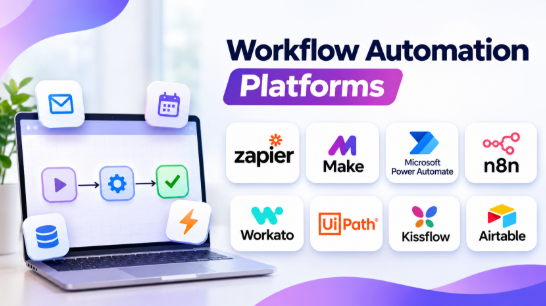
This article explores 10 workflow automation platforms. It explains their features, benefits, pros, cons, use cases, and ideal users. It also includes a comparison table and practical guidance for choosing the right solution.
What Is Workflow Automation Software?
Workflow automation software helps businesses complete repetitive tasks automatically. It uses triggers, rules, and actions to move work from one step to another.
For example, a business may receive a customer inquiry through its website.
A workflow automation platform can automatically:
- Capture the inquiry.
- Create a customer record.
- Send a confirmation email.
- Assign the inquiry to a sales employee.
- Create a follow-up task.
- Notify the sales team.
This process reduces manual work and helps employees respond faster.
Workflow automation software can also manage approvals, document processing, notifications, data synchronization, employee onboarding, customer support, and reporting.
Common Workflow Automation Components
Triggers: Events that start a workflow. For example, a new form submission or email.
Actions: Tasks performed after a trigger. For example, creating a record or sending a message.
Conditions: Rules that determine which action should happen next.
Data mapping: Moving information from one application to another.
Approvals: Steps where a person reviews and approves an action.
Scheduling: Running workflows at specific times.
Error handling: Managing failed actions and retrying tasks when necessary.
These components help businesses create simple or complex automated processes.
Top 10 Workflow Automation Platforms
1. Zapier
Short Description:
Zapier is a popular workflow automation platform that connects cloud applications. It allows users to automate tasks without writing code.
Users create workflows called Zaps. Each Zap starts with a trigger and performs one or more actions.
For example, when someone submits a contact form, Zapier can create a CRM record, send an email, and notify the sales team.
Zapier supports a large ecosystem of business applications. This makes it useful for companies that use different tools for marketing, sales, customer support, and project management.
Its simple interface makes workflow creation accessible to beginners. Users can also add filters, conditions, delays, and multiple steps to create more advanced automations.
Key Features
- App integrations: Connects many popular business applications.
- Multi-step workflows: Performs several actions after one trigger.
- Filters: Runs workflows only when specific conditions are met.
- Conditional paths: Sends information through different workflow routes.
- Webhooks: Connects applications through custom web requests.
- Scheduling: Runs workflows at selected times.
- AI automation: Supports AI-related workflow capabilities.
- Templates: Provides ready-made automation examples.
Benefits
- Reduces repetitive manual tasks.
- Connects different cloud applications.
- Helps beginners build automations quickly.
- Supports marketing, sales, and customer service workflows.
- Reduces manual data entry.
- Provides ready-made workflow templates.
Pros
- Easy-to-understand interface.
- Large integration ecosystem.
- Suitable for non-technical users.
- Supports multi-step workflows.
- Useful templates for common business tasks.
- Requires little infrastructure management.
Cons
- Costs may increase with automation volume.
- Complex workflows can become difficult to manage.
- Advanced customization may require code.
- Some features depend on subscription plans.
- Businesses must carefully monitor task usage.
Use Cases
- Lead management: Add new leads to a CRM automatically.
- Email marketing: Add subscribers to email campaigns.
- Customer support: Create tickets from customer messages.
- Project management: Create tasks from forms or emails.
- Notifications: Send alerts when important events occur.
- Data synchronization: Keep information updated across applications.
Best For
- Small businesses.
- Marketing teams.
- Sales teams.
- Customer support departments.
- Freelancers.
- Businesses using multiple cloud applications.
Zapier is a strong choice when businesses want to connect popular applications without building custom integrations.
2. Make
Short Description:
Make is a visual workflow automation platform designed for connecting applications and building complex automation scenarios.
Its visual interface allows users to see how information moves through a workflow. Users can create branches, filters, routers, data transformations, and multiple actions.
Make is useful for businesses that need more control over workflow logic. It can handle workflows involving several applications and different decision paths.
For example, a workflow can receive an order, check its value, send different notifications, update inventory, and create a customer record.
The visual workflow builder makes complex processes easier to understand. However, large workflows require careful organization.
Key Features
- Visual scenario builder.
- Multi-step workflows.
- Conditional routing.
- Data transformation.
- Filters and logic.
- Webhook support.
- Scheduling.
- Error handling.
- Application integrations.
- Workflow monitoring.
Benefits
- Helps build complex workflows visually.
- Provides control over data movement.
- Supports branching and routing.
- Reduces the need for manual integration work.
- Useful for multi-application business processes.
- Helps technical users customize automation logic.
Pros
- Flexible visual workflow design.
- Strong support for complex automation.
- Useful data mapping capabilities.
- Supports multiple workflow routes.
- Good for connecting different business applications.
- Helps users understand workflow structure.
Cons
- Complex scenarios require learning.
- Large workflows can become difficult to maintain.
- Automation usage may increase costs.
- Error handling requires careful setup.
- Beginners may need time to understand the interface.
Use Cases
- E-commerce automation.
- Marketing campaign workflows.
- CRM data synchronization.
- Invoice processing.
- Lead qualification.
- Business reporting.
- Multi-step data processing.
Best For
- Small and medium businesses.
- Marketing teams.
- Operations teams.
- Technical business users.
- Companies with complex app-to-app workflows.
Make is useful when a business needs more visual control than a simple trigger-and-action automation.
3. Microsoft Power Automate
Short Description:
Microsoft Power Automate helps businesses automate tasks across Microsoft applications and other connected services.
It is particularly useful for organizations that already use Microsoft 365, SharePoint, Teams, Excel, Outlook, and Dynamics 365.
Users can create cloud flows that respond to events. They can also create scheduled workflows and approval processes.
Power Automate includes desktop automation capabilities. These can help automate tasks in applications that do not provide suitable APIs.
This makes the platform useful for both modern cloud workflows and selected legacy desktop processes.
Key Features
- Cloud-based workflows.
- Desktop automation.
- Microsoft 365 integration.
- Approval workflows.
- Scheduled automation.
- Conditional logic.
- Connectors.
- Data integration.
- AI-assisted capabilities.
- Workflow monitoring.
Benefits
- Connects Microsoft applications.
- Automates approval processes.
- Helps reduce manual data entry.
- Supports cloud and desktop workflows.
- Useful for organizations using Microsoft services.
- Can automate selected legacy applications.
Pros
- Strong Microsoft ecosystem integration.
- Supports approval workflows.
- Provides cloud automation.
- Includes desktop automation capabilities.
- Useful for enterprise environments.
- Supports business process automation.
Cons
- Licensing can be complicated.
- Premium connectors may require additional licensing.
- Desktop automation needs careful maintenance.
- Complex workflows may require technical knowledge.
- Organizations must understand licensing limits.
Use Cases
- Document approval.
- Employee onboarding.
- Microsoft Teams notifications.
- SharePoint document workflows.
- Excel data processing.
- Desktop application automation.
- Invoice approval.
Best For
- Microsoft 365 organizations.
- Enterprise IT teams.
- HR departments.
- Finance teams.
- Business operations.
- Companies using SharePoint and Teams.
Power Automate is especially useful when the business already operates within the Microsoft ecosystem.
4. n8n
Short Description:
n8n is a workflow automation platform designed for technical users who need flexibility and control.
It provides a visual workflow builder with nodes for applications, APIs, data processing, and logic.
Users can connect services, add conditions, transform information, and write custom code when needed.
n8n also supports self-hosting. This gives organizations more control over their infrastructure and data, although they must manage deployment, security, backups, updates, and monitoring.
Its flexibility makes it useful for developers and technical teams building customized automation systems.
Key Features
- Visual node-based workflow builder.
- Self-hosting options.
- API integrations.
- Webhooks.
- Custom code steps.
- Conditional logic.
- Data transformation.
- Workflow scheduling.
- AI workflow capabilities.
- Execution monitoring.
Benefits
- Provides technical flexibility.
- Supports self-hosted deployments.
- Helps connect APIs and services.
- Allows custom code within workflows.
- Supports complex automation logic.
- Gives organizations more control over infrastructure.
Pros
- Flexible workflow design.
- Self-hosting option.
- Useful for developers.
- Supports custom logic.
- Good for API-based automation.
- Can provide greater data control.
Cons
- Self-hosting requires technical skills.
- Infrastructure maintenance becomes the user’s responsibility.
- Complex workflows require planning.
- Security configuration needs attention.
- Beginners may find advanced workflows difficult.
Use Cases
- API integration.
- Internal business automation.
- AI-powered workflows.
- Data processing.
- Customer data synchronization.
- Custom application integration.
- Developer automation.
Best For
- Developers.
- Technical teams.
- IT departments.
- Businesses requiring self-hosting.
- Organizations needing custom integrations.
- Companies with data-control requirements.
n8n is a strong option when flexibility and infrastructure control matter more than simplicity.
5. Workato
Short Description:
Workato is an enterprise automation and integration platform. It helps organizations connect business applications, databases, APIs, and operational systems.
Workato uses automation recipes to define workflows. These recipes can include triggers, actions, conditions, and data transformations.
The platform is designed for business and IT teams that need to automate processes across multiple systems.
Workato can support workflows involving CRM systems, ERP platforms, HR applications, databases, and other business services.
Its enterprise focus makes governance, monitoring, and integration management important parts of the platform.
Key Features
- Recipe-based automation.
- Enterprise application integrations.
- API connectivity.
- Data transformation.
- Conditional logic.
- Workflow monitoring.
- Reusable automation components.
- Enterprise governance.
- Integration management.
- Business process automation.
Benefits
- Connects enterprise applications.
- Supports complex business processes.
- Reduces manual integration work.
- Helps automate cross-department workflows.
- Provides tools for managing automation.
- Supports larger organizations.
Pros
- Designed for enterprise workflows.
- Strong integration capabilities.
- Supports complex automation.
- Useful for cross-department processes.
- Provides enterprise management capabilities.
- Supports business and IT collaboration.
Cons
- Pricing may not suit small businesses.
- Enterprise implementation can require planning.
- Complex workflows need experienced users.
- Organizations should evaluate integration requirements carefully.
- Public pricing may not cover every deployment.
Use Cases
- CRM and ERP integration.
- Employee onboarding.
- Sales operations.
- Finance automation.
- Customer data synchronization.
- Enterprise reporting.
- Cross-department workflows.
Best For
- Large businesses.
- Enterprise IT teams.
- Operations departments.
- Integration specialists.
- Companies using multiple enterprise systems.
Workato is suitable for organizations that need managed automation across important business systems.
6. UiPath
Short Description:
UiPath is a robotic process automation platform. It helps businesses automate repetitive tasks performed through desktop applications, websites, and business systems.
Unlike simple app-to-app automation, RPA can interact with user interfaces. This is useful when an application lacks an API or direct integration.
UiPath can automate activities such as opening applications, reading data, entering information, downloading files, and processing documents.
Businesses can use attended robots that work with employees or unattended robots that perform scheduled tasks.
RPA can be powerful, but workflows that depend on screen layouts may require updates when applications change.
Key Features
- Desktop automation.
- Robotic process automation.
- Attended and unattended robots.
- Workflow design.
- Document processing.
- OCR capabilities.
- Application interaction.
- Process monitoring.
- Automation management.
- Enterprise automation tools.
Benefits
- Automates repetitive desktop tasks.
- Helps work with older applications.
- Reduces manual data entry.
- Supports document-related processes.
- Can automate tasks across multiple systems.
- Useful when APIs are unavailable.
Pros
- Strong RPA capabilities.
- Supports desktop applications.
- Useful for legacy systems.
- Automates repetitive employee tasks.
- Supports enterprise automation.
- Provides tools for managing robots.
Cons
- RPA workflows require maintenance.
- Interface changes can break automation.
- Complex deployments require technical expertise.
- Automation design needs careful testing.
- Enterprise implementation can require significant planning.
Use Cases
- Invoice processing.
- Data entry.
- Employee records.
- Legacy application automation.
- Document processing.
- Report generation.
- Customer information updates.
Best For
- Enterprise organizations.
- Finance departments.
- Operations teams.
- Businesses with legacy applications.
- Large organizations with repetitive desktop tasks.
UiPath is useful when automation must interact with applications that cannot easily connect through APIs.
7. Pipedream
Short Description:
Pipedream is a developer-focused automation platform. It helps technical users connect APIs, services, and applications through event-driven workflows.
The platform combines pre-built integrations with code steps. Developers can use JavaScript and other supported runtime options to customize workflows.
This approach provides more control than traditional no-code automation tools.
Pipedream is useful for automating API requests, processing events, connecting databases, and creating custom integrations.
Its technical focus makes it suitable for developers who understand APIs and want to build flexible automation.
Key Features
- Event-driven workflows.
- API integrations.
- Custom code steps.
- Webhook triggers.
- Workflow scheduling.
- Data processing.
- Database connectivity.
- Custom integrations.
- Workflow testing.
- Execution monitoring.
Benefits
- Provides API-level control.
- Supports custom logic.
- Helps developers build integrations quickly.
- Reduces repetitive coding.
- Supports event-driven workflows.
- Useful for technical automation projects.
Pros
- Developer-friendly.
- Supports custom code.
- Useful for API integrations.
- Provides flexible workflow logic.
- Supports webhooks.
- Helps automate technical processes.
Cons
- Less suitable for non-technical users.
- Custom code requires programming knowledge.
- Complex workflows need testing.
- Developers must understand API behavior.
- Workflow maintenance requires technical skills.
Use Cases
- API integration.
- Backend automation.
- Webhook processing.
- Data transformation.
- Developer tools.
- Database workflows.
- Custom application automation.
Best For
- Developers.
- Engineering teams.
- API specialists.
- Technical startups.
- Backend automation projects.
Pipedream is a good choice when developers want visual workflow management with the flexibility of code.
8. Activepieces
Short Description:
Activepieces is an automation platform that focuses on connecting applications and building workflows through a visual interface.
It provides a low-code approach to automation. Users can create flows using triggers, actions, and conditions.
The platform also offers self-hosting options. This can help technical teams control their deployment and data environment.
Activepieces is useful for teams that want an accessible automation platform without depending entirely on a large commercial ecosystem.
Its open-source and self-hosted approach can be attractive to developers and organizations with specific deployment requirements.
Key Features
- Visual workflow builder.
- App integrations.
- Triggers and actions.
- Conditional logic.
- Webhooks.
- Self-hosting options.
- Custom automation.
- AI workflow capabilities.
- Workflow monitoring.
- Community development.
Benefits
- Makes automation accessible.
- Supports visual workflow building.
- Provides self-hosting options.
- Helps connect business applications.
- Offers flexibility for technical teams.
- Can support customized workflows.
Pros
- Accessible visual interface.
- Self-hosting capabilities.
- Useful for custom automation.
- Supports app integrations.
- Suitable for technical and business users.
- Provides an alternative to larger commercial platforms.
Cons
- Advanced workflows may require technical knowledge.
- Self-hosting requires maintenance.
- Integration availability should be checked.
- Enterprise governance needs evaluation.
- Deployment requirements may vary.
Use Cases
- Business app integration.
- Marketing automation.
- CRM workflows.
- Internal notifications.
- Data synchronization.
- AI-assisted automation.
- Custom workflows.
Best For
- Small businesses.
- Developers.
- Startups.
- Technical operations teams.
- Organizations exploring self-hosted automation.
Activepieces is useful for teams that want a visual automation experience with additional deployment flexibility.
9. Kissflow
Short Description:
Kissflow is a low-code workflow and business process automation platform. It helps organizations build structured business processes without requiring extensive programming.
Users can create forms, approval workflows, process rules, and task assignments.
Kissflow is particularly useful for internal business processes. These may include purchase requests, employee onboarding, expense approvals, and document reviews.
Its focus is on organizing work and managing business processes rather than only connecting external applications.
Key Features
- Low-code workflow builder.
- Forms.
- Approval workflows.
- Business process management.
- Task assignment.
- Workflow rules.
- Process reporting.
- User management.
- Business application creation.
- Workflow monitoring.
Benefits
- Helps standardize business processes.
- Reduces manual approval work.
- Makes internal workflows easier to manage.
- Supports form-based processes.
- Helps departments organize requests.
- Provides a low-code environment.
Pros
- Useful for business process automation.
- Supports approval workflows.
- Provides form-based automation.
- Helps organize internal work.
- Suitable for business users.
- Supports process management.
Cons
- May be more than needed for simple app connections.
- Complex process design requires planning.
- Pricing may not suit smaller teams.
- Custom integrations should be evaluated.
- Advanced configuration may require training.
Use Cases
- Purchase approvals.
- Employee onboarding.
- Expense requests.
- Document approvals.
- HR workflows.
- Internal service requests.
- Business process management.
Best For
- HR departments.
- Finance teams.
- Operations teams.
- Enterprise organizations.
- Businesses with structured approval processes.
Kissflow is suitable when a company wants to automate internal processes and approvals rather than only connect applications.
10. Airtable
Short Description:
Airtable combines database functionality, project management, and workflow automation.
Users can create tables to organize information. They can then build automations that respond to changes in records.
For example, a marketing team can create a content database. When an article moves to a specific status, Airtable can notify the editor, assign a task, or update another record.
Its flexible data structure makes it useful for teams that need to organize information and automate actions around that information.
Airtable is not simply an app connector. It also acts as a central workspace for managing structured business data.
Key Features
- Flexible databases.
- Workflow automation.
- Forms.
- Views.
- Conditional actions.
- Notifications.
- Data management.
- Application integrations.
- Reporting.
- AI-assisted capabilities.
Benefits
- Organizes business information.
- Automates actions based on record changes.
- Helps teams manage projects and processes.
- Supports forms and data collection.
- Reduces manual updates.
- Provides flexible workspace design.
Pros
- Flexible database structure.
- Easy to organize business data.
- Useful workflow automation.
- Supports forms and multiple views.
- Suitable for project management.
- Helps teams build customized workflows.
Cons
- Complex databases require planning.
- Automation limits may depend on plans.
- Large workflows can become difficult to maintain.
- It may not replace specialized enterprise integration platforms.
- Advanced customization requires learning.
Use Cases
- Content management.
- Project tracking.
- Marketing operations.
- Product planning.
- Customer databases.
- Inventory tracking.
- Approval workflows.
Best For
- Marketing teams.
- Project managers.
- Small businesses.
- Startups.
- Operations teams.
- Teams managing structured information.
Airtable is useful when teams need both data organization and automation in the same workspace.
Comparison Table: Top 10 Workflow Automation Platforms
| Platform | Best For | Main Strength | Deployment | Technical Level |
|---|---|---|---|---|
| Zapier | Simple app automation | Large integration ecosystem | Cloud | Beginner |
| Make | Complex visual workflows | Advanced workflow logic | Cloud | Beginner to Intermediate |
| Microsoft Power Automate | Microsoft environments | Microsoft integration and desktop automation | Cloud and desktop | Beginner to Intermediate |
| n8n | Technical automation | Flexibility and self-hosting | Cloud and self-hosted | Intermediate to Advanced |
| Workato | Enterprise automation | Business system integration | Cloud | Intermediate to Advanced |
| UiPath | Desktop automation | Robotic process automation | Cloud and enterprise deployments | Intermediate to Advanced |
| Pipedream | API automation | Code-based customization | Cloud | Advanced |
| Activepieces | Flexible low-code automation | Visual workflows and self-hosting | Cloud and self-hosted options | Beginner to Intermediate |
| Kissflow | Business processes | Forms and approvals | Cloud | Beginner to Intermediate |
| Airtable | Data and workflow management | Database-driven automation | Cloud | Beginner |
The best platform depends on your workflow requirements. Simple app connections do not require the same capabilities as enterprise automation or desktop robotics.
How to Choose the Right Workflow Automation Platform
Choosing workflow automation software requires more than comparing features. You should understand the tasks you want to automate and how the platform will support them.
1. Identify Your Repetitive Tasks
Start by listing the tasks your team performs regularly.
Examples include:
- Copying customer information.
- Sending email notifications.
- Creating project tasks.
- Updating spreadsheets.
- Processing forms.
- Approving expenses.
- Assigning support tickets.
- Generating reports.
Choose tasks that happen frequently and follow clear rules.
Automation works best when the process is predictable.
2. Check Your Existing Applications
List the applications your business already uses.
For example:
- CRM software.
- Email platforms.
- Project management tools.
- Accounting software.
- Cloud storage.
- HR systems.
- Customer support applications.
Check whether the automation platform supports these applications.
A platform with excellent features may still be unsuitable if it cannot connect to your existing systems.
3. Understand Workflow Complexity
Simple workflows usually need only a trigger and a few actions.
For example:
New form submission → Create customer record → Send confirmation email.
More complex workflows may require:
- Multiple conditions.
- Different workflow paths.
- Data transformations.
- Approval steps.
- API requests.
- Error handling.
- Scheduled actions.
Zapier may be sufficient for simple processes. Make or n8n may provide more flexibility for complex workflows.
4. Evaluate Technical Requirements
Consider who will build and maintain the automation.
A non-technical employee may prefer a visual no-code platform.
A developer may prefer tools that support APIs, custom code, webhooks, and advanced data processing.
Self-hosted platforms also require infrastructure management. This includes security updates, backups, monitoring, and troubleshooting.
5. Review Pricing and Usage Limits
Automation platforms use different pricing models.
Some charge based on:
- Tasks.
- Operations.
- Workflow executions.
- Users.
- Automation credits.
- Premium connectors.
- Robot licenses.
- Enterprise contracts.
A workflow with many steps may consume more resources than a simple automation.
Before selecting a platform, estimate how frequently workflows will run and how many actions they will perform.
6. Check Security and Access Controls
Automation workflows often handle business information.
Review:
- User permissions.
- Data access controls.
- Authentication methods.
- Encryption.
- Audit logs.
- Credential management.
- Data retention.
- Deployment options.
Organizations handling sensitive information should evaluate security and compliance requirements before connecting applications.
7. Test Before Full Deployment
Build a small pilot workflow first.
Test different situations, including:
- Successful executions.
- Missing information.
- Incorrect data.
- Duplicate records.
- Failed API requests.
- Application downtime.
A workflow should not simply work once. It should handle normal problems safely.
Best Workflow Automation Platforms for Different Users
| User Type | Recommended Platform | Why? |
|---|---|---|
| Beginners | Zapier | Simple setup and broad app connectivity |
| Small Businesses | Zapier or Make | Easy automation of daily business tasks |
| Marketing Teams | Make or Zapier | Campaign, lead, and data automation |
| Microsoft Users | Power Automate | Strong Microsoft ecosystem integration |
| Developers | n8n or Pipedream | Custom logic and API automation |
| Self-Hosted Teams | n8n or Activepieces | More deployment control |
| Enterprise Organizations | Workato | Enterprise integration and automation |
| Finance Departments | UiPath or Power Automate | Repetitive document and approval processes |
| HR Departments | Kissflow or Power Automate | Employee workflows and approvals |
| Project Management Teams | Airtable | Data management and task automation |
| Technical Startups | n8n or Make | Flexible workflows and integration capabilities |
| Legacy Systems | UiPath | Desktop and interface-based automation |
Practical Workflow Automation Example
Imagine a company receives customer inquiries through its website.
The company wants to respond quickly and assign inquiries to the correct employee.
A workflow automation platform can manage this process.
Step 1: Receive the Customer Inquiry
A customer submits a form.
The workflow starts automatically.
Step 2: Check the Information
The automation checks whether the form contains required information.
It may verify the email address, phone number, or selected service.
Step 3: Create a Customer Record
The workflow creates a new record in the CRM.
It stores the customer’s name, contact information, and inquiry details.
Step 4: Assign the Inquiry
The workflow checks the inquiry category.
For example:
- Technical inquiries go to the support team.
- Sales inquiries go to the sales team.
- Billing inquiries go to the finance team.
Step 5: Send a Confirmation
The customer receives an automatic email.
The email confirms that the company received the inquiry.
Step 6: Notify the Employee
The assigned employee receives a notification.
The notification contains the customer information and inquiry details.
Step 7: Create a Follow-Up Task
The workflow creates a task with a deadline.
The employee can then follow up with the customer.
This process reduces manual work and helps businesses respond more consistently.
Common Workflow Automation Mistakes
Automating a Bad Process
Automation cannot fix a process that is already confusing.
First, simplify the process. Then automate it.
Creating Too Many Workflows
Too many small automations can become difficult to manage.
Use clear names and document important workflows.
Ignoring Errors
Workflows can fail because of missing data, expired credentials, API limits, or application outages.
Set up alerts and review execution history.
Forgetting Maintenance
Applications change their APIs and interfaces.
Automation workflows may need updates when connected systems change.
Ignoring Costs
A workflow may run thousands of times each month.
Calculate expected usage before selecting a pricing plan.
Giving Automation Too Much Access
Automation should only access the information and applications it needs.
Use appropriate permissions and review credentials regularly.
Skipping Testing
Test workflows with realistic data before using them for important business processes.
Frequently Asked Questions
What is the best workflow automation platform?
There is no single best platform for every business.
Zapier is useful for connecting popular applications. Make provides visual control over complex workflows. Power Automate works well for Microsoft environments. n8n offers flexibility and self-hosting options.
The best choice depends on your requirements.
Is workflow automation software difficult to use?
Many platforms provide visual builders and templates.
Beginners can create simple workflows without coding. Complex workflows may require technical knowledge, especially when APIs, data transformations, and custom logic are involved.
Can workflow automation platforms work without coding?
Yes. Many platforms support no-code automation.
Users can create workflows using triggers, actions, conditions, and visual tools.
However, advanced automation may require custom code or API knowledge.
What is the difference between workflow automation and RPA?
Workflow automation usually connects applications and processes through APIs, triggers, and rules.
Robotic process automation uses software robots to interact with application interfaces.
RPA is useful when applications do not provide suitable APIs.
Can workflow automation improve productivity?
Workflow automation can reduce repetitive work.
It can also improve consistency, reduce manual data entry, and help employees complete tasks faster.
The actual benefit depends on the process and how well the automation is designed.
Is workflow automation suitable for small businesses?
Yes. Small businesses can automate customer inquiries, email notifications, sales tasks, invoices, and project updates.
Simple automation can help small teams manage work without hiring additional employees for repetitive tasks.
Can workflow automation platforms connect different applications?
Yes. Most automation platforms connect applications through integrations, APIs, webhooks, or other supported methods.
This allows information to move between different systems automatically.
Is self-hosted workflow automation better?
Self-hosting provides more control over infrastructure and data.
However, it also requires maintenance, security updates, backups, monitoring, and technical support.
Self-hosting is useful when an organization has the technical resources and specific control requirements.
Final Thoughts
Workflow automation platforms help businesses reduce repetitive work and connect their applications. They can automate tasks across sales, marketing, finance, HR, customer support, and operations.
Zapier is useful for simple app connections. Make provides greater visual control over complex workflows. Microsoft Power Automate is suitable for Microsoft environments. n8n offers flexibility for technical teams.
Workato supports enterprise integration needs. UiPath helps automate desktop applications. Pipedream is useful for developers. Activepieces provides a flexible automation approach. Kissflow focuses on business processes, while Airtable combines data management with workflow automation.
Before choosing a platform, identify the tasks you want to automate. Check application support, workflow complexity, pricing, security, and maintenance requirements.
Start with one repetitive process. Build a small automation, test it carefully, and measure its results.
The right workflow automation platform can reduce manual work, improve consistency, and help your team spend more time on meaningful business activities.


Leave a Reply
You must be logged in to post a comment.