In today’s digital world, we use websites for online shopping, banking, social networking, office work, and sharing personal information. Most of us have been taught to look for HTTPS or a small padlock icon in the browser before trusting a website.
But what if a fraudulent website also uses HTTPS?
What if the website that is about to steal your password, credit card details, or personal information has a valid security certificate?
The reality is that HTTPS protects your connection to a website, but it does not guarantee that the website itself is safe or trustworthy.
Understanding this difference is an essential part of cybersecurity awareness.
1. What is HTTPS?
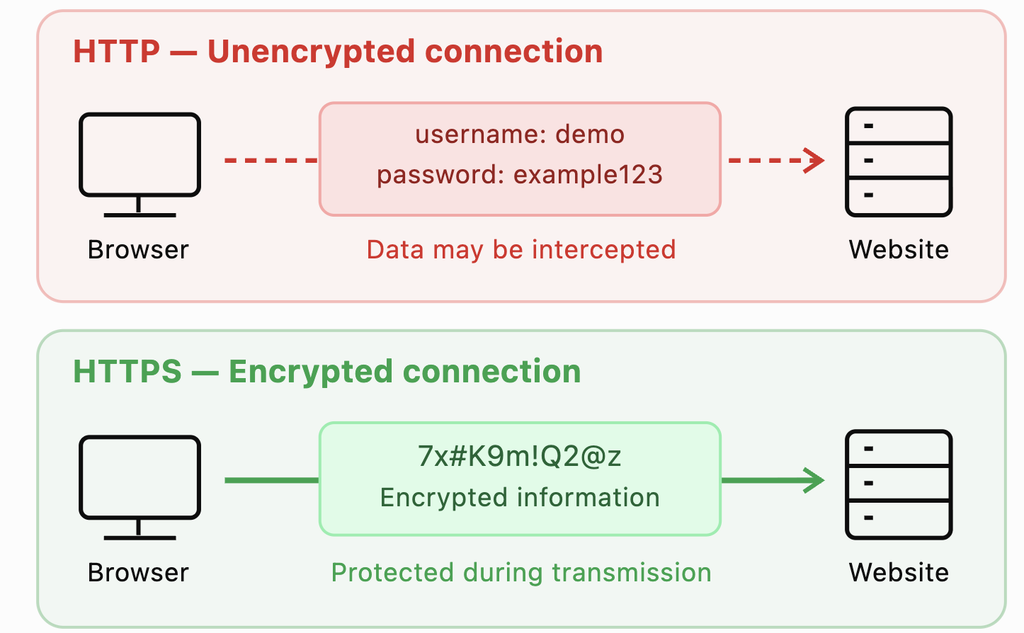
HTTPS stands for Hypertext Transfer Protocol Secure. It is the secure version of HTTP, the protocol used to exchange information between your web browser and a website.
HTTPS uses a security protocol called TLS (Transport Layer Security), commonly referred to as SSL/TLS, to encrypt information exchanged between your browser and the web server.
HTTPS primarily provides three security benefits:
- Encryption: Helps prevent unauthorized parties from reading information while it is being transmitted.
- Data integrity: Helps prevent information from being modified during transmission.
- Authentication: Helps verify that your browser is communicating with the domain identified by the website’s certificate.
However, none of these guarantees that the website owner has good intentions.
2. HTTP vs HTTPS: Understanding the Difference
2. HTTP vs HTTPS: Understanding the Difference
| Security feature | HTTP | HTTPS |
|---|---|---|
| Data encryption | No | Yes |
| Protection against network interception | No | Yes |
| Server authentication | No | Yes |
| Protection against data tampering in transit | No | Yes |
| Guarantees website legitimacy | No | No |
| Prevents phishing attacks | No | No |
| Guarantees protection from malware | No | No |
| Recommended for sensitive transactions | No | Yes, after verifying the website |
HTTPS is significantly better than HTTP, but it is only one component of online security.
3. Why HTTPS Does Not Mean a Website Is Safe
Imagine sending a confidential letter inside a locked security box.
The box protects your letter while it is being transported. However, if you send that box to a criminal, the criminal can still open it and read everything inside.
HTTPS works in a similar way.
It protects your information while it travels between your browser and the destination website. It does not determine whether the person or organization receiving that information is trustworthy.
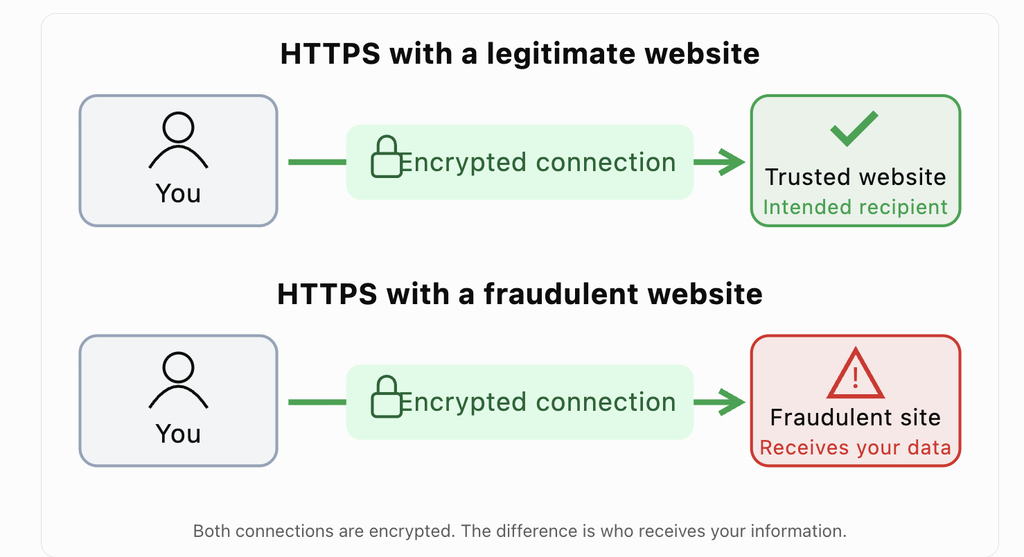
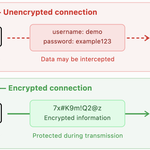
Both connections are encrypted. The difference is who receives your information.
Cybercriminals can obtain valid HTTPS certificates for domains they control. The FBI has specifically warned that criminals exploit people’s trust in HTTPS and browser padlock icons to conduct phishing attacks. ic3.gov+1
4. How Cybercriminals Misuse HTTPS
Cybercriminals use HTTPS-enabled websites for various fraudulent activities, including:
- Fake banking websites
- Fake social media login pages
- Fraudulent e-commerce websites
- Fake payment gateways
- Employment and recruitment scams
- Fake investment platforms
- Credential theft
- Identity theft
- Malware distribution
These websites may have professional designs, familiar company logos, convincing content, and valid security certificates.
They can look almost identical to legitimate websites.
5. A Realistic Example of an HTTPS Phishing Attack
Imagine receiving an email that appears to come from your bank.
The email says:
Security Alert: Unusual activity has been detected in your account. Please verify your identity immediately to prevent your account from being suspended.
You click the link provided in the email. The website opens with HTTPS, displays your bank’s logo, and asks you to enter your username, password, and OTP.
Everything looks legitimate.
However, the website belongs to a cybercriminal.
Fraudulent email or SMSUrgent account verification request
Fake HTTPS websiteValid certificate and copied branding
Victim enters credentialsUsername, password or OTP
Information stolenPotential account takeover or financial loss
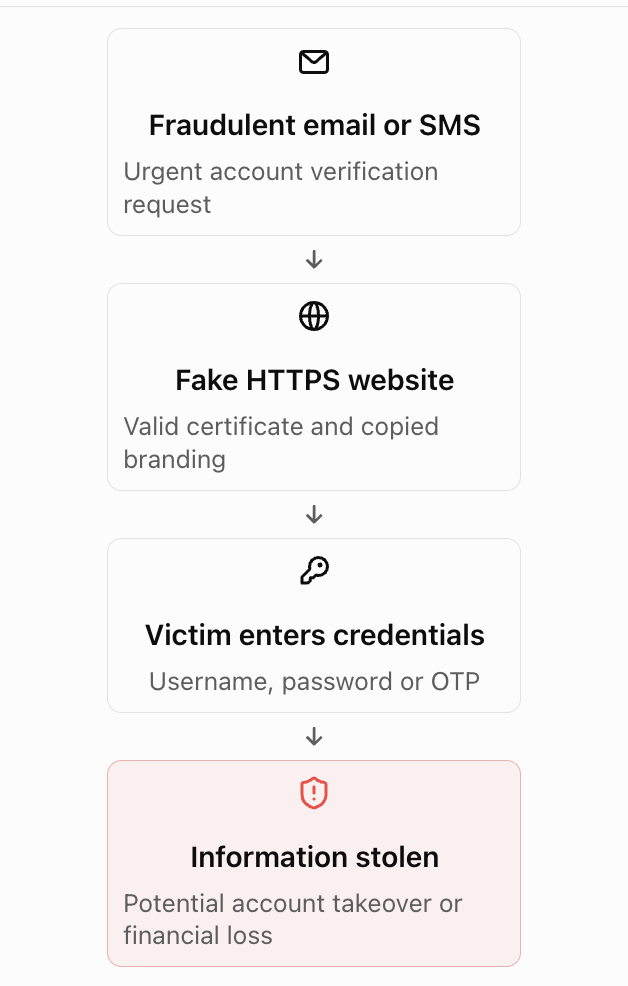
HTTPS successfully encrypted your sensitive information during transmission — directly to the criminal’s website.
This is why encryption alone cannot protect you from phishing.
6. Learn How to Identify Fake Website URLs
One of the most important cybersecurity skills is learning how to read a website address carefully.
Consider the following illustrative examples. The suspicious addresses use reserved example domains and are not live phishing links.
Expected website
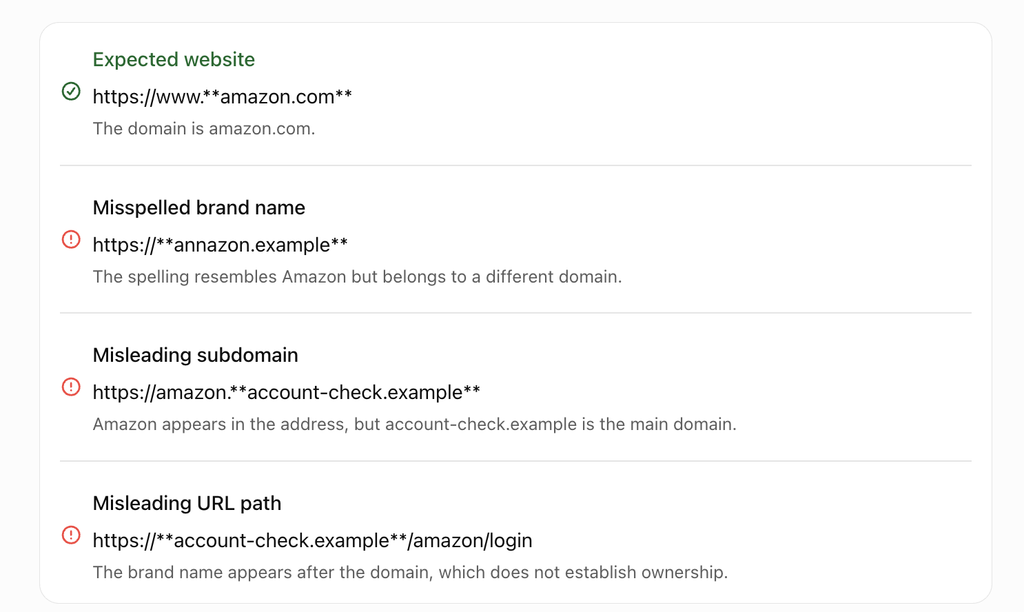
Never trust a website simply because a familiar company name appears somewhere in its URL.
Always identify and verify the actual domain name.
7. Common Warning Signs of a Fraudulent HTTPS Website
| Warning sign | Why you should be cautious |
|---|---|
| Misspelled domain names | Someone may be impersonating a legitimate organization. |
| Unexpected login requests | Someone may be attempting to steal your credentials. |
| Urgent security alerts | Criminals use fear to discourage careful thinking. |
| Unrealistic discounts | Fraudulent shopping websites may offer attractive deals. |
| Unusual payment methods | Payments may be difficult or impossible to recover. |
| Unexpected OTP requests | Someone may be attempting to access your account. |
| Forced software downloads | The website may distribute malware. |
| Missing company information | The business may be difficult to verify. |
| Unexpected redirects | You may be redirected to an unrelated website. |
| Browser security warnings | The connection or website may present a security risk. |
| Excessive personal information requests | The website may be collecting information for identity theft. |
Remember that sophisticated fraudulent websites may not display obvious warning signs.
8. What Does the Padlock Icon Really Mean?
For many years, internet users were encouraged to look for the padlock icon in their browsers.
However, the padlock traditionally indicated an encrypted connection, not a trustworthy business.
It does not necessarily mean that:
- The website belongs to a legitimate company.
- The website is free from malware.
- The website has no security vulnerabilities.
- Your personal information will be handled responsibly.
- Your payment transaction is legitimate.
- The website cannot steal your information.
Google Chrome replaced its traditional padlock icon with a site controls icon starting with Chrome 117 because many users incorrectly associated the padlock with website trustworthiness. Other browsers may display security information differently. blog.google
9. Even Legitimate HTTPS Websites Can Be Compromised
Not every dangerous HTTPS website belongs to a cybercriminal from the beginning.
A legitimate website can also become compromised because of security weaknesses such as:
| Vulnerability | Potential consequence |
|---|---|
| Outdated software | Unauthorized access |
| Vulnerable WordPress plugins | Malicious content injection |
| SQL injection | Database information theft |
| Cross-site scripting (XSS) | Malicious scripts and session theft |
| Weak administrator passwords | Website takeover |
| Compromised third-party scripts | Payment or personal data theft |
| Misconfigured servers | Sensitive information exposure |
| Broken access controls | Unauthorized access to protected information |
HTTPS does not fix these vulnerabilities.
Website owners must implement additional security measures, including patch management, secure coding, access controls, vulnerability scanning, monitoring, and incident response.
10. Ten Practical Tips to Stay Safe Online
1. Verify the domain name
Read the website address carefully before entering sensitive information. Look for spelling mistakes, unfamiliar domains, and misleading subdomains.
2. Avoid unexpected links
Do not automatically trust links received through email, SMS, WhatsApp, social media, or QR codes.
Even messages from people you know can originate from compromised accounts.
3. Visit websites directly
When accessing banking, shopping, or work-related applications, use trusted bookmarks, official mobile applications, or manually enter the known website address.
4. Never ignore browser security warnings
If your browser displays a certificate warning, deceptive website warning, or dangerous website notification, do not proceed unless the issue has been independently verified and resolved.
5. Use a password manager
Password managers can help identify suspicious websites because they generally associate saved login credentials with specific websites.
An unexpected failure to autofill your password may be a reason to investigate the URL.
6. Enable multi-factor authentication
Use MFA wherever possible. Prefer passkeys or hardware security keys when available, as they offer stronger protection against common credential phishing attacks.
7. Never share OTPs with other people
Do not disclose OTPs, recovery codes, or authentication credentials to anyone claiming to represent a bank, company, or technical support team.
Only enter verification codes into independently verified services when you have initiated the expected authentication process.
8. Investigate suspicious websites
You can use reputable security services to check potentially suspicious public URLs:
A clean scan does not guarantee safety. Also, avoid submitting confidential company URLs, private document links, or URLs containing authentication tokens to public scanning services.
9. Keep your devices updated
Regularly update your browser, operating system, applications, and security software to reduce exposure to known vulnerabilities.
10. Report suspicious websites and messages
Report suspicious emails and websites to your organization’s IT or cybersecurity team, the impersonated organization, or the appropriate cybercrime reporting authority.
Reporting helps protect other potential victims.
11. What Should You Do If You Have Already Visited a Phishing Website?
Your response depends on what information you shared or what actions you performed.
| Situation | Immediate action |
|---|---|
| Opened a suspicious website | Close it and avoid further interaction. |
| Entered your password | Change it immediately through the genuine website. |
| Reused the same password elsewhere | Change it on all affected accounts. |
| Shared an OTP | Contact the service provider immediately and secure your account. |
| Entered credit card information | Contact your bank and request appropriate card protection measures. |
| Downloaded suspicious software | Do not execute it. Run a security scan. |
| Executed suspicious software | Disconnect from the network and contact technical support. |
| Shared corporate credentials | Immediately notify your organization’s security team. |
| Suspect account compromise | Revoke active sessions and review recent account activity. |
Quick action can significantly reduce the potential damage. Consumer Advice+1
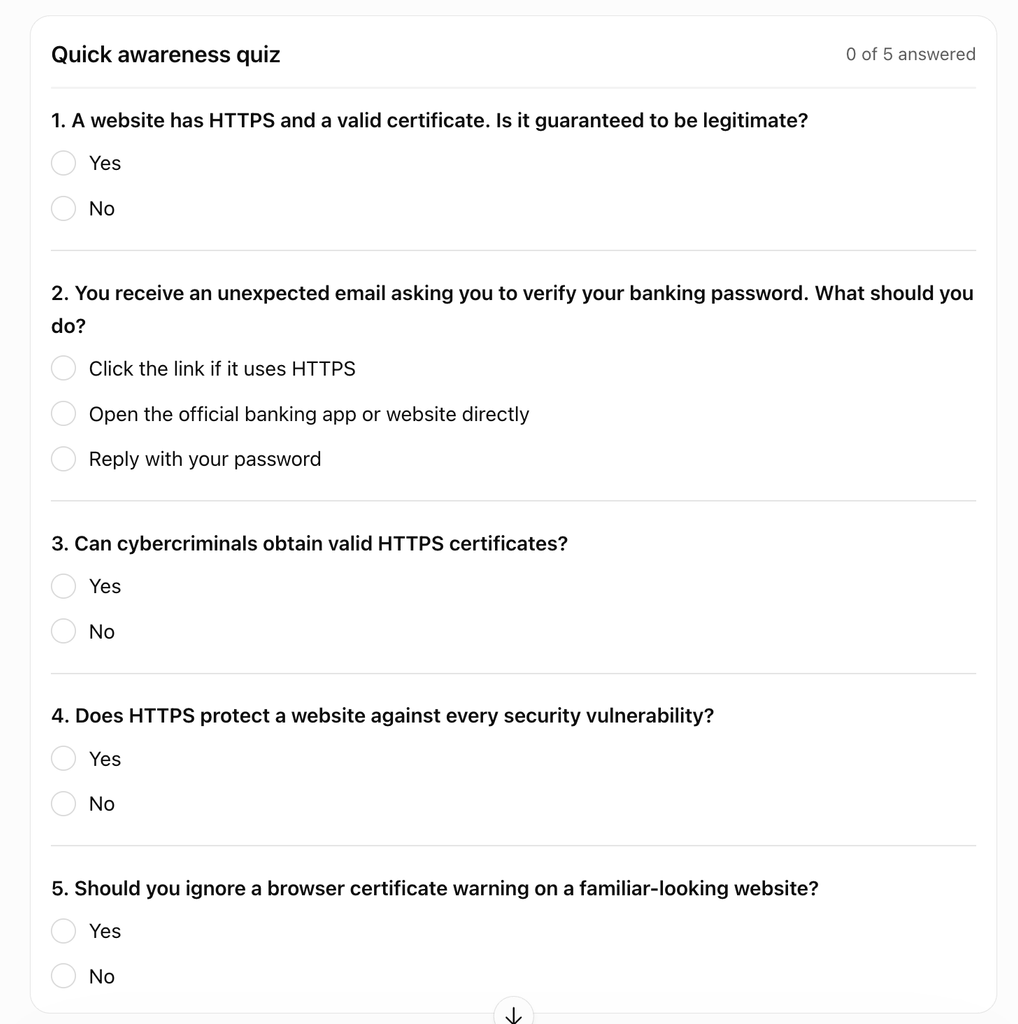
12. Test Your Cybersecurity Awareness
Quick awareness quiz
13. Your Everyday Website Security Checklist
Before entering any sensitive information on a website, ask yourself these questions:
Before you click, log in or pay
0/8Is the website using HTTPS?Have I verified the actual domain name?Do I know and trust the organization?Did I expect this login or payment request?Is the website asking only for necessary information?Is my browser free from security warnings?Have I independently verified any unusual or urgent request?Would I feel comfortable sharing my information with this organization?
Completing this checklist reduces risk but does not guarantee website safety. Copy checklist
14. Common Myths About HTTPS
| Myth | Reality |
|---|---|
| HTTPS means a website is safe. | HTTPS means the connection is encrypted and authenticated. |
| A padlock means a company is genuine. | A fraudulent website can also have a valid certificate. |
| HTTPS prevents phishing. | Phishing websites frequently use HTTPS. |
| HTTPS prevents viruses. | Malicious files can be distributed through encrypted connections. |
| A security certificate guarantees business legitimacy. | Many certificates only validate control of a domain. |
| Professional-looking websites are trustworthy. | Criminals can copy legitimate website designs. |
| Antivirus software detects every malicious website. | No security product detects every threat. |
| MFA makes phishing impossible. | Some forms of MFA can still be compromised through phishing. |
Conclusion
HTTPS is an essential part of internet security, but it is not a guarantee of website safety.
Cybercriminals understand how people trust familiar logos, professional website designs, security certificates, and browser security indicators. They exploit that trust to steal information, compromise accounts, and commit financial fraud.
The best protection is a combination of secure technology, cybersecurity awareness, and careful online behavior.
Make it a habit to verify website addresses, question unexpected requests, use strong authentication, and avoid sharing sensitive information with unverified websites.
Remember these five golden rules:
- An encrypted website is not necessarily a trustworthy website.
- A valid certificate does not guarantee a legitimate business.
- A familiar logo does not prove authenticity.
- An urgent message does not justify an immediate response.
- Always verify before you click, log in, download, or pay.
HTTPS secures the connection. Awareness helps secure you.
References and Further Reading
- FBI — Cyber Actors Exploit Secure Websites in Phishing Campaigns
- Google Chromium — An Update on the Lock Icon
- FTC — How to Recognize and Avoid Phishing Scams
- FTC — Protect Yourself from Phishing Scams








Leave a Reply
You must be logged in to post a comment.