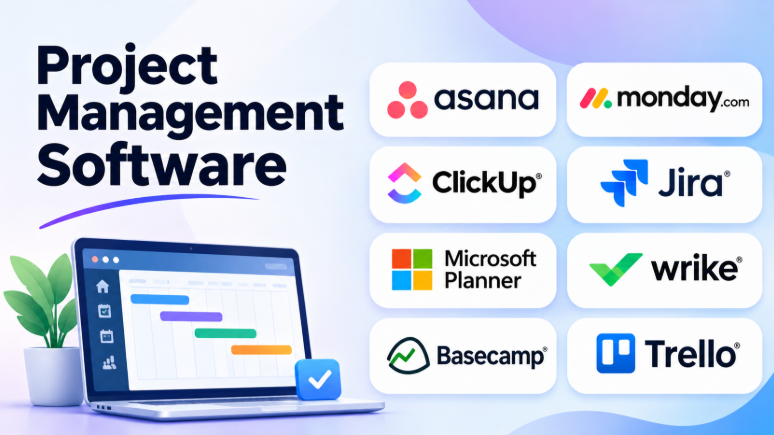
Managing a project involves more than creating tasks and setting deadlines. Teams must coordinate people, track progress, manage resources, handle changes, and keep everyone focused on the same goal.
Project management software helps bring these activities together. It gives teams a shared place to plan work, assign responsibilities, monitor progress, and communicate about projects.
However, different projects require different tools. A marketing team may need visual boards and campaign calendars. A software team may need sprint planning and issue tracking. An enterprise may need resource planning, portfolio reporting, and budget controls.
This guide compares ten project management software tools. It explains their features, advantages, limitations, and practical use cases.
What Is Project Management Software?
Project management software helps teams plan, organize, execute, and monitor projects.
A project usually has a defined goal, a timeline, a set of tasks, and people responsible for completing the work.
Project management software helps teams manage these elements in one place.
Common capabilities include:
- Task creation and assignment
- Project timelines
- Milestones
- Team collaboration
- Progress tracking
- Task dependencies
- Project dashboards
- Resource planning
- Reports
- Workflow automation
- File sharing
- Budget tracking
Some tools focus on simple project organization. Others support complex projects involving multiple teams, departments, and resources.
How Project Management Software Differs From Task Management Tools
Task management software focuses on individual activities.
Project management software looks at the entire project.
For example, task management might help a team track:
- Write an article
- Design an image
- Review the draft
- Publish the content
Project management adds the larger picture:
- Project goals
- Timeline
- Dependencies
- Resource allocation
- Milestones
- Budget
- Overall progress
Many modern applications support both activities. However, teams with complex projects often need more than a simple task list.
Top 10 Project Management Software Tools
1. Asana
Best for: Cross-functional teams managing projects across departments
Asana helps teams organize work and connect individual tasks with larger project goals.
Users can create projects, assign tasks, set deadlines, and track progress. Different project views help teams understand their work from different angles.
Asana is particularly useful when multiple departments work together. Marketing, operations, product, and design teams can manage their responsibilities within shared projects.
Key Features
- Project and task management
- List, board, calendar, and timeline views
- Task dependencies
- Milestones
- Custom fields
- Workflow automation
- Goals and reporting
- Portfolio management
- Workload management
Pros
- Clear task ownership
- Multiple ways to view projects
- Useful for cross-team collaboration
- Good workflow automation
- Connects daily work with larger goals
Cons
- Advanced capabilities may require higher plans
- Large projects need careful organization
- Can be excessive for simple task tracking
Best Use Cases: Marketing campaigns, product launches, business operations, cross-functional projects, and team planning.
2. monday.com
Best for: Teams that need customizable visual project workflows
monday.com uses visual boards to organize projects and tasks.
Teams can create columns for owners, deadlines, status, priority, budget, and other project information.
Its flexible structure allows different departments to build workflows that match their work.
For example, a marketing team can manage campaigns. An operations team can track requests. A product team can monitor development activities.
Key Features
- Customizable boards
- Multiple project views
- Timeline planning
- Dashboards
- Workflow automation
- Task assignments
- Status tracking
- Templates
- Integrations
Pros
- Visual project organization
- Flexible workflows
- Easy status tracking
- Useful automation
- Suitable for different departments
Cons
- Customization can become complicated
- Some advanced capabilities require paid plans
- Teams need clear workflow rules
Best Use Cases: Marketing projects, business operations, product development, campaign planning, and workflow management.
3. ClickUp
Best for: Teams wanting an all-in-one project workspace
ClickUp combines project management with several work-related features.
Teams can manage tasks, documents, goals, dashboards, and collaboration within one workspace.
The platform offers many customization options. Users can create task hierarchies, custom fields, different views, and workflows.
ClickUp can be useful for organizations trying to reduce the number of separate applications they use.
Key Features
- Tasks and subtasks
- Lists and boards
- Gantt charts
- Calendar views
- Custom fields
- Goals
- Documents
- Dashboards
- Time tracking
- Automation
Pros
- Many features in one workspace
- Flexible project organization
- Multiple views
- Customizable workflows
- Useful for different teams
Cons
- Large feature set can overwhelm new users
- Workspace setup requires planning
- Advanced features may depend on the plan
Best Use Cases: Startups, agencies, product teams, operations, and organizations seeking an all-in-one workspace.
4. Jira
Best for: Software development and technical project teams
Jira is designed for structured software development work.
Teams can manage backlogs, bugs, features, sprints, and development tasks. Its workflows can reflect how work moves through a software team.
Developers can connect Jira issues with code repositories and development activities.
This makes Jira useful when project management needs to connect with technical work.
Key Features
- Issue tracking
- Scrum and Kanban boards
- Backlog management
- Sprint planning
- Custom workflows
- Bug tracking
- Roadmaps
- Reports
- Development integrations
Pros
- Strong Agile support
- Detailed issue tracking
- Useful sprint planning
- Flexible workflows
- Integrates with development tools
Cons
- Can be complicated for beginners
- Workflow setup requires effort
- Less suitable for simple business projects
Best Use Cases: Software development, IT teams, engineering projects, Agile workflows, and product development.
5. Microsoft Planner
Best for: Organizations using Microsoft 365
Microsoft Planner helps teams organize tasks, plans, and project work.
It connects with the Microsoft ecosystem. Teams can manage assignments while working with Microsoft Teams and other Microsoft applications.
Planner provides different ways to organize tasks. Depending on the plan, users may also have access to more advanced project planning features.
Key Features
- Shared plans
- Task assignments
- Task buckets
- Progress tracking
- Board and grid views
- Microsoft Teams integration
- Microsoft 365 connections
- Premium project planning capabilities
Pros
- Fits Microsoft 365 workflows
- Familiar environment for many businesses
- Shared team planning
- Easy task assignments
- Reduces application switching
Cons
- Features depend on licensing
- Advanced project planning may require additional plans
- May not fit complex workflows without extra capabilities
Best Use Cases: Microsoft 365 organizations, office projects, business teams, departmental planning, and shared work management.
6. Smartsheet
Best for: Teams that prefer spreadsheet-style project planning
Smartsheet combines spreadsheet-like organization with project management features.
Users can manage tasks through rows and columns while also using project views, reports, forms, and dashboards.
This approach is useful for people who already understand spreadsheets but need more collaboration and project tracking capabilities.
Smartsheet can support projects with many tasks, structured information, and reporting requirements.
Key Features
- Spreadsheet-style project sheets
- Gantt charts
- Project dashboards
- Forms
- Reports
- Workflow automation
- Resource management
- Portfolio management
- Collaboration
Pros
- Familiar spreadsheet structure
- Useful for detailed project tracking
- Strong reporting capabilities
- Flexible data organization
- Suitable for larger projects
Cons
- Spreadsheet-style interfaces may not suit everyone
- Advanced features can require higher plans
- Large sheets need careful organization
Best Use Cases: Construction projects, operations, business planning, project portfolios, and teams comfortable with spreadsheets.
7. Wrike
Best for: Teams managing structured projects and complex workflows
Wrike supports project management, task tracking, request management, approvals, and reporting.
It is useful for teams that receive work from different departments or clients.
Request forms can collect project information before work begins. Teams can then assign tasks and track their progress.
Wrike also offers project views and dashboards for monitoring work.
Key Features
- Project and task management
- Board and table views
- Gantt charts
- Request forms
- Custom workflows
- Dashboards
- Reporting
- Workload management
- Automation
Pros
- Useful for formal workflows
- Strong request management
- Good reporting
- Supports complex projects
- Helps organize approvals
Cons
- Setup can require time
- Advanced features may cost more
- Can be excessive for small teams
Best Use Cases: Agencies, operations departments, enterprise projects, client work, and teams managing approvals.
8. Teamwork
Best for: Agencies and professional service teams
Teamwork focuses on project delivery, client work, and team collaboration.
It helps teams manage projects, tasks, time, workload, and client-related activities.
This makes it particularly relevant for agencies and service businesses. These organizations often need to track both project progress and the time spent completing work.
Key Features
- Project management
- Task assignments
- Time tracking
- Workload planning
- Client collaboration
- Project templates
- Reports
- Project budgets
- Milestones
Pros
- Useful for client projects
- Time tracking supports billable work
- Helps manage team capacity
- Project and task organization
- Good service delivery focus
Cons
- May be more than individuals need
- Advanced reporting may require higher plans
- Teams must maintain accurate time records
Best Use Cases: Digital agencies, consulting firms, marketing services, client projects, and professional service businesses.
9. Basecamp
Best for: Teams that prefer simple project communication and organization
Basecamp takes a simpler approach to project management.
It combines project communication, to-do lists, schedules, files, and shared project spaces.
Instead of focusing heavily on complex timelines and resource planning, Basecamp helps teams keep project information and communication together.
Each project can have its own workspace.
Key Features
- To-do lists
- Message boards
- Project schedules
- File sharing
- Team chat
- Automatic check-ins
- Project spaces
- Client collaboration
Pros
- Simple project organization
- Communication stays connected to projects
- Easy-to-understand structure
- Useful for small and medium teams
- Reduces scattered conversations
Cons
- Limited advanced project planning
- Not designed for complex resource management
- May not suit large portfolio management needs
Best Use Cases: Small businesses, agencies, remote teams, client projects, and teams that value simple communication.
10. Trello
Best for: Teams that prefer visual project boards
Trello uses boards, lists, and cards to organize projects.
Each card represents a task or activity. Lists represent stages of work.
Users can move cards between lists as projects progress.
For example, a content project might use these stages:
- Ideas
- Planning
- Writing
- Review
- Published
Trello makes it easy to see what is happening without reading long reports.
Key Features
- Kanban boards
- Task cards
- Checklists
- Labels
- Due dates
- Attachments
- Automation
- Power-Ups
Pros
- Easy to learn
- Visual workflow
- Fast setup
- Useful for smaller projects
- Flexible boards
Cons
- Complex projects can become difficult to manage
- Advanced reporting may require paid plans
- Limited portfolio and resource planning
Best Use Cases: Content planning, small teams, event management, simple projects, and visual workflows.
Project Management Software Comparison
| Software | Best For | Main Strength | Main Limitation |
|---|---|---|---|
| Asana | Cross-functional teams | Structured project coordination | Advanced features may require higher plans |
| monday.com | Visual workflows | Flexible boards and automation | Customization can become complex |
| ClickUp | All-in-one workspaces | Tasks, docs, goals, and dashboards | Learning curve |
| Jira | Software teams | Agile and issue tracking | Complex for general projects |
| Microsoft Planner | Microsoft 365 organizations | Ecosystem integration | Features vary by plan |
| Smartsheet | Spreadsheet-oriented teams | Detailed project tracking | Spreadsheet-style workflow |
| Wrike | Structured business workflows | Requests, approvals, and reporting | Setup complexity |
| Teamwork | Agencies and service teams | Client projects and time tracking | Less suitable for simple personal work |
| Basecamp | Small teams | Simple communication and project spaces | Limited advanced planning |
| Trello | Visual task workflows | Simple Kanban boards | Limited complex project controls |
Project Management Software: Pros and Cons
Benefits
Project management software can help organizations:
- Plan projects more clearly
- Assign responsibilities
- Track deadlines
- Monitor progress
- Identify delays
- Improve communication
- Manage project documents
- Coordinate multiple teams
- Track resources
- Create reports
- Reduce manual updates
Limitations
Project management software does not automatically make projects successful.
Teams still need clear goals, realistic deadlines, good communication, and responsible project owners.
A complicated platform can also create unnecessary administrative work.
The software should support the project process instead of replacing it.
How to Choose the Best Project Management Software
For small businesses
Consider Trello, Basecamp, or monday.com.
These tools can help small teams organize work without requiring complicated project structures.
For growing teams
Consider Asana or ClickUp.
Both support larger workflows and provide multiple ways to organize project work.
For software development
Consider Jira.
Its Agile workflows and issue tracking features are designed for technical teams.
For Microsoft-based organizations
Consider Microsoft Planner.
It may fit naturally into an existing Microsoft 365 environment.
For spreadsheet-oriented teams
Consider Smartsheet.
It offers a familiar structure for people who already manage projects through spreadsheets.
For agencies
Consider Teamwork or Wrike.
These tools can help agencies manage client projects, requests, deadlines, and team capacity.
For teams wanting simple collaboration
Consider Basecamp.
Its project spaces help keep tasks, conversations, schedules, and files together.
Common Mistakes When Choosing Project Management Software
Choosing software with too many features
A large feature list may look impressive.
However, teams may never use most of those features.
Choose a tool based on your actual project needs.
Ignoring team adoption
The best project management system is useless if people do not update it.
The interface should be easy enough for the team to use regularly.
Creating complicated workflows
Too many statuses, custom fields, and automation rules can make project management harder.
Start with a simple workflow and add complexity only when necessary.
Ignoring resource management
Projects often fail because people have too much work.
Check whether the software can help you understand workload and team capacity.
Focusing only on tasks
Projects also need goals, milestones, dependencies, and communication.
A task list may not provide enough visibility for larger projects.
Forgetting integrations
Check whether the software connects with your existing tools.
Integrations can reduce duplicate updates and unnecessary manual work.
Final Recommendations
The best project management software depends on the size, structure, and complexity of your projects.
Asana is useful for cross-functional project coordination. monday.com offers flexible visual workflows. ClickUp combines many work features into one workspace.
Jira is suited to software development. Microsoft Planner fits Microsoft 365 organizations. Smartsheet works well for spreadsheet-oriented project tracking.
Wrike supports structured workflows and approvals. Teamwork is useful for client-facing projects. Basecamp keeps communication simple. Trello offers visual project boards with a low learning curve.
Before choosing, test the software with one real project. Create tasks, assign owners, set deadlines, and track progress.
The right project management tool should make the project easier to understand, improve coordination, and help teams deliver work without adding unnecessary complexity.


Leave a Reply
You must be logged in to post a comment.